

By Design Bundles
SCAL Tutorials3 min
Filling shapes with cuttable files in Sure Cuts a Lot 4
*Note- SCAL4 pro used.
1- Open SCAL4.
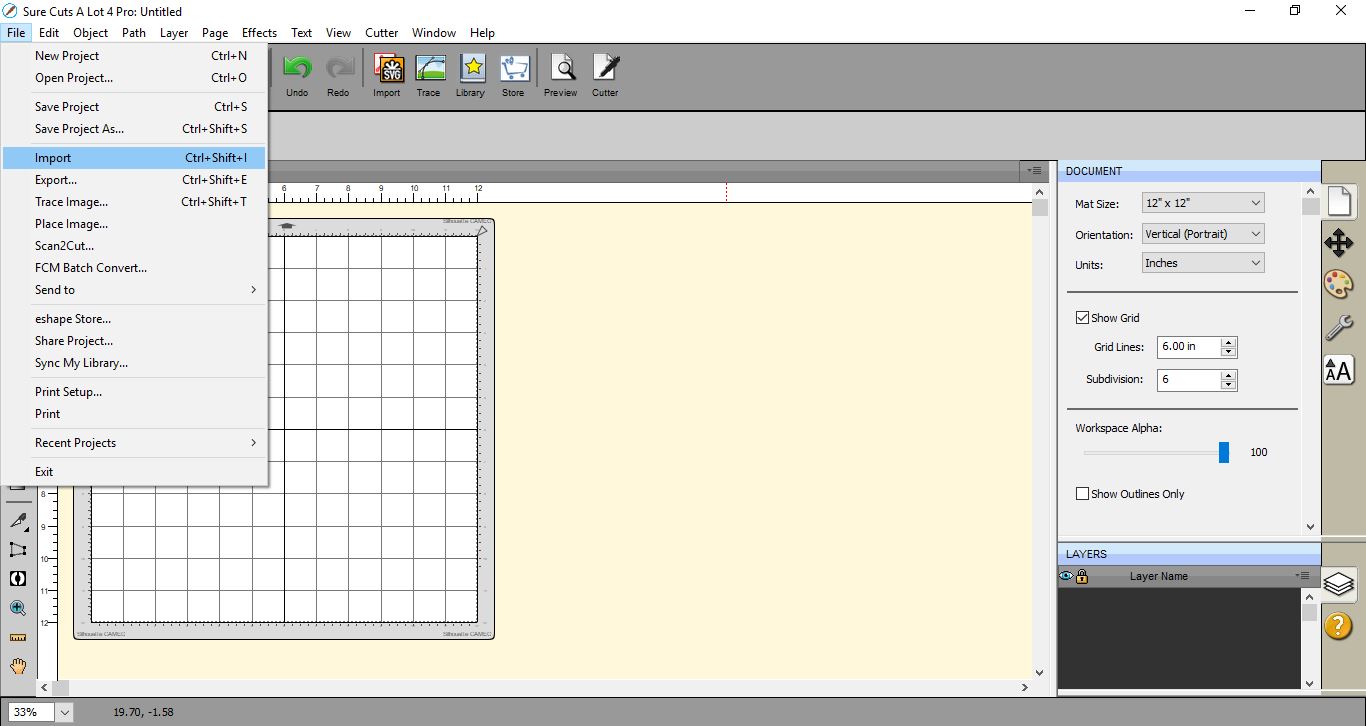
2- Firstly you need to import your pattern file. I recommend an SVG file. if the pattern is not SVG. trace it and convert to a cuttable file.
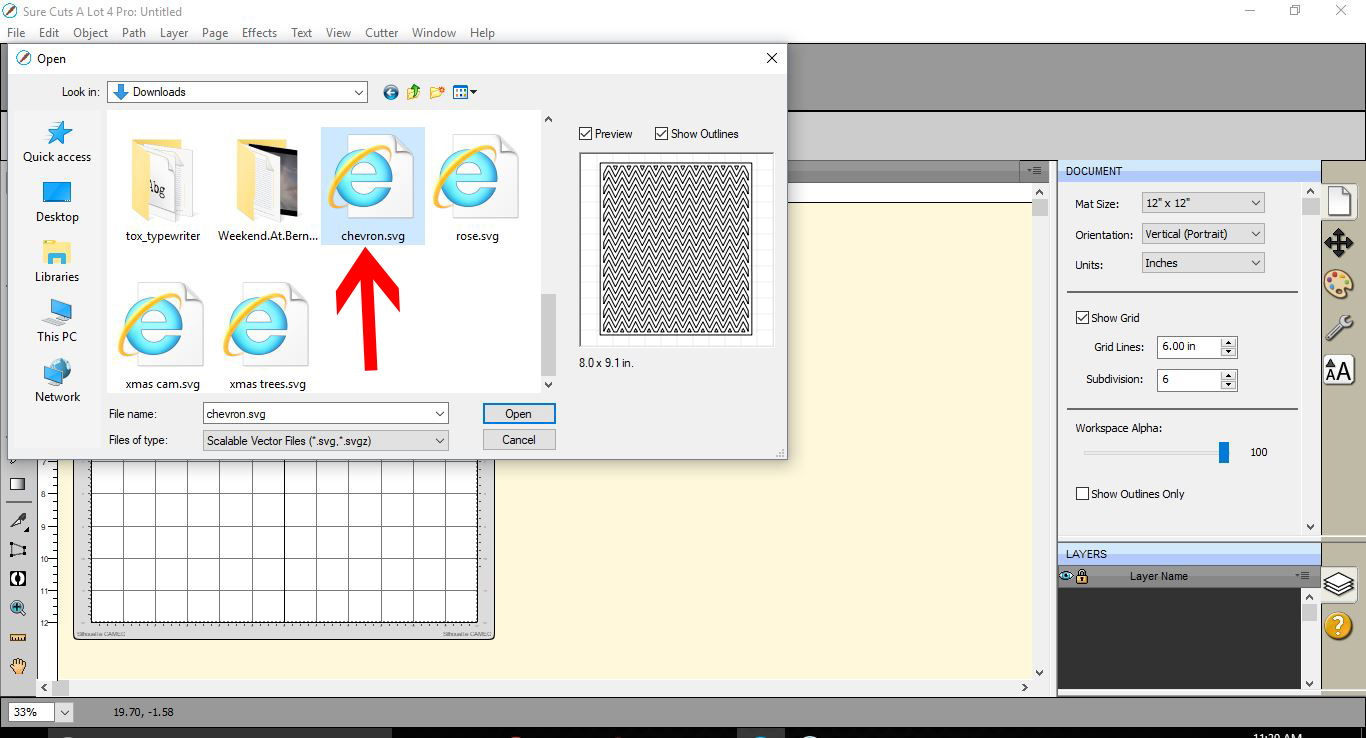
3- Select a pattern. A background cuttable file works really well.
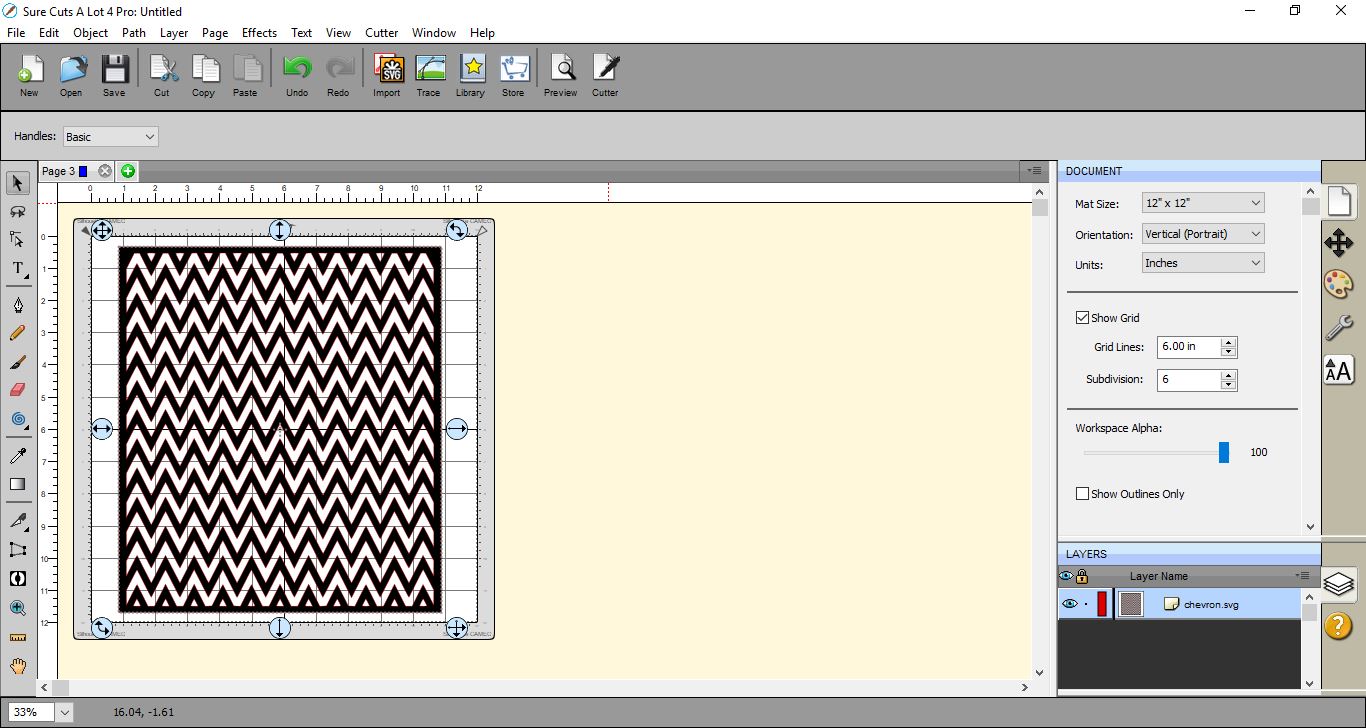
4- Resize your pattern .
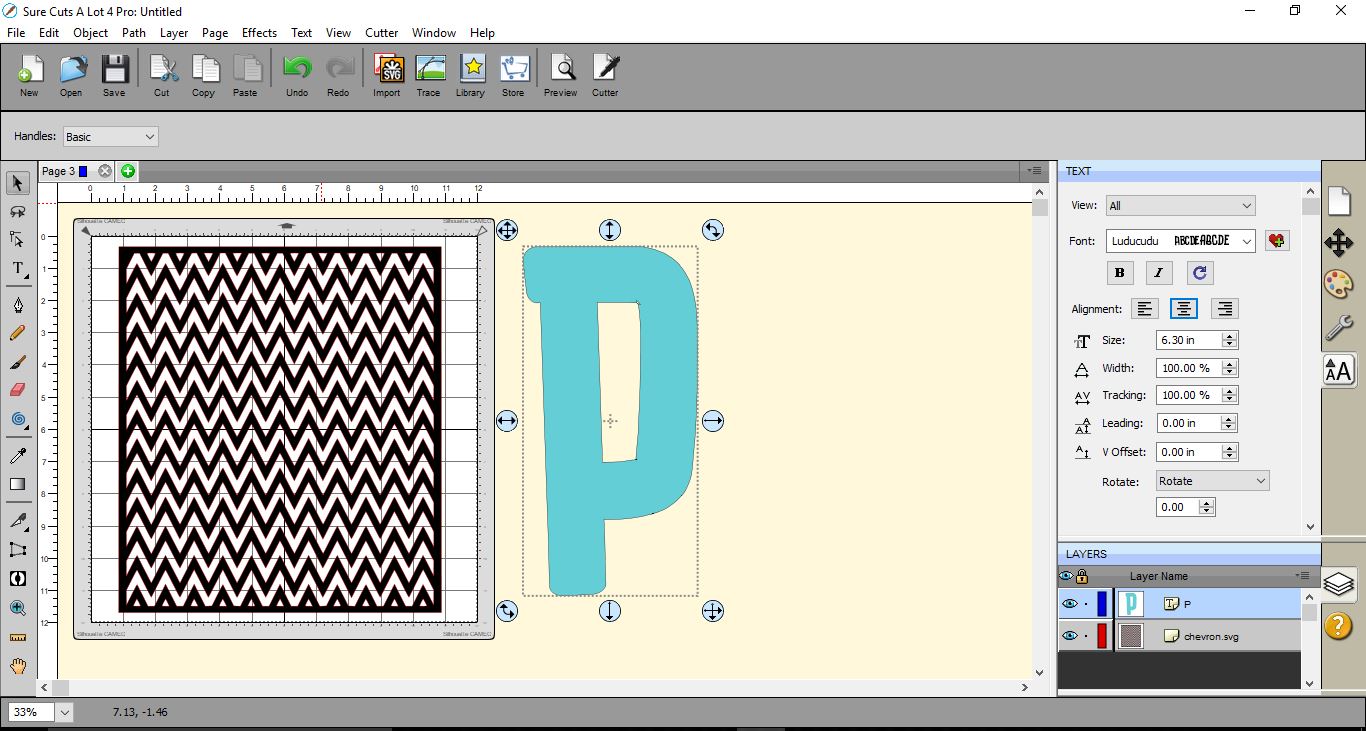
5- Select the text icon and choose your font. Type your text. (or shape) I am using Luducudu Font by Bdstrd Std.
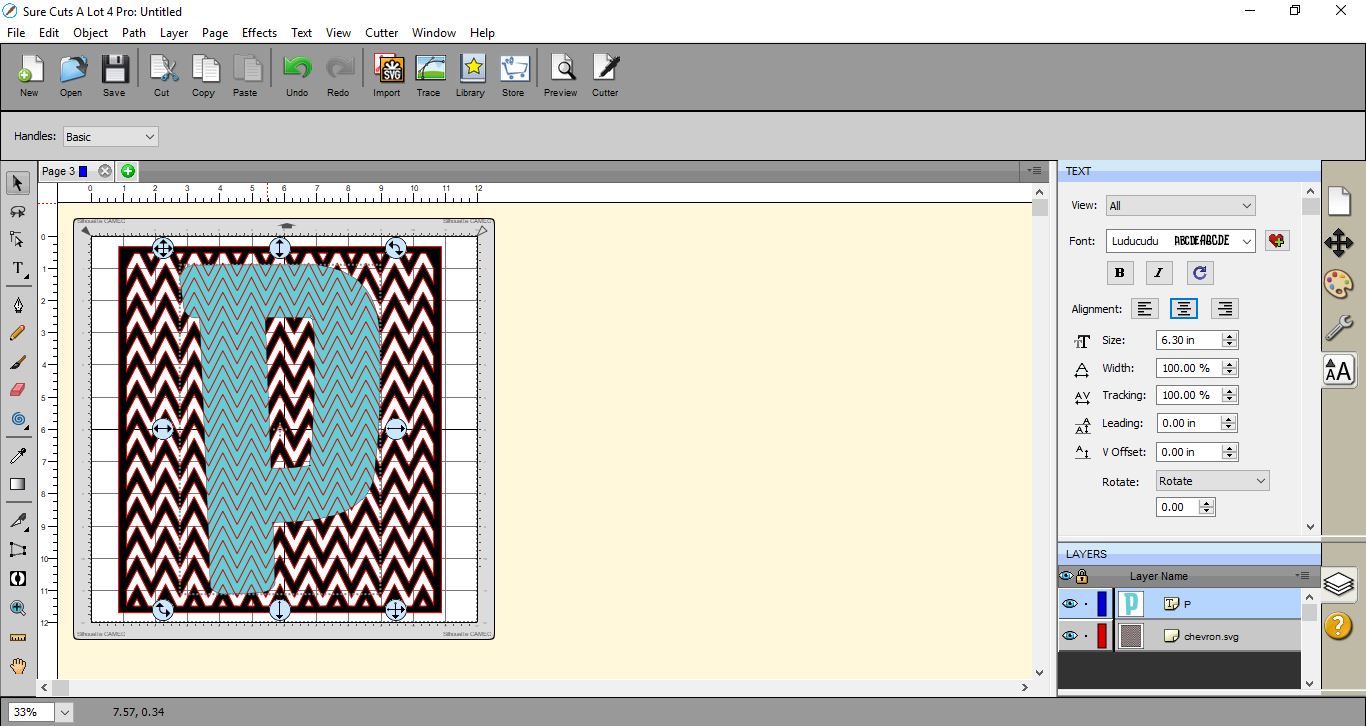
6- Place the letter over the pattern file. make sure it fits completely in.
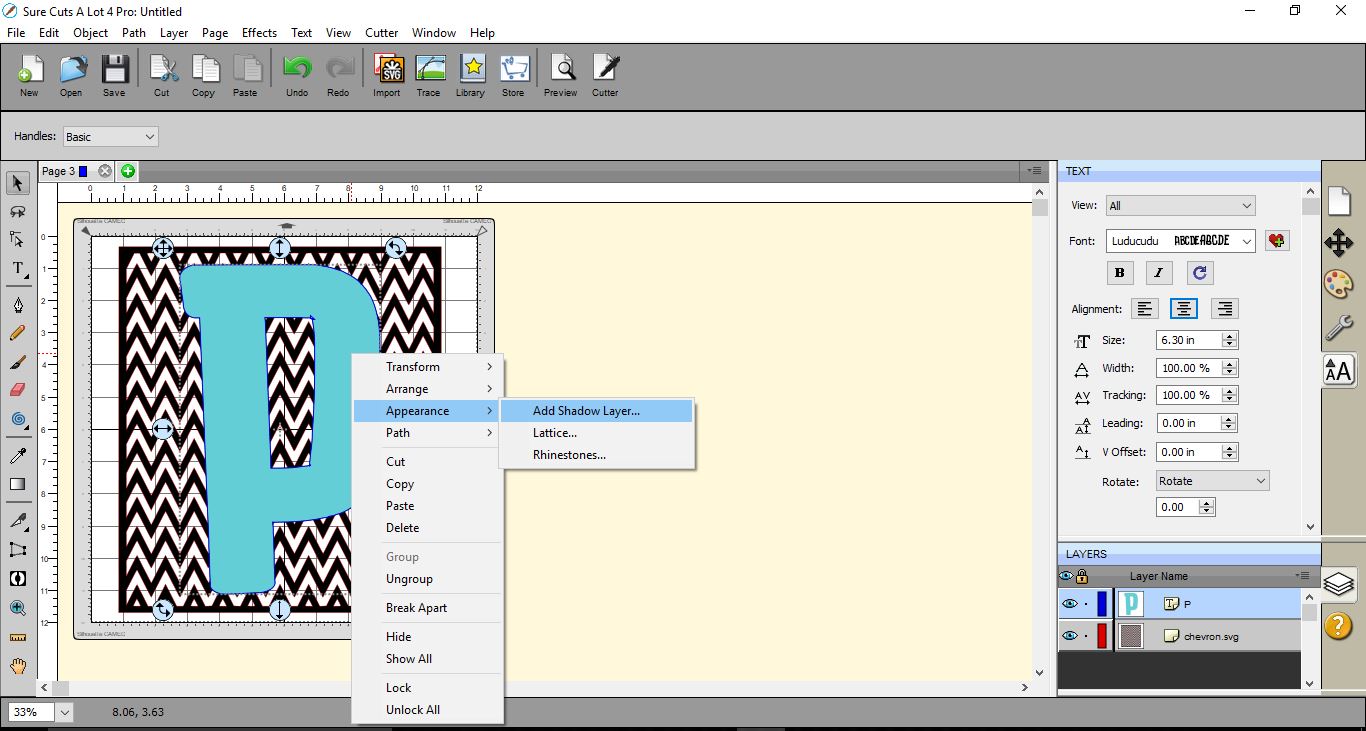
7- Select the letter(shape) and right click > appearance > shadow layer.
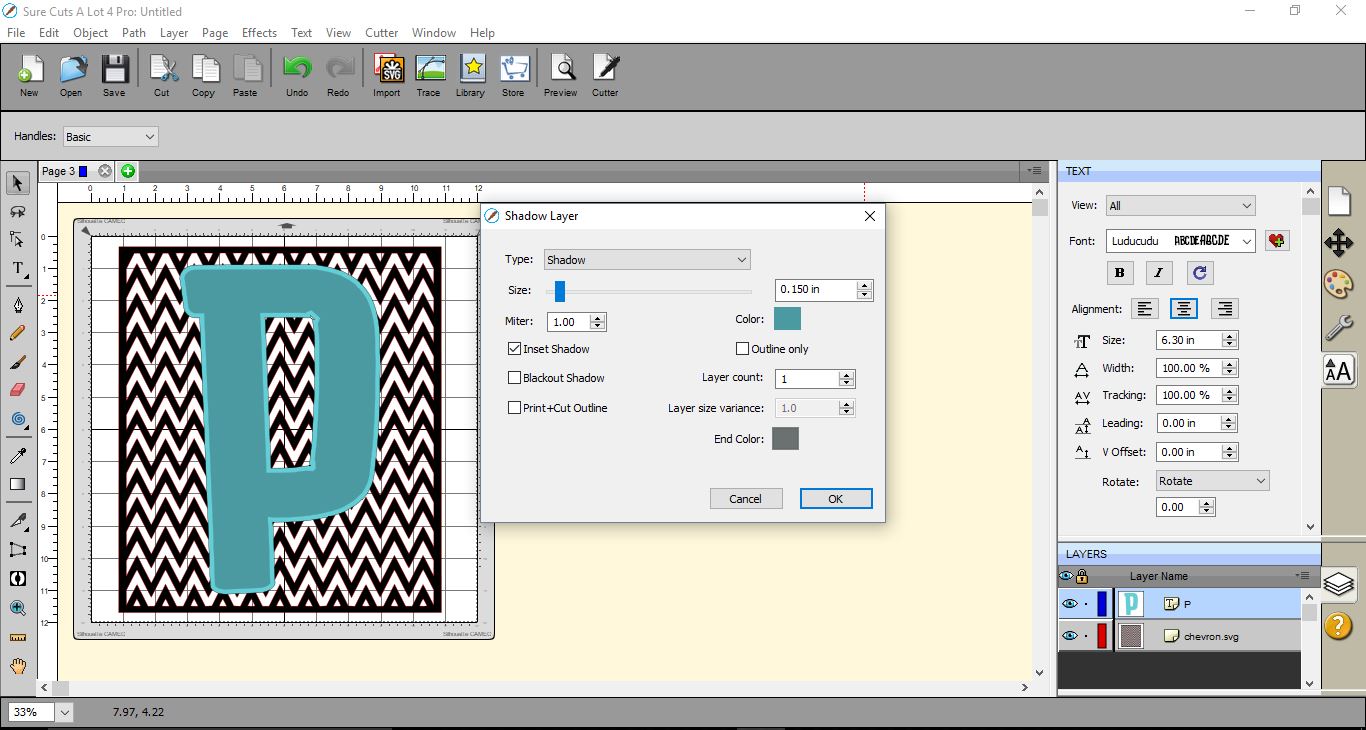
8- Add and inset shadow and approx 0.15 inch in size. click OK.

9- Select the inset part of the letter and the pattern.
10- Go to Path > intersection.
11- everything will appear to disappear apart from the letter. Do not worry the next steps will fix everything.
12- Select everything on the design area, then go to object > merge.
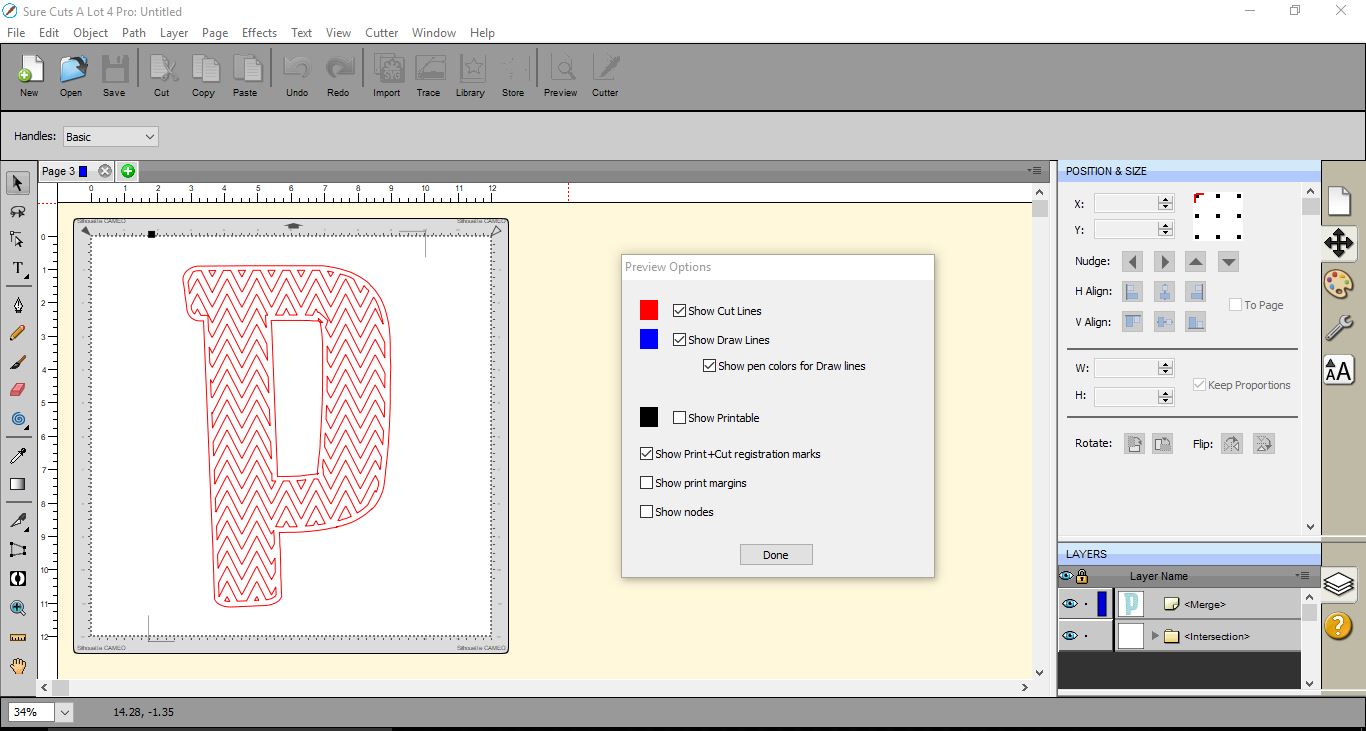
13- Your letter now has a cuttable pattern in it.
14- If you go to the preview screen you can see the cuttable pattern.
1- Open SCAL4.
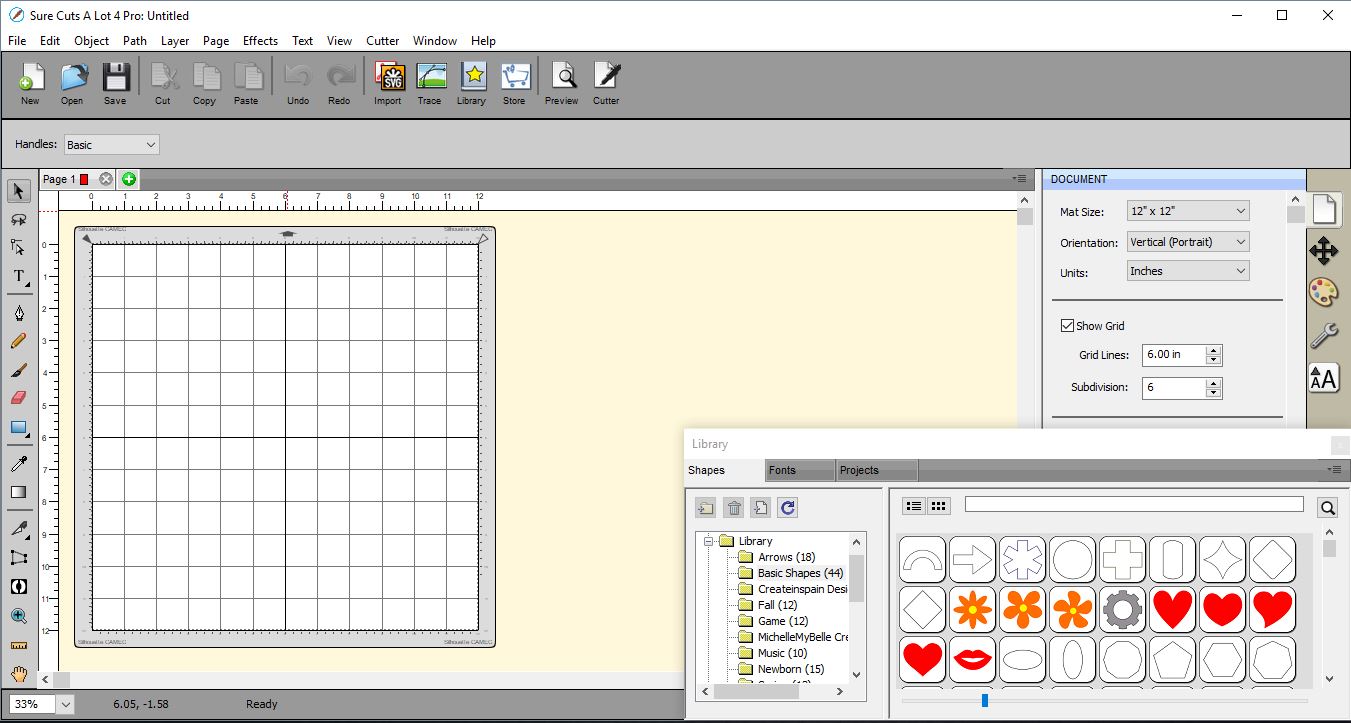
2- Firstly you need to import your pattern file. I recommend an SVG file. if the pattern is not SVG. trace it and convert to a cuttable file.
3- Select a pattern. A background cuttable file works really well.
4- Resize your pattern .
5- Select the text icon and choose your font. Type your text. (or shape) I am using Luducudu Font by Bdstrd Std.
6- Place the letter over the pattern file. make sure it fits completely in.
7- Select the letter(shape) and right click > appearance > shadow layer.
8- Add and inset shadow and approx 0.15 inch in size. click OK.
9- Select the inset part of the letter and the pattern.

10- Go to Path > intersection.
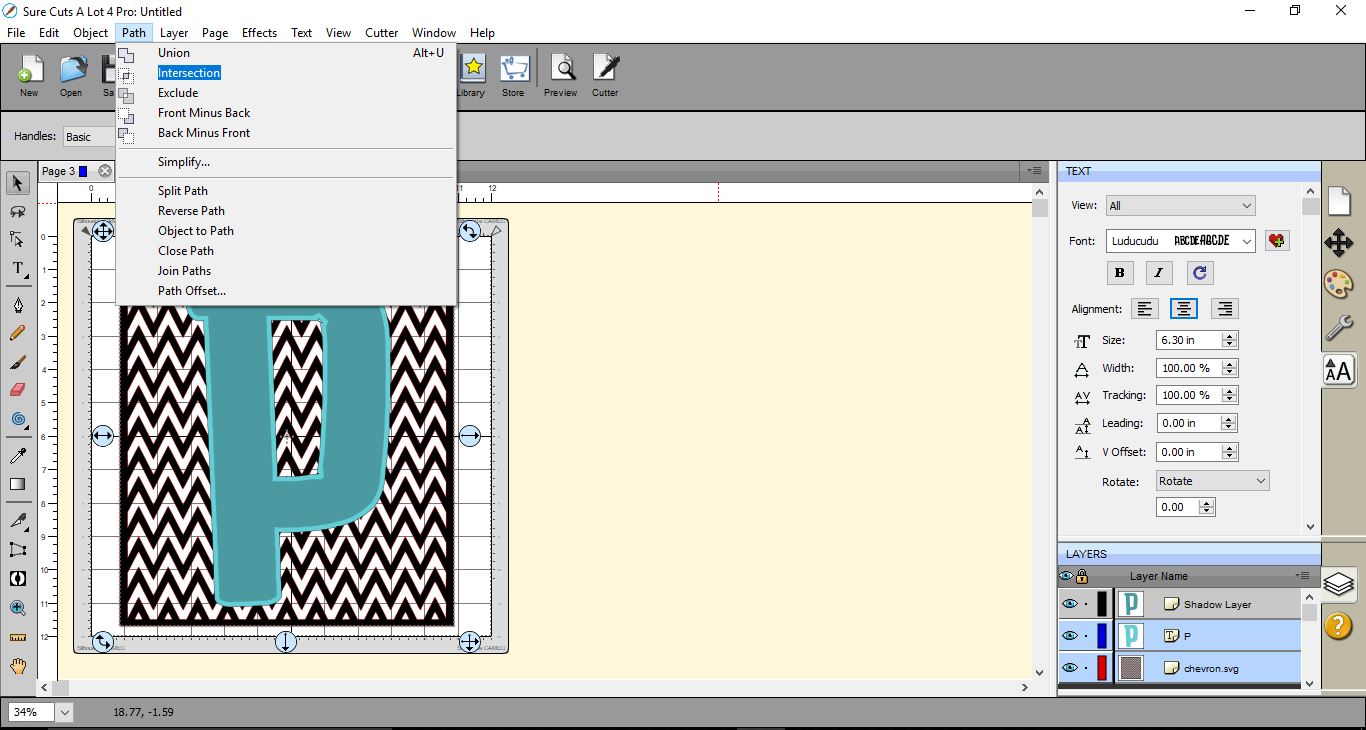
11- everything will appear to disappear apart from the letter. Do not worry the next steps will fix everything.
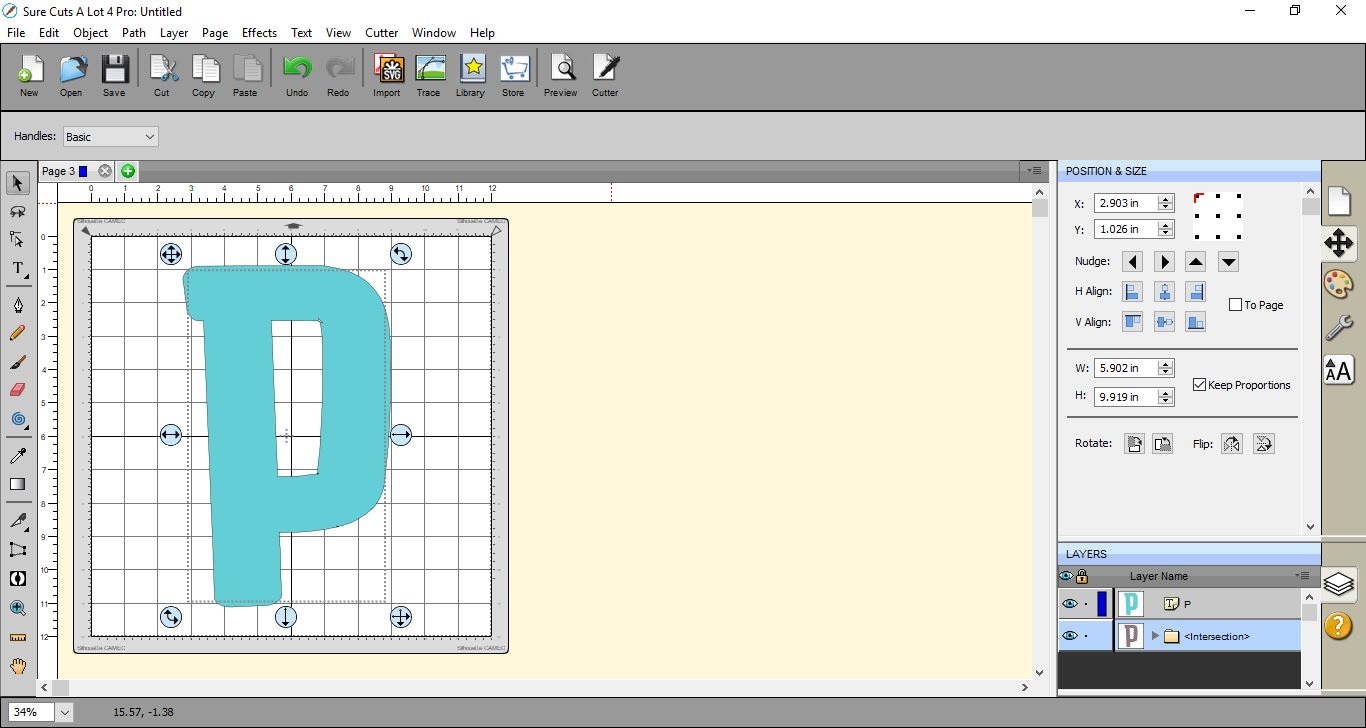
12- Select everything on the design area, then go to object > merge.
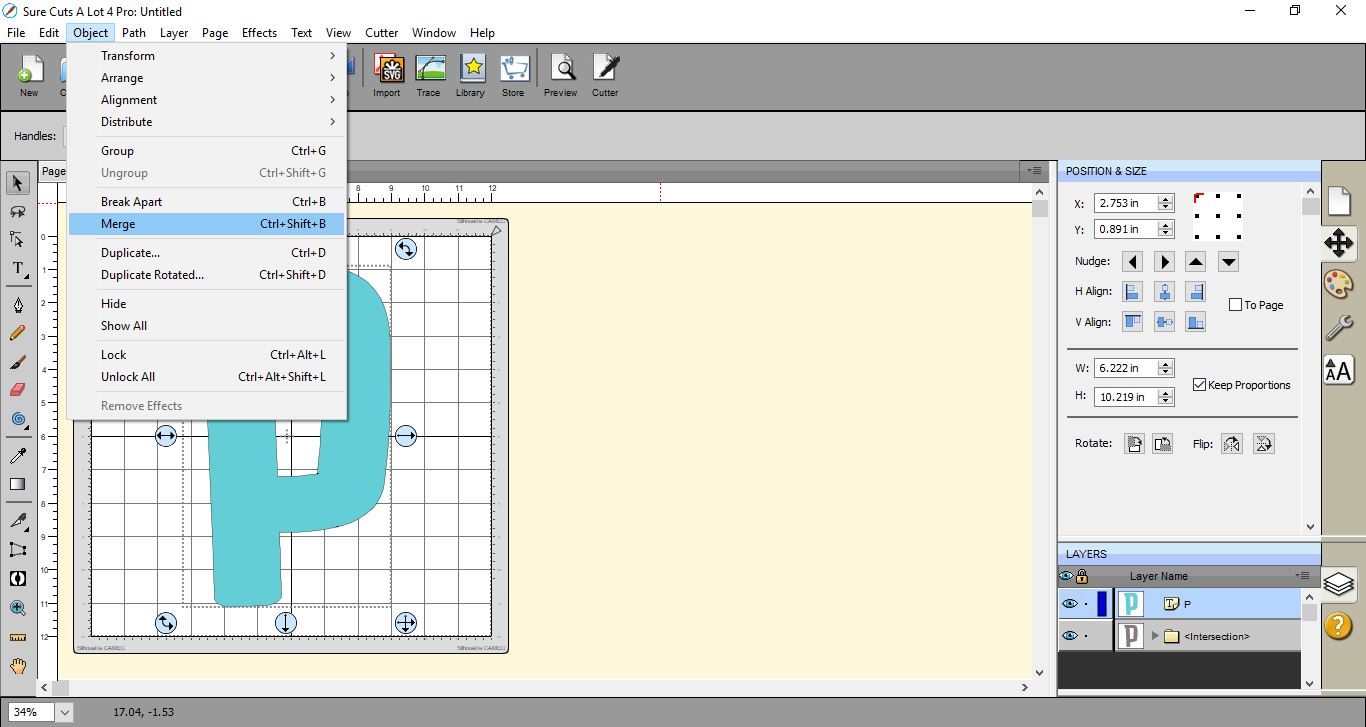
13- Your letter now has a cuttable pattern in it.
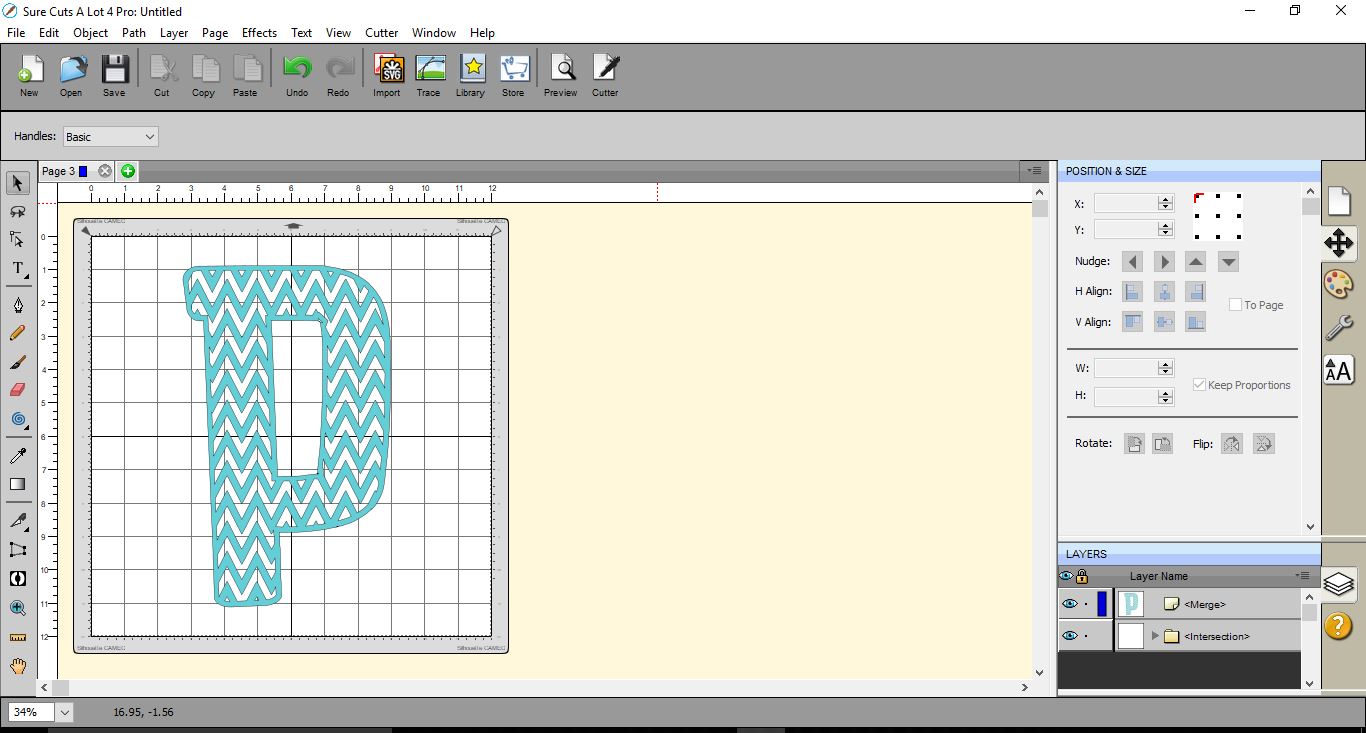
14- If you go to the preview screen you can see the cuttable pattern.
Related Tutorials
SCAL Tutorials
Sure Cuts a Lot 4 Basics - Saving files
SCAL Tutorials
How to import SVG files into Sure Cuts A lot 4
SCAL Tutorials
How to create Curved text in Sure Cuts A Lot 4
SCAL Tutorials