

By Design Bundles
SCAL Tutorials2 min
How to Access and Save a Single Line File in SCAL4
1- Open SCAL4 software. Click on the file icon.
2- Click on import file.
3- Insert your single line file. I am using Split Mandala 2 by Karen J - Graphic Design.
4- Once the file is in your design space, you can edit the design, resize or add text. At this point you will need to save any edits. You can also file the design by clicking on the cutter icon if using a silhouette machine. If you want to use the design in a different cutter, go to File - export.
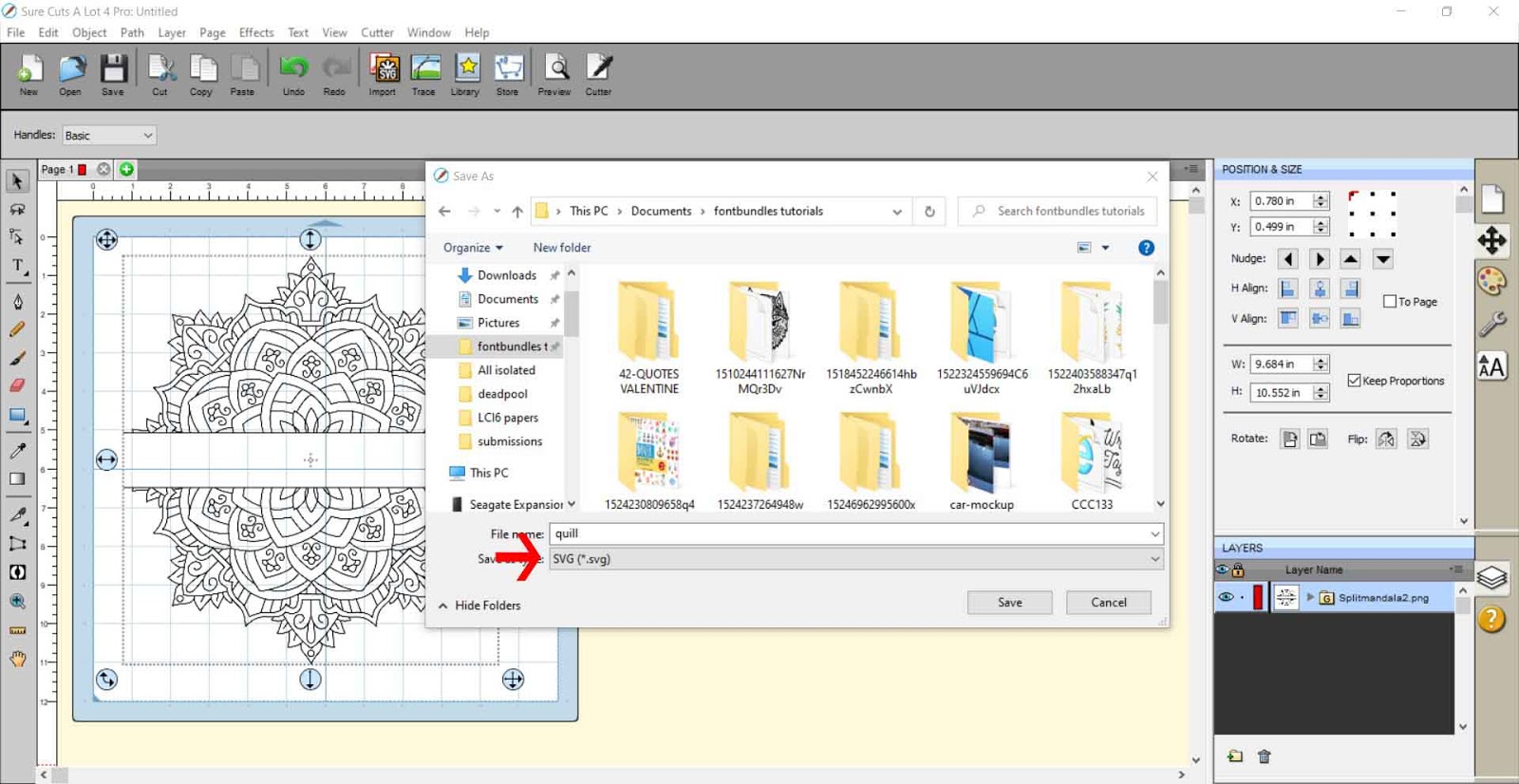
5- Save as a SVG file.
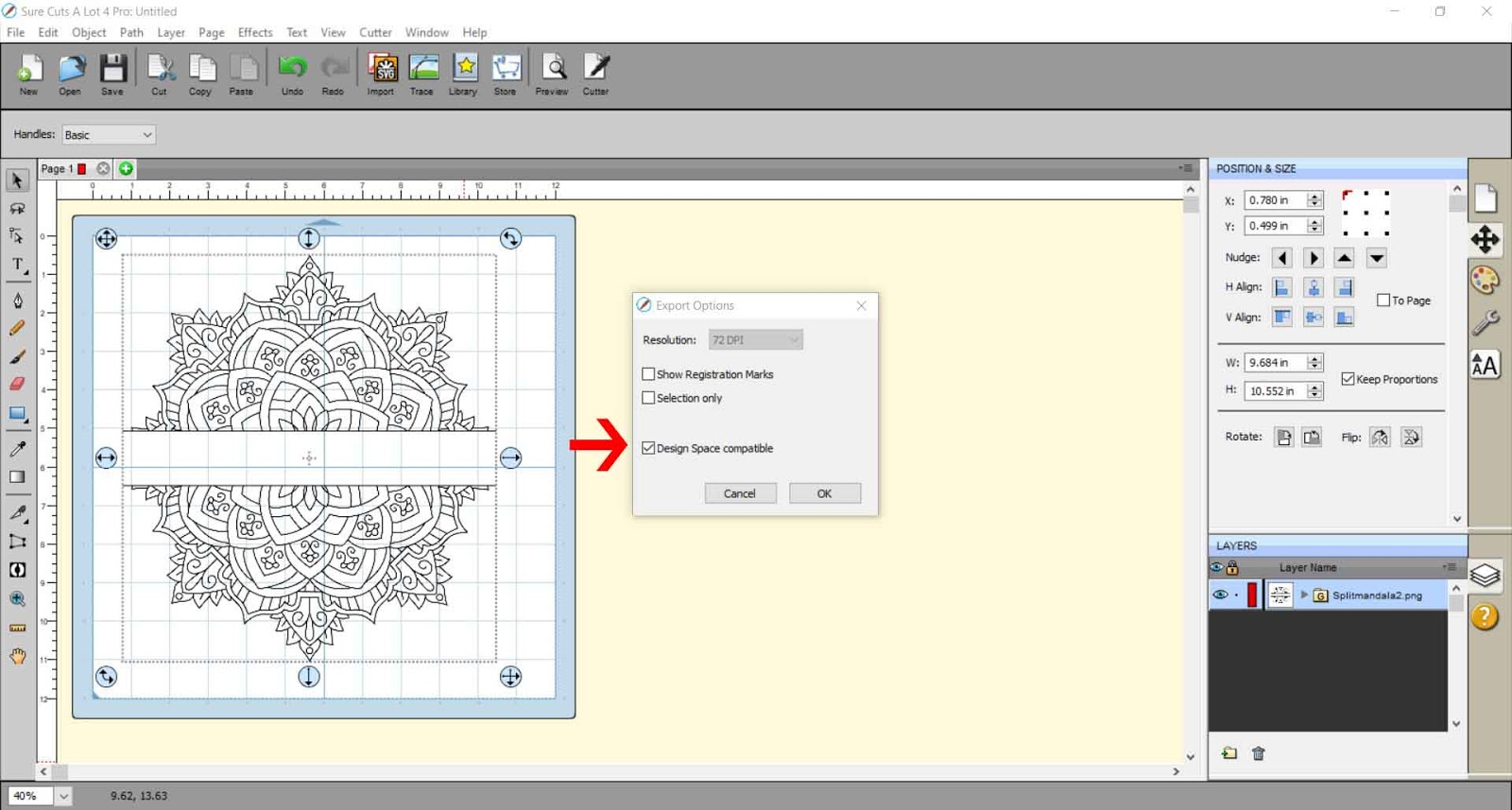
6- Save at 72 dpi and check design space compatible if using a Cricut Design Space software to cut.
7- Once you have saved the design you can then import into your cutter software.
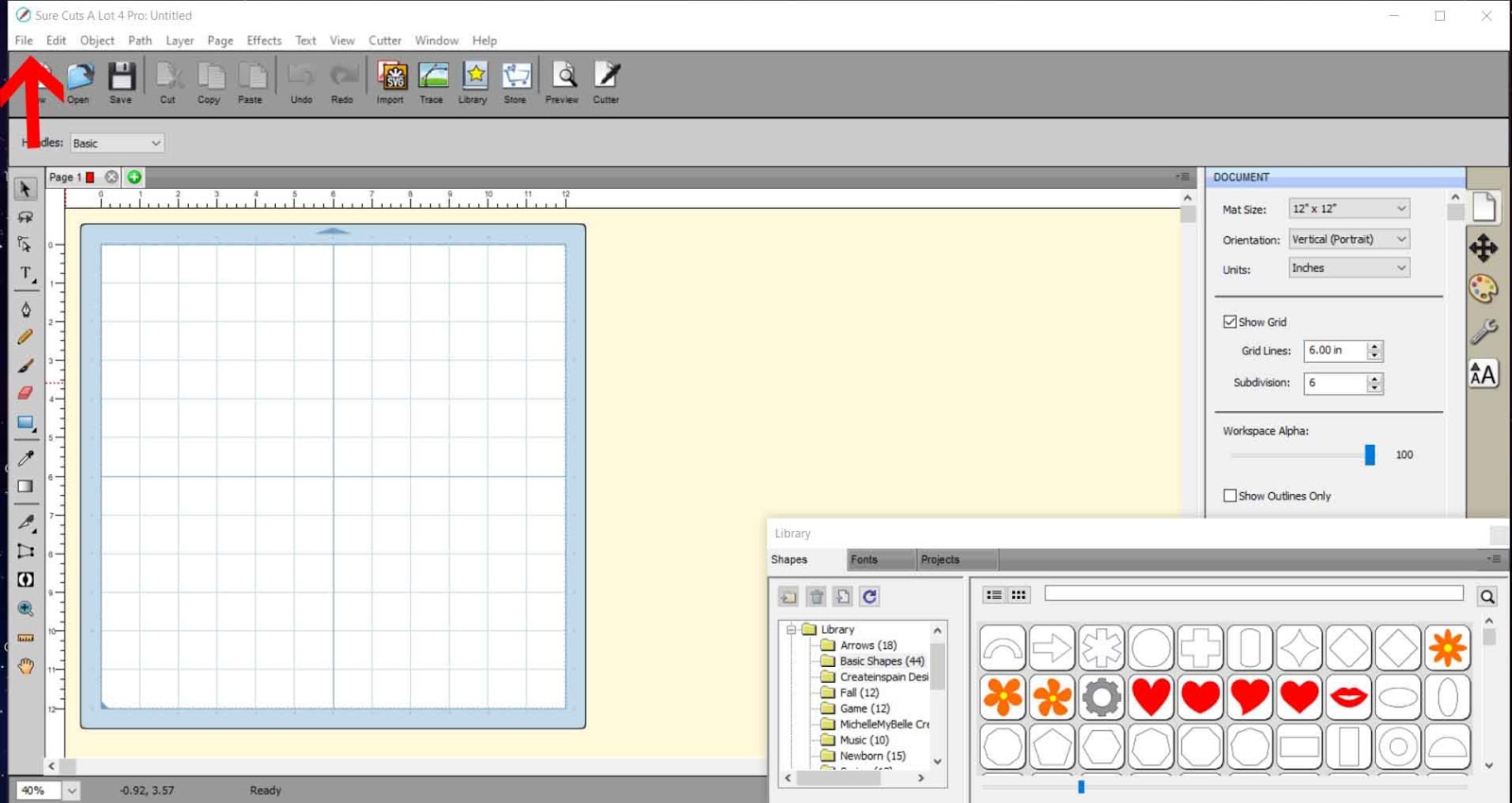
2- Click on import file.
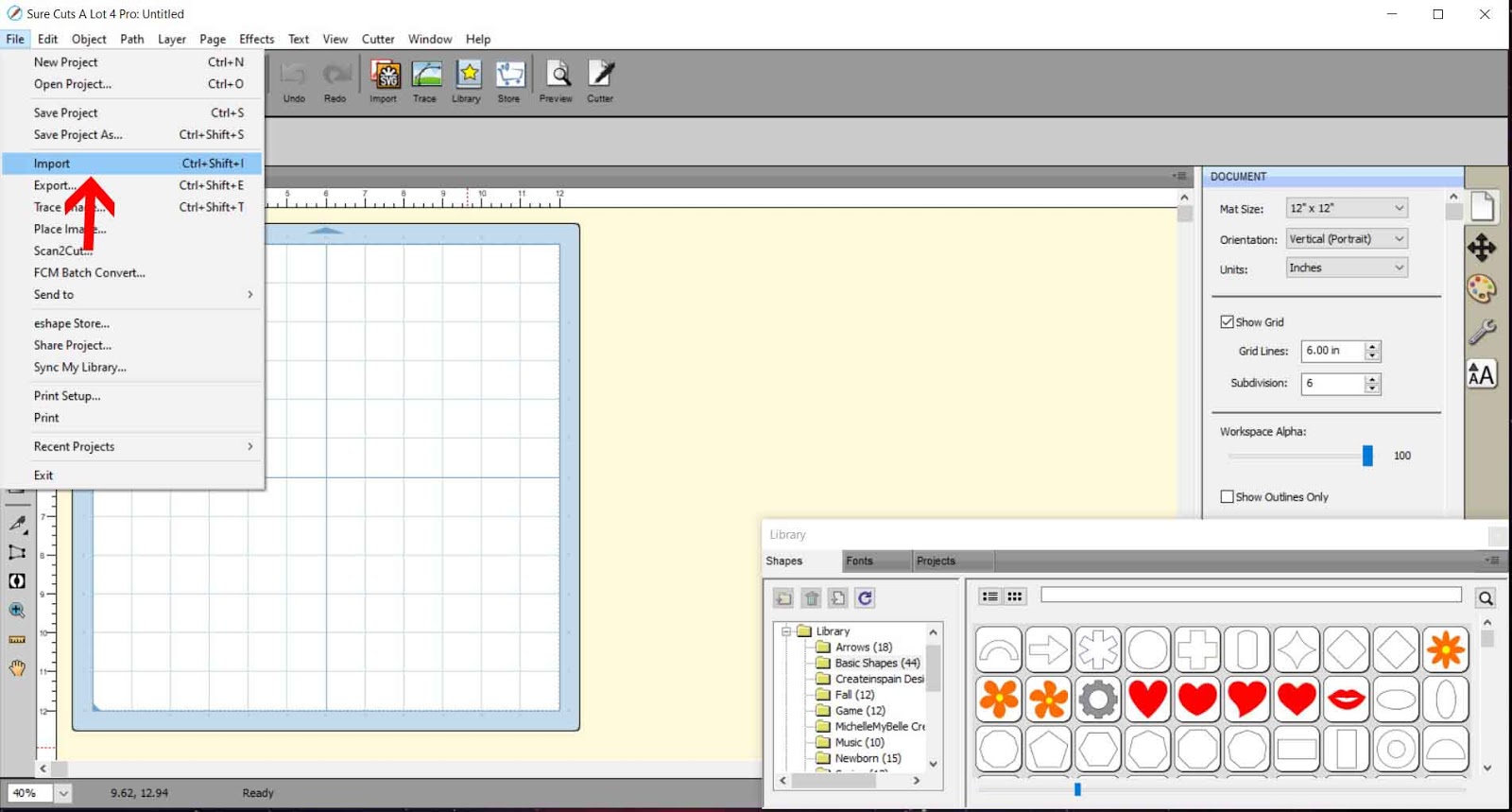
3- Insert your single line file. I am using Split Mandala 2 by Karen J - Graphic Design.
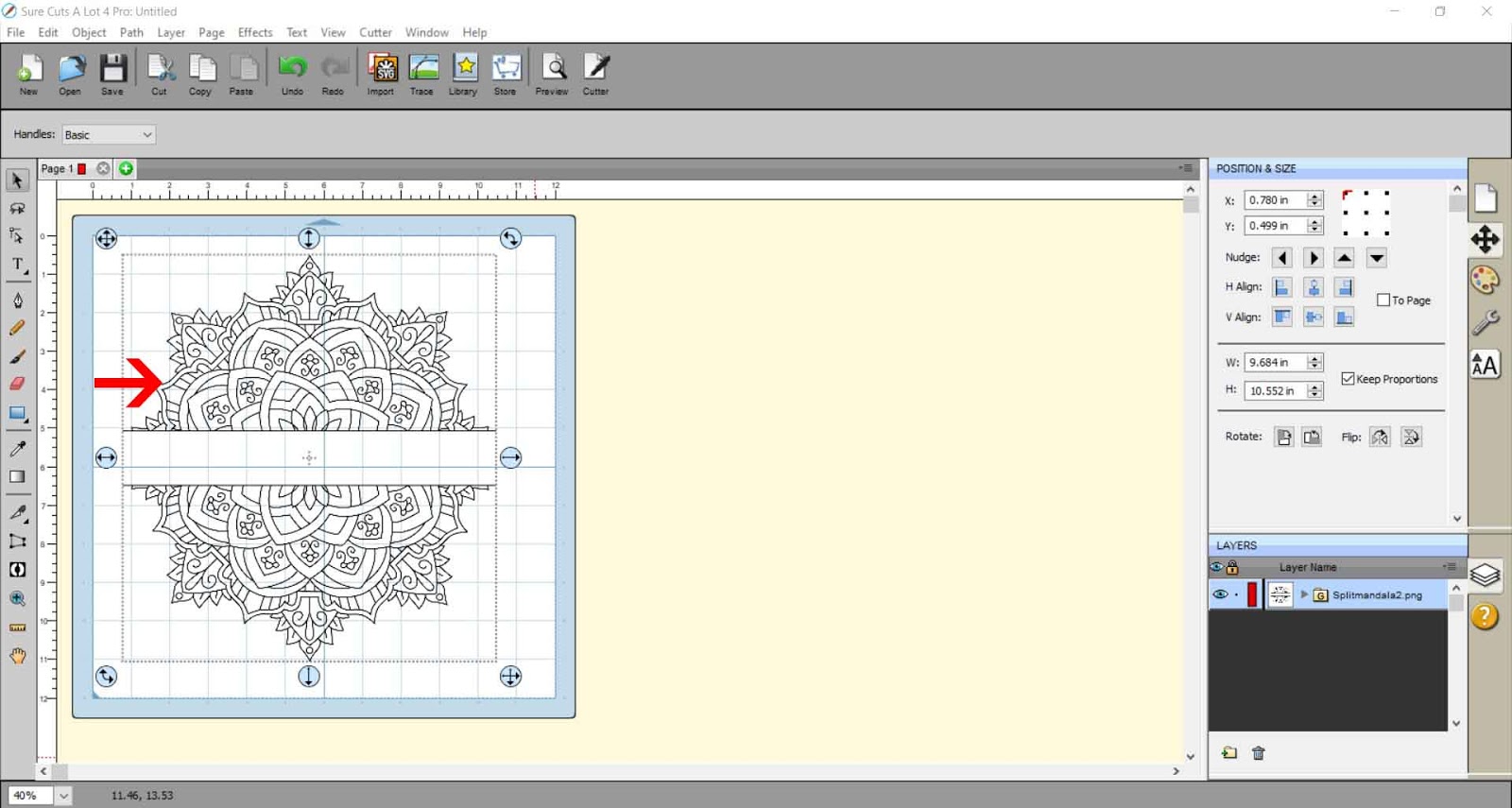
4- Once the file is in your design space, you can edit the design, resize or add text. At this point you will need to save any edits. You can also file the design by clicking on the cutter icon if using a silhouette machine. If you want to use the design in a different cutter, go to File - export.
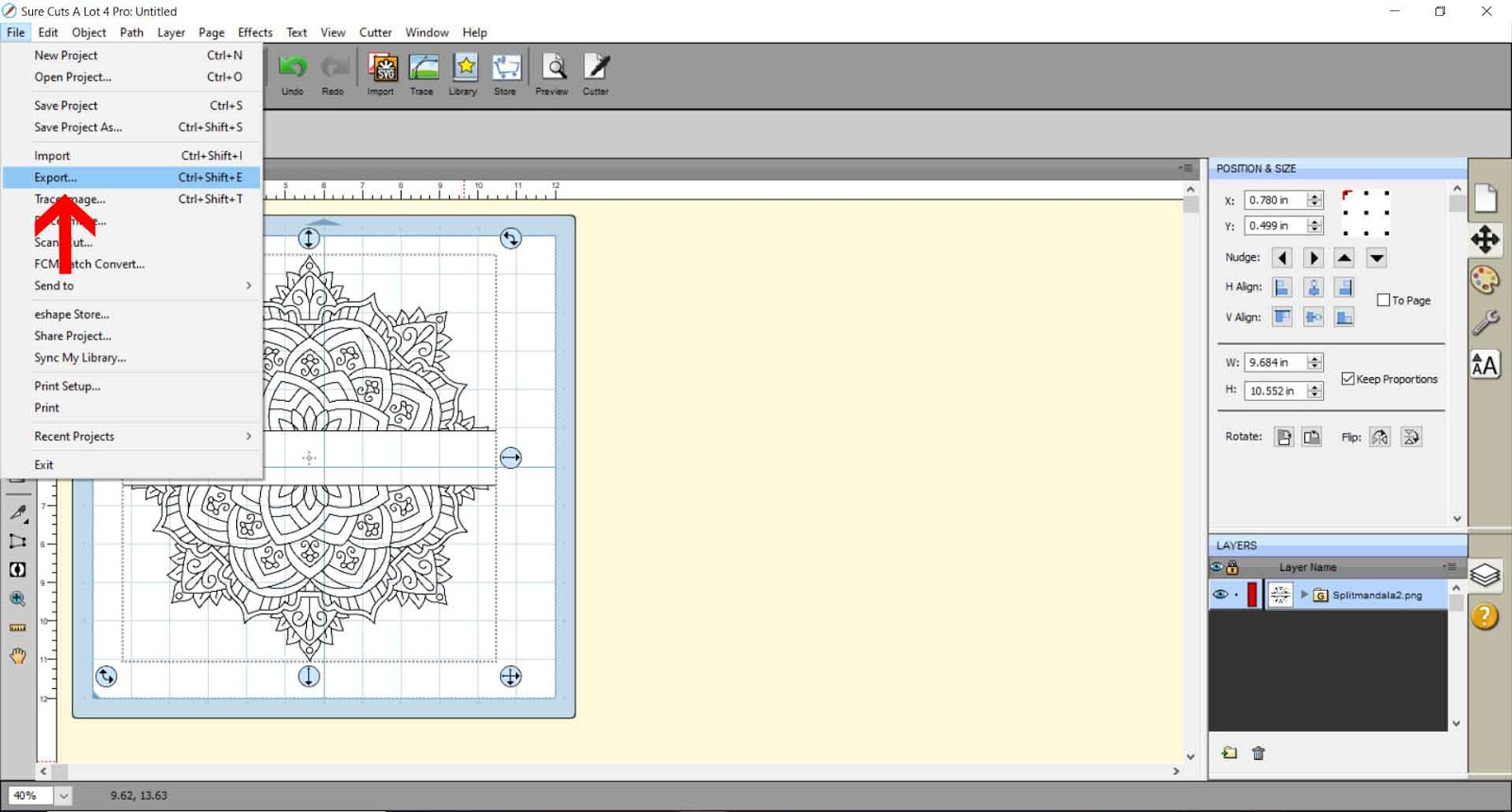
5- Save as a SVG file.
6- Save at 72 dpi and check design space compatible if using a Cricut Design Space software to cut.
7- Once you have saved the design you can then import into your cutter software.
Related Tutorials
Scan N Cut Tutorials
How to Create Your Own Single Line Designs in Canvas Workspace to use with the Foil Quill
Cricut Tutorials