


By Design Bundles
SCAL Tutorials4 min
How to Create a Split Monogram Effect in Sure Cuts A Lot 4
*Note- SCAL4 pro used.
1- Open Sure Cuts A Lot 4 software.
2- Design your text. I am using the England font from fontbundles.net.
3- Click on your library, select a slim rectangle.
4- Adjust the rectangle across the middle of your text. Ensure that it covers the whole length of the text.
5- Select both the text and the rectangle. Click on Path > Back Minus Front.
6- Select all of the text.
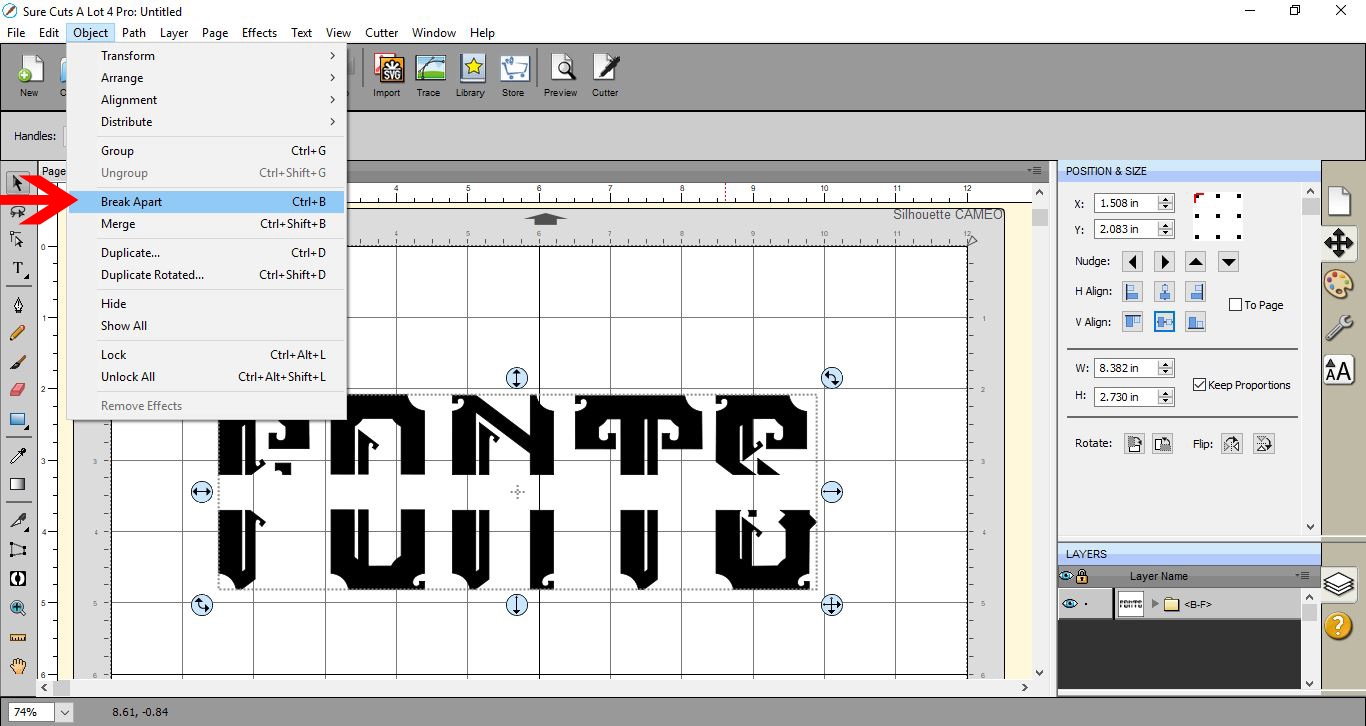
7- Click on Object > Break Apart.
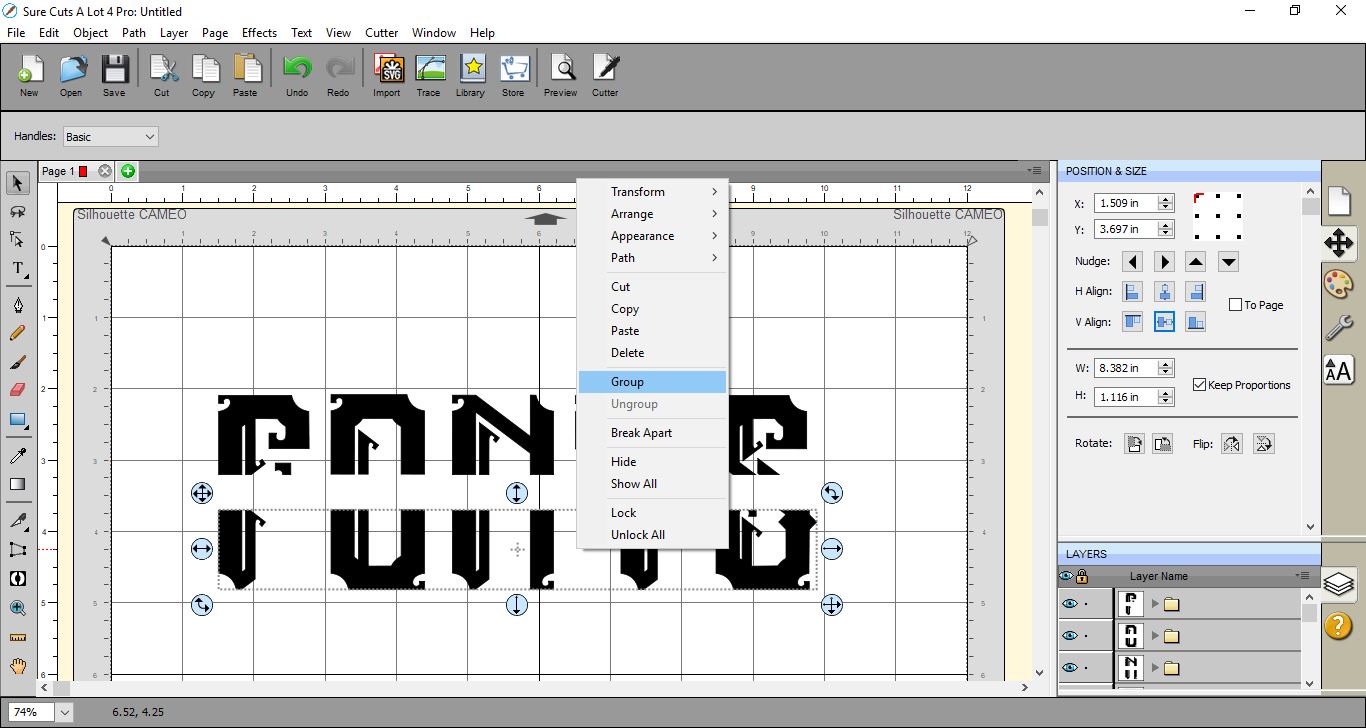
8- Select the bottom half of the text, right-click and choose Group.
9- Repeat the previous step. This time grouping the top part of the text.
10- You now have a top half and a bottom half.
Go to the library and select the thin rectangle again.
11- Adjust the rectangle to make a thin long rectangle that is slightly longer than the width of the text. Duplicate the rectangle so you now have two.
12- Place each rectangle over the edge of the text.
13- Select the bottom part of the text and rectangle. Go to Path > Union.
14- Select the top part of the text and rectangle and repeat the above Path > Union.
14- You now have two welded parts of your text. Adjust the width of the gap between the top and bottom text to fit the rest of your monogram.
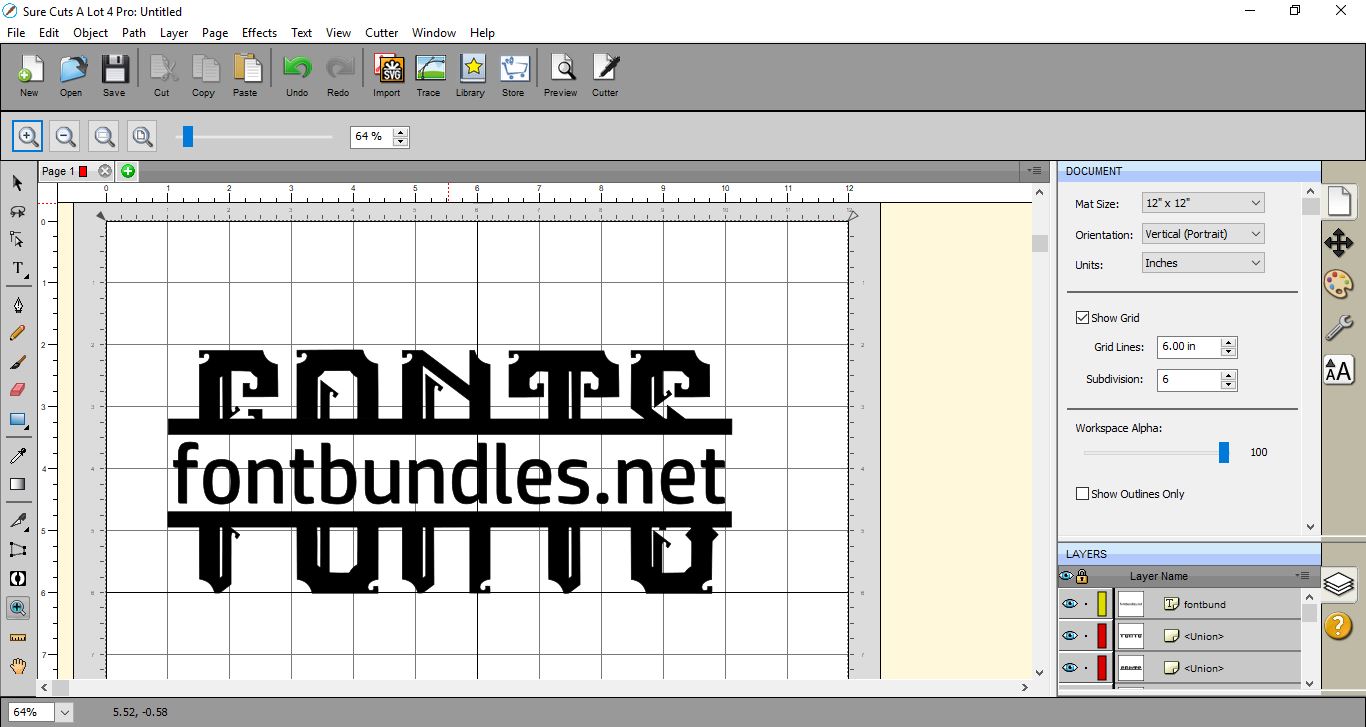
15- Finally, type the rest of your text in between your monogram split text.
1- Open Sure Cuts A Lot 4 software.
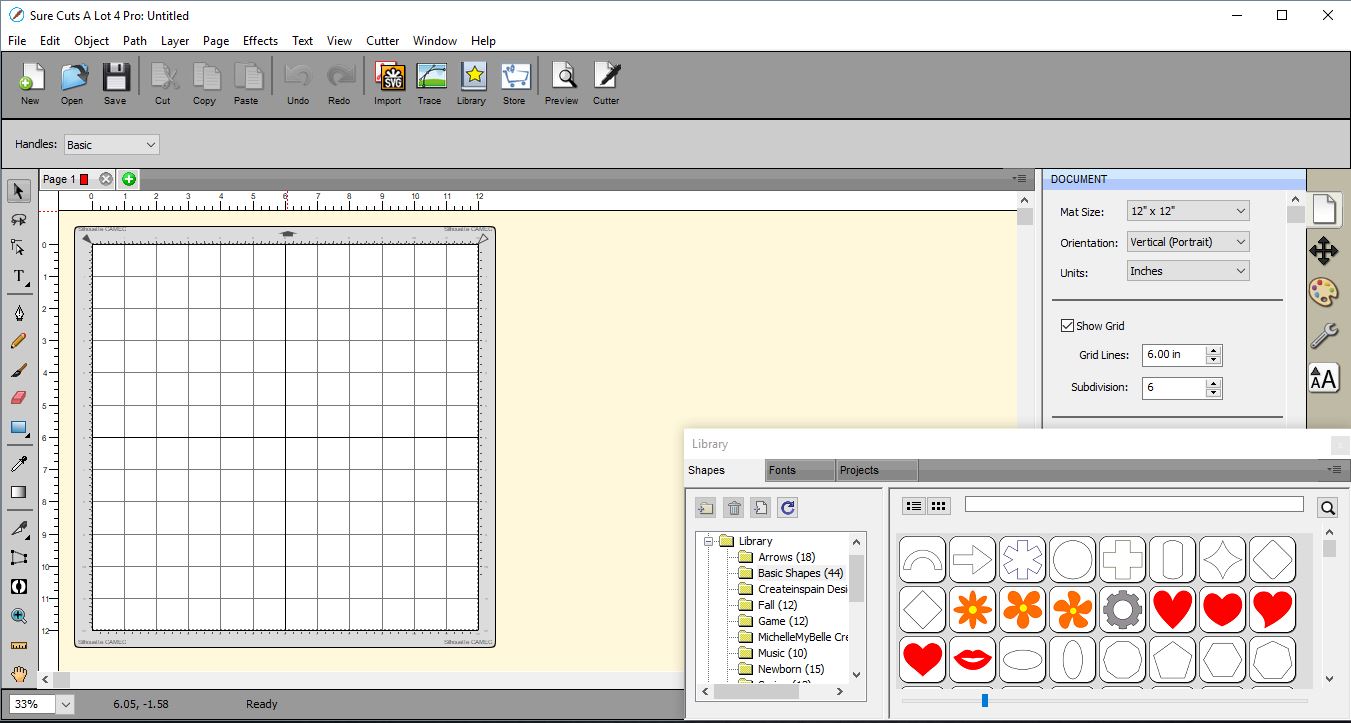
2- Design your text. I am using the England font from fontbundles.net.
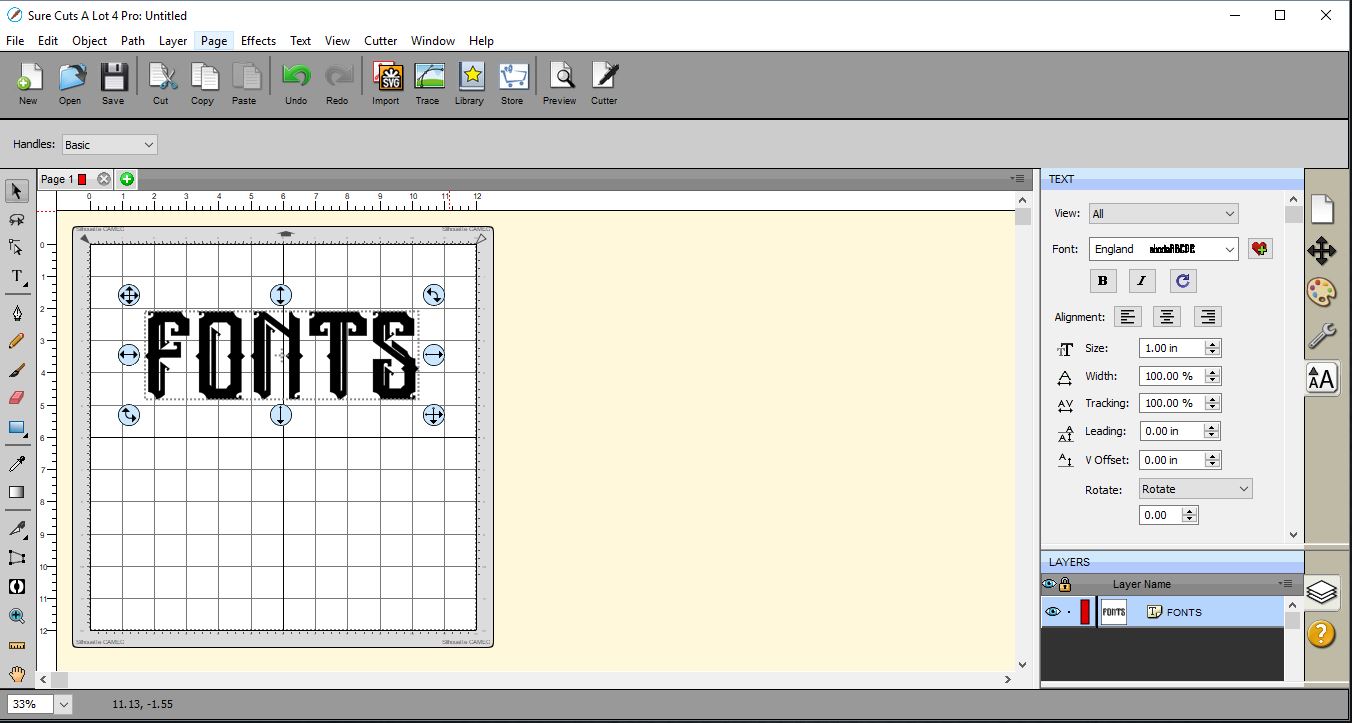
3- Click on your library, select a slim rectangle.
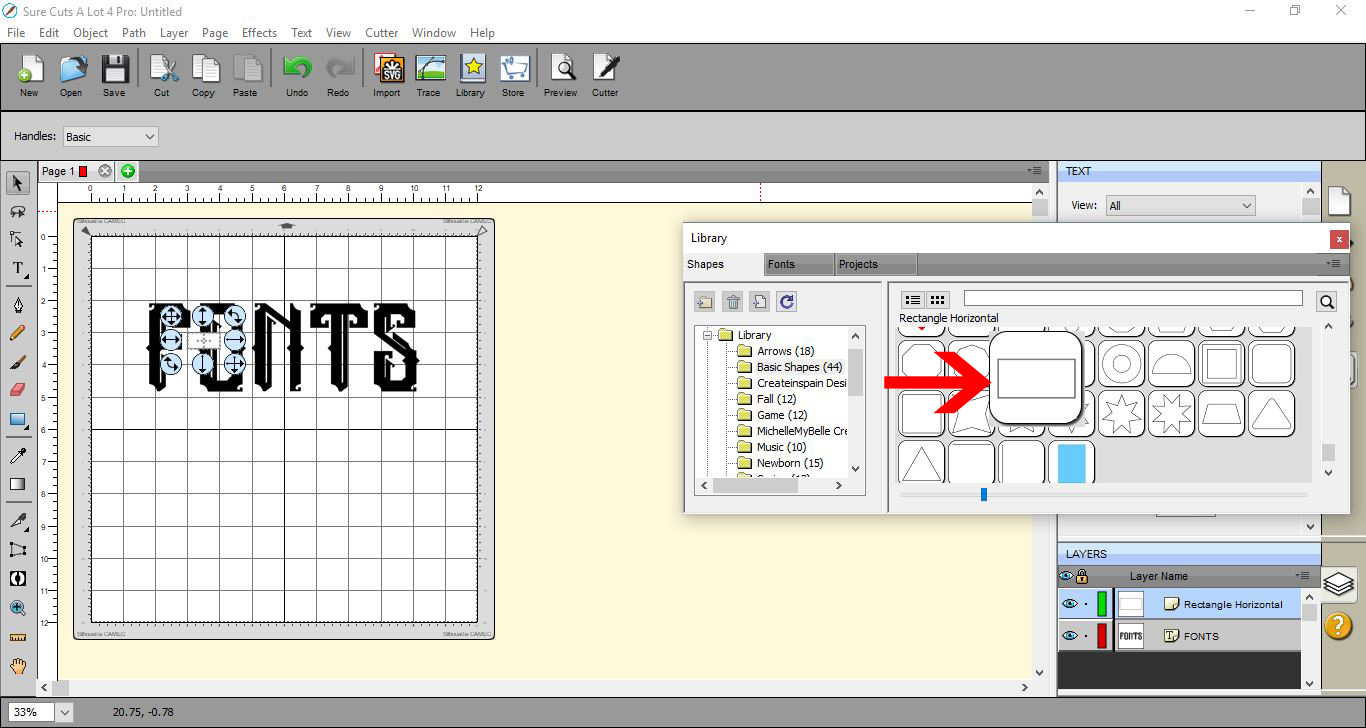
4- Adjust the rectangle across the middle of your text. Ensure that it covers the whole length of the text.
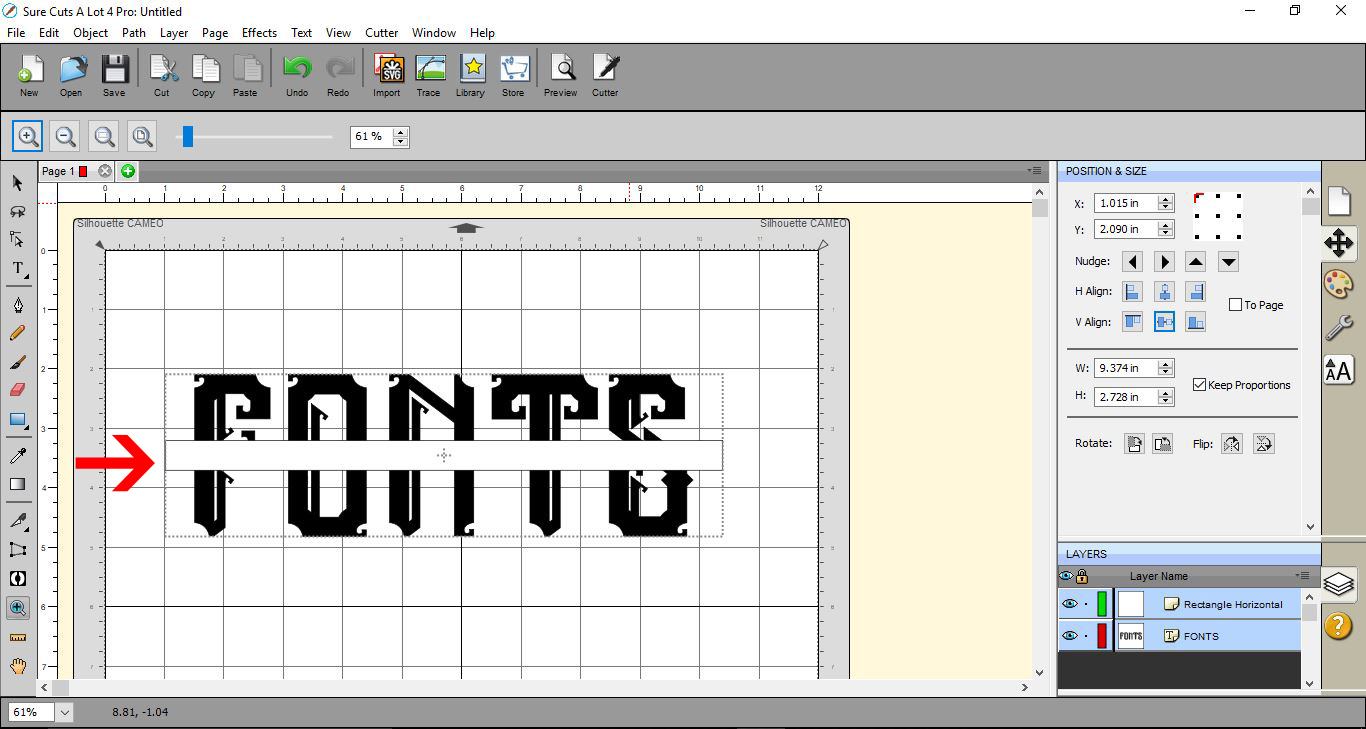
5- Select both the text and the rectangle. Click on Path > Back Minus Front.
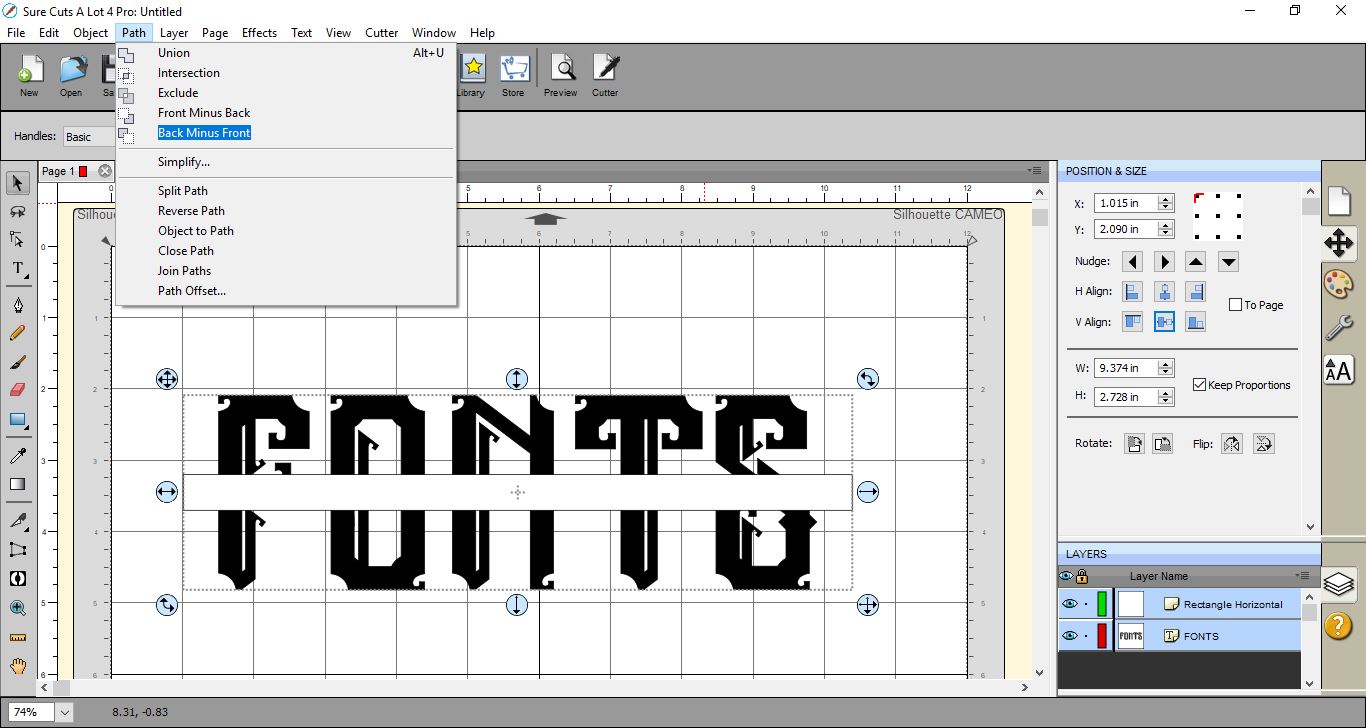
6- Select all of the text.
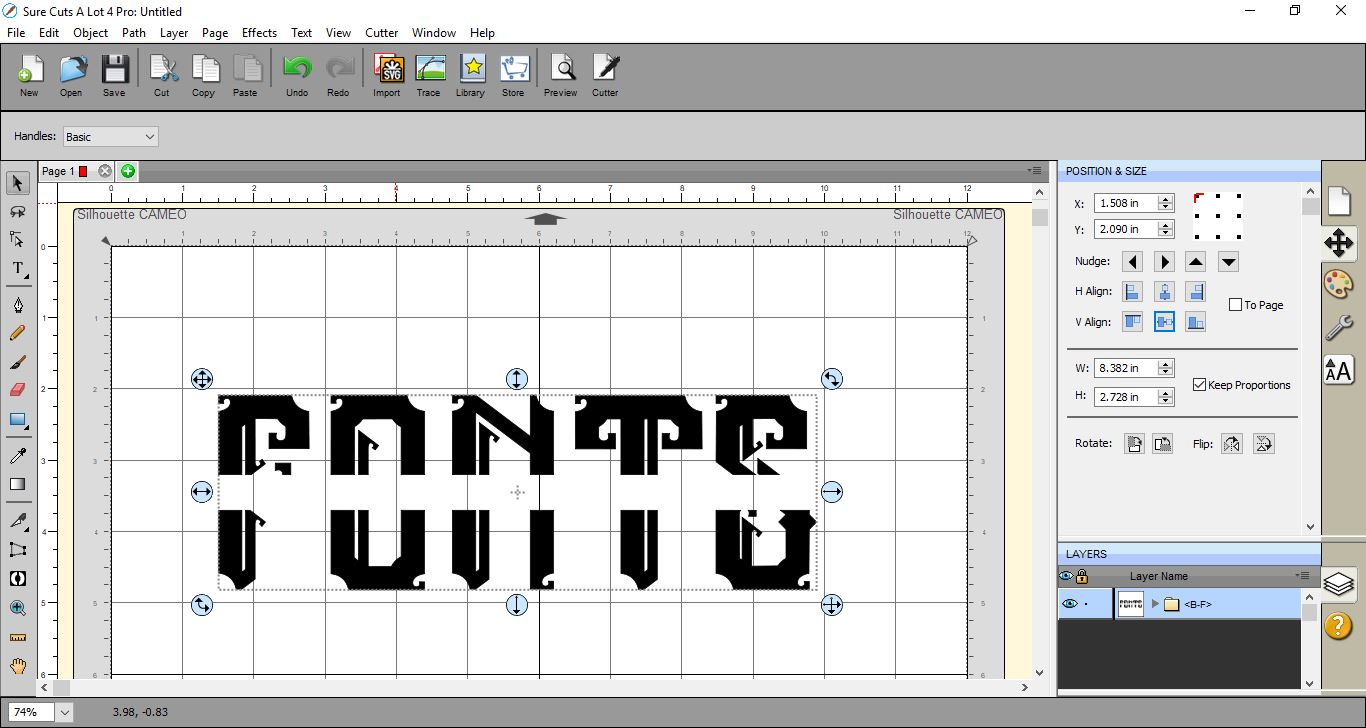
7- Click on Object > Break Apart.
8- Select the bottom half of the text, right-click and choose Group.
9- Repeat the previous step. This time grouping the top part of the text.

10- You now have a top half and a bottom half.
Go to the library and select the thin rectangle again.
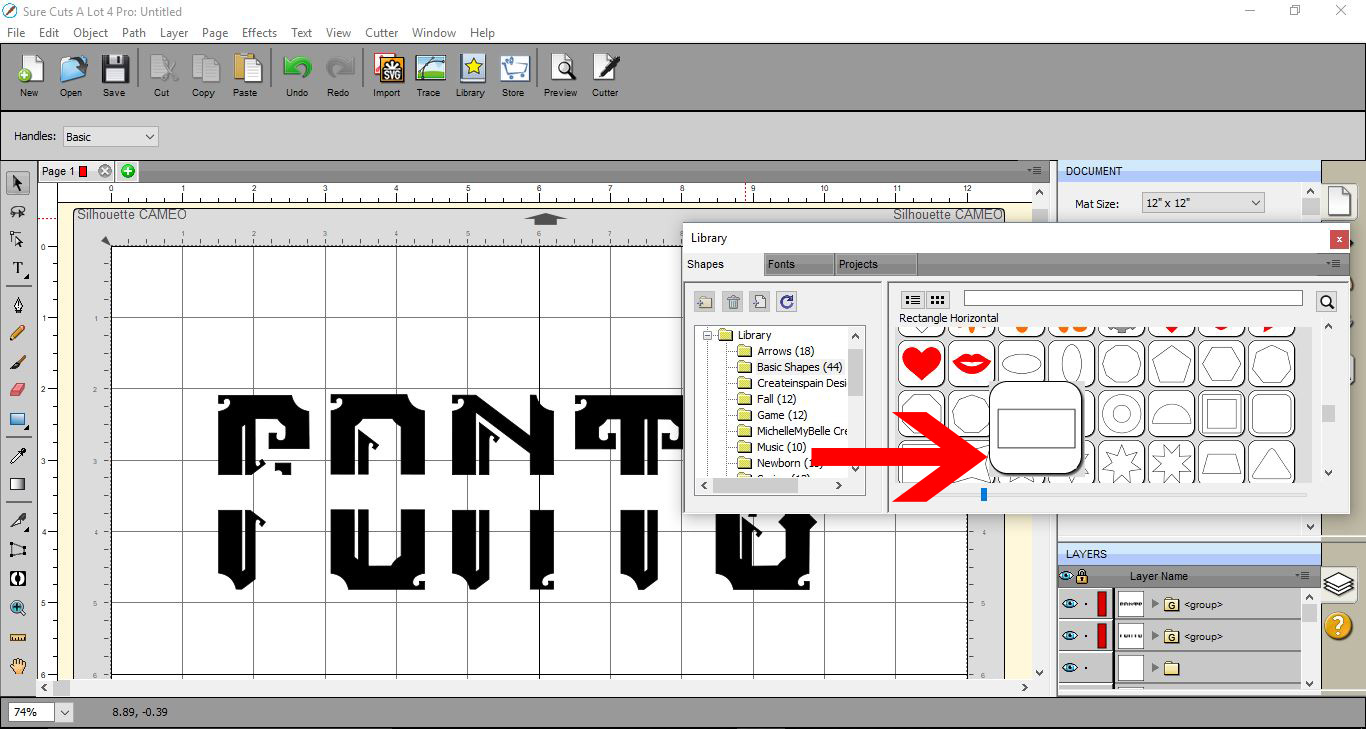
11- Adjust the rectangle to make a thin long rectangle that is slightly longer than the width of the text. Duplicate the rectangle so you now have two.
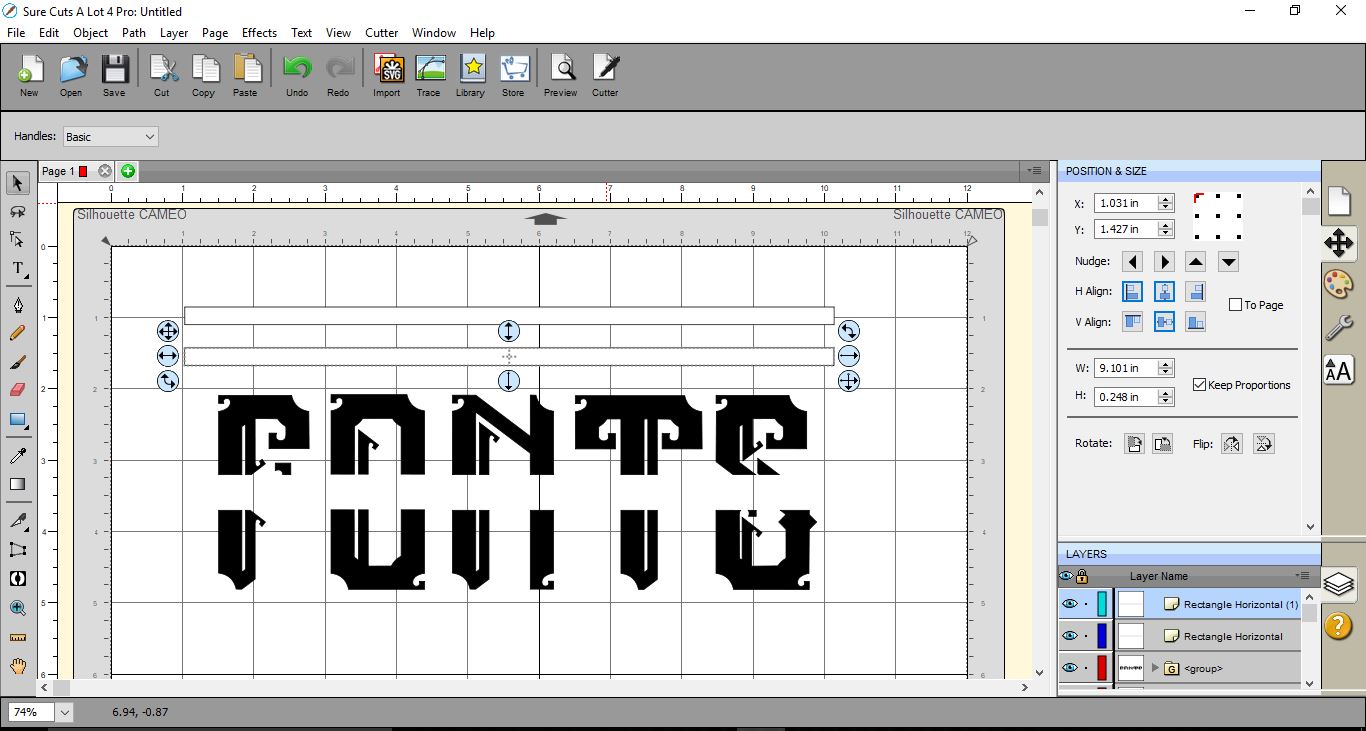
12- Place each rectangle over the edge of the text.
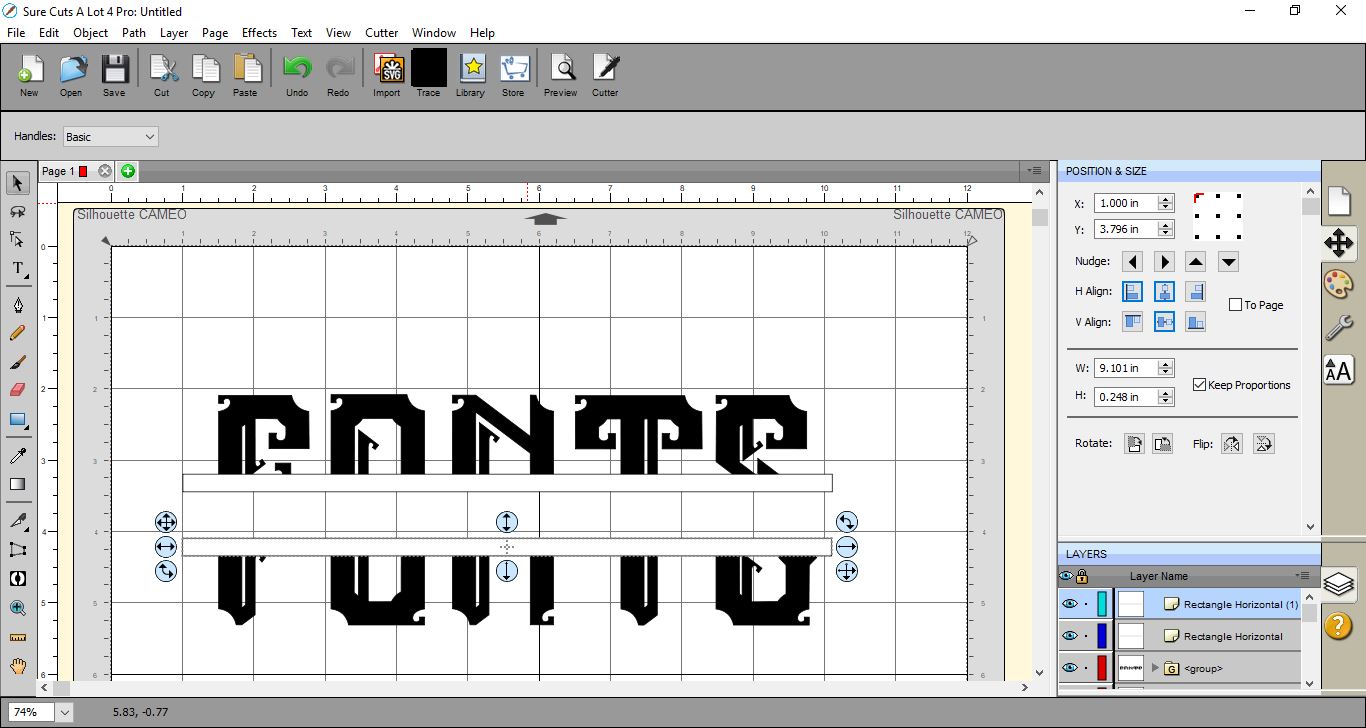
13- Select the bottom part of the text and rectangle. Go to Path > Union.
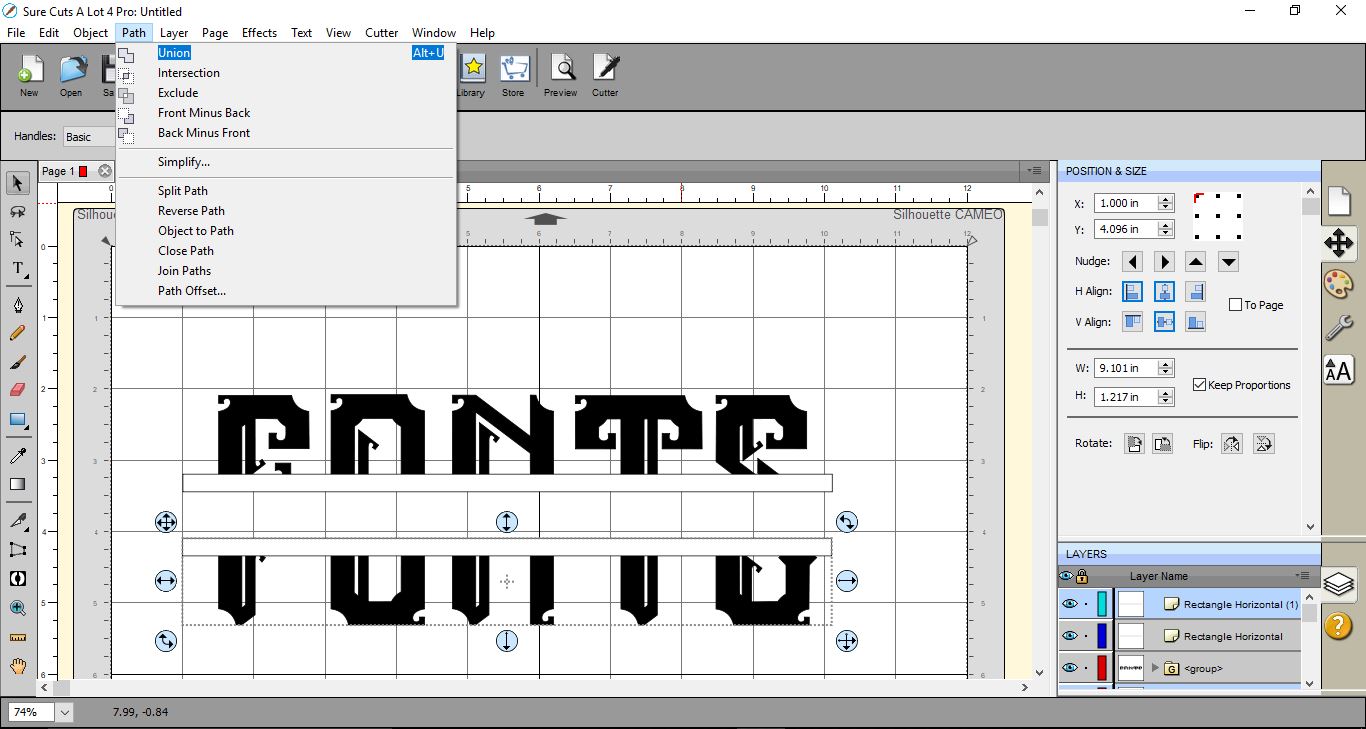
14- Select the top part of the text and rectangle and repeat the above Path > Union.
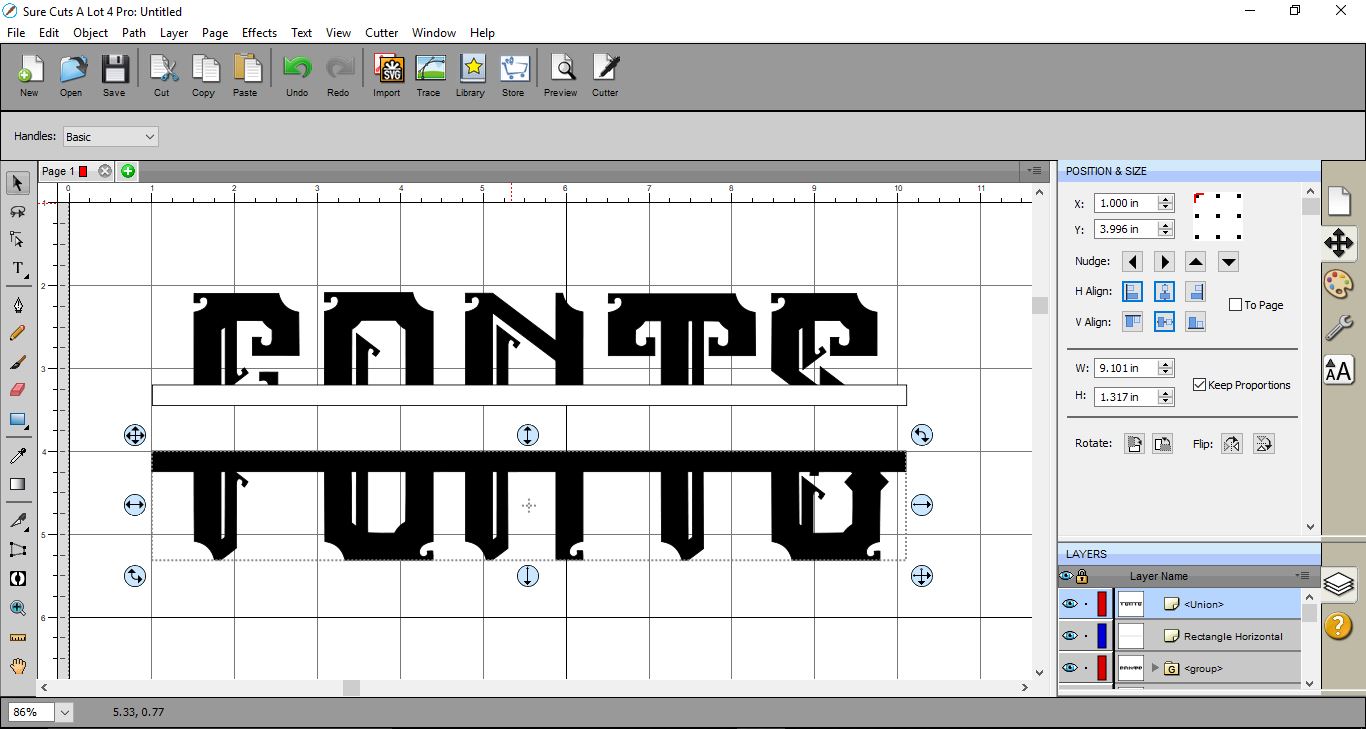
14- You now have two welded parts of your text. Adjust the width of the gap between the top and bottom text to fit the rest of your monogram.
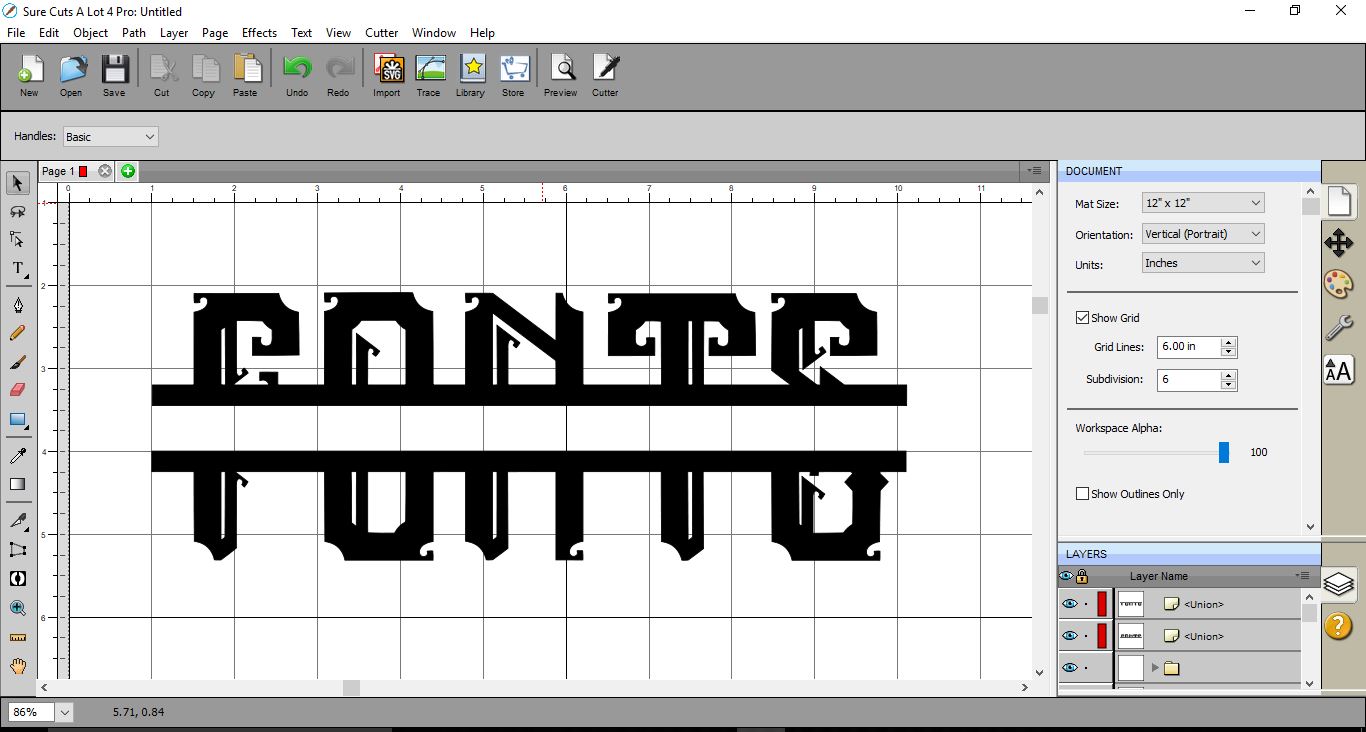
15- Finally, type the rest of your text in between your monogram split text.
Related Tutorials
SCAL Tutorials
How to Create a Monogram in Sure Cuts A Lot 4
SCAL Tutorials
How to create Curved text in Sure Cuts A Lot 4
SCAL Tutorials
Create a jigsaw in Sure Cuts a Lot 4
SCAL Tutorials
Arched text effect in Sure Cuts a Lot 4
Silhouette Tutorials