

By Design Bundles
SCAL Tutorials3 min
Sure Cuts A Lot 4 Basics - Position and Size Panel
*note- Sure Cuts A Lot 4 Pro used.
1- Open SCAL4.
2- Select the 4 way arrow to open the position and size panel.
3- You can change the position of your image by adjusting the X and Y points. This is a great way to accurately move a image to a specific place on your design. Especially if you are layering vinyl etc. You can ensure that each layer is exactly in the same position.
4- You can also align your image. You can align left/ right or centre using the horizontal alignment.
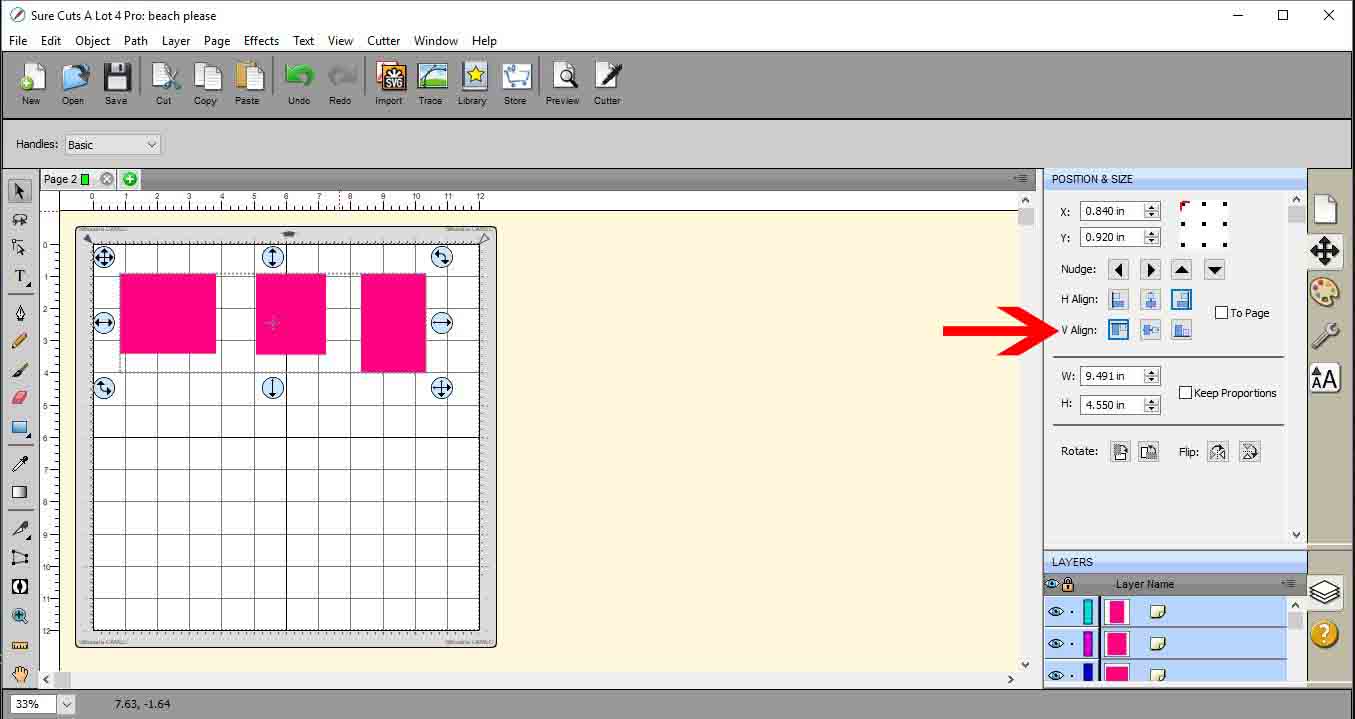
5- You also have the vertical alignment to the top or bottom or centre of your page.
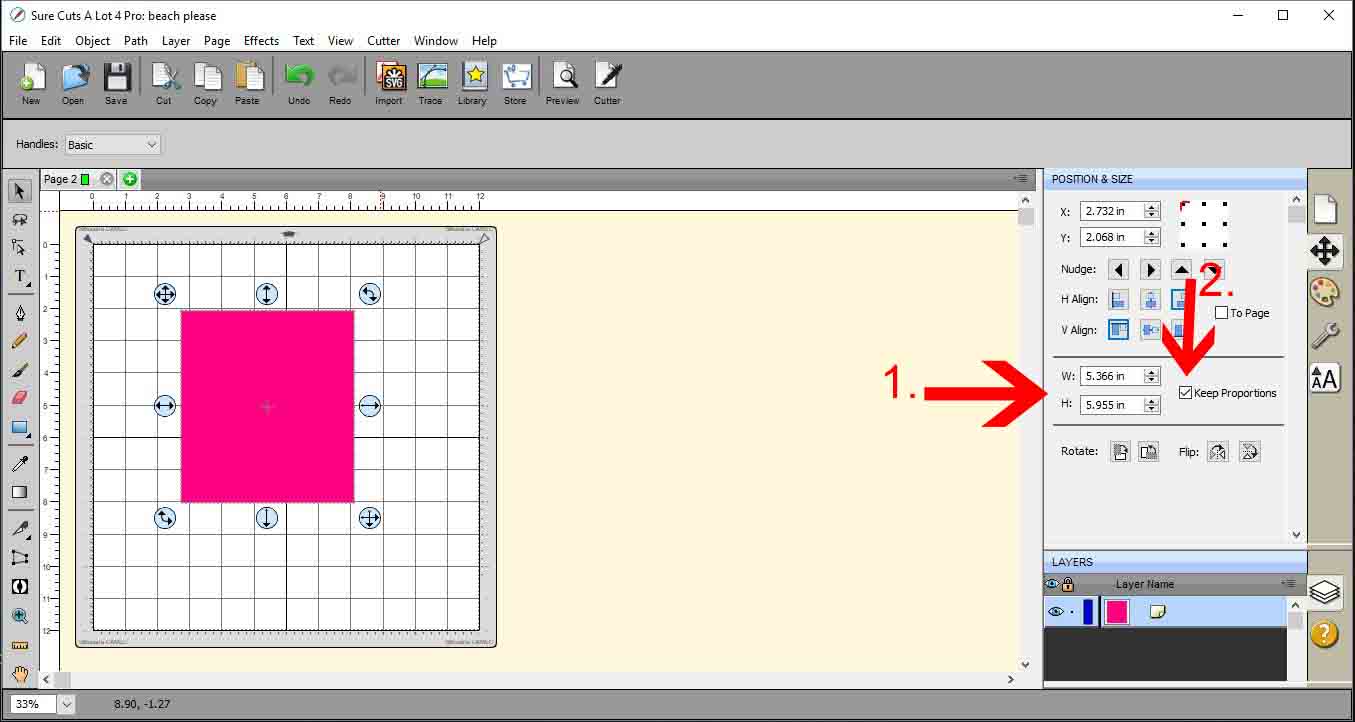
6- You can manually change the size of your image(1). There is also have a option to keep the aspect ratio when adjusting the size (2).
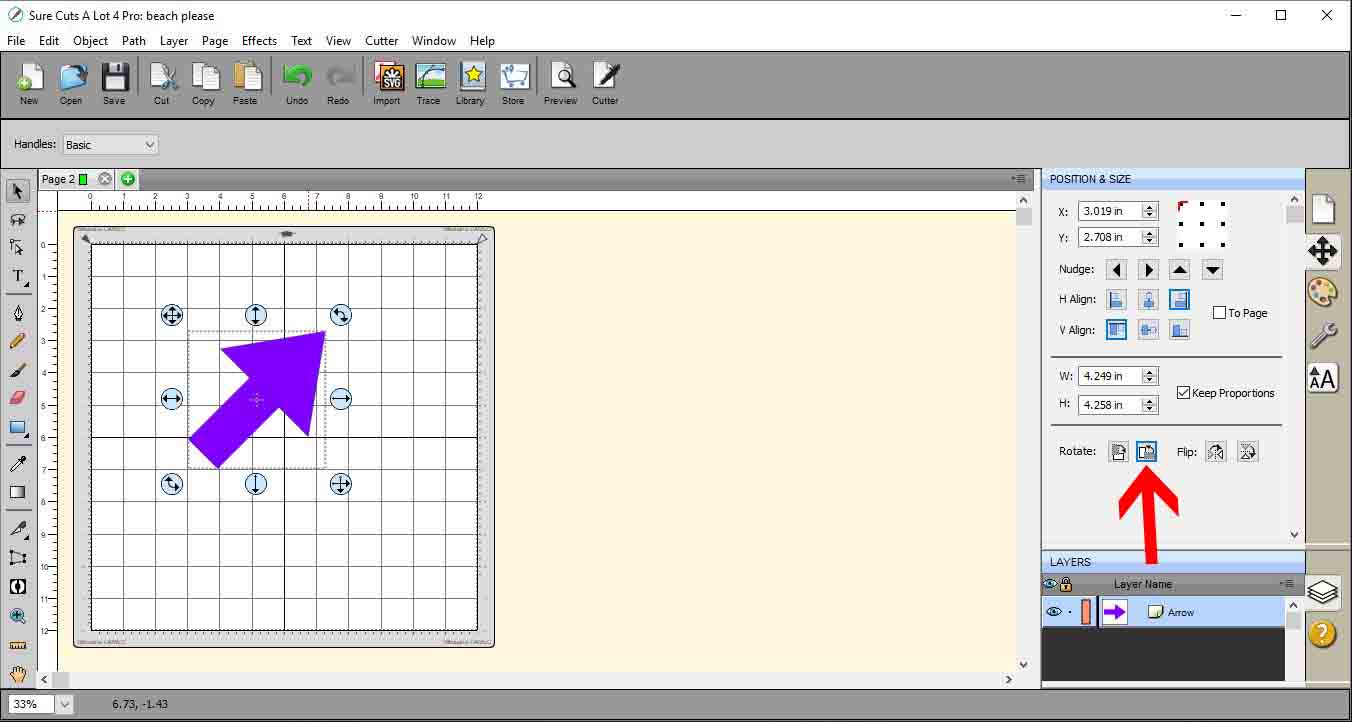
7- You can rotate your design.
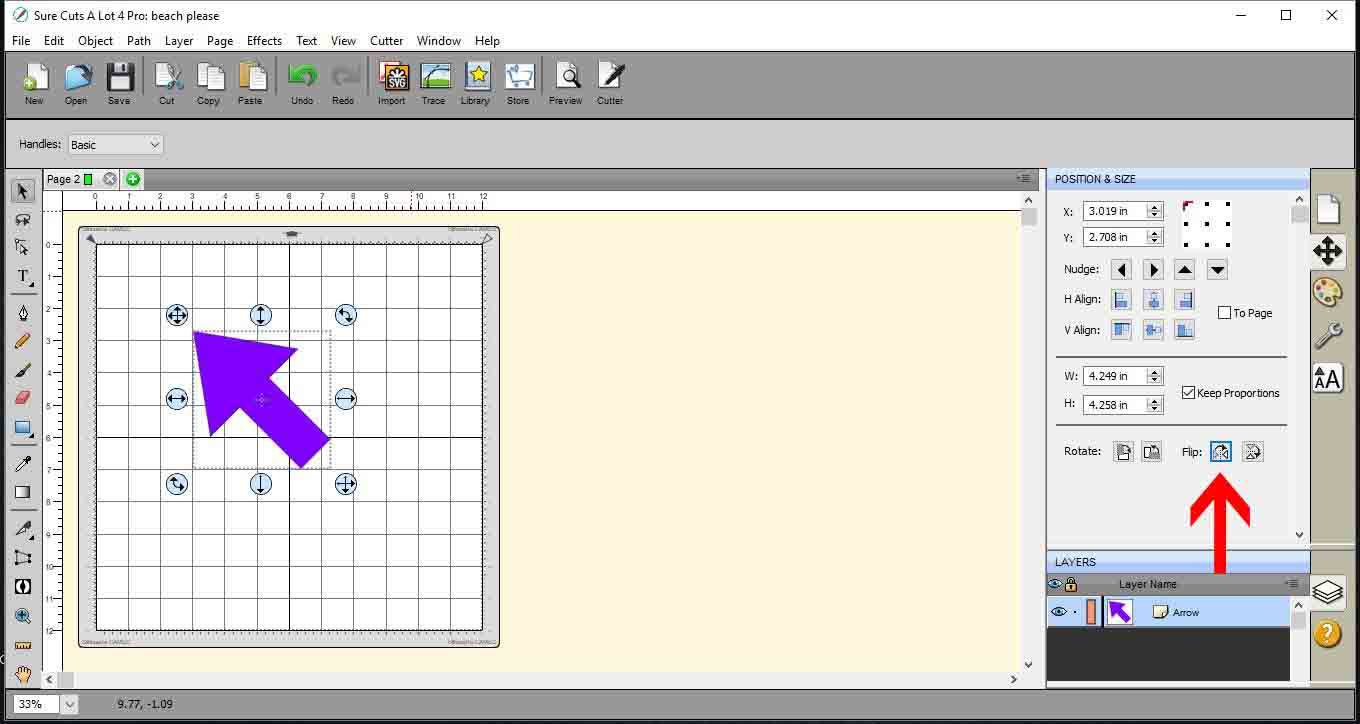
8- You can also flip your design. This is great if you are creating HTV design that needs to be reversed.
1- Open SCAL4.
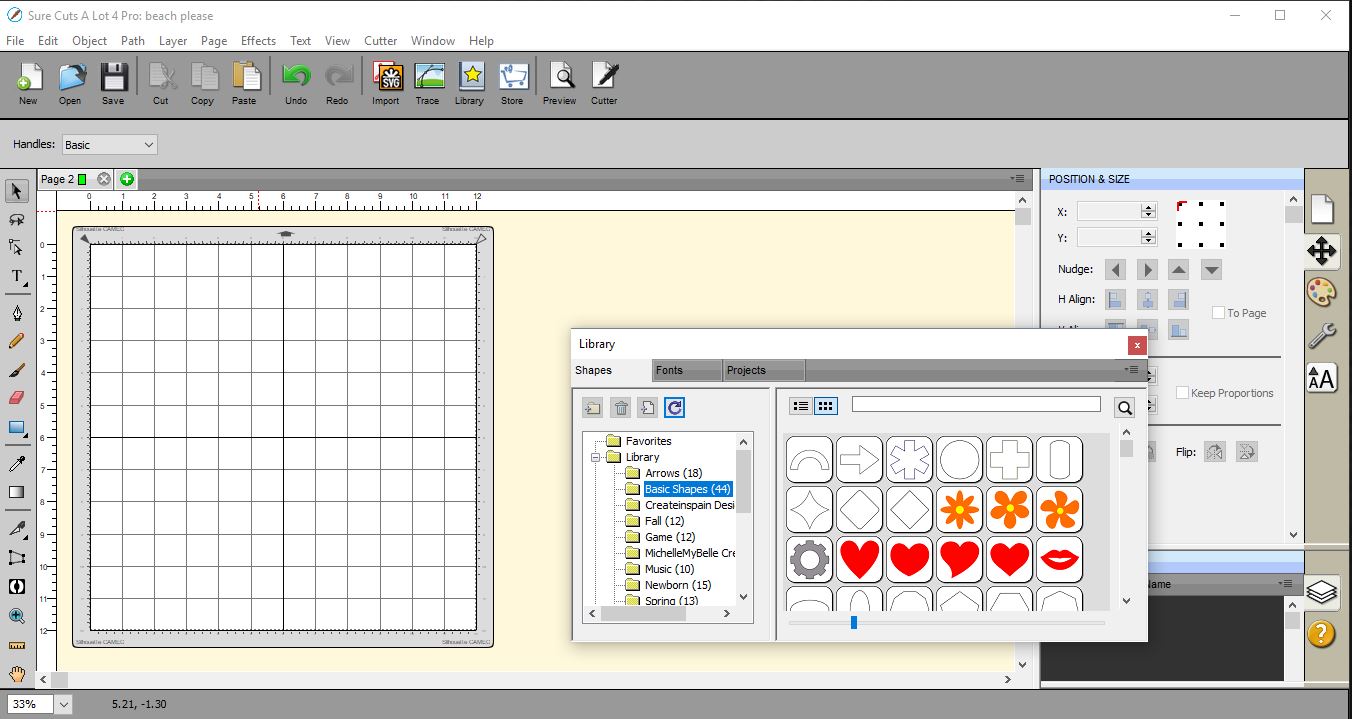
2- Select the 4 way arrow to open the position and size panel.
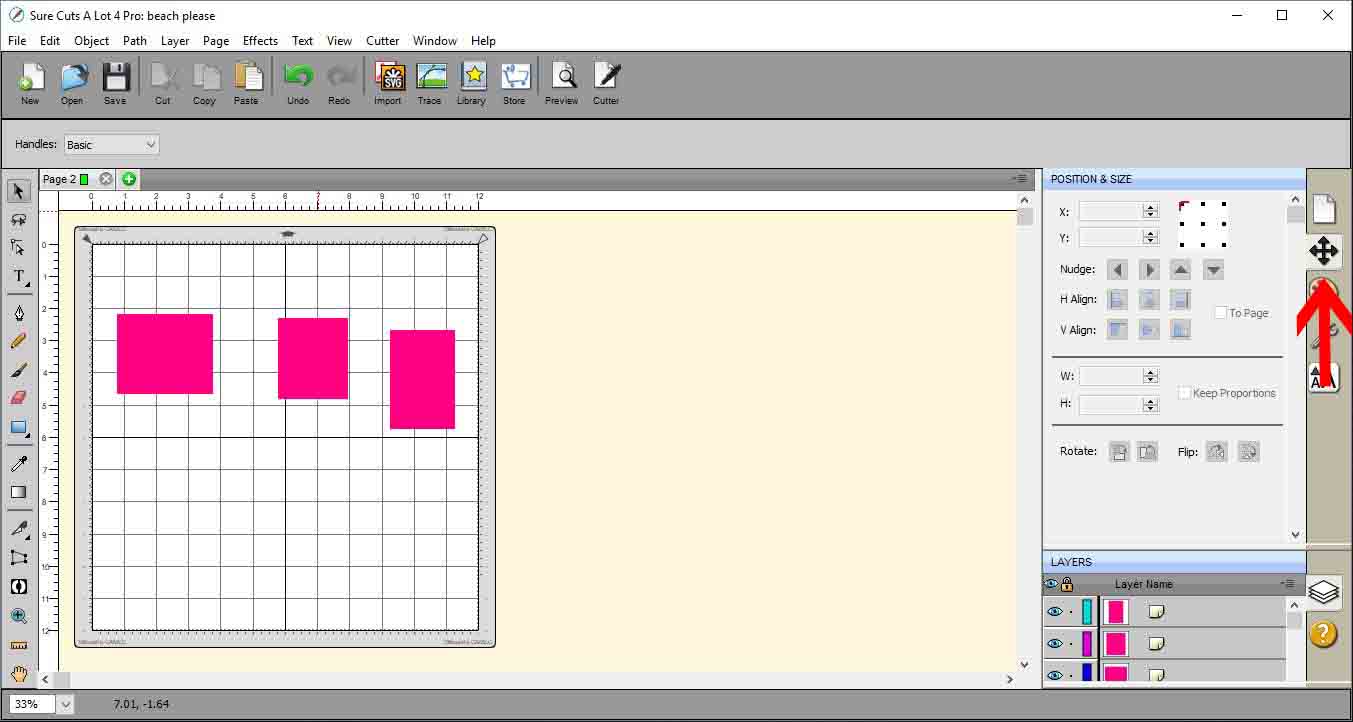
3- You can change the position of your image by adjusting the X and Y points. This is a great way to accurately move a image to a specific place on your design. Especially if you are layering vinyl etc. You can ensure that each layer is exactly in the same position.
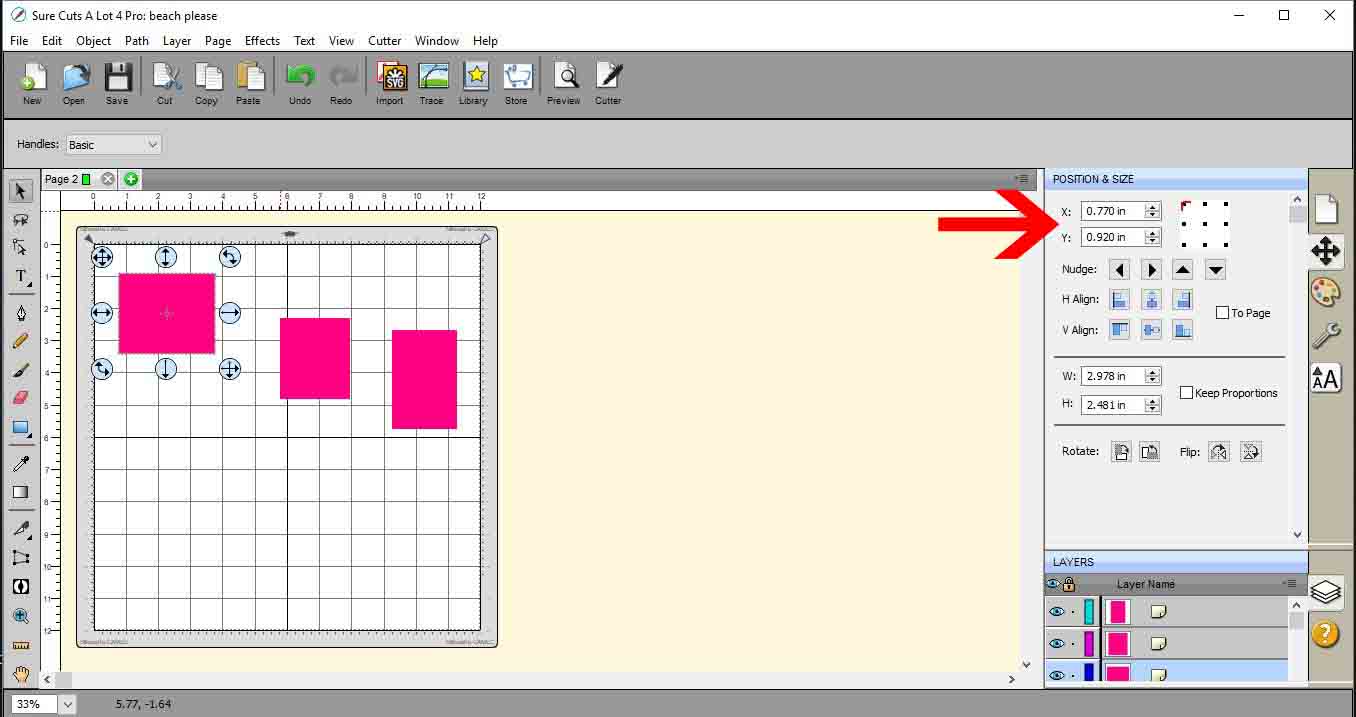
4- You can also align your image. You can align left/ right or centre using the horizontal alignment.
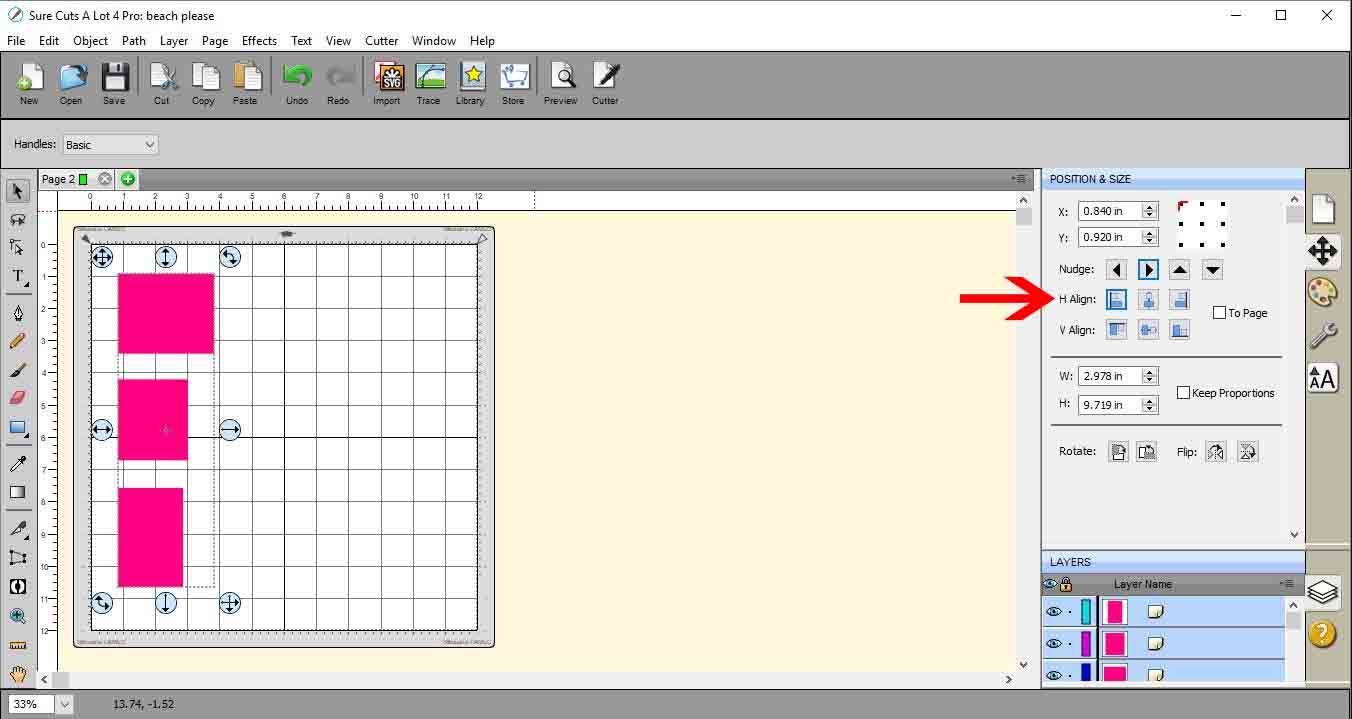
5- You also have the vertical alignment to the top or bottom or centre of your page.
6- You can manually change the size of your image(1). There is also have a option to keep the aspect ratio when adjusting the size (2).
7- You can rotate your design.
8- You can also flip your design. This is great if you are creating HTV design that needs to be reversed.
Related Tutorials
SCAL Tutorials
Sure Cuts A Lot 4 Basics - Fill and Stroke panel
SCAL Tutorials
Sure Cuts a Lot 4 Basics - Text Panel
SCAL Tutorials
Sure Cuts a Lot 4 Basics - Saving files
SCAL Tutorials
Sure Cuts A Lot 4 Basics - Tracing a colored image
SCAL Tutorials
Sure Cuts A Lot 4 Basics - Cutter set up
SCAL Tutorials