By Design Bundles
Sure Cuts a Lot 4 pattern fill feature
*Note- SCAL4 used.
1- Open SCAL4 software.
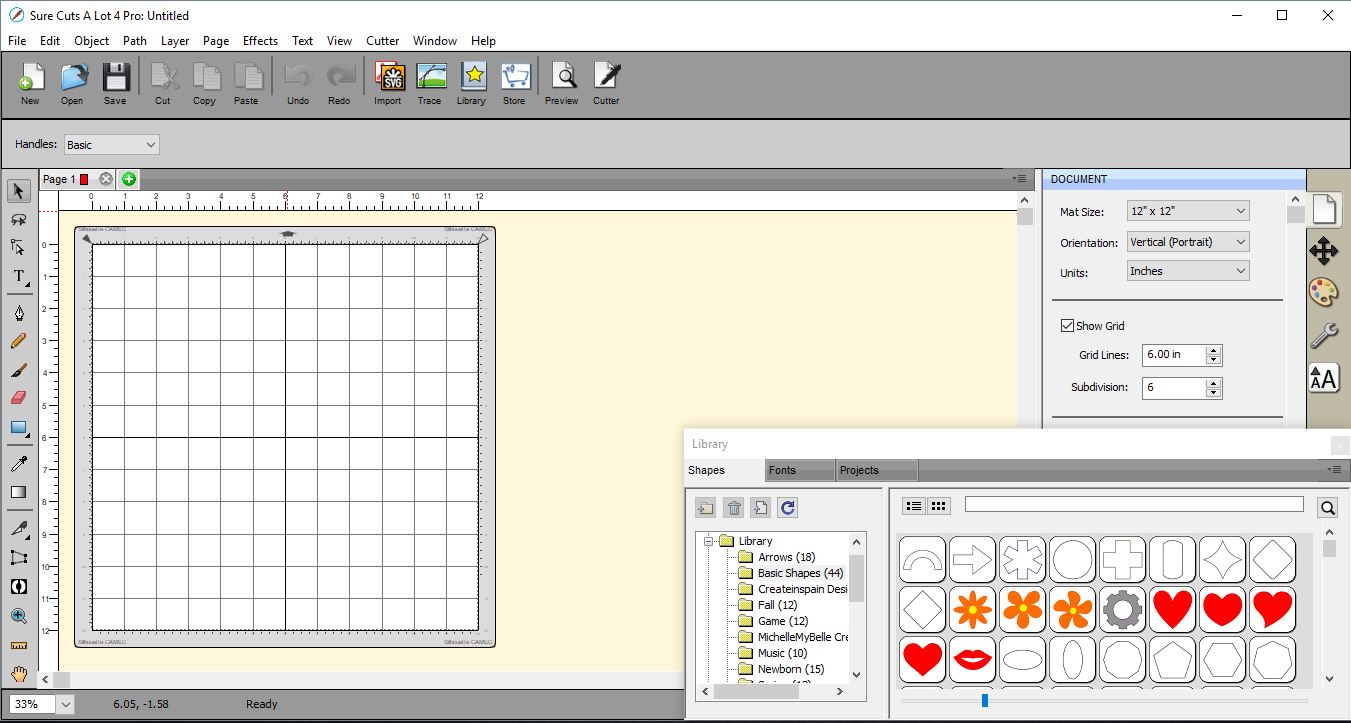
2- Create a shape that you would like to fill with a pattern.
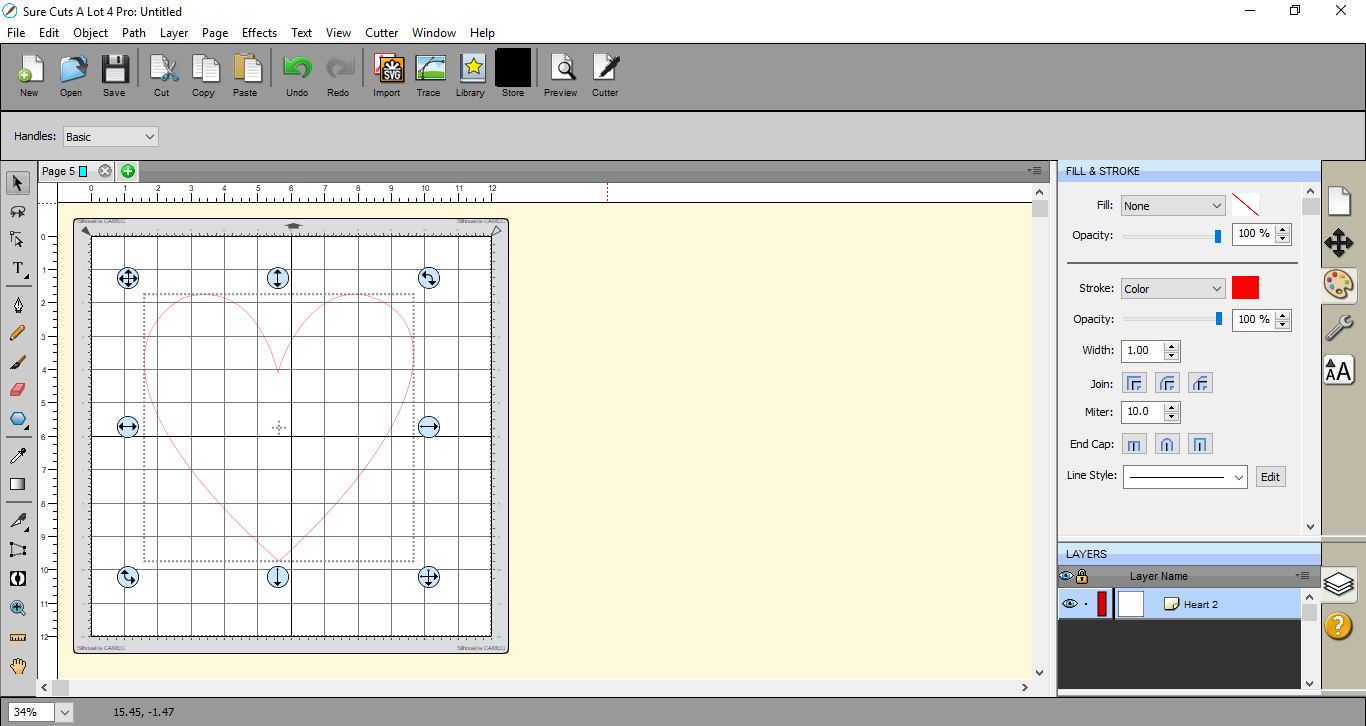
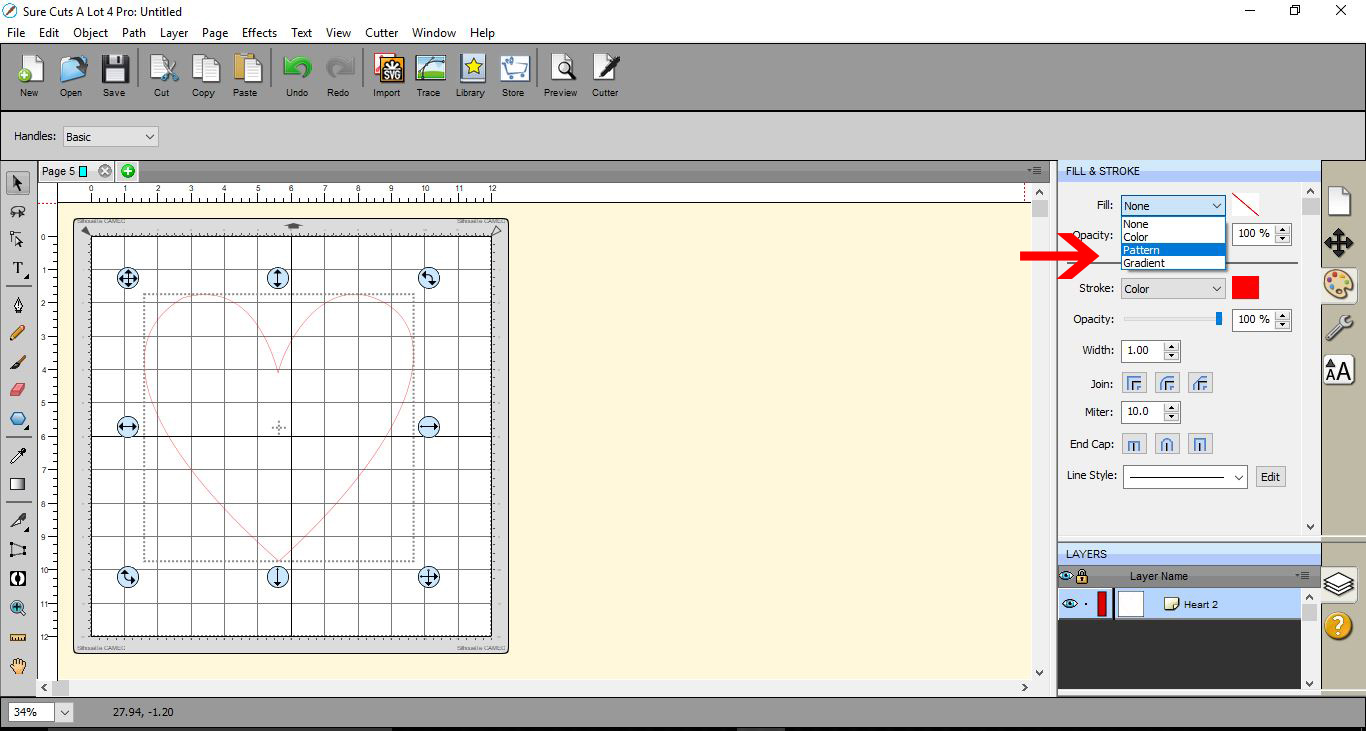
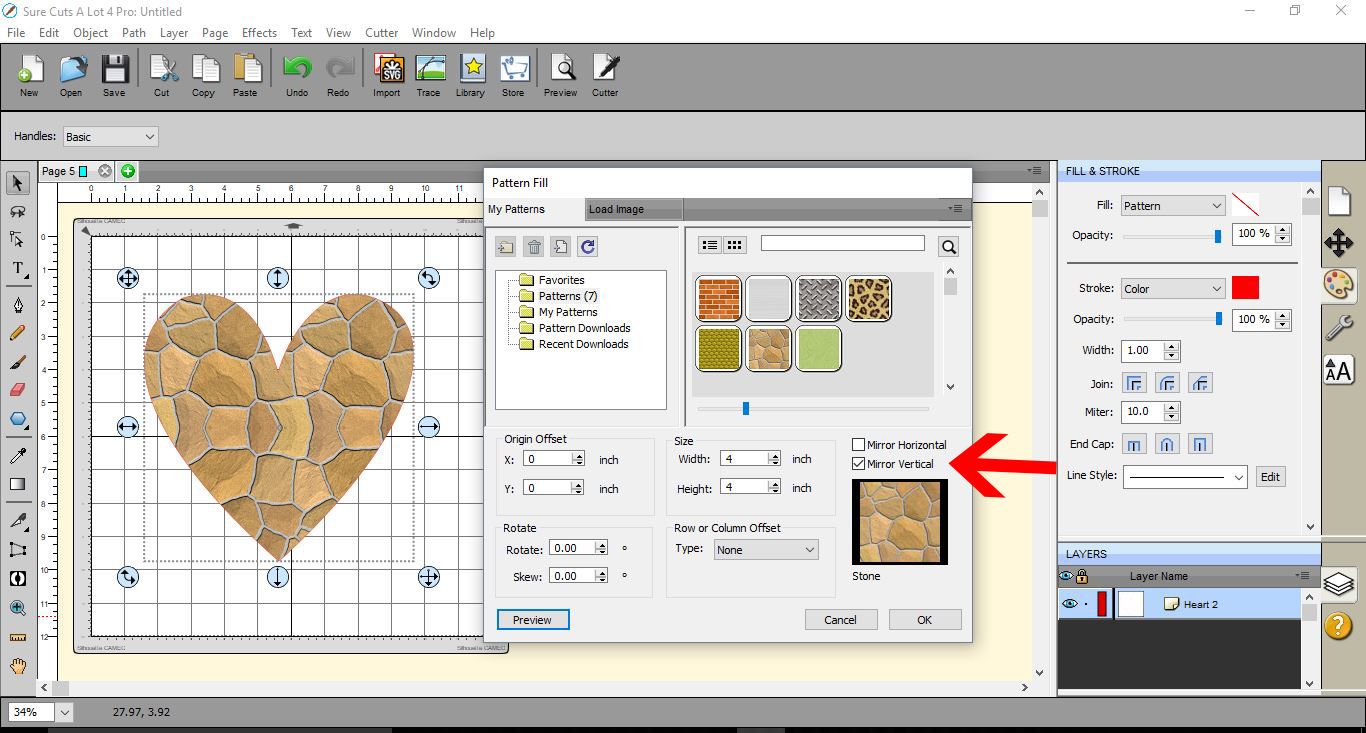
3- With the shape selected, click on the color palette, and in the fill drop-down menu, select pattern.
4- A new pop-up window will appear. This is the pattern fill window.
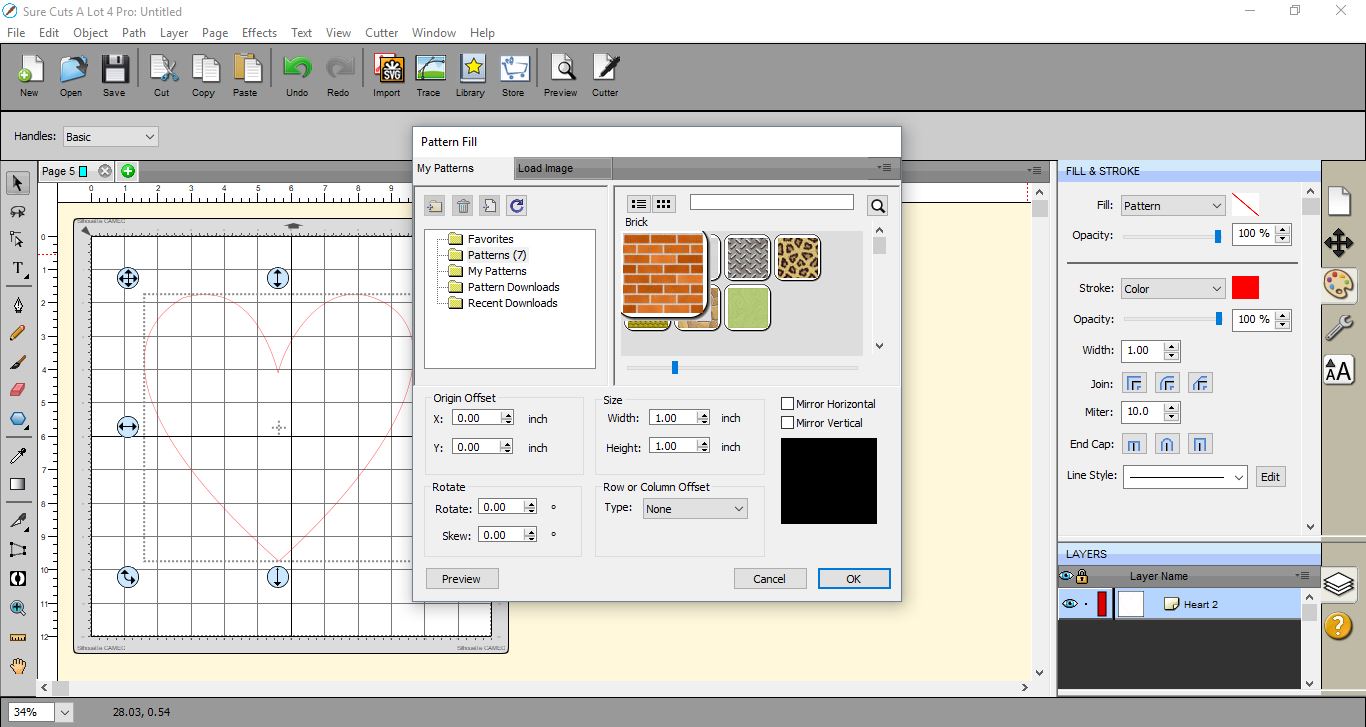
5- There are preloaded fill patterns in the software. Select a fill pattern, and click the preview icon to see how it will look in your shape.
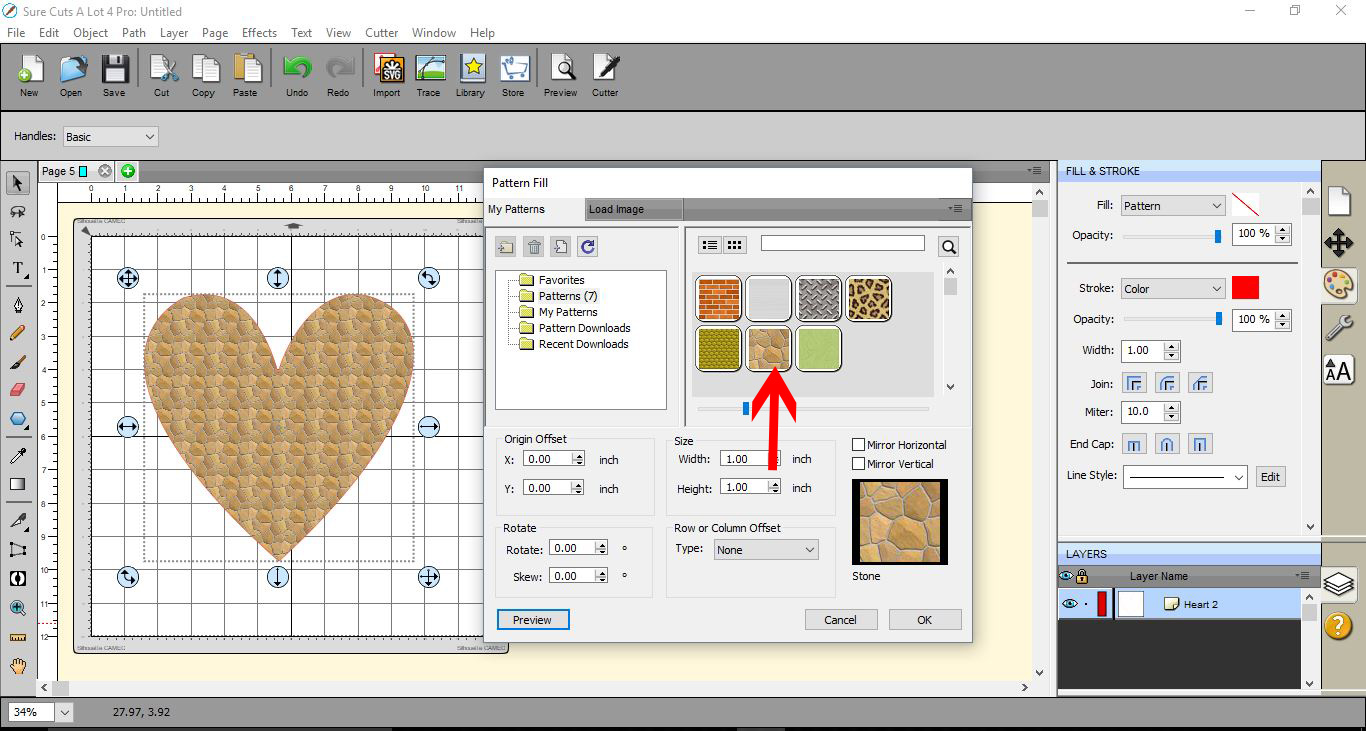
6- You can adjust the size of the pattern as a whole so it will appear larger in the shape you are filling.
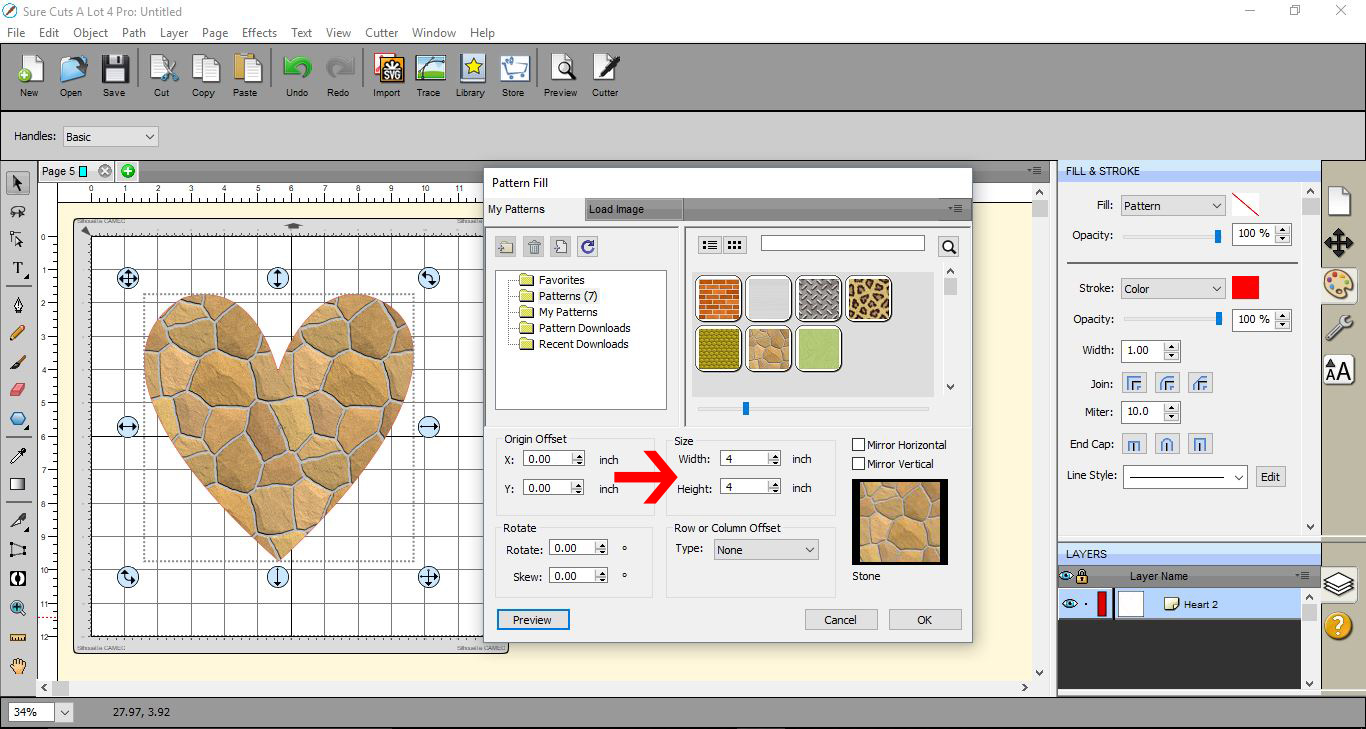
7- You can also mirror the fill in the shape horizontally.
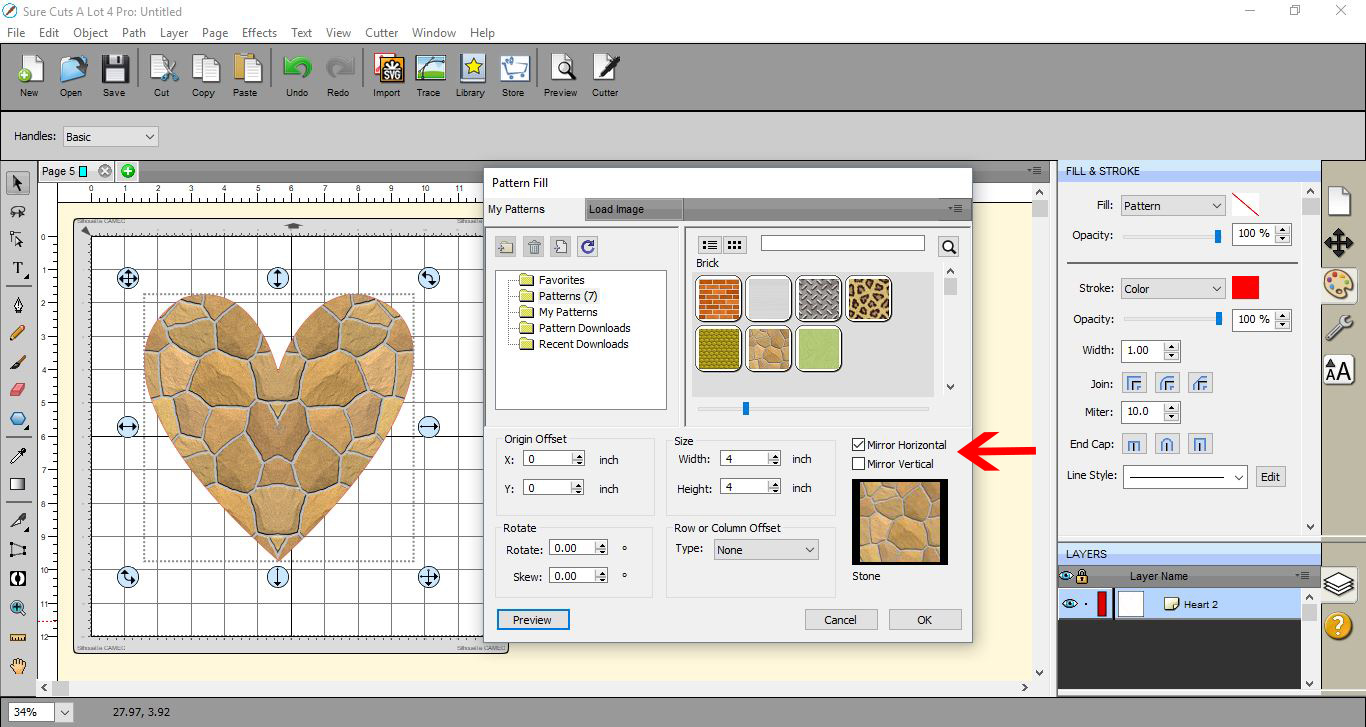
8- And you can also mirror it vertically as well.
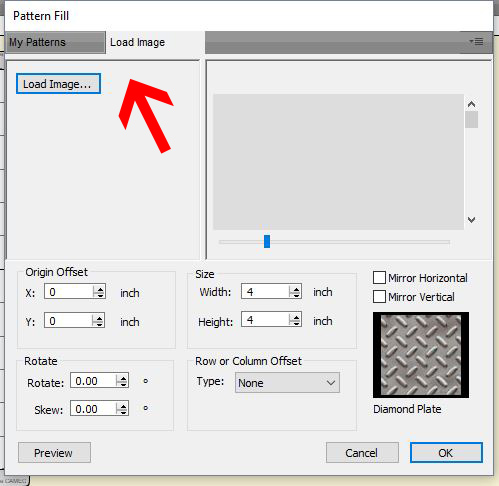
9- To use your own pattern, click on the Load Image tab, then select the Load Image button.If you don't have your own patterns to load, take a look at all the textured patterns we have available on Design Bundles.
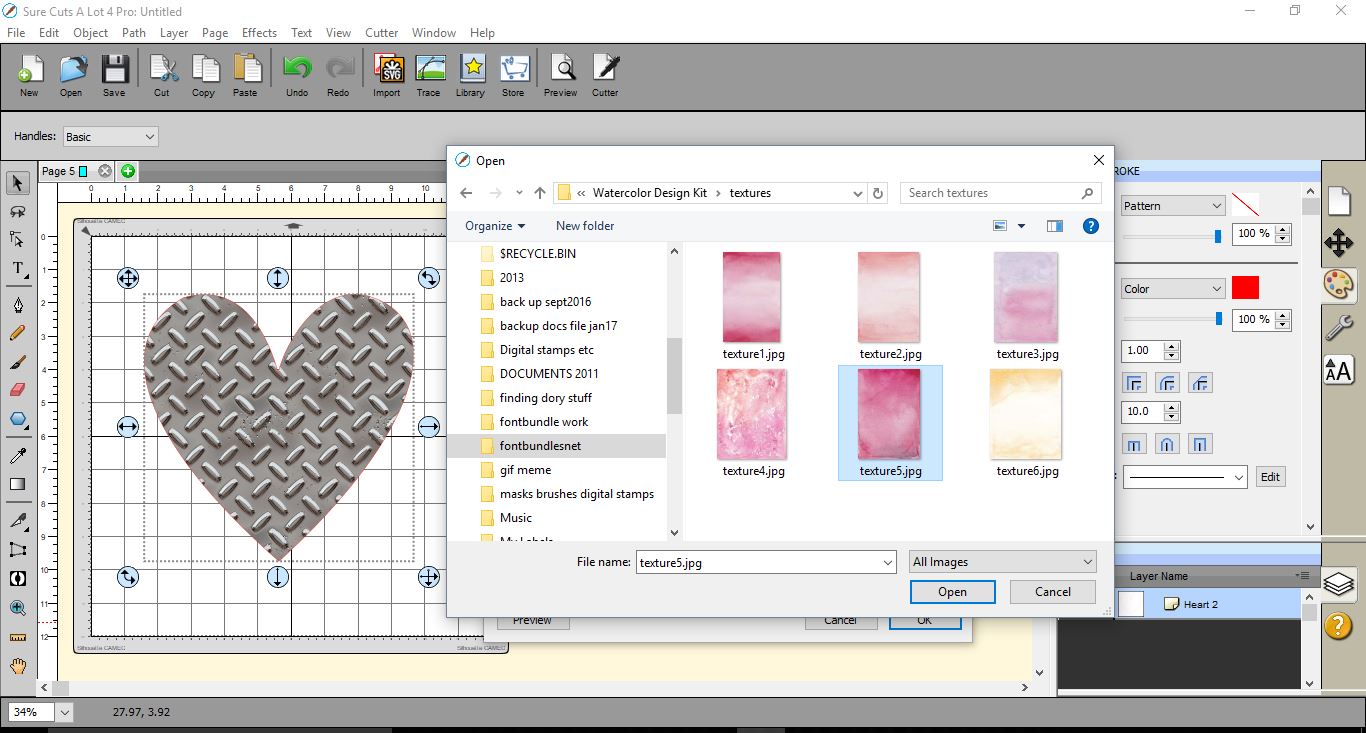
10-Select the pattern you would like to use.
11- Your pattern will now appear in the preview screen. Select the pattern tosee how it looks in your shape.
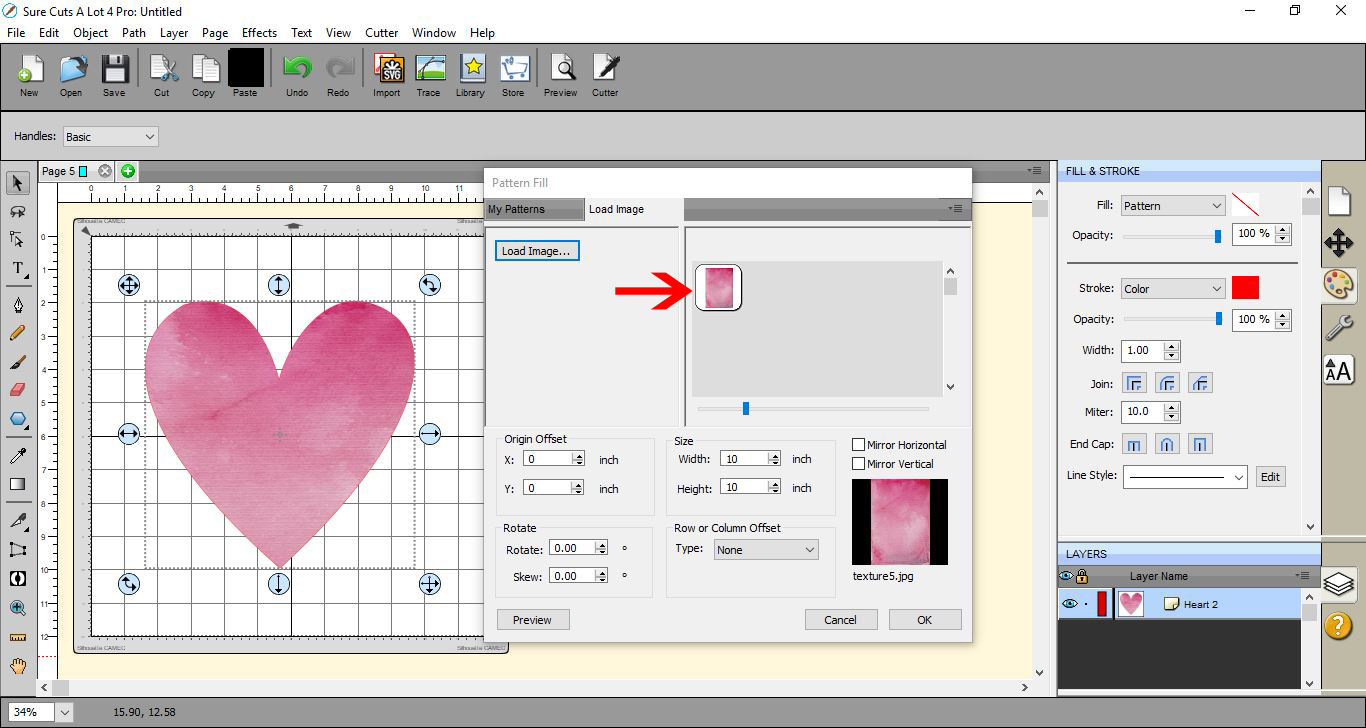
12- You can adjust the size to change the look in your shape.
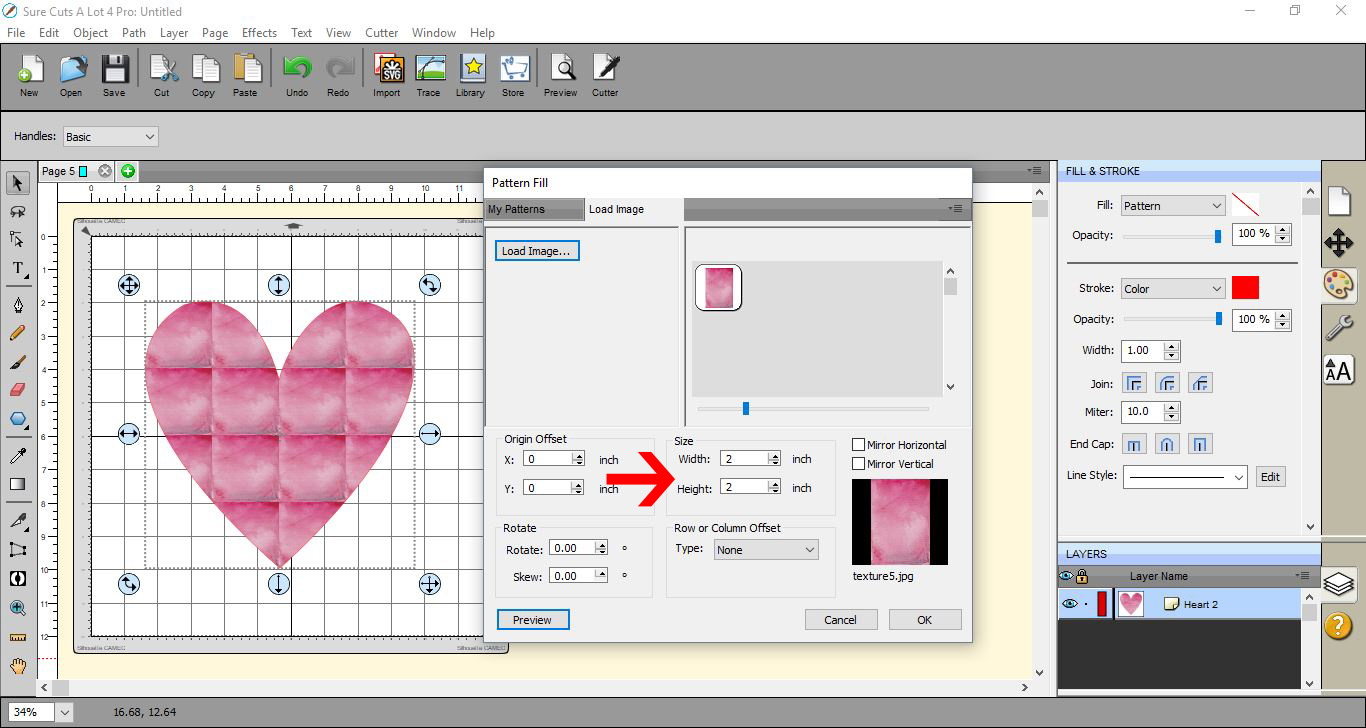
13- You can upload many patterns at the same time.
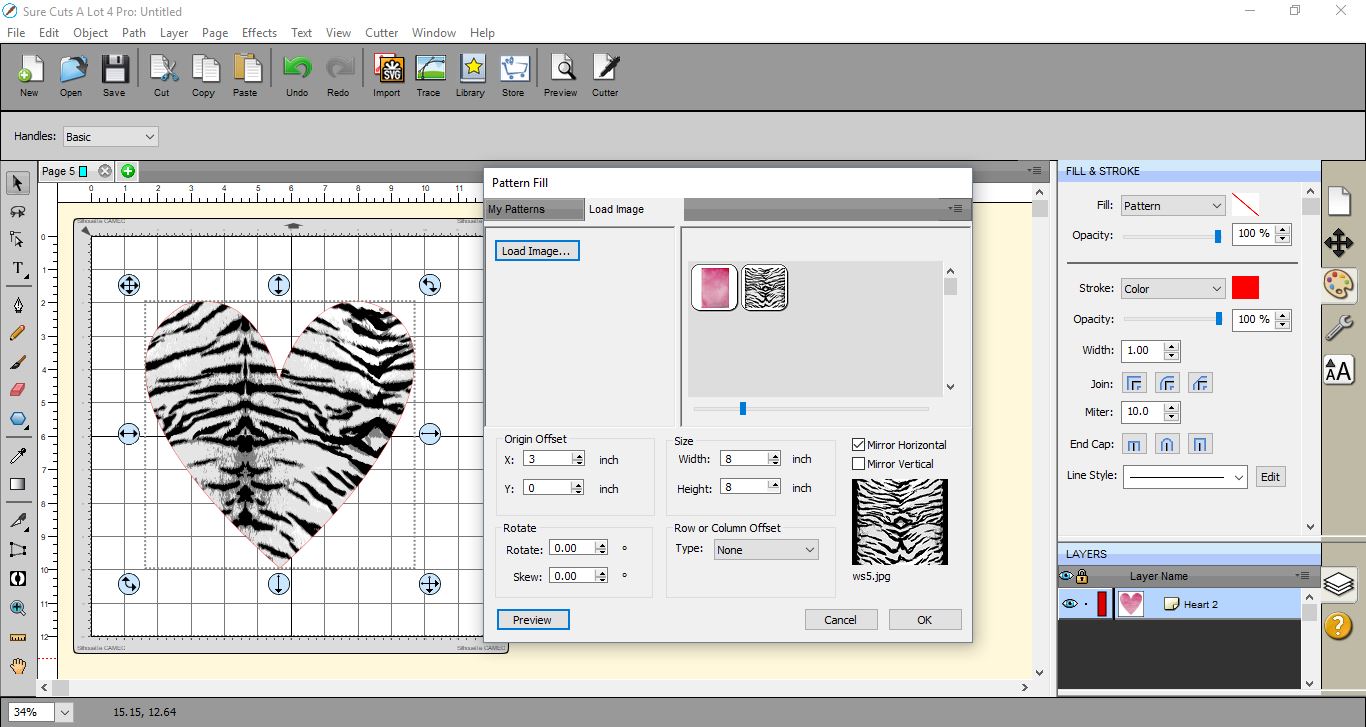
14- If part of the pattern is not where you want it to be in your shape, you can adjust the offset to move the shape over the part of the pattern you would like.
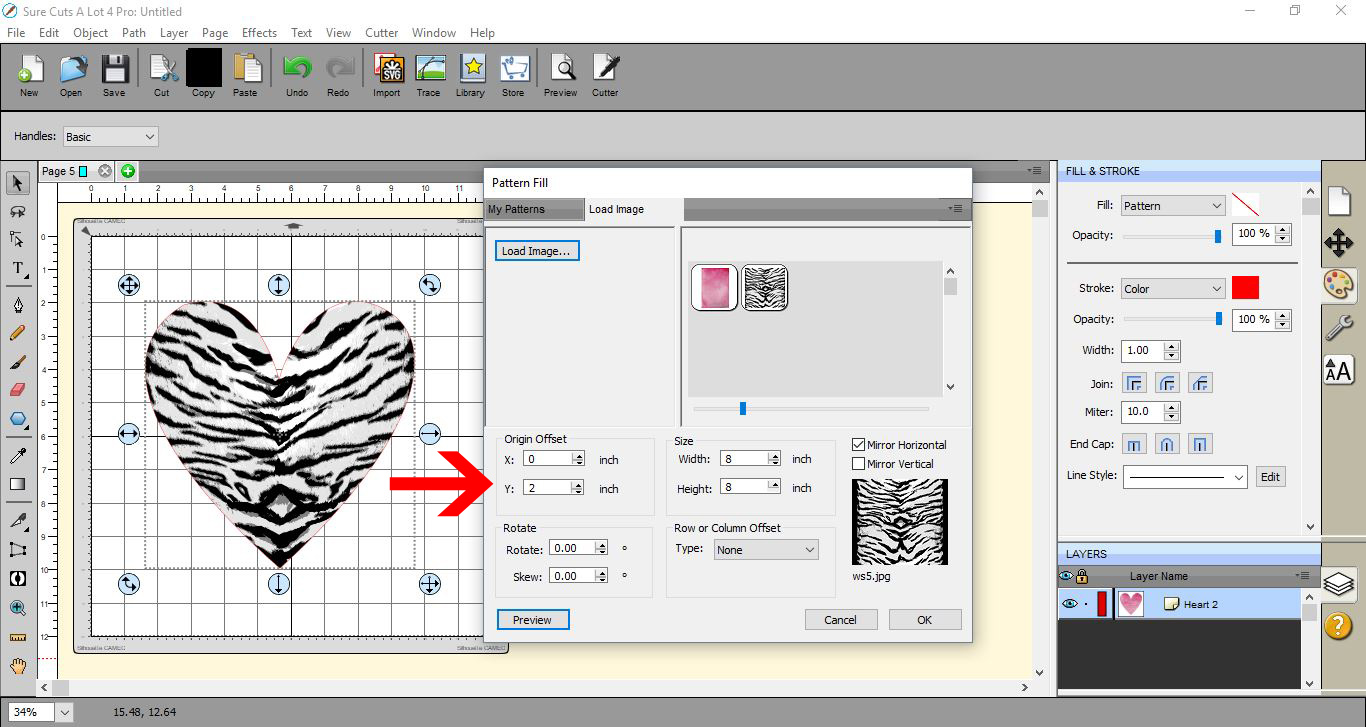
15- When you are happy, click ok.
It is good to note that if you adjust the size of the shape once filled, the pattern will stay the same size and only the shape will change size.