By Design Bundles
How to Reinstall Silhouette Studio on to Your Computer
There are many reasons to reinstall Silhouette Studio onto your PC. From accidentally deleting the software, adding the software to a new PC or re installing after an update or corrupt files.
Step 1- Firstly, When re installing Silhouette Studio, you need to make sure the original software is uninstalled.
Go to control panel, then Programs. Next click uninstall program.
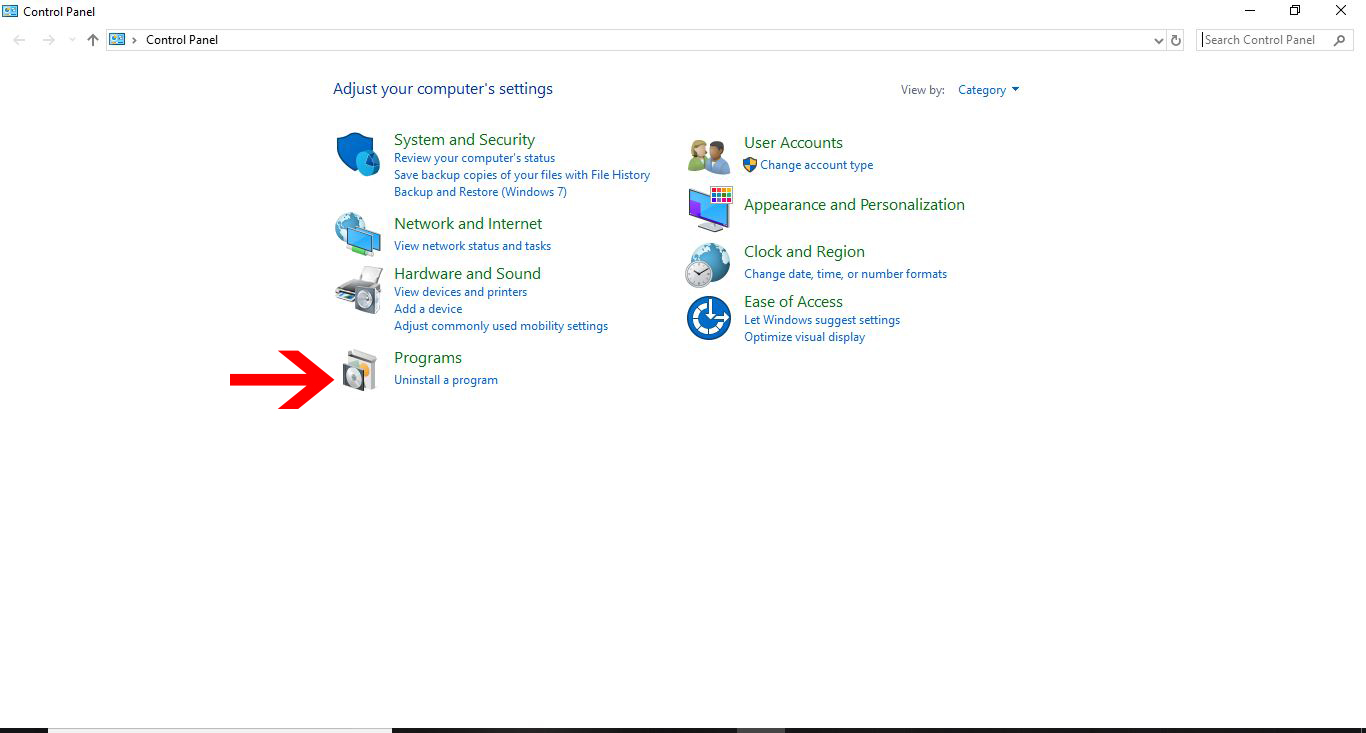
Step 2 - Look down the installed programs and if there is any part of silhouette studio still there, click on it and uninstall it.
This way when you reinstall silhouette studio it will be a clean install.
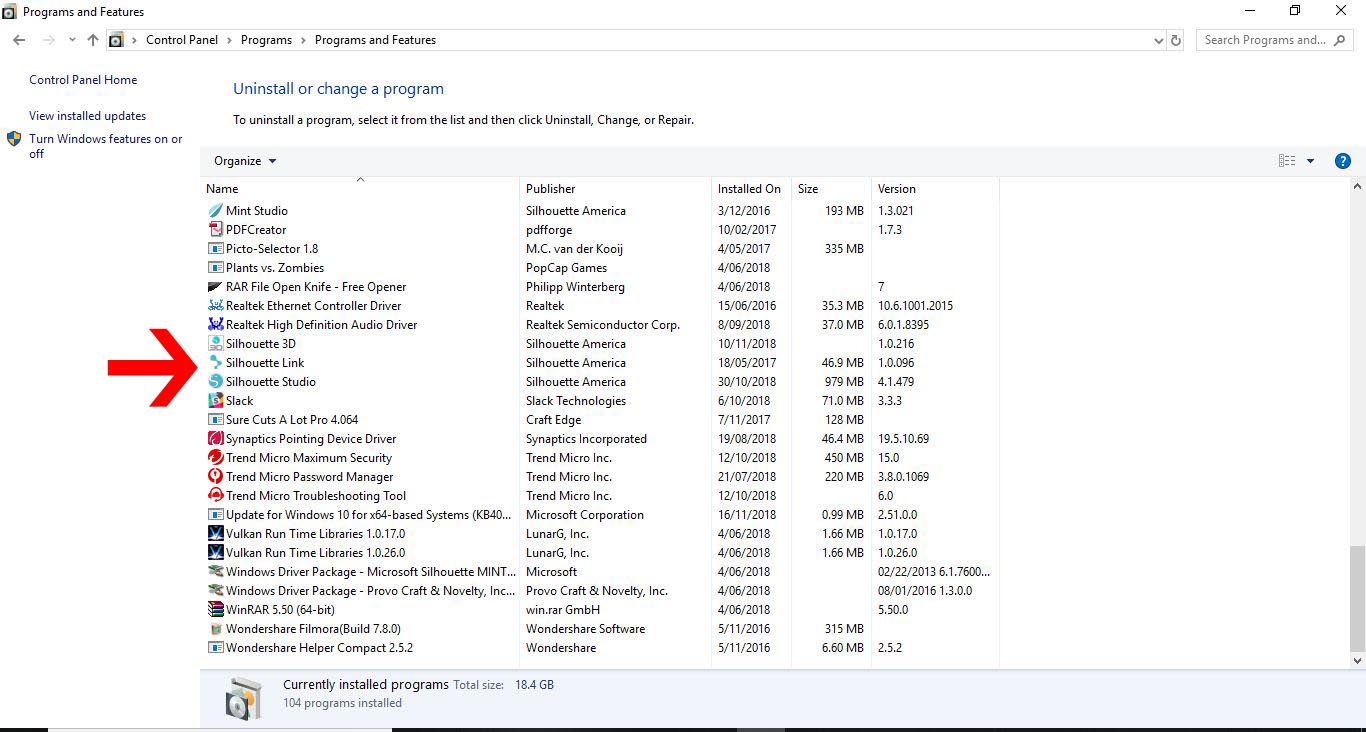
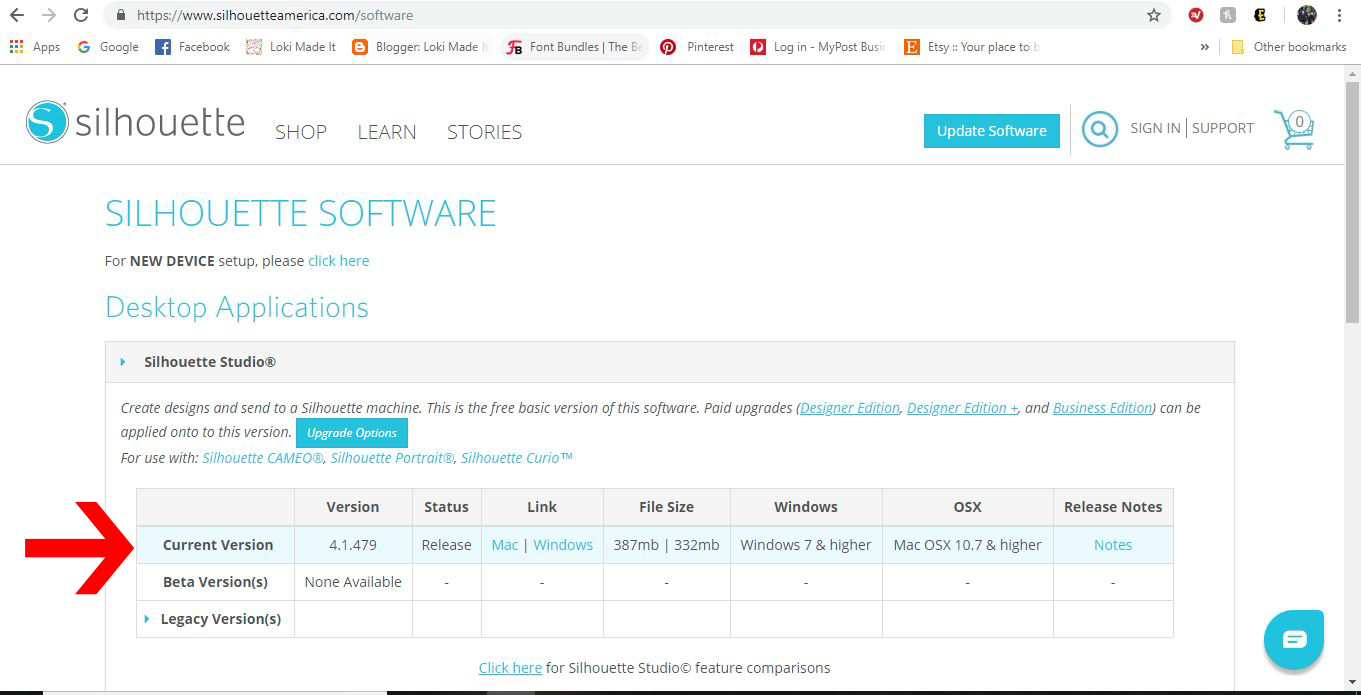
Step 3 - Once everything is uninstalled, go to Silhouette America and download the latest version of the software.
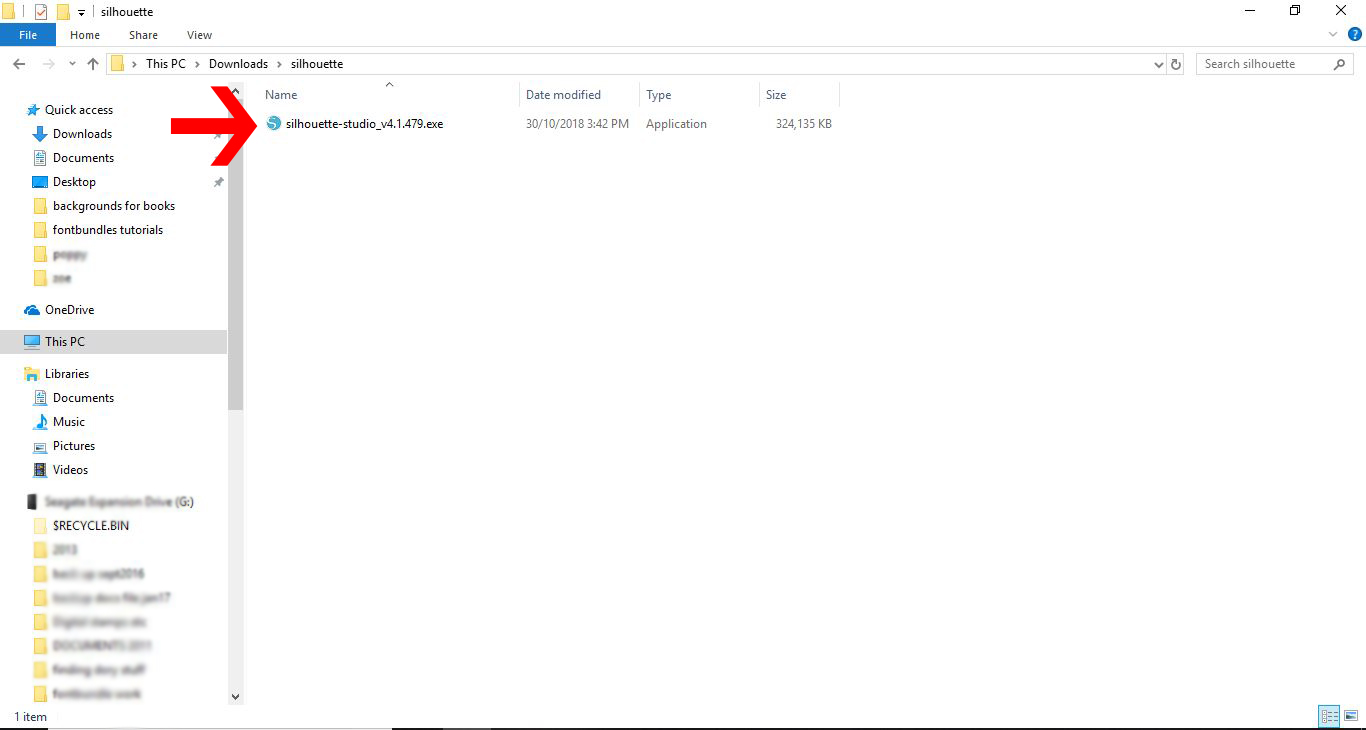
Step 4 - Double click on the downloaded software.
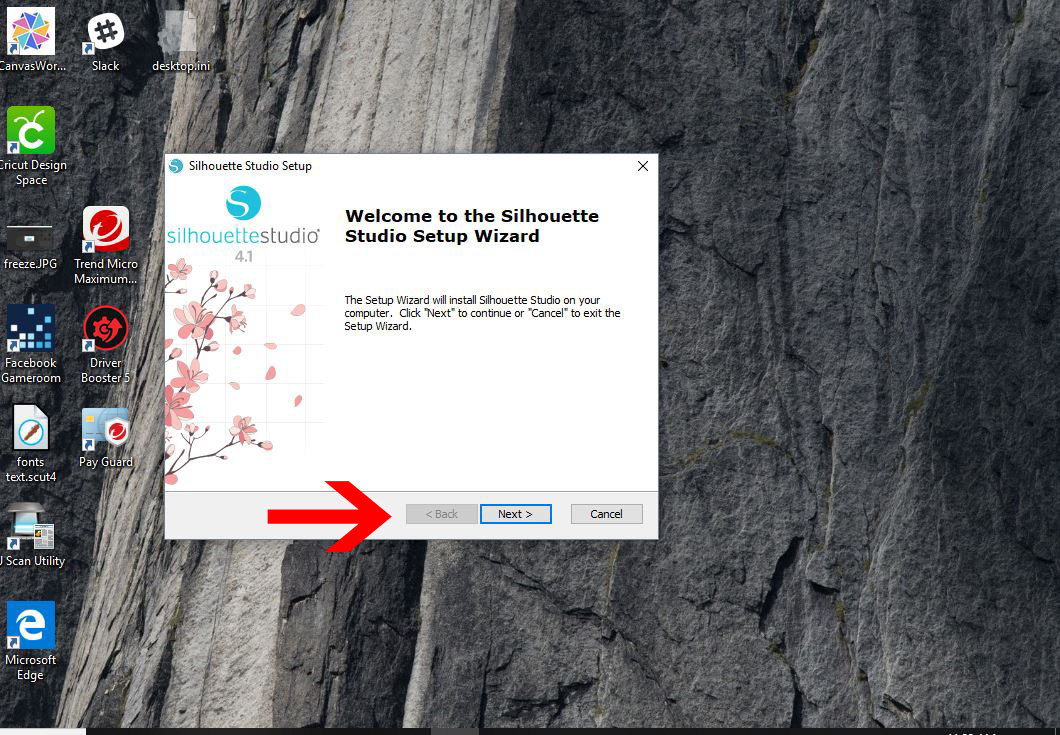
Step 5 - A new pop up will appear to start the new installation. Click on Next.
Step 6 - Select the installation folder and click Next.

Step 7- Click Install.
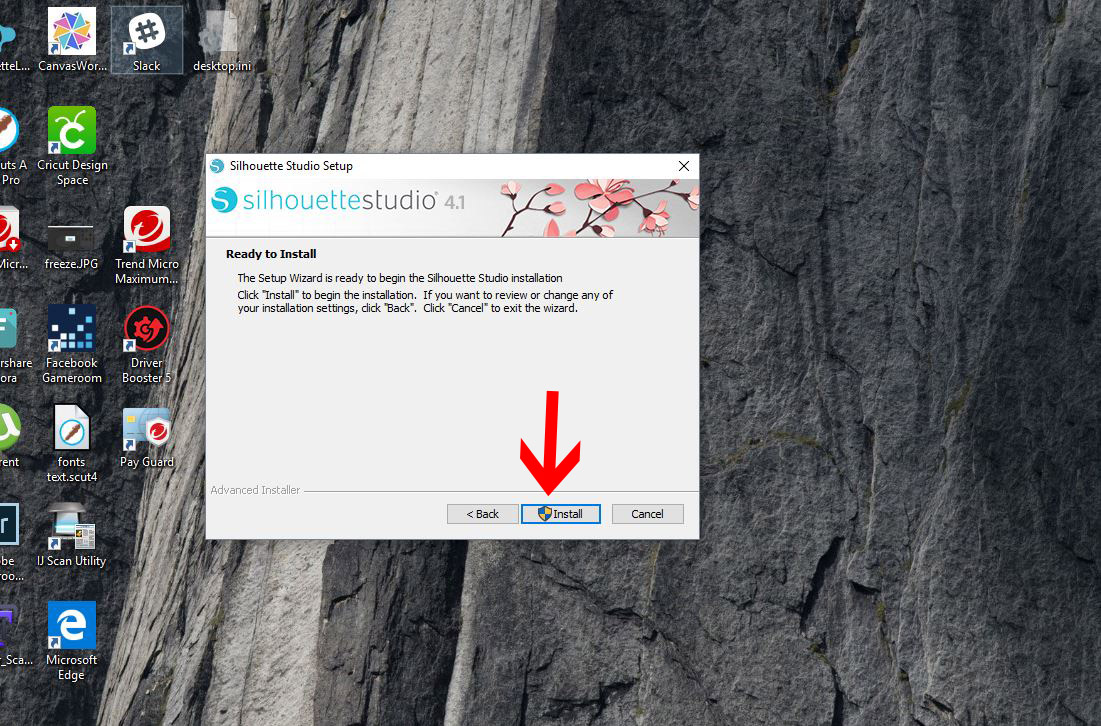
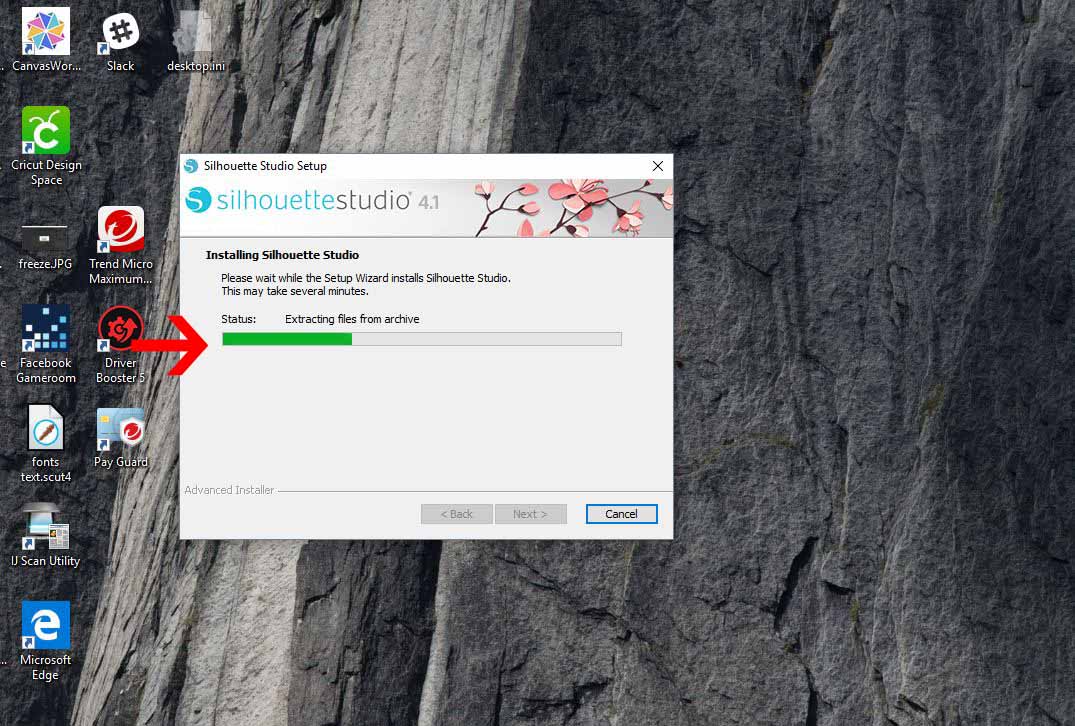
The installation process will take several minutes.
Step 8 - Once it has finished installing click on Finish.
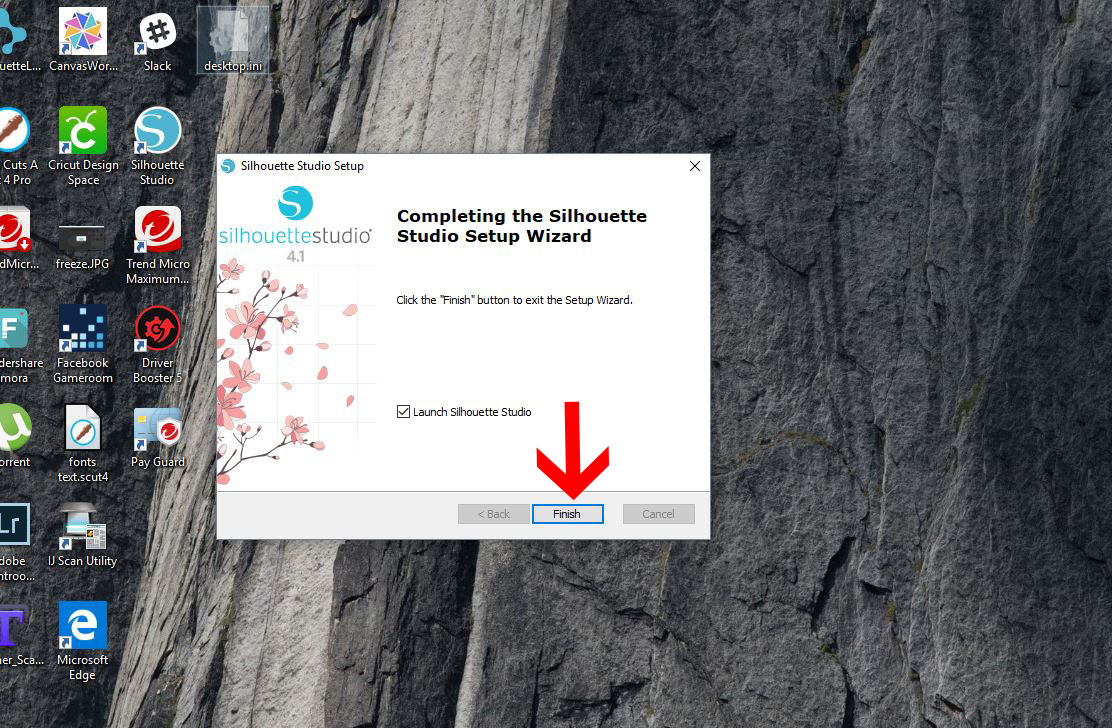
Silhouette Studio will automatically open.

Step 9 - If you own a silhouette Studio upgrade key (to designer or business edition). Click on Help and in the drop down box select Upgrade Silhouette Studio.
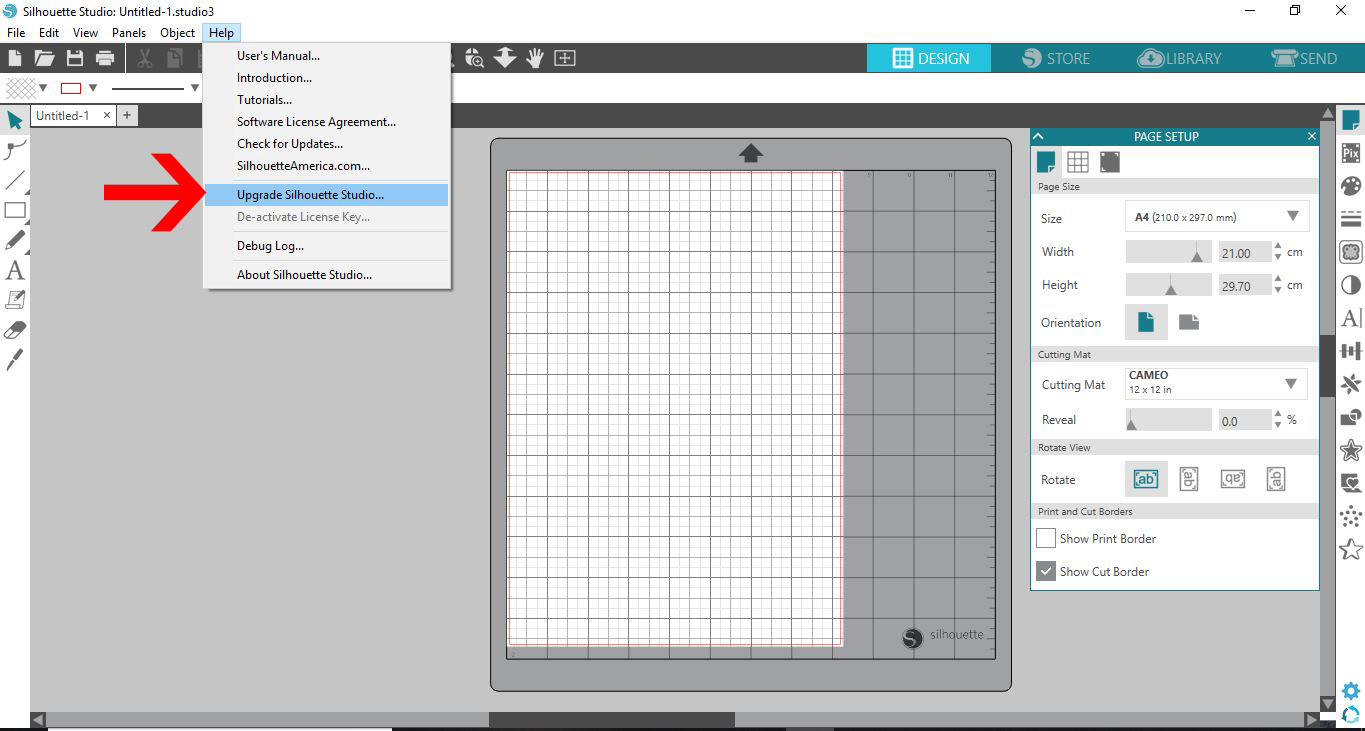
Step 10 - Add your email address associated with your Silhouette account, password and the 16 digit key and click submit.
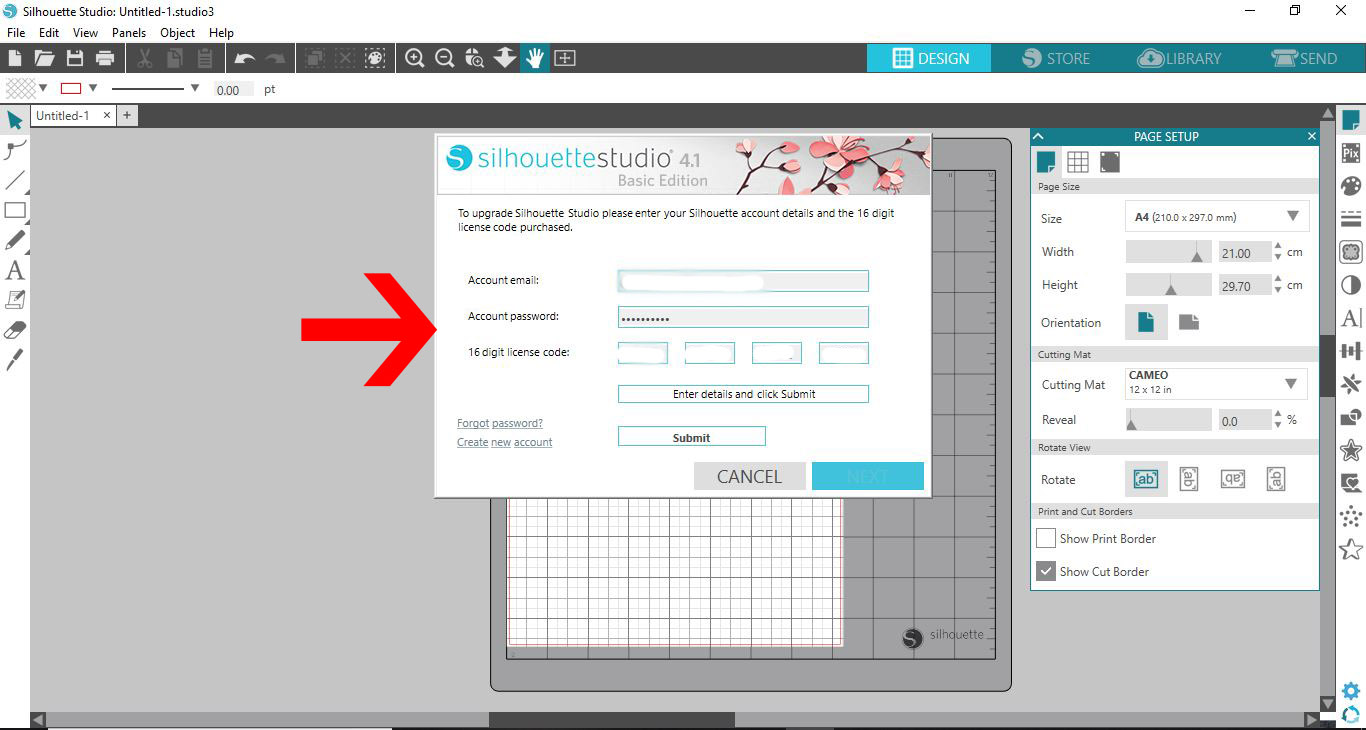
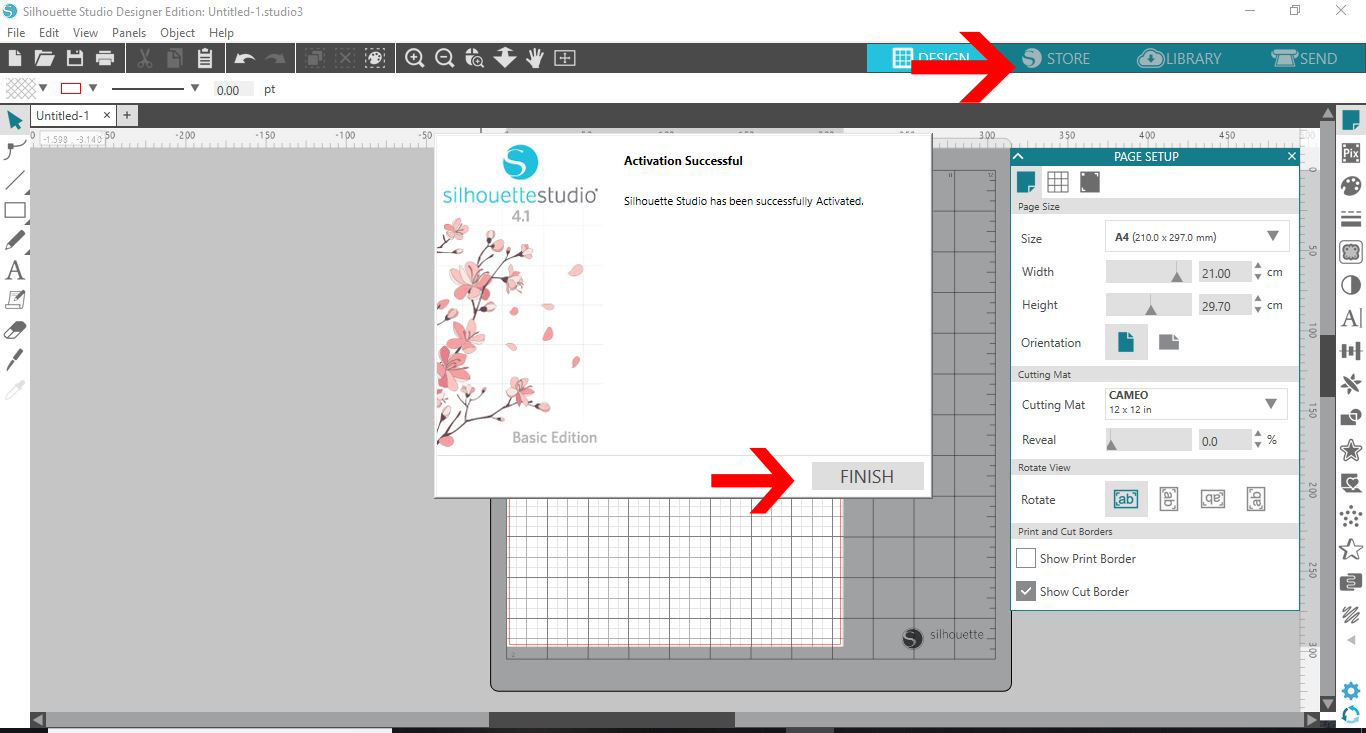
Step 11 - Click Finish. Your software will then upgrade.
If you need to find your upgrade key you can find it in the Silhouette store. Click the store icon.
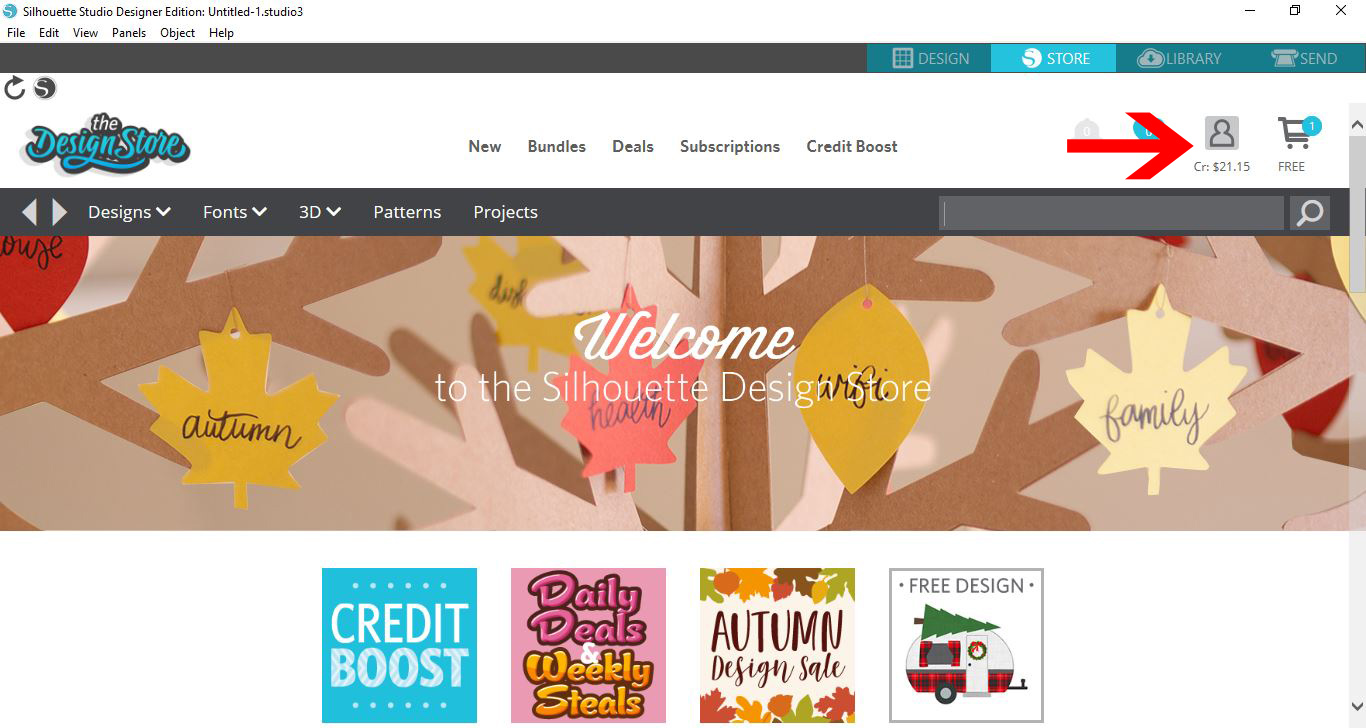
Step 12 - Click on your account icon.
Step 13 - Click on account settings.

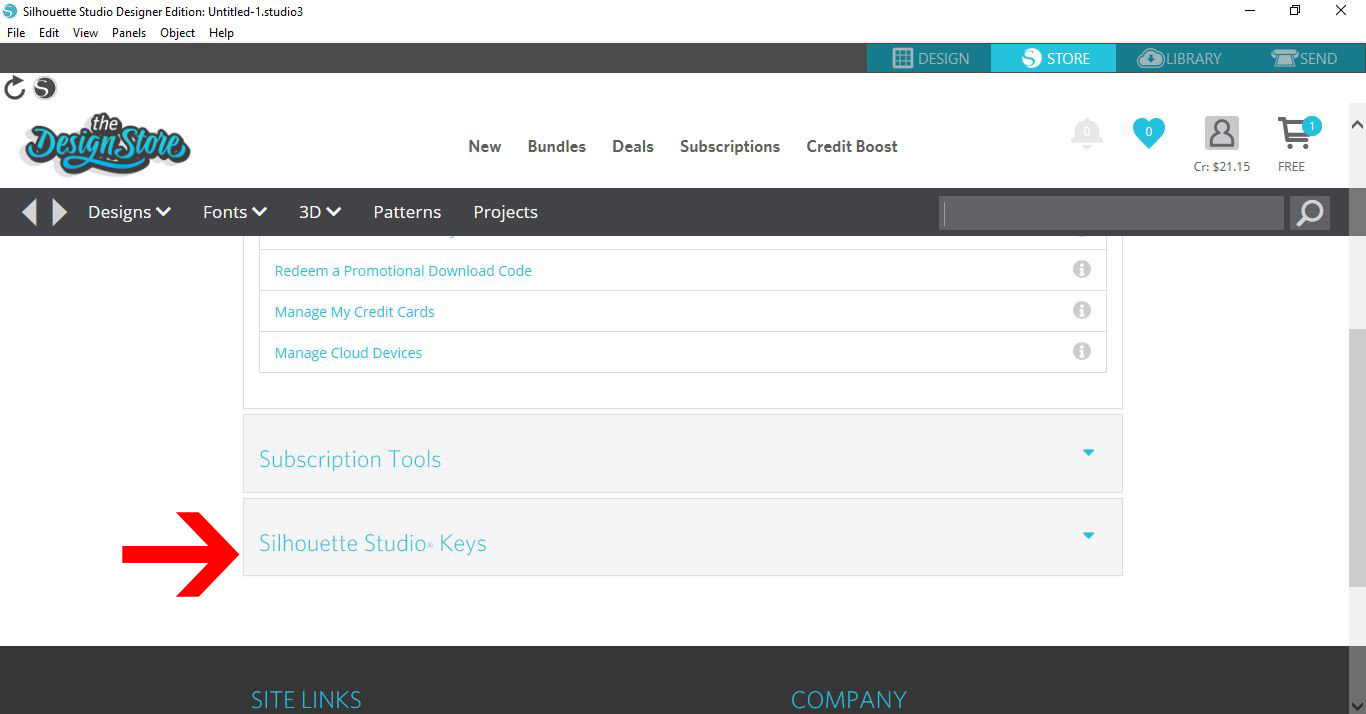
Step 14 - Scroll down to the option of silhouette studio keys and click on it.
Your keys will be available there for you to copy and then add to your software as per steps 10-14.
There's no need to stress about reinstalling Silhouette Studio on your computer. We hope this tutorial has help you to get going again with your crafting. Feel free to check out our other Silhouette Studio Tutorials and don't forget you can download our Free SVG Images to use with a Commercial License included.