By Design Bundles
Canva Tutorials10 min
How to Make Highlight Covers for Instagram in Canva
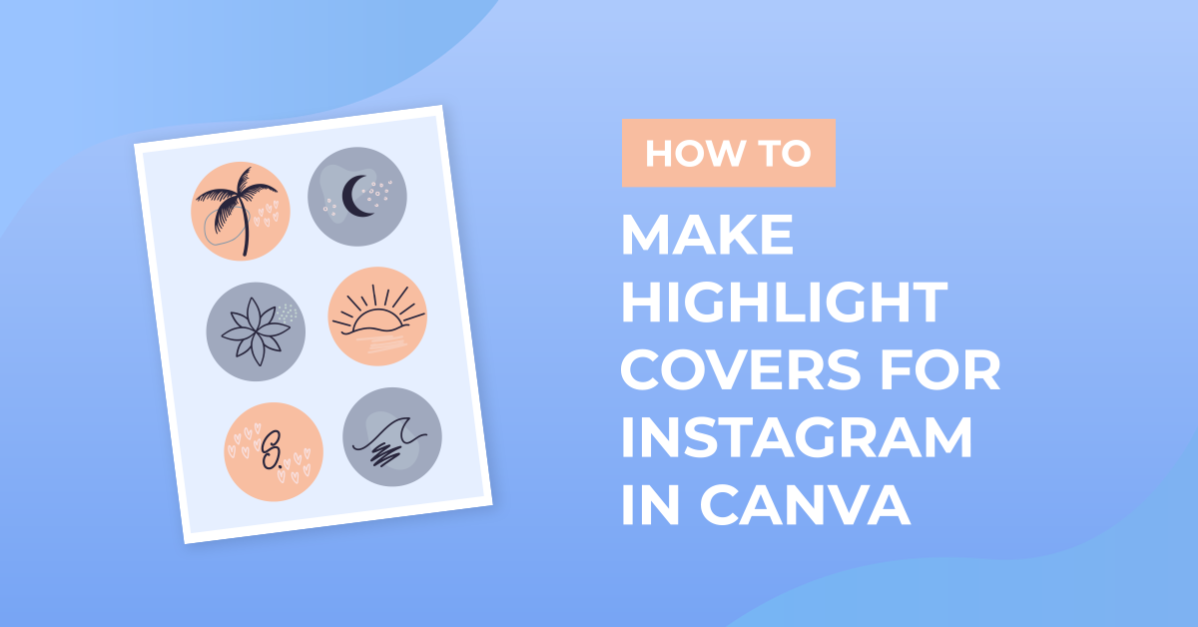
Instagram Highlight covers are a great way to show off important stories you want your followers to have easy access to. You can find the Instagram Highlights located under your Instagram profile’s bio section and photo. They provide an aesthetic look for your Instagram Highlights and draw your audience’s attention to your best Instagram Story content.
In this tutorial, we are here to show you how to customize an Instagram Highlights cover template from Canva and a purchased template from Design Bundles.
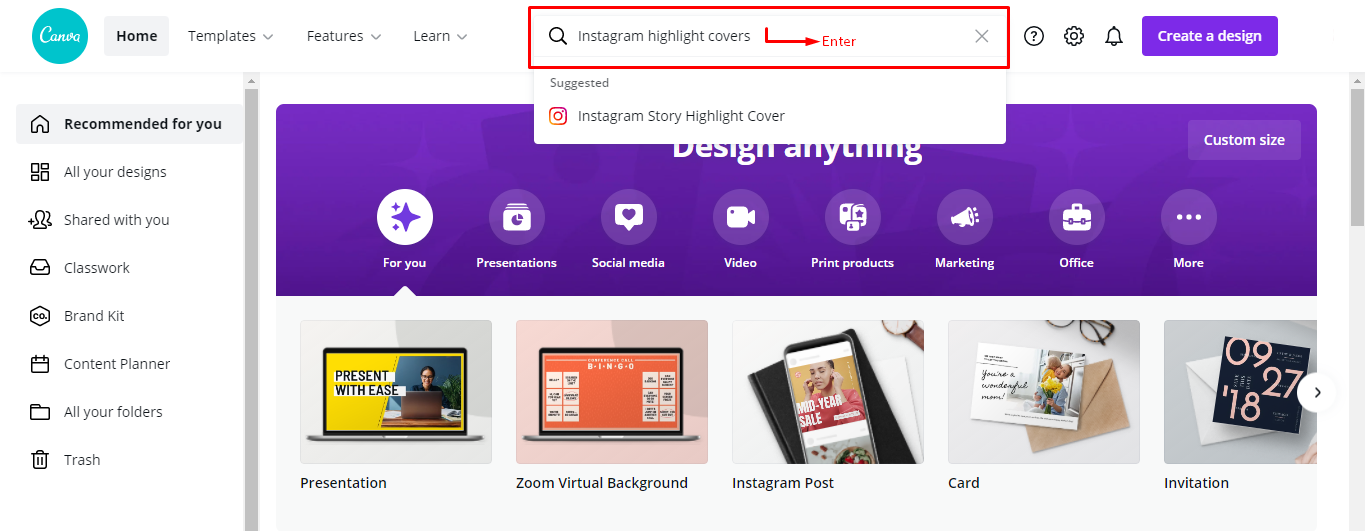
On Canva’s homepage, type “Instagram Highlight Covers” on the search bar at the top part of the page and press enter.
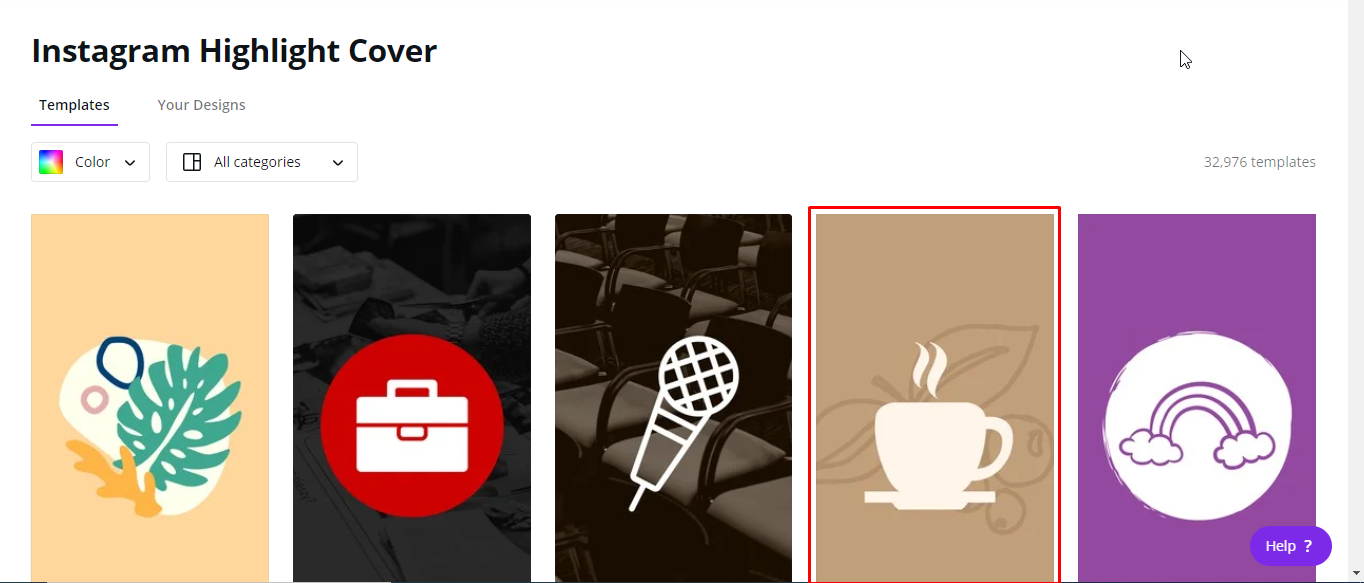
This will bring you to a page of several pre-made highlight covers for Instagram. Scroll through the results, and tap on a template you like. We'll choose this coffee shop-themed cover.
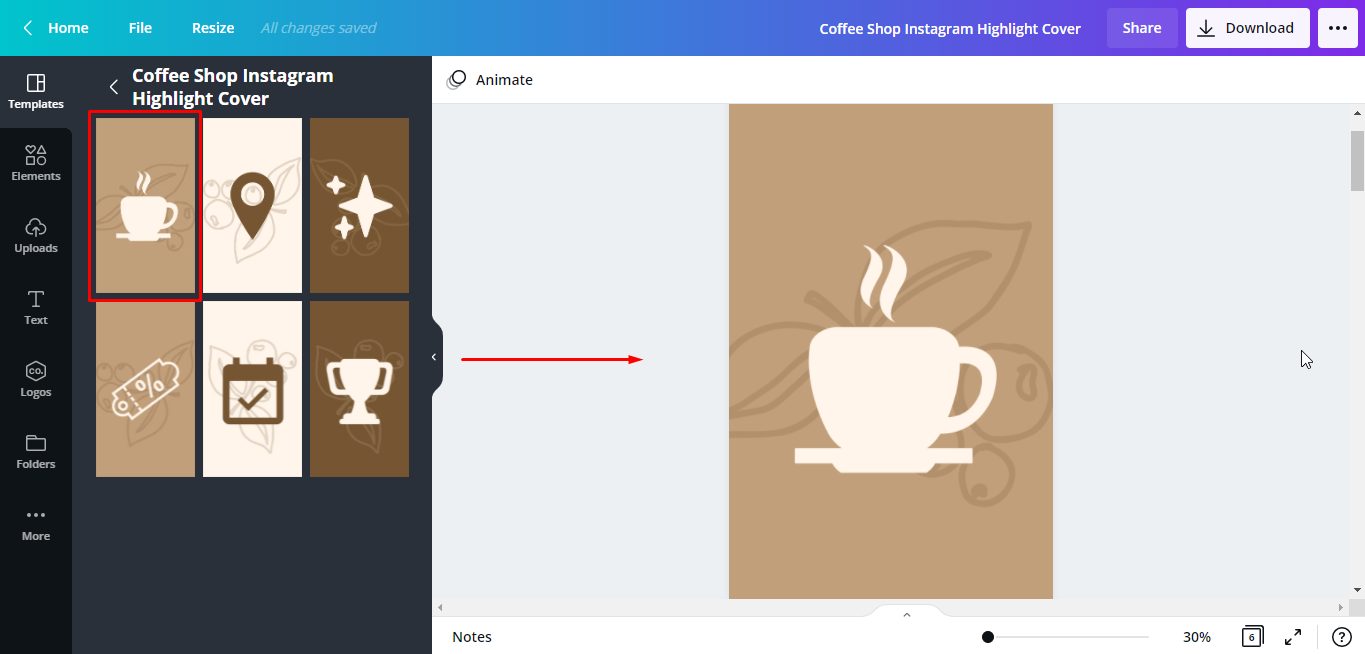
Your chosen template will now appear in your canvas.
You can customize the template colors according to your branding. To change the background color, select the background and click on the color tile on the toolbar. The colors and other color suggestions from your existing document will be displayed on the editor panel on the left.
Any color palettes you created previously will also be shown. If you want more colors, you can click the +color tile on the top left corner to access the color slider and choose a color from there.
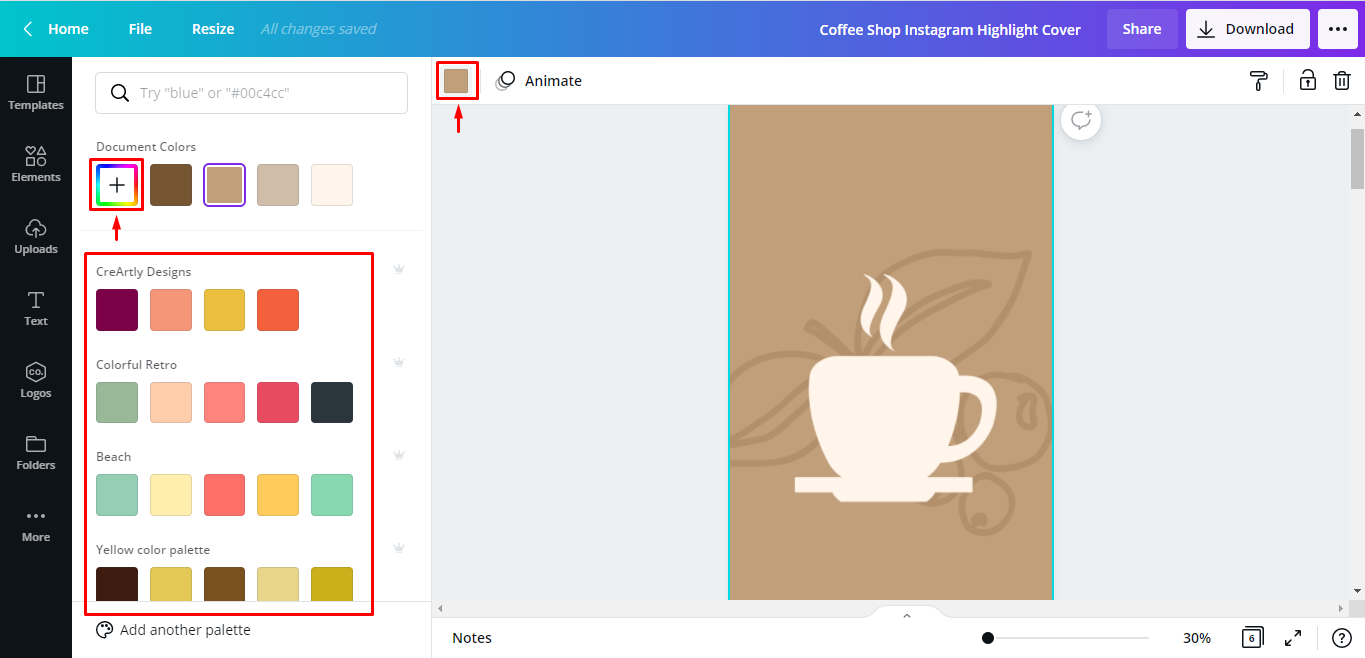
Click on a color to apply the color change to your background.
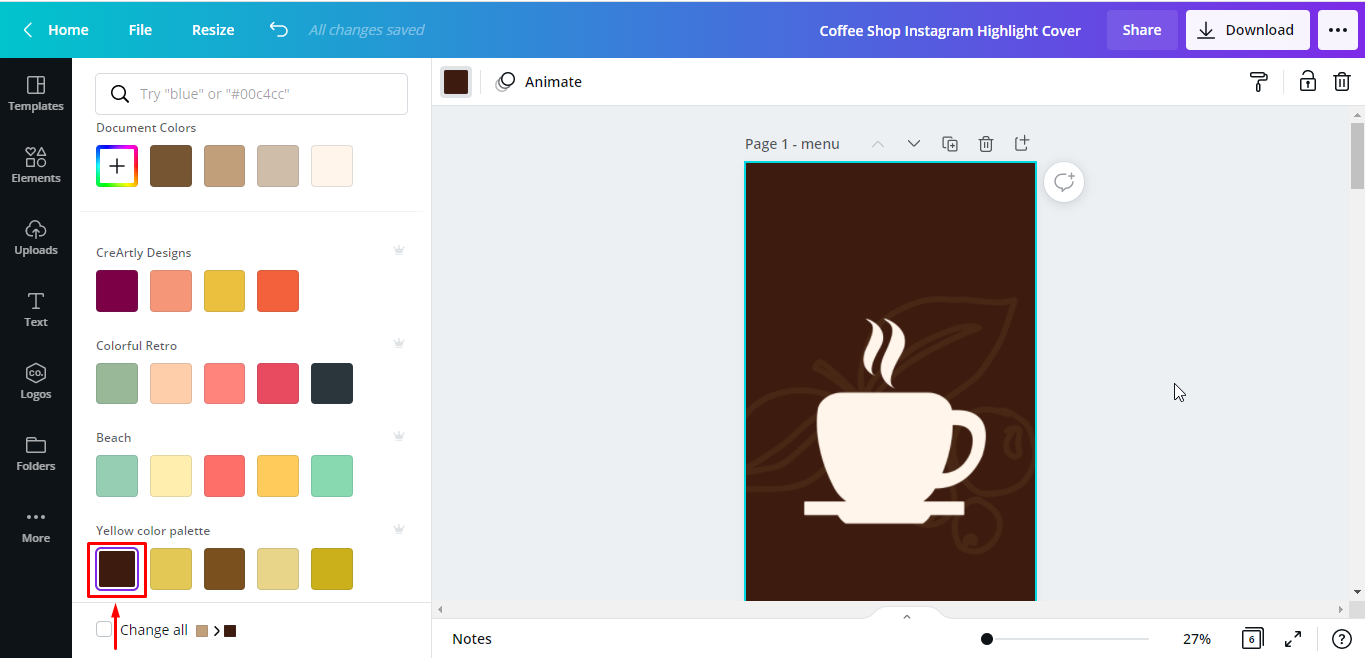
You can also change the colors of the individual elements. Tap on the element you want to edit. The number of color tiles that will appear on the toolbar will depend on how many colors the selected element has. Click each color tile that you want to change.
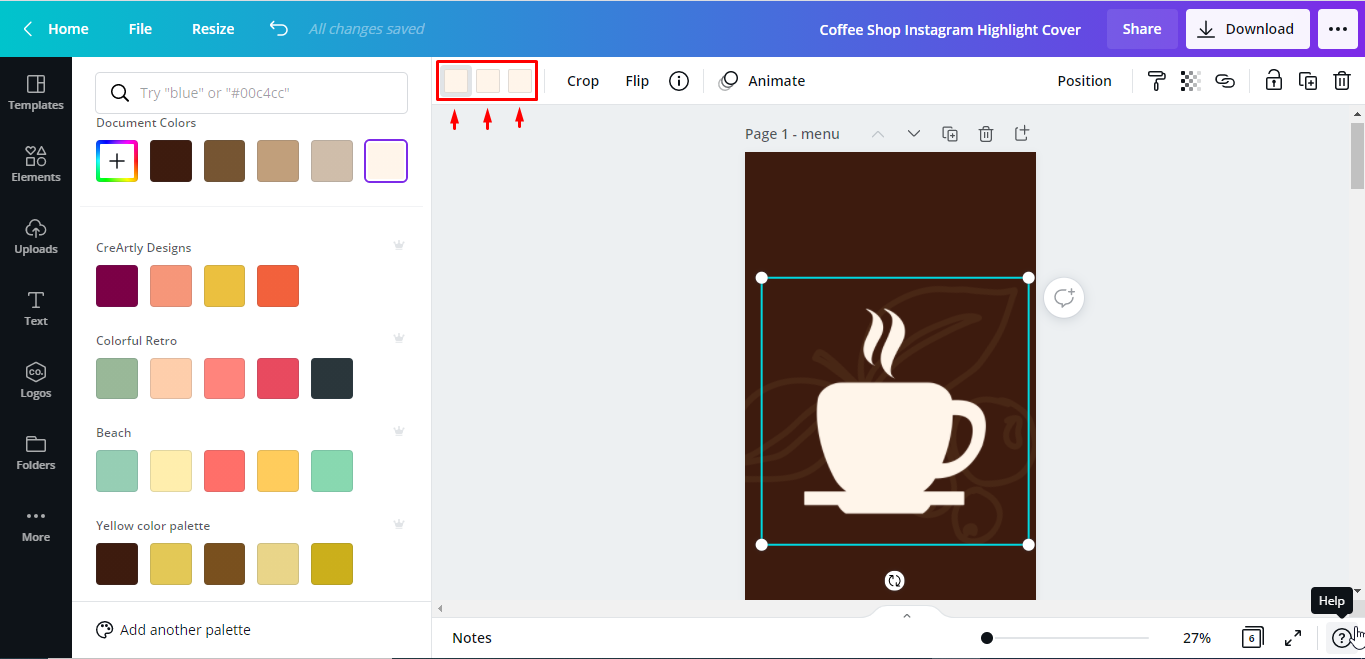
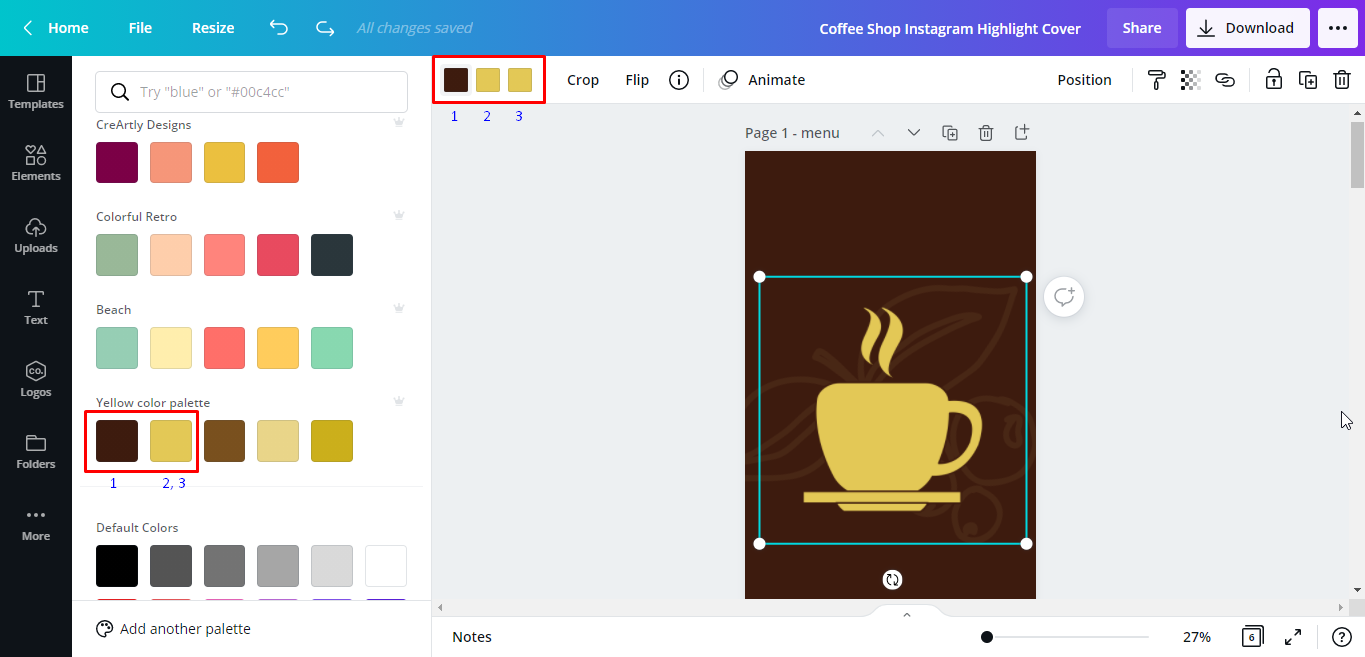
On the editor side panel, click on a color to instantly apply it to the specific part of the selected element. Do the same process to the other element parts.
Now, we’re going to show you how to customize a downloaded Instagram Highlights cover template from Design Bundles.
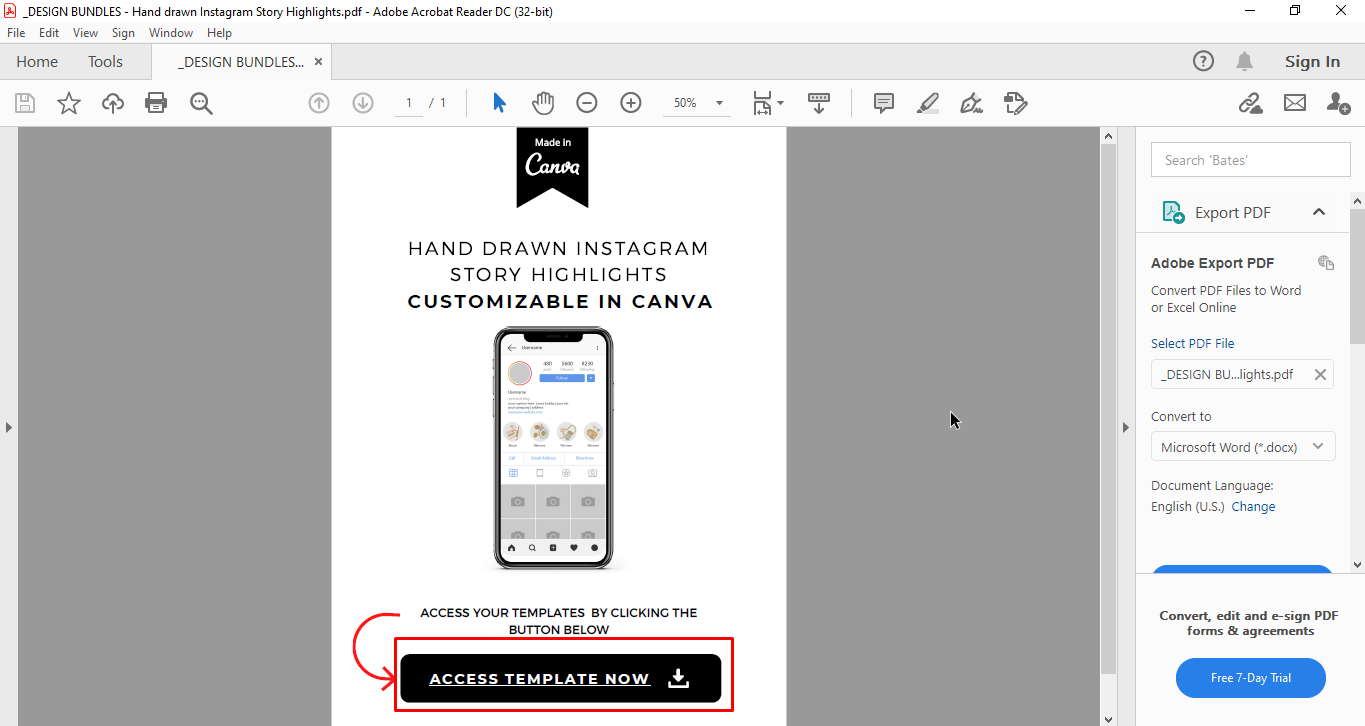
Open the file location of your downloaded template from your computer. We’ll be using this Hand Drawn Instagram Highlight Covers Canva Template from the Design Bundles. Click on the PDF included in the download. Then press the “Access Template Now” button to click on the embedded Canva link.
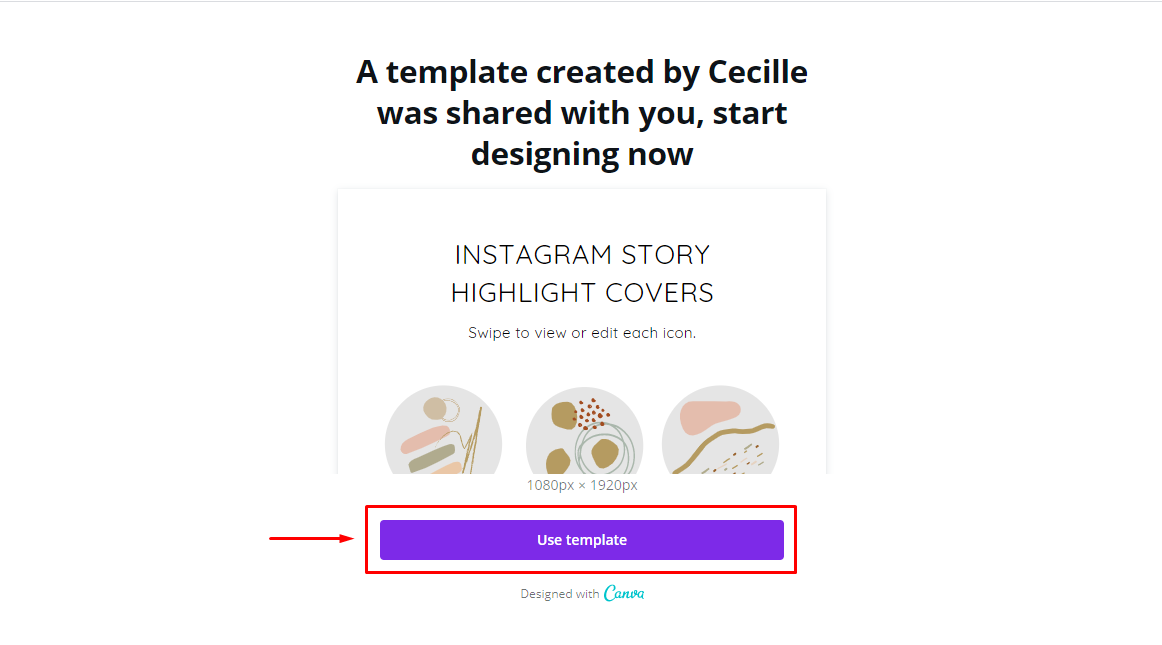
It will open a new window. Click the “Use Template” button.
This will automatically create a copy of the template and save it to your Canva account.
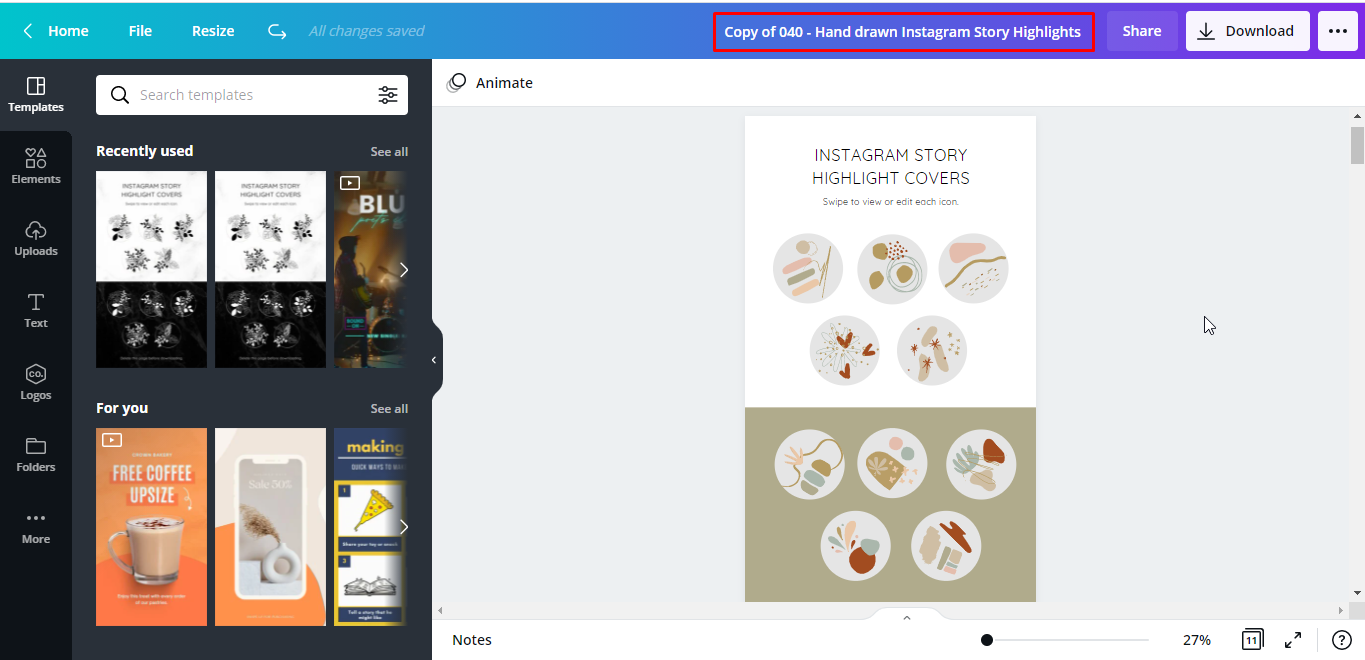
The template has several pages. Scroll through and click the page you want to edit.
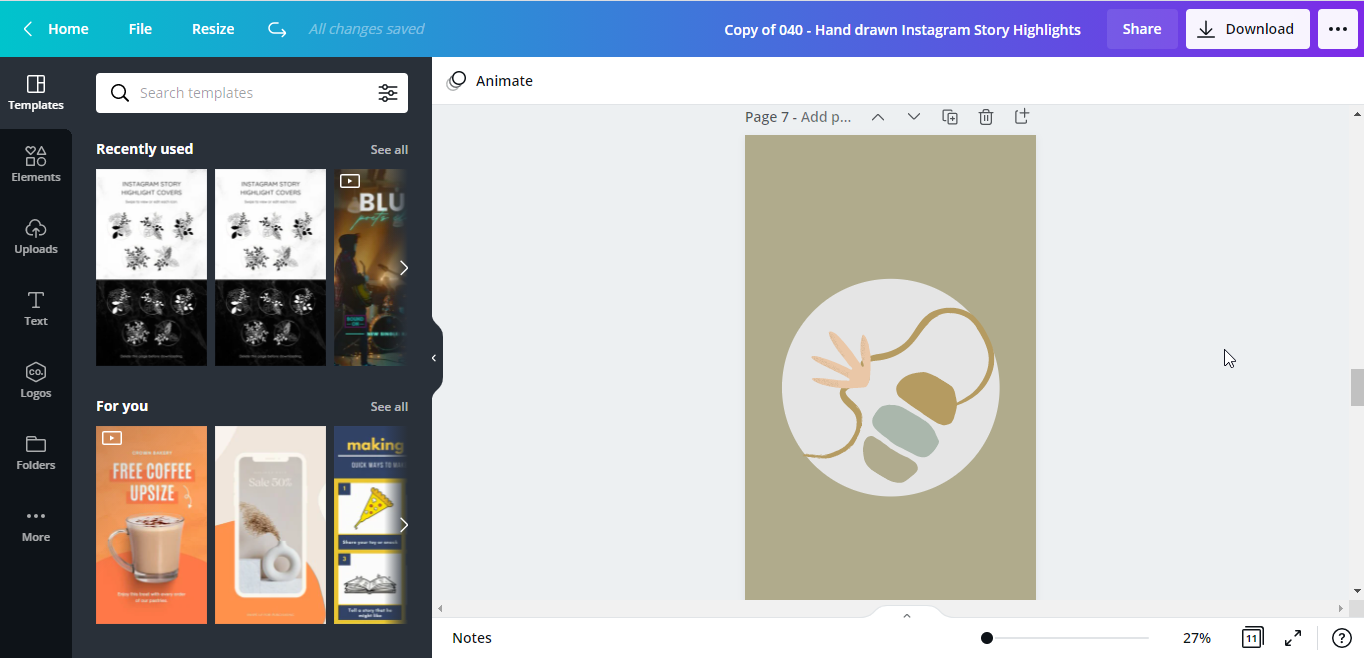
Just like the pre-made templates in Canva, You can also customize the colors of your templates purchased from Design Bundles according to your branding. You can change the background color, by selecting the background, clicking on the color tile on the toolbar, and clicking on a color on the editor side panel to instantly apply it to the background.
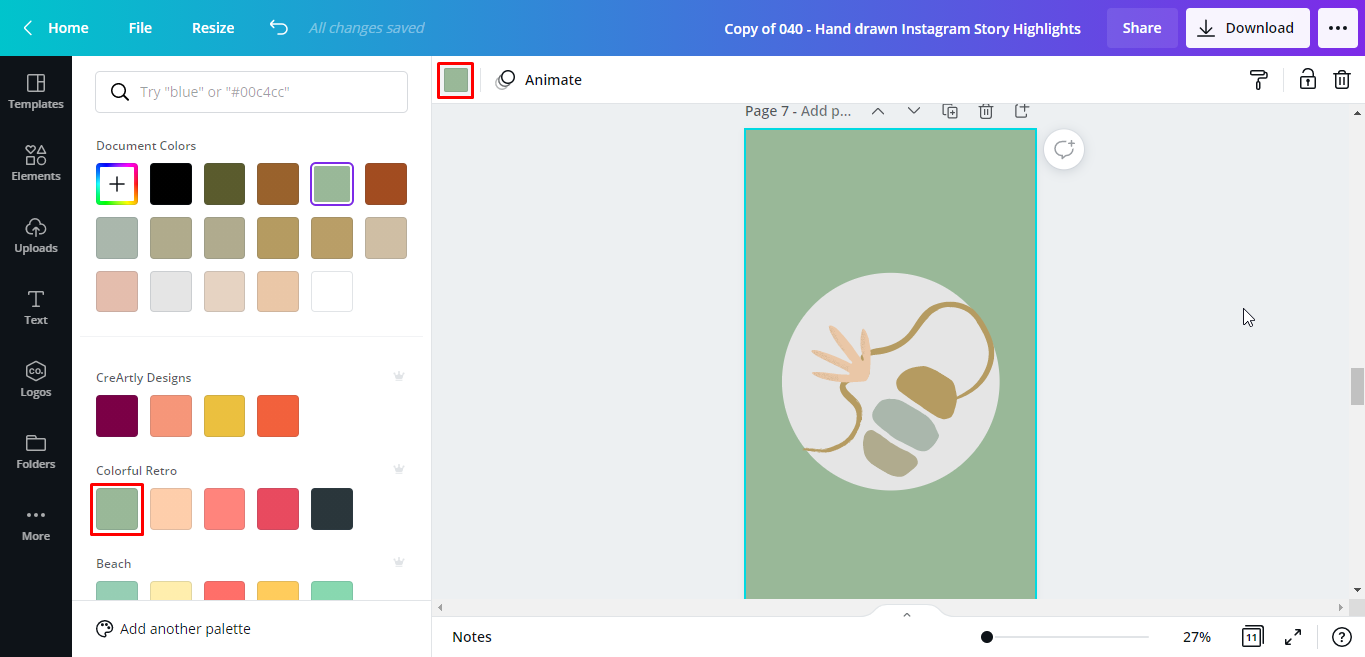
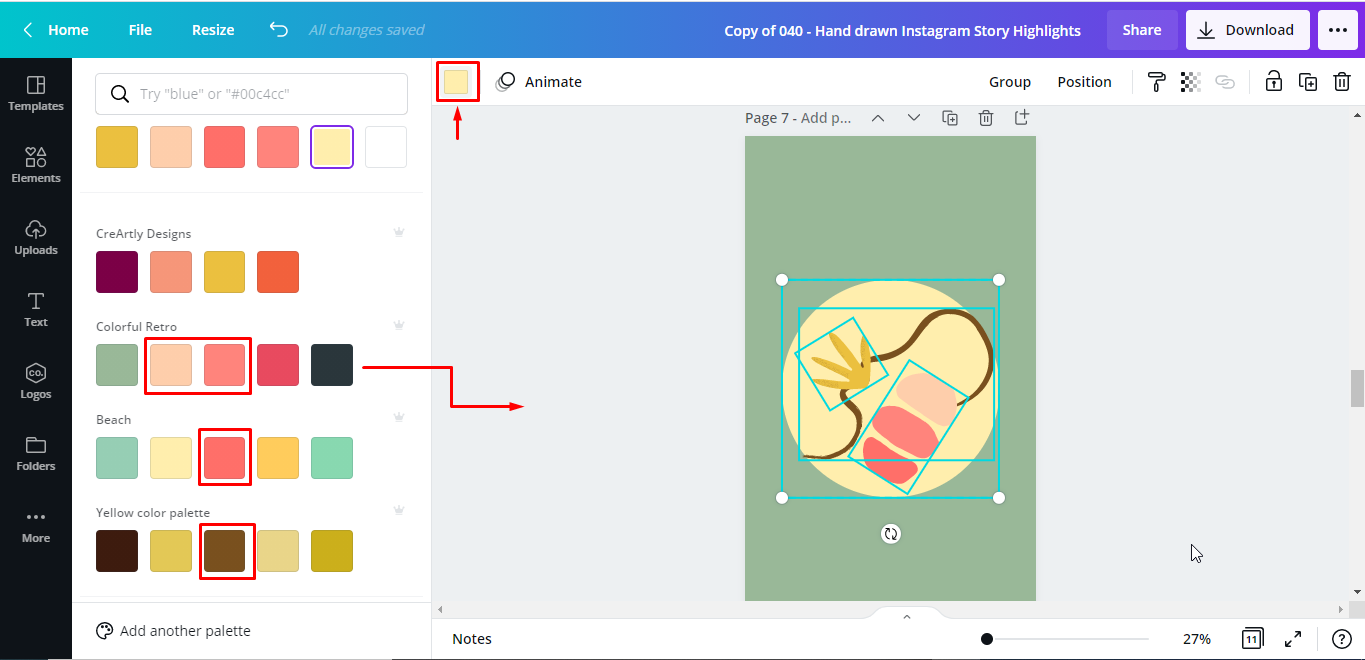
You can change the colors of the elements as well. Tap on each of the elements you want to edit. Click on the color tile on the toolbar. Select a color from the side panel you want to change it with to apply the color change to your selected element.
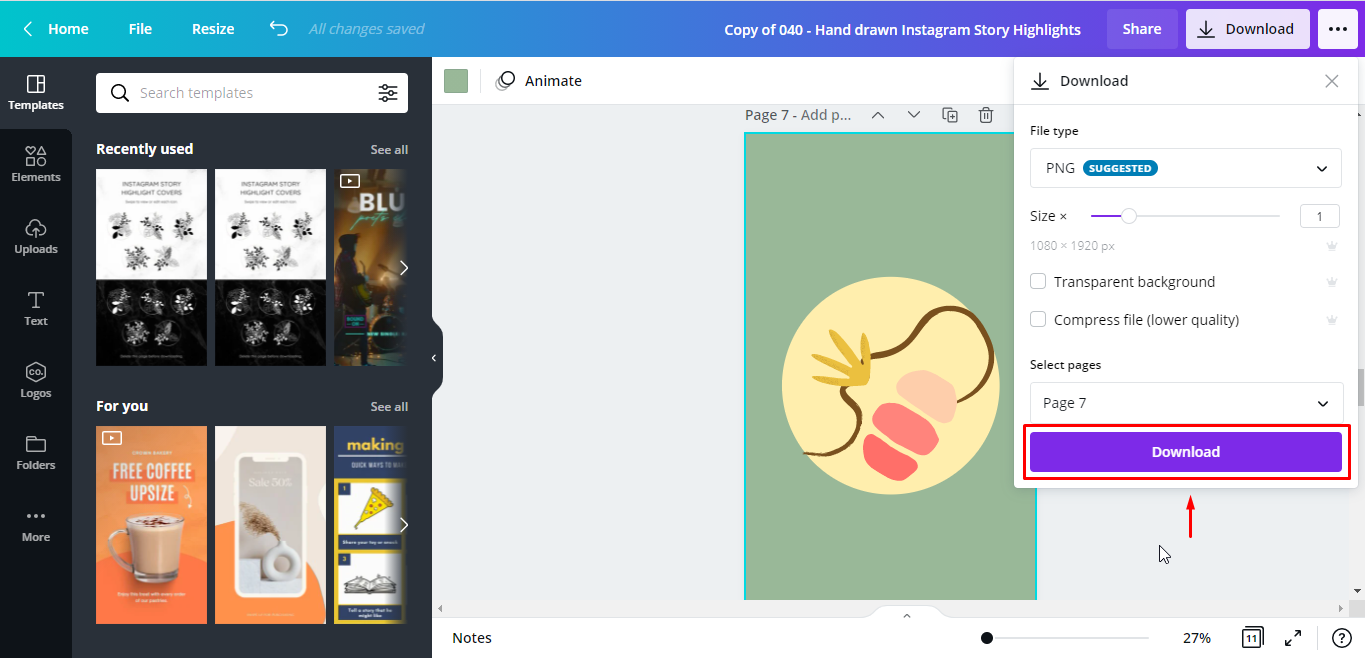
Click the download button to save your edited cover to your computer or phone.
After downloading, you can now add the highlight cover to your Instagram stories. We have more excellent tutorials such as making a calendar, adding a border and how to animate text.
In this tutorial, we are here to show you how to customize an Instagram Highlights cover template from Canva and a purchased template from Design Bundles.
Using Canva Templates
Step 1: Open Canva and search for templates
On Canva’s homepage, type “Instagram Highlight Covers” on the search bar at the top part of the page and press enter.
This will bring you to a page of several pre-made highlight covers for Instagram. Scroll through the results, and tap on a template you like. We'll choose this coffee shop-themed cover.
Your chosen template will now appear in your canvas.
Step 2: Edit your chosen template
You can customize the template colors according to your branding. To change the background color, select the background and click on the color tile on the toolbar. The colors and other color suggestions from your existing document will be displayed on the editor panel on the left.
Any color palettes you created previously will also be shown. If you want more colors, you can click the +color tile on the top left corner to access the color slider and choose a color from there.
Click on a color to apply the color change to your background.
You can also change the colors of the individual elements. Tap on the element you want to edit. The number of color tiles that will appear on the toolbar will depend on how many colors the selected element has. Click each color tile that you want to change.
On the editor side panel, click on a color to instantly apply it to the specific part of the selected element. Do the same process to the other element parts.
Using a Purchased Template
Now, we’re going to show you how to customize a downloaded Instagram Highlights cover template from Design Bundles.
Step 1: Open your purchased Design Bundles template
Open the file location of your downloaded template from your computer. We’ll be using this Hand Drawn Instagram Highlight Covers Canva Template from the Design Bundles. Click on the PDF included in the download. Then press the “Access Template Now” button to click on the embedded Canva link.
It will open a new window. Click the “Use Template” button.
This will automatically create a copy of the template and save it to your Canva account.
Step 2: Edit your template
The template has several pages. Scroll through and click the page you want to edit.
Just like the pre-made templates in Canva, You can also customize the colors of your templates purchased from Design Bundles according to your branding. You can change the background color, by selecting the background, clicking on the color tile on the toolbar, and clicking on a color on the editor side panel to instantly apply it to the background.
You can change the colors of the elements as well. Tap on each of the elements you want to edit. Click on the color tile on the toolbar. Select a color from the side panel you want to change it with to apply the color change to your selected element.
Step 3: Download your customized highlight cover
Click the download button to save your edited cover to your computer or phone.
After downloading, you can now add the highlight cover to your Instagram stories. We have more excellent tutorials such as making a calendar, adding a border and how to animate text.
Related Tutorials
Illustrator Tutorials
How to Make Instagram Highlight Covers in Illustrator
In 5 steps we will teach you how to make Instagram Highlight Covers in Illustrator.
Procreate Tutorials
How to Make Instagram Highlight Covers in Procreate
Create beautiful custom Instagram Highlight Covers using Procreate.
Affinity Tutorials
How to Make Instagram Highlight Covers in Affinity Designer
Illustrator Tutorials
How to Make a Seamless Instagram Carousel in Illustrator
Create stunning Instagram Carousels using Adobe Illustrator.
Canva Tutorials
How to Make a Calendar in Canva
In this tutorial, learn how to create a calendar in Canva.
Canva Tutorials
How to Use Grids in Canva to Make Photo Collage
Take your photos and turn them into a photo collage in Canva, with this tutorial.