By Design Bundles
Unzipping Fonts on the iPad
Unzipping fonts on an iPad has never been easier. Follow our quick tutorial as we guide you on how to access your files on your iPad.
You can also learn how to unzip fonts on iOS devices with our tutorial video below.
We are using the app Anyfont to access and install our fonts. We have already installed AnyFont on the iPad, which can be found in the Apps Store. We will be using a lovely script font called Make Waves.
Step 1 - Download your Purchased Fonts
On your iPad, open the Safari browser and navigate to Font Bundles. Sign into your account then click on Purchases or Plus Purchases under your profile.
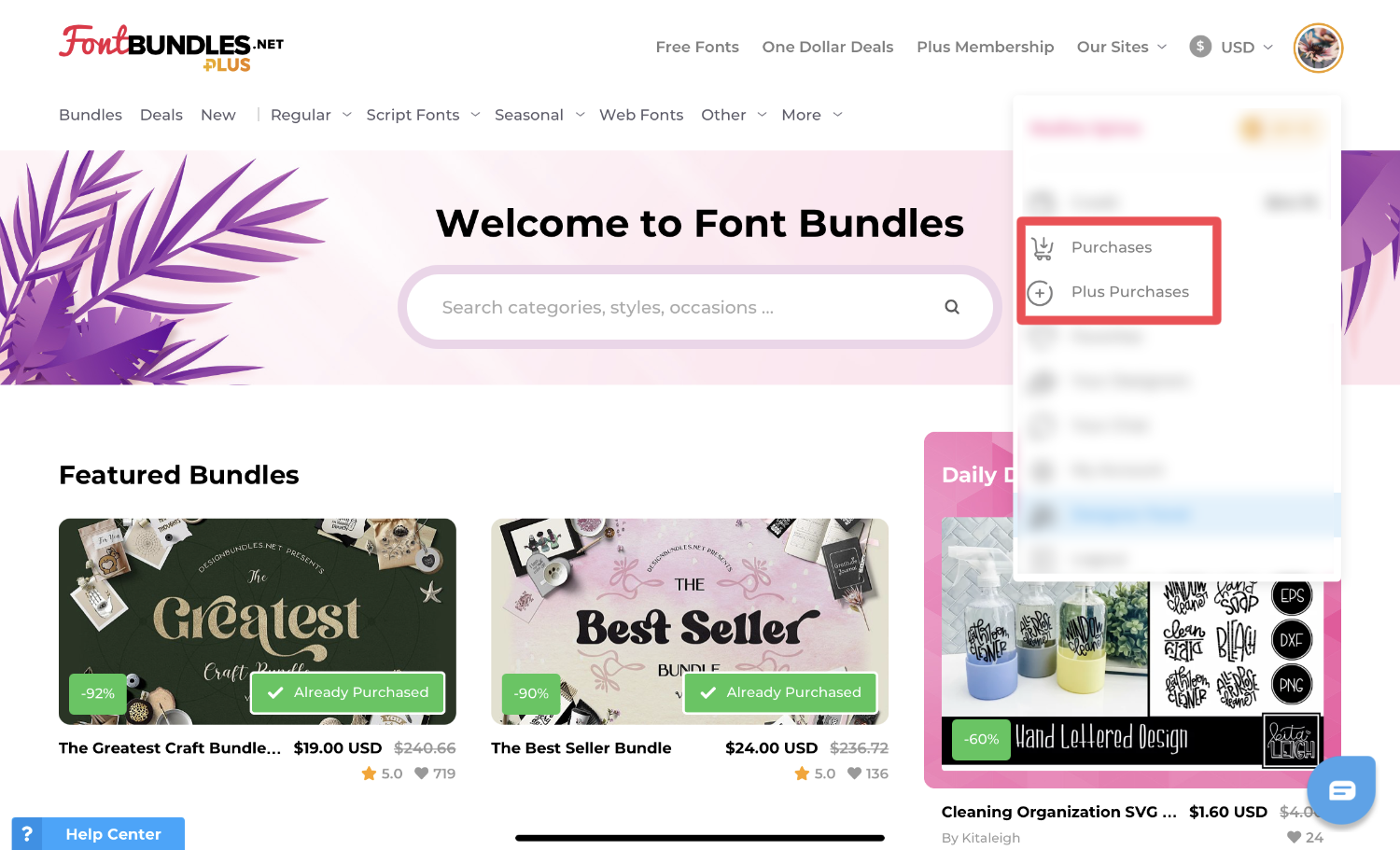
Locate your selected font, then click the Download button. A new window will pop up where you can choose otf or ttf then click Download Now. For this tutorial we will select the oft download.

Your iPad will ask if you would like to download the file so click on Download to accept.
Step 2 - Unzip and Install Font
Locate your purchased font by going to your Files folder on your iPad.

Next, click on the Downloads folder on the left hand side. You will see your downloaded font. In some cases, you will get a zipped file containing multiple files instead of single downloads.
All you need to do is tap once on the zipped file and a new folder will be created with all of your purchased files. Below is an example.

Since we are using a single file download, tap and hold on the file then select Share.

In the new window, select AnyFont from the options.

You can then follow the prompts to install the fonts on your iPad using AnyFont. This is a very efficient way to make fonts accessible across various apps. We hope that you found this tutorial easy to follow and can now enjoy all of your favorite fonts.