

By Design Bundles
SCAL Tutorials4 min
Creating banners in Sure Cuts a Lot 4
*Note- SCAL4 pro used.
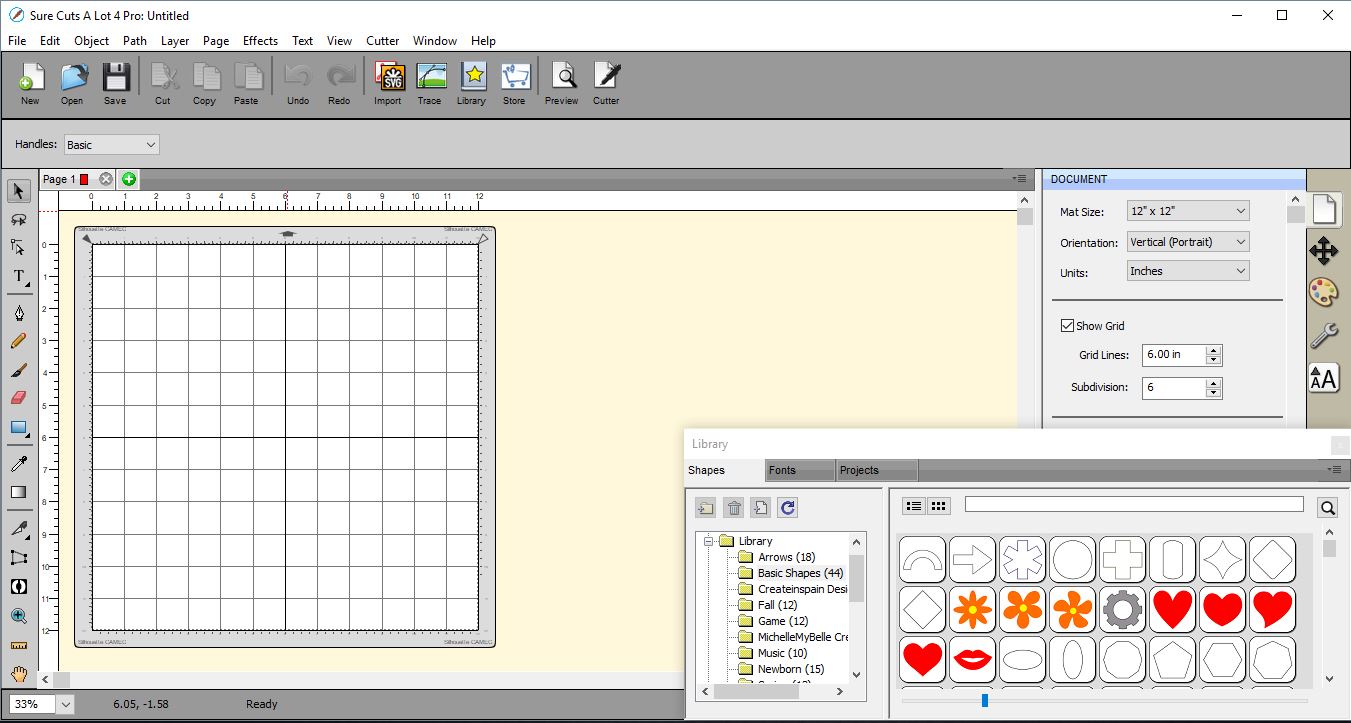
1- Open SCAL 4 software.
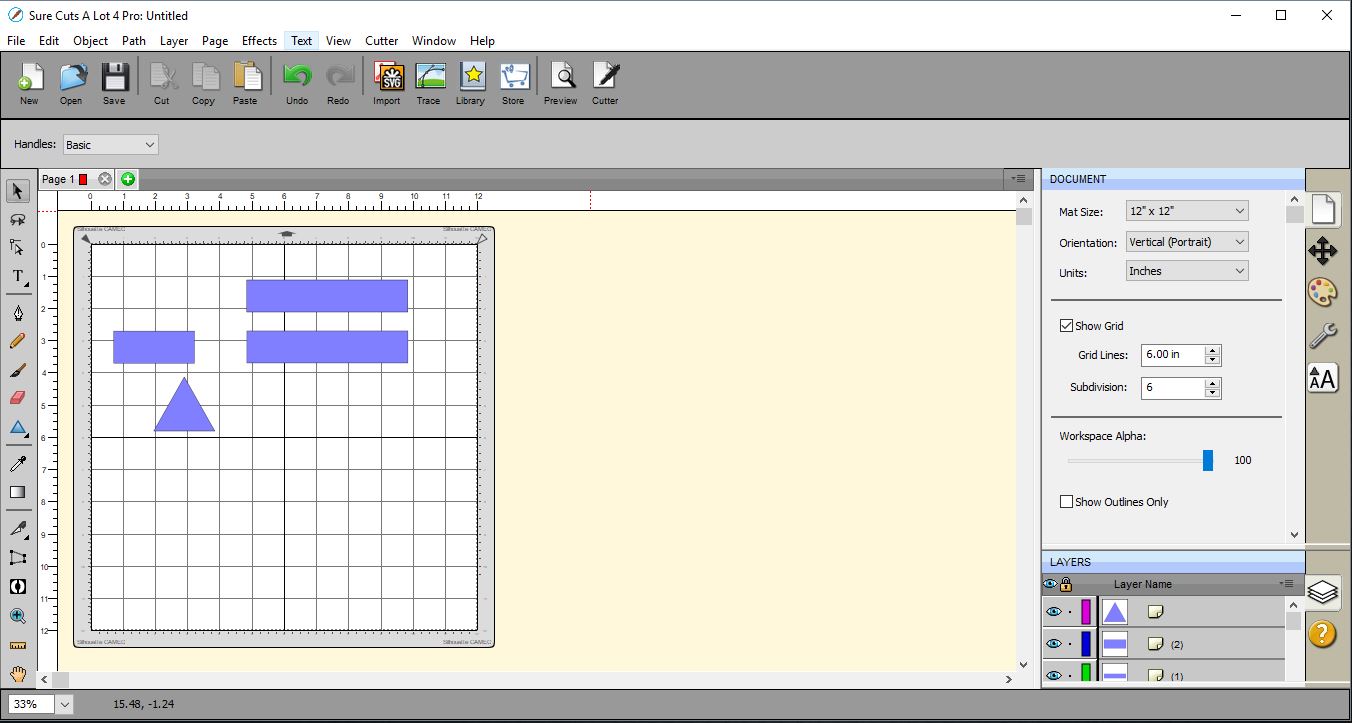
2- Create 2 rectangles and one 1/2 the size of the big ones. Also create 1 triangle.
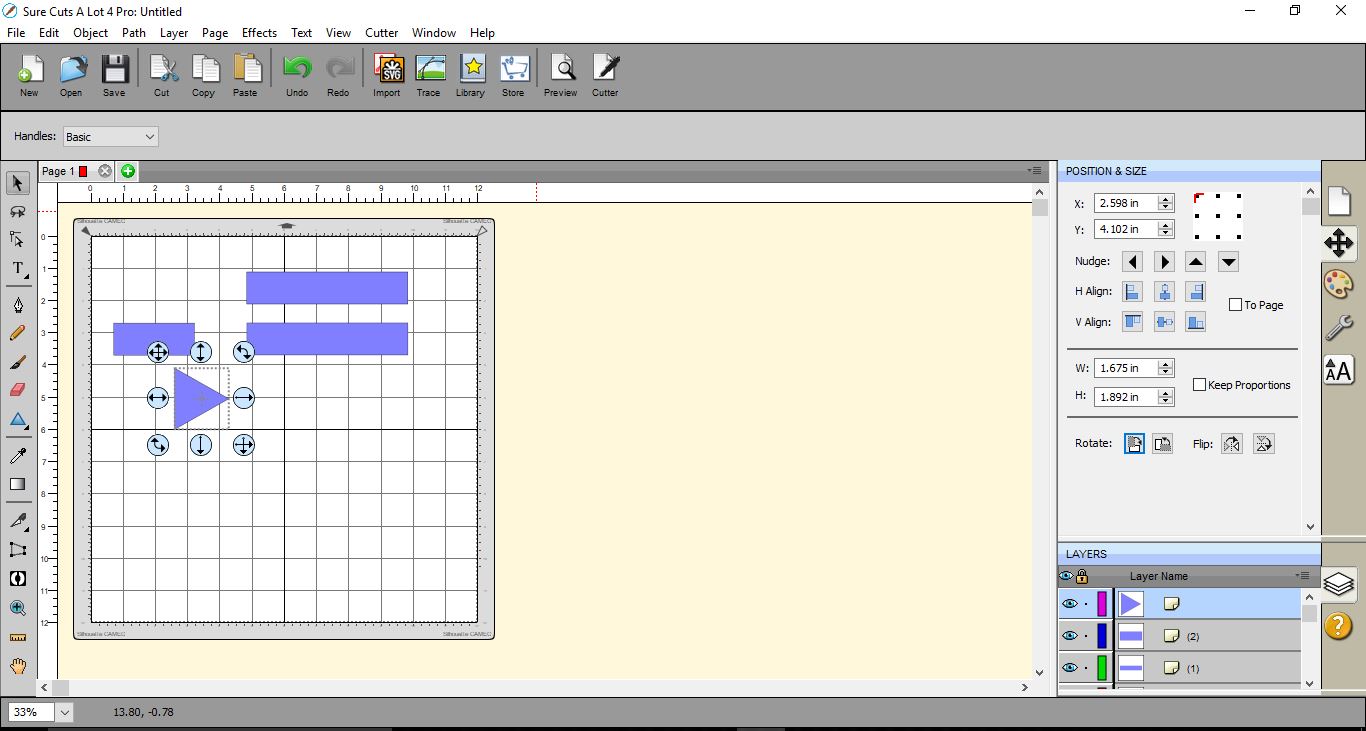
3- Select the triangle and rotate it.
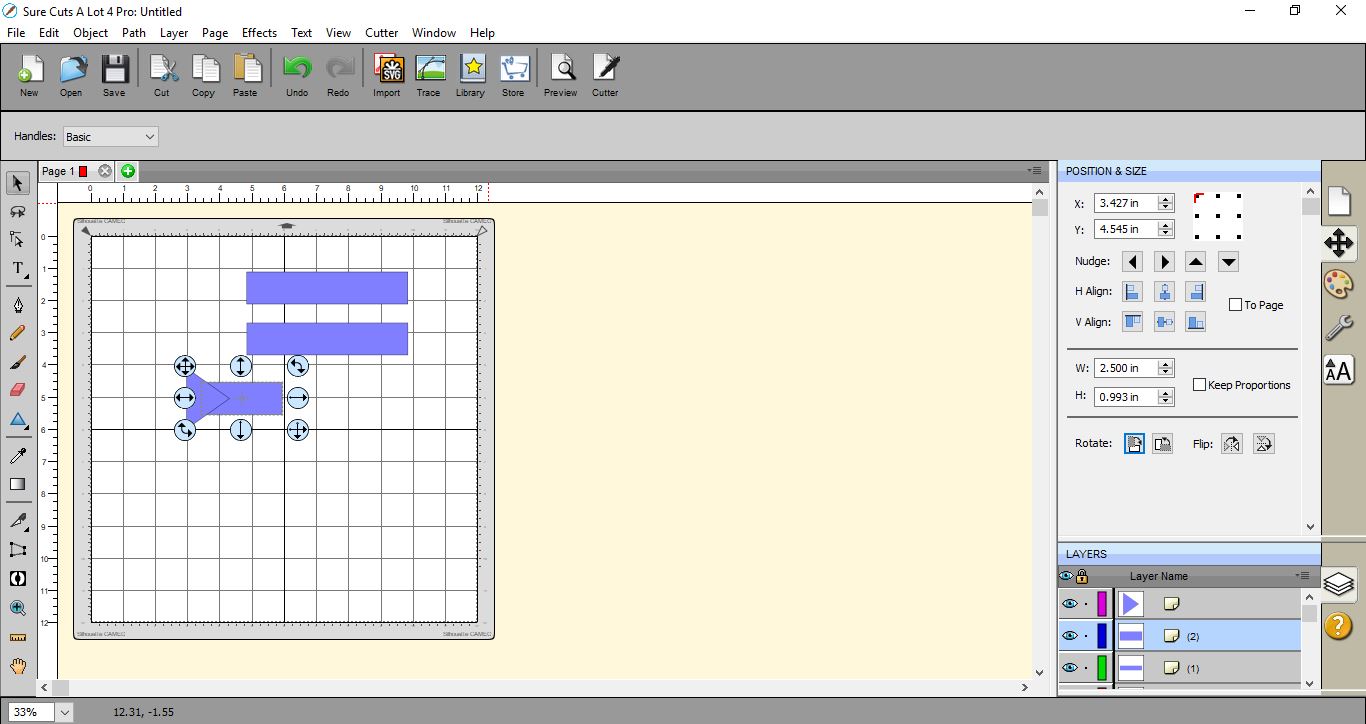
4- Move the triangle and overlap it slightly over the smaller rectangle.
5- Select both triangle and rectangle. Go to Path > Back minus front.
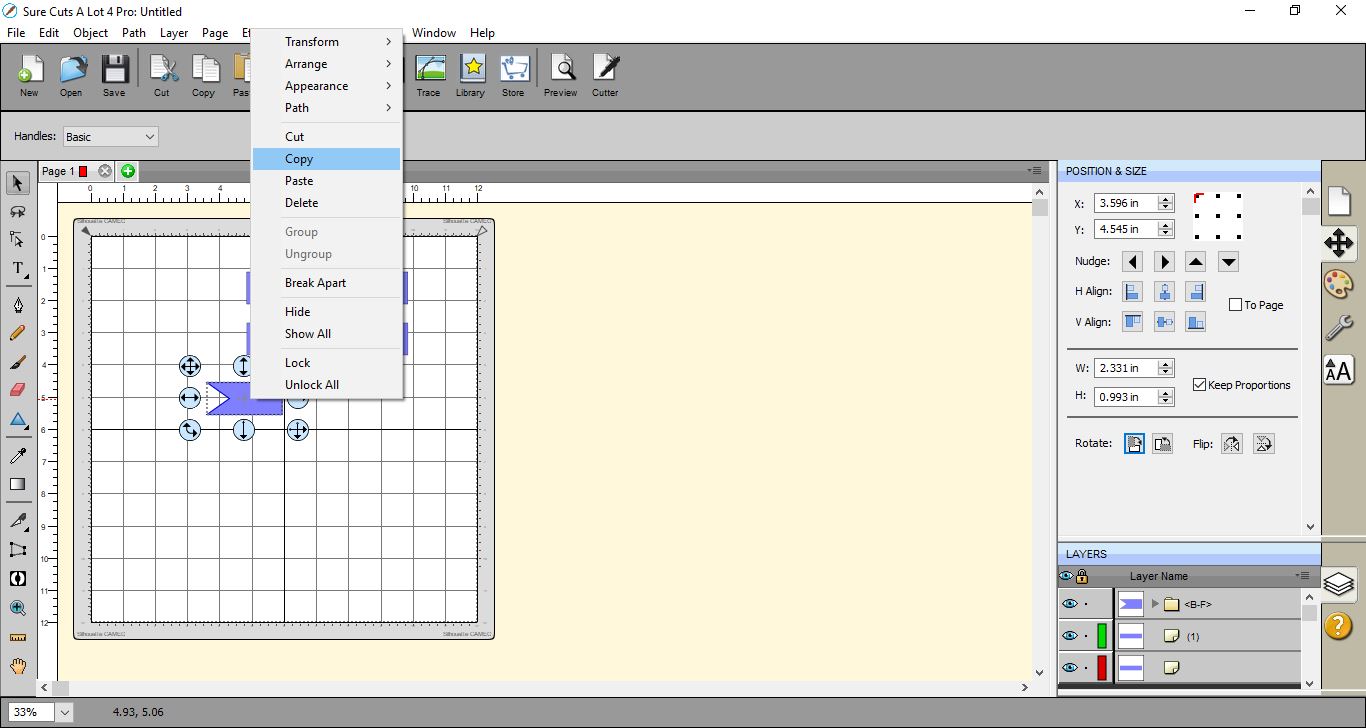
6- The banner ribbon is made. While it is selected right click and copy, then paste.
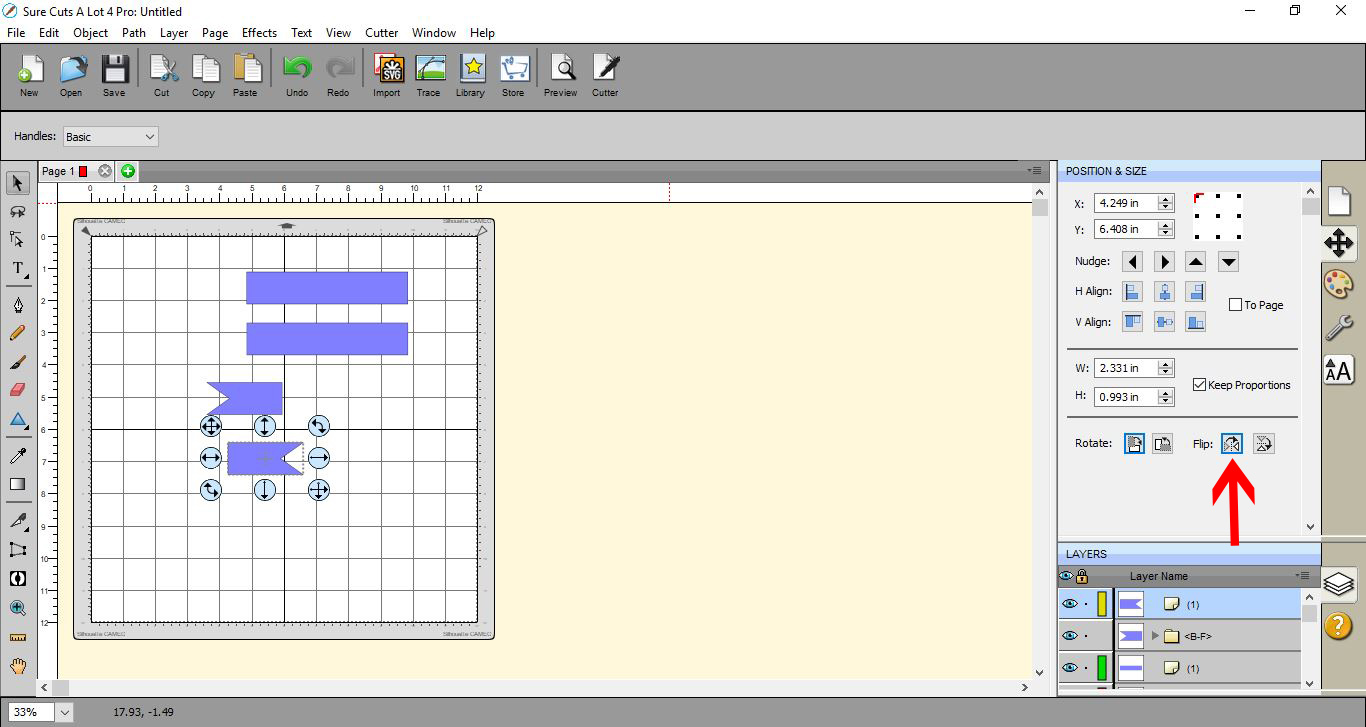
7- Select one of the banner ribbons and go to the position panel then select the flip icon.
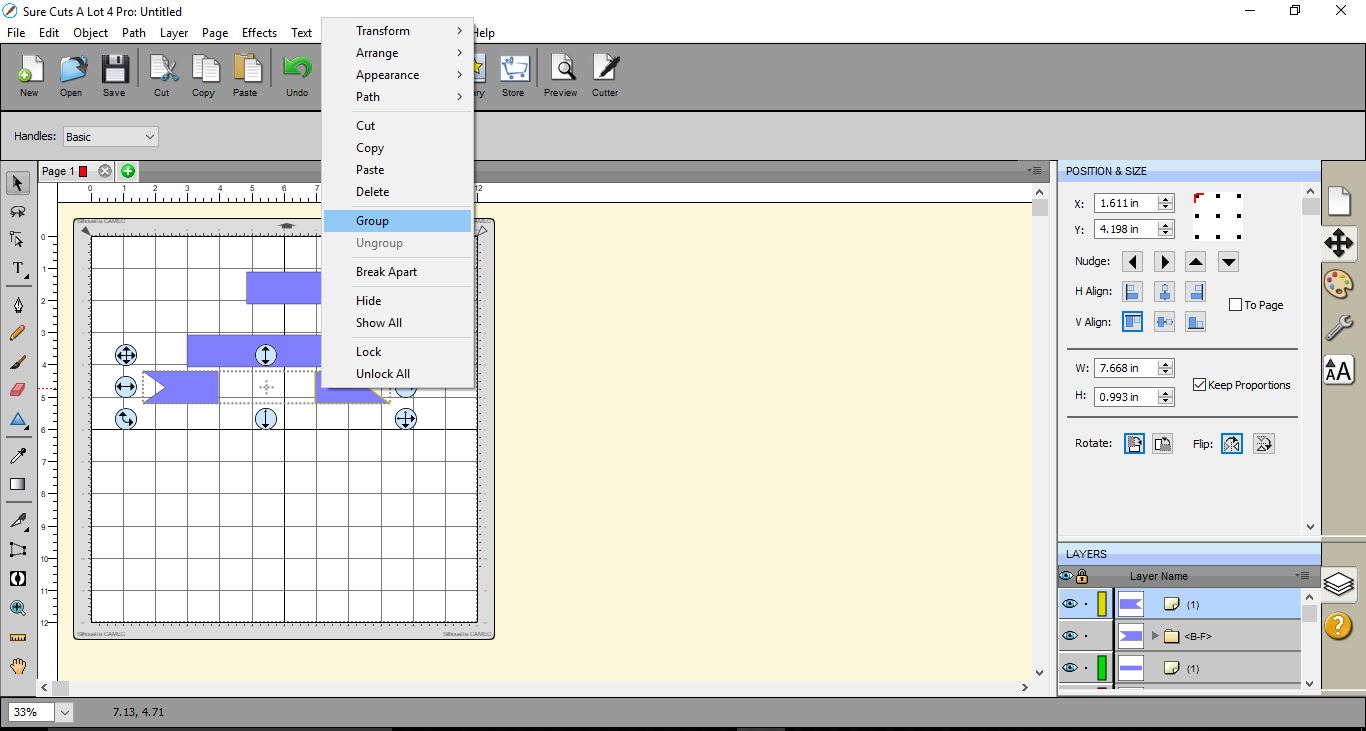
8- Move the banner ribbons under the large rectangle and line them up. With both selected, right click and group.
9- Drag the rectangle and place over the banner ribbons.
10- With the large rectangle selected right click and bring to front.
11- Select the whole 3 banner parts and go to Path > back minus front.
12- The large rectangle is now cut out of the banner ribbon. Select them both and right click and group.
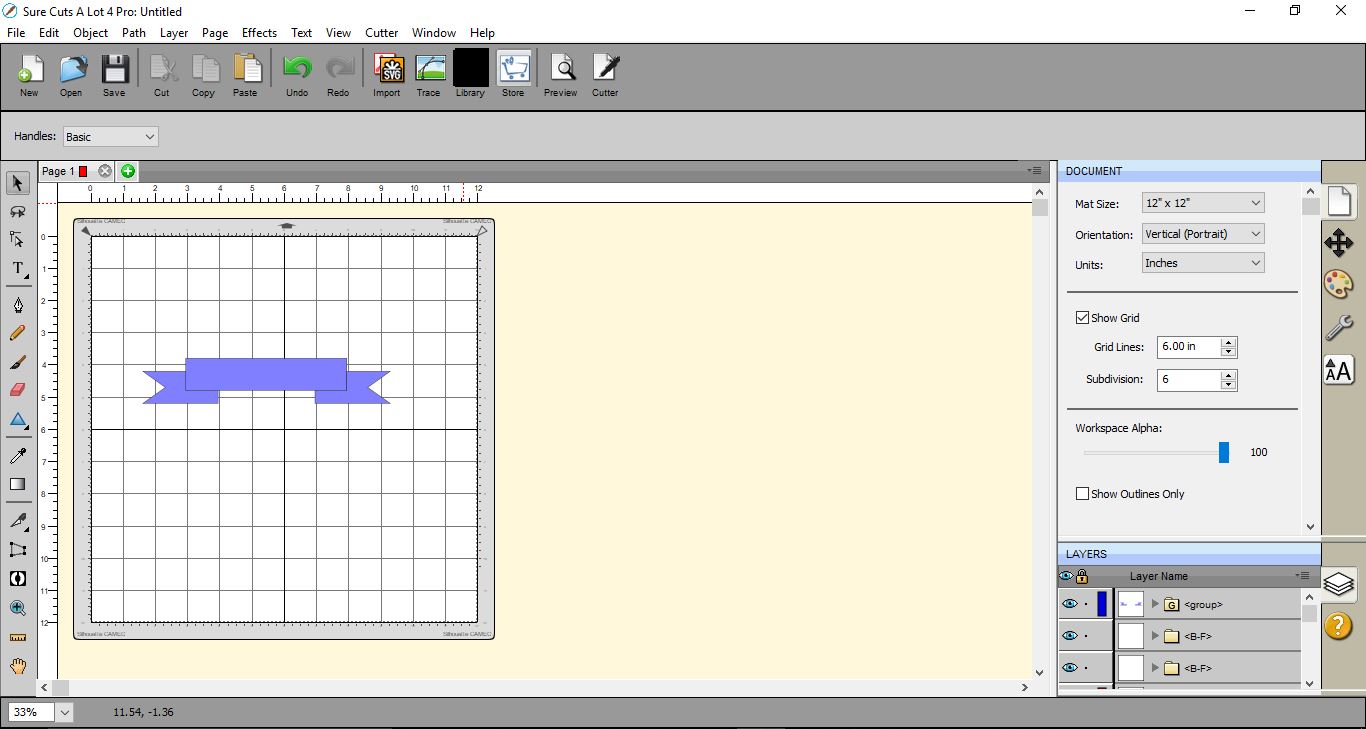
13- You can now drag the rectangle left on the gap on the banner ribbon.
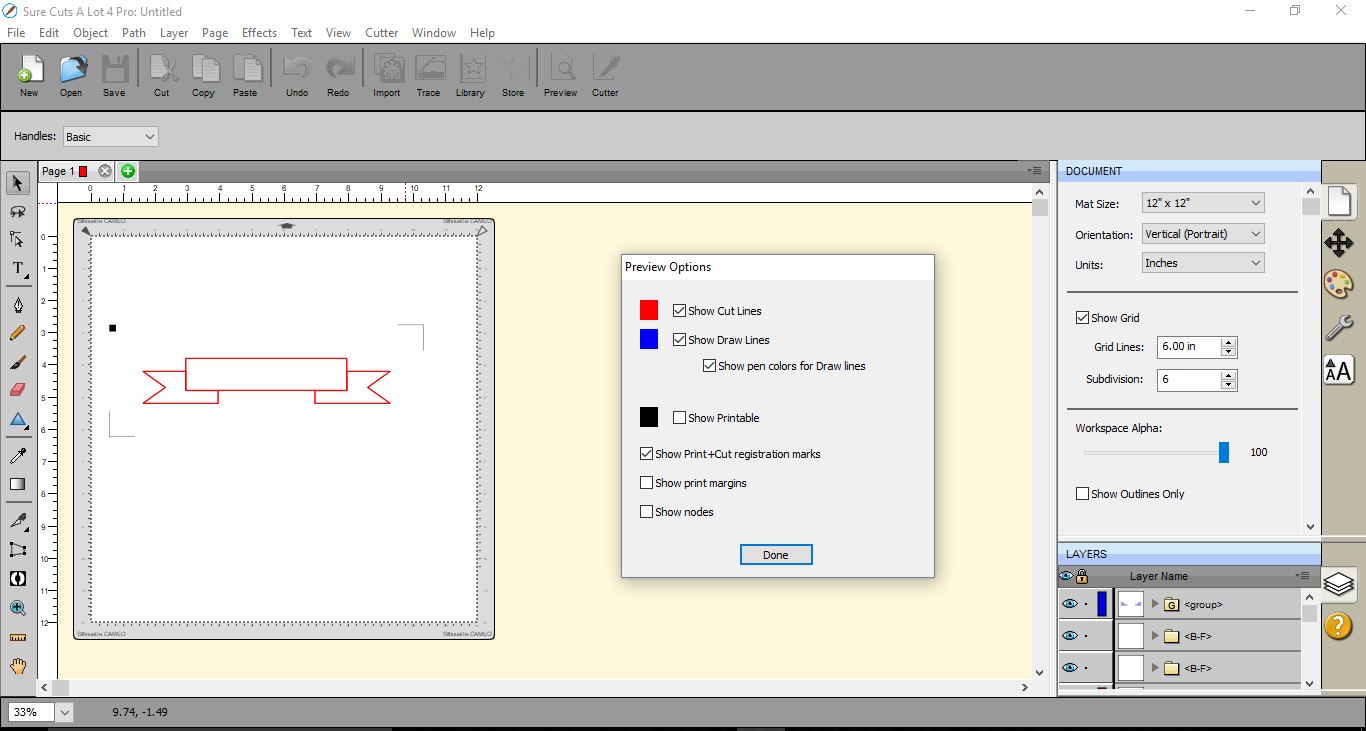
14- When you click preview you can see the cutting lines for the banner.
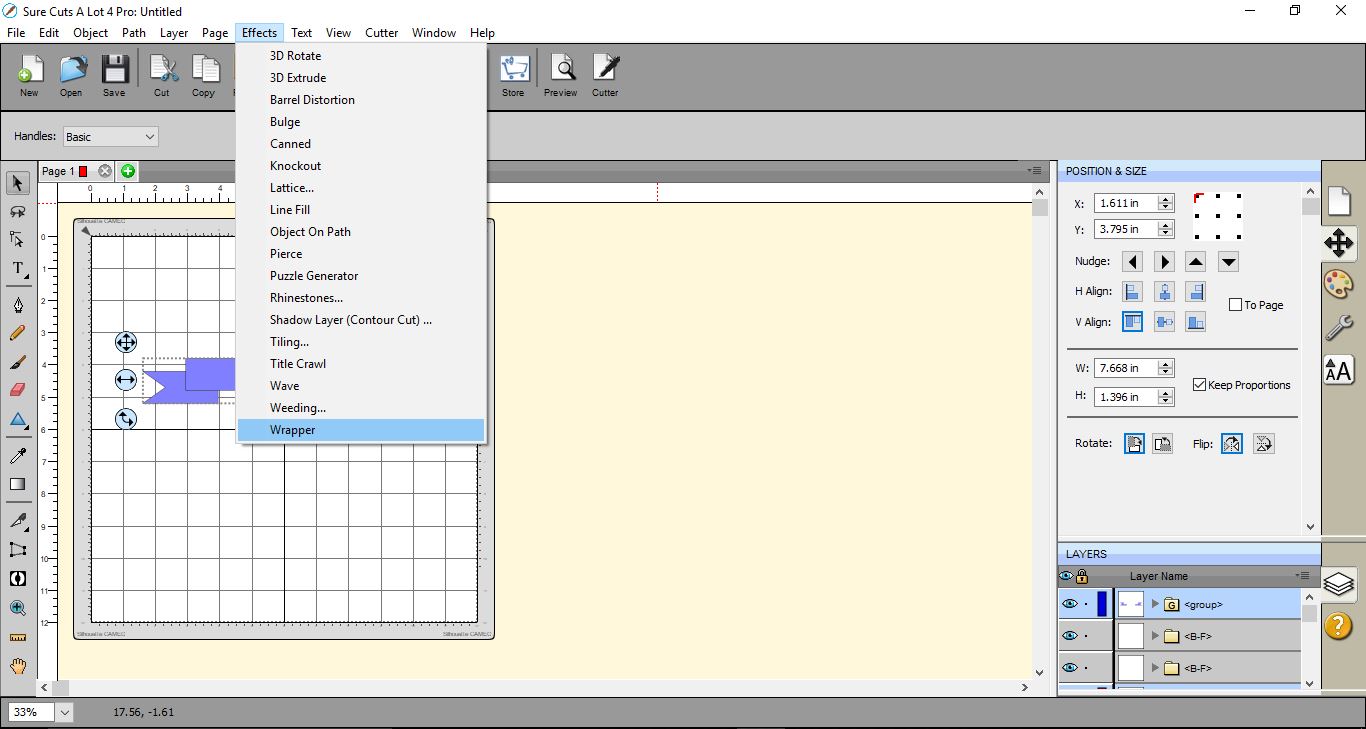
15- If you want a curved banner, select the whole banner and go to Effects >wrapper.
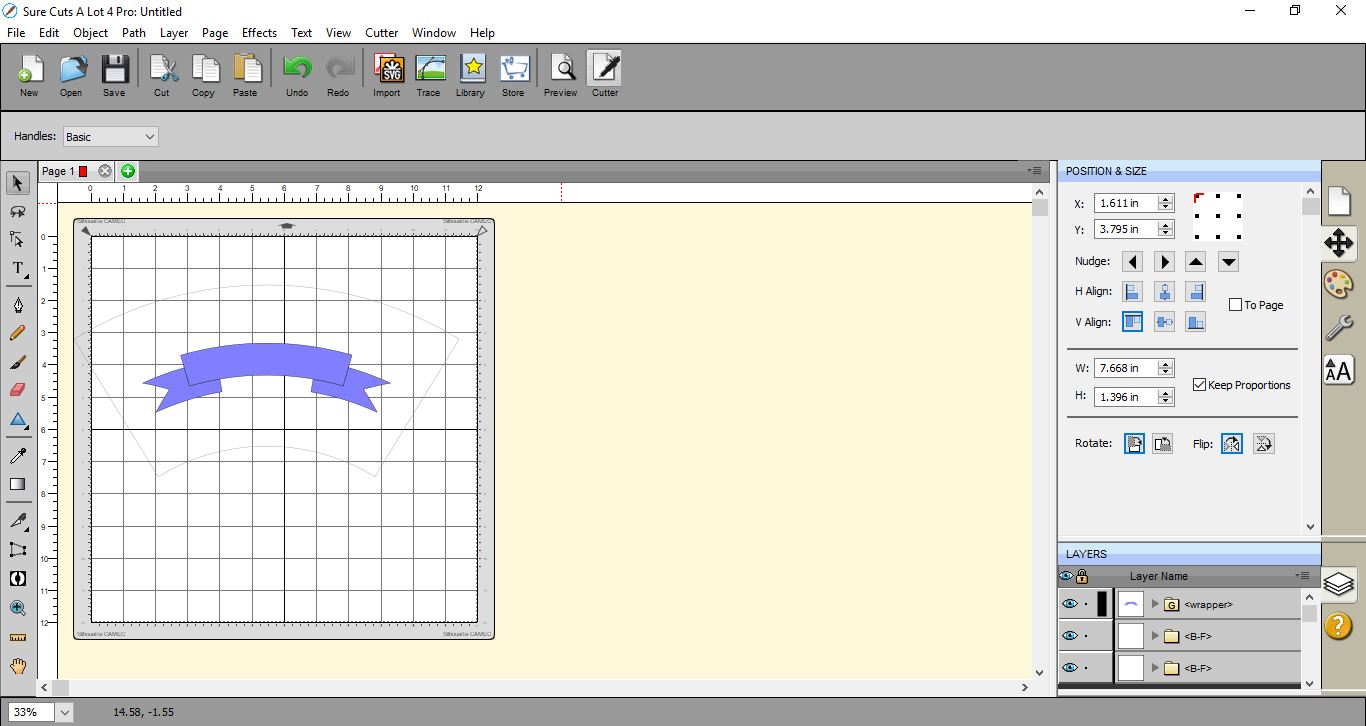
16- In the wrapper window, adjust the dimensions to shape your banner.
When you are happy click preview to make sure it is correct, then OK.
17- You now have a curved banner.
1- Open SCAL 4 software.
2- Create 2 rectangles and one 1/2 the size of the big ones. Also create 1 triangle.
3- Select the triangle and rotate it.
4- Move the triangle and overlap it slightly over the smaller rectangle.
5- Select both triangle and rectangle. Go to Path > Back minus front.
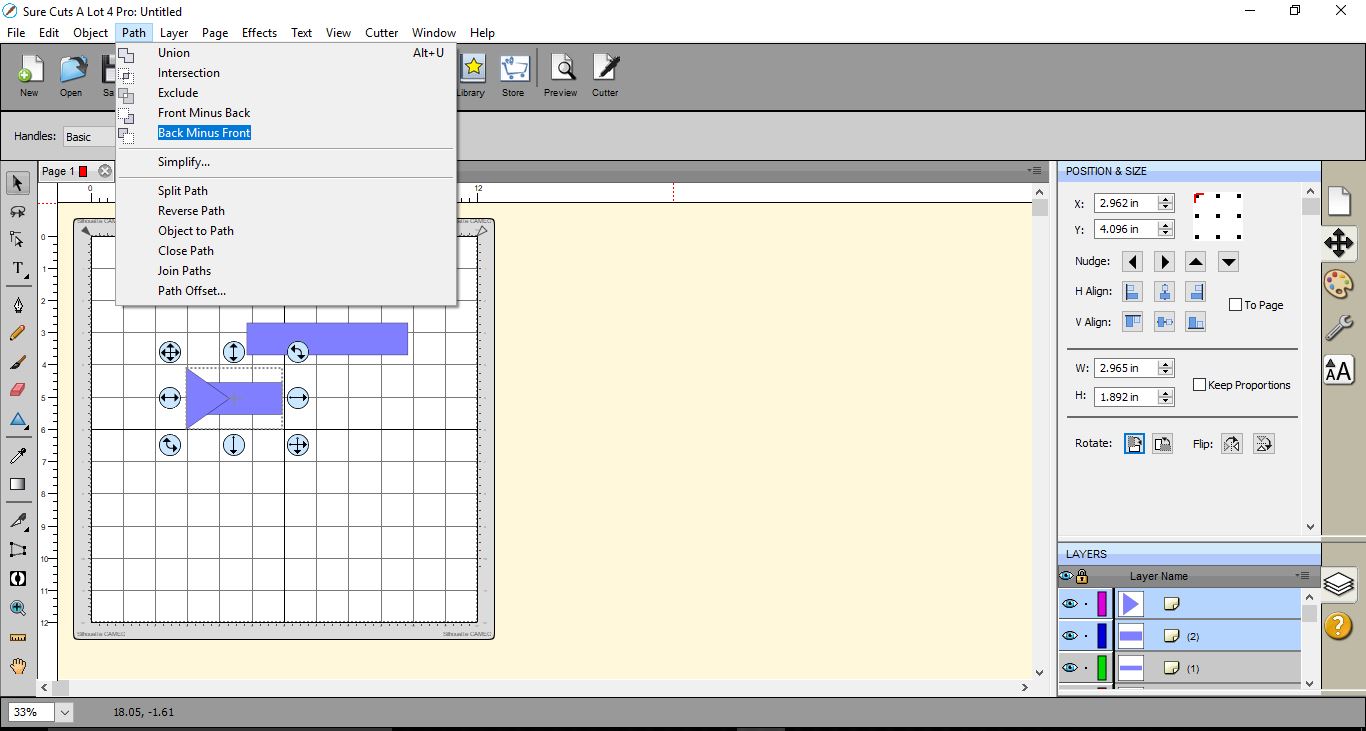
6- The banner ribbon is made. While it is selected right click and copy, then paste.
7- Select one of the banner ribbons and go to the position panel then select the flip icon.
8- Move the banner ribbons under the large rectangle and line them up. With both selected, right click and group.
9- Drag the rectangle and place over the banner ribbons.
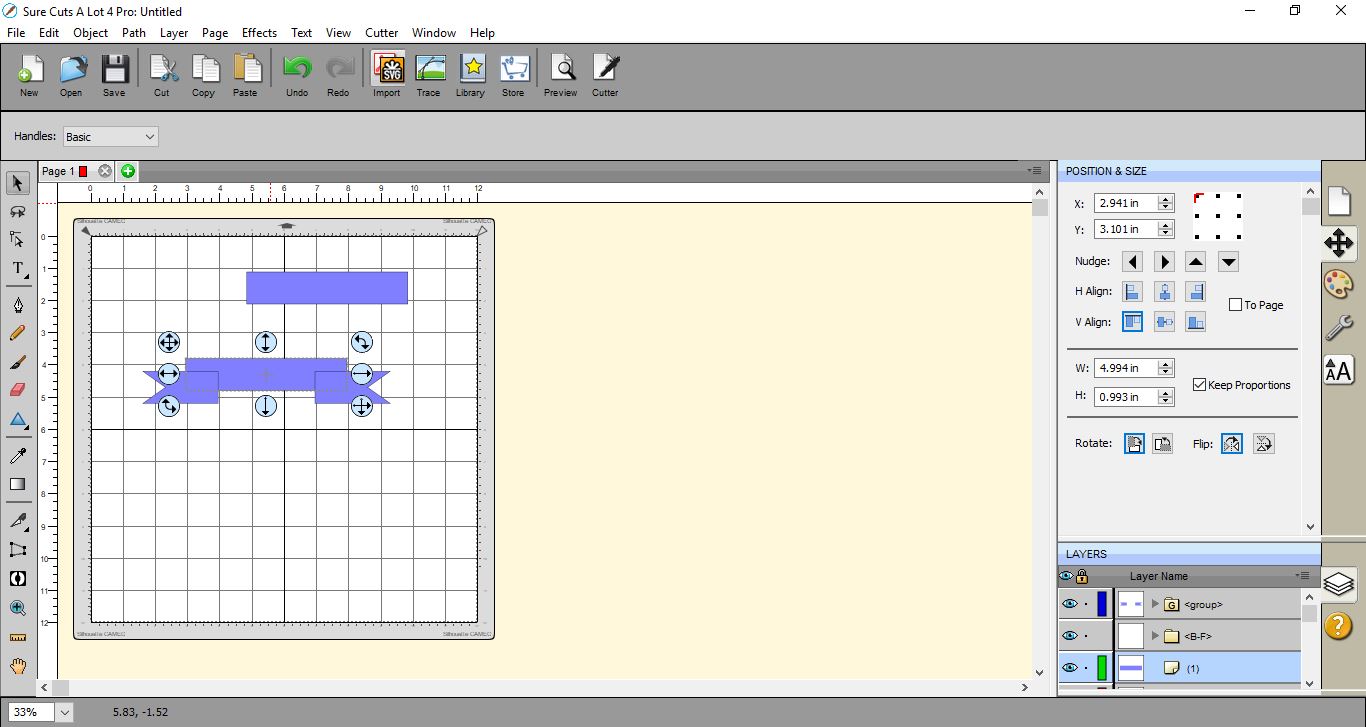
10- With the large rectangle selected right click and bring to front.
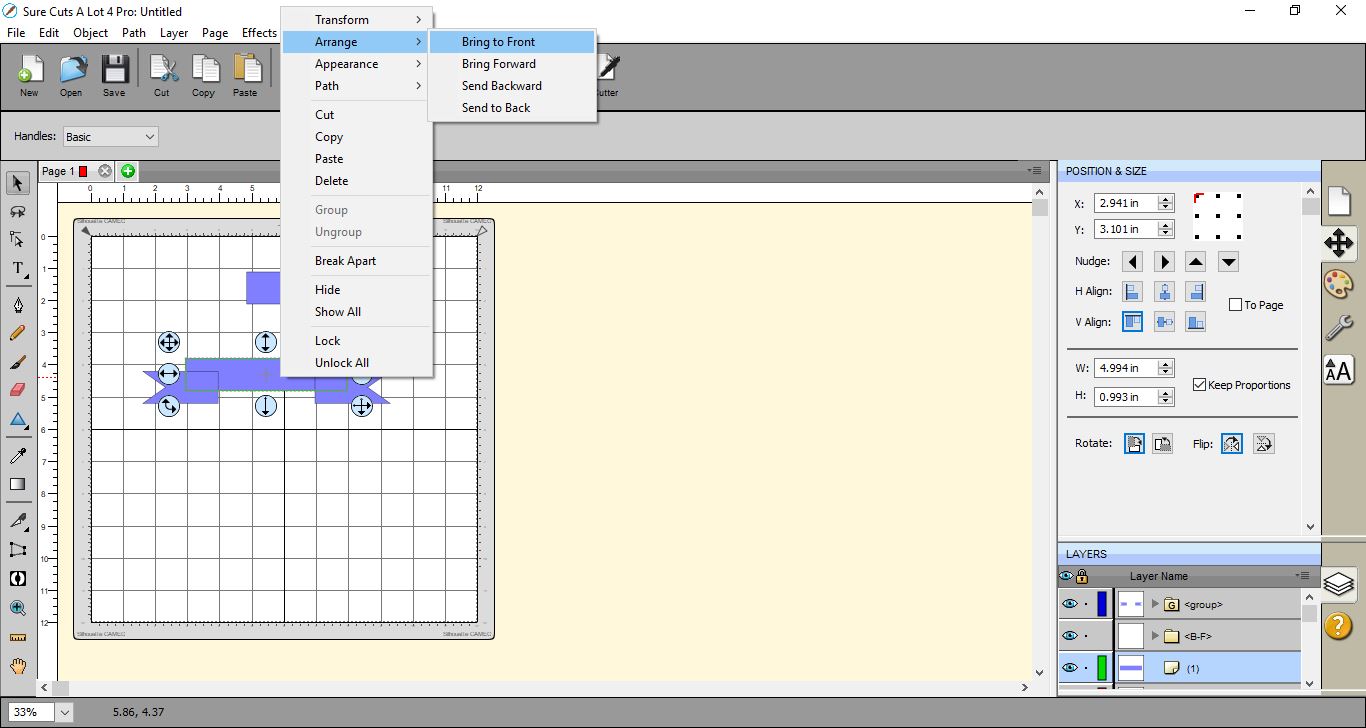
11- Select the whole 3 banner parts and go to Path > back minus front.
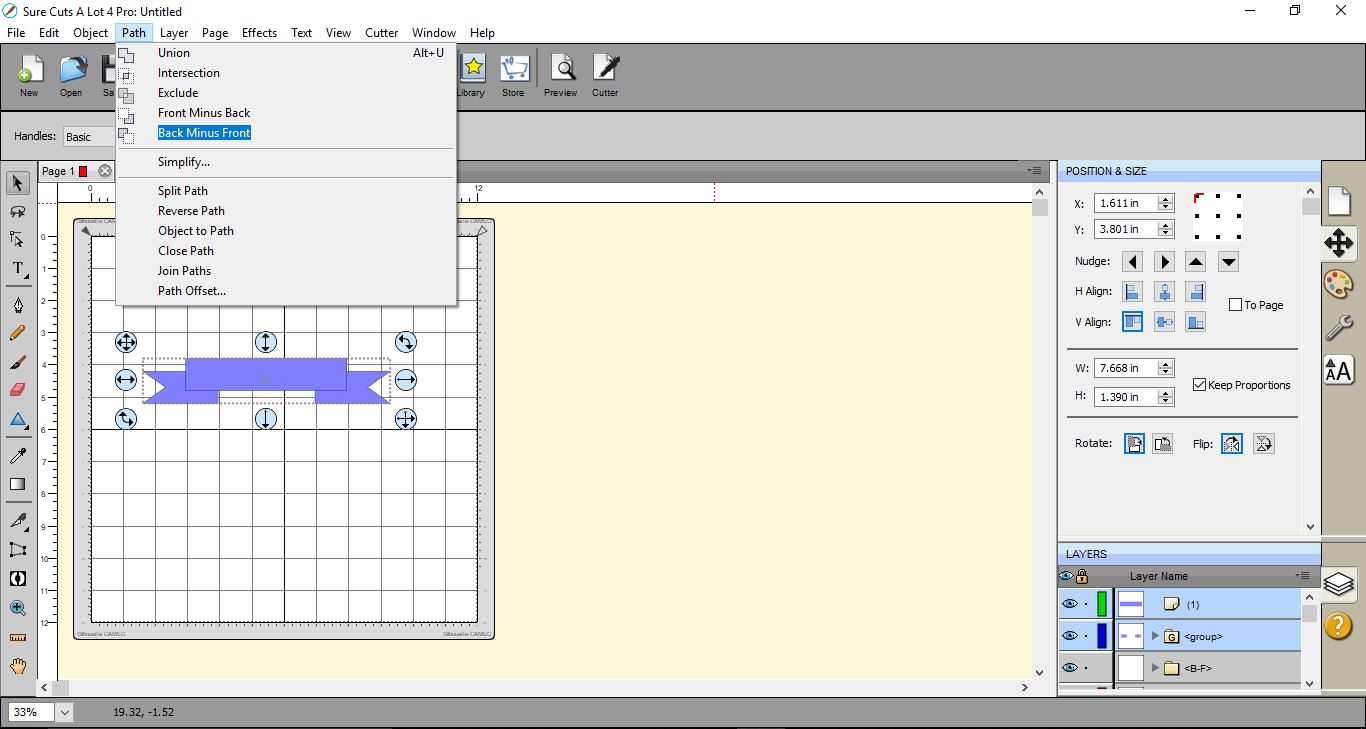
12- The large rectangle is now cut out of the banner ribbon. Select them both and right click and group.
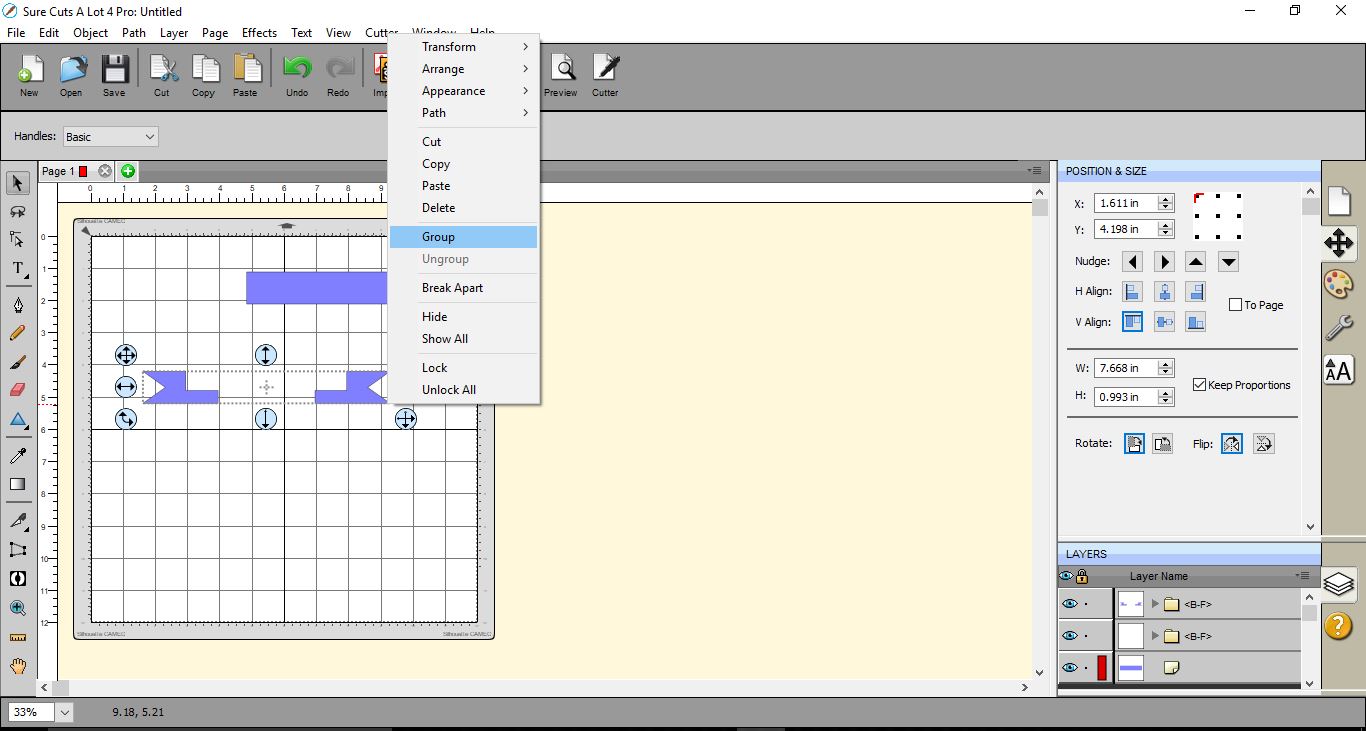
13- You can now drag the rectangle left on the gap on the banner ribbon.
14- When you click preview you can see the cutting lines for the banner.
15- If you want a curved banner, select the whole banner and go to Effects >wrapper.
16- In the wrapper window, adjust the dimensions to shape your banner.
When you are happy click preview to make sure it is correct, then OK.

17- You now have a curved banner.
Related Tutorials
SCAL Tutorials
Creating spiral text in Sure cuts a Lot 4.
SCAL Tutorials
How to create Curved text in Sure Cuts A Lot 4
SCAL Tutorials
Sure Cuts a Lot 4 Basics - Saving files
SCAL Tutorials