By Design Bundles
How to Widen Foil Lines in SCAL4
1- Open SCAL4. Click on the text tool icon.

2- Type your text.
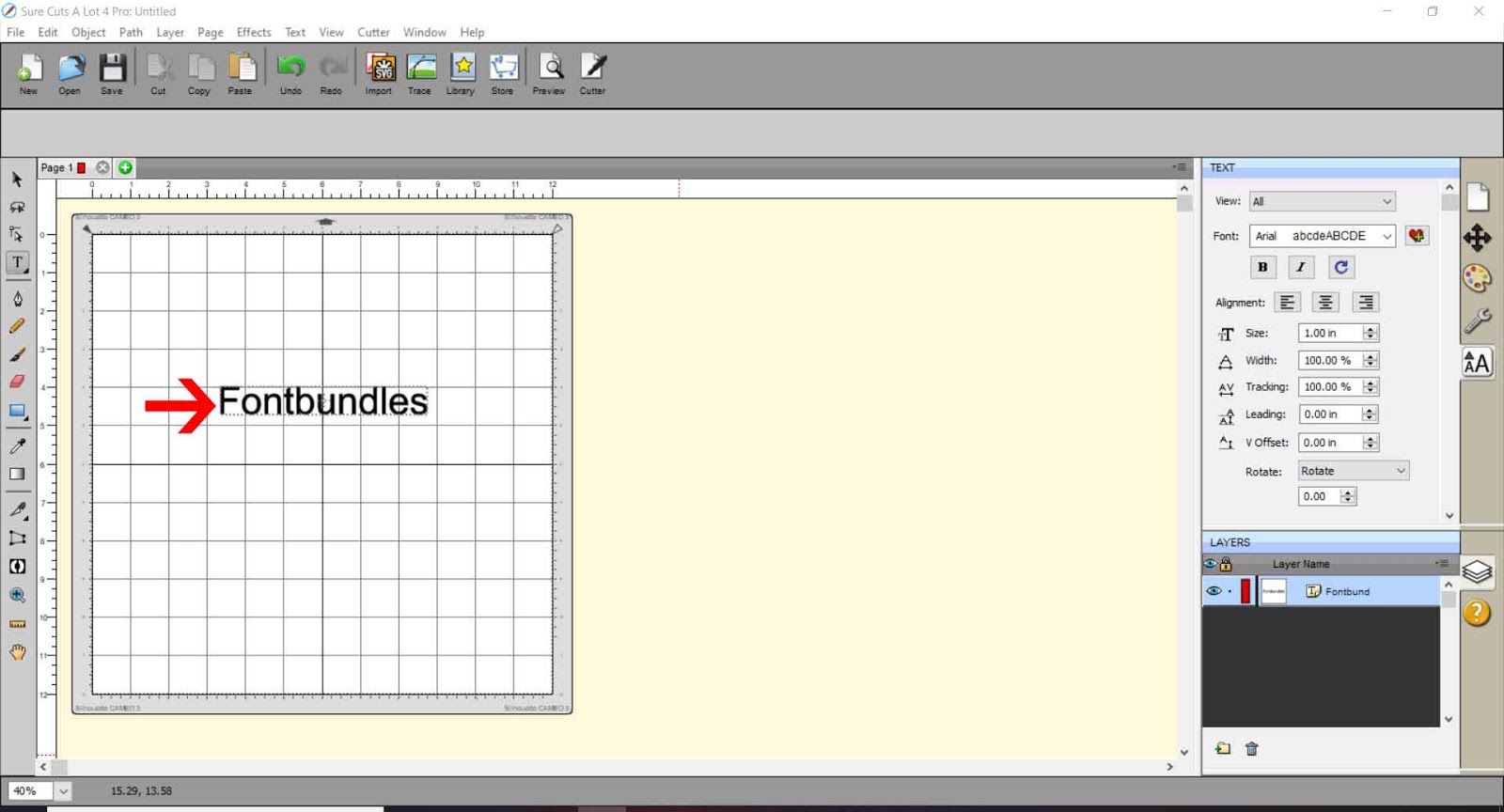
3- Click on the color/fill icon.

4- With your text selected, click on the fill tool and select white or no fill.

5- Change the font to the one you want. I am using Allspice from fontbundles.net.

6- With the text selected, click on Effects > Shadow Layer.
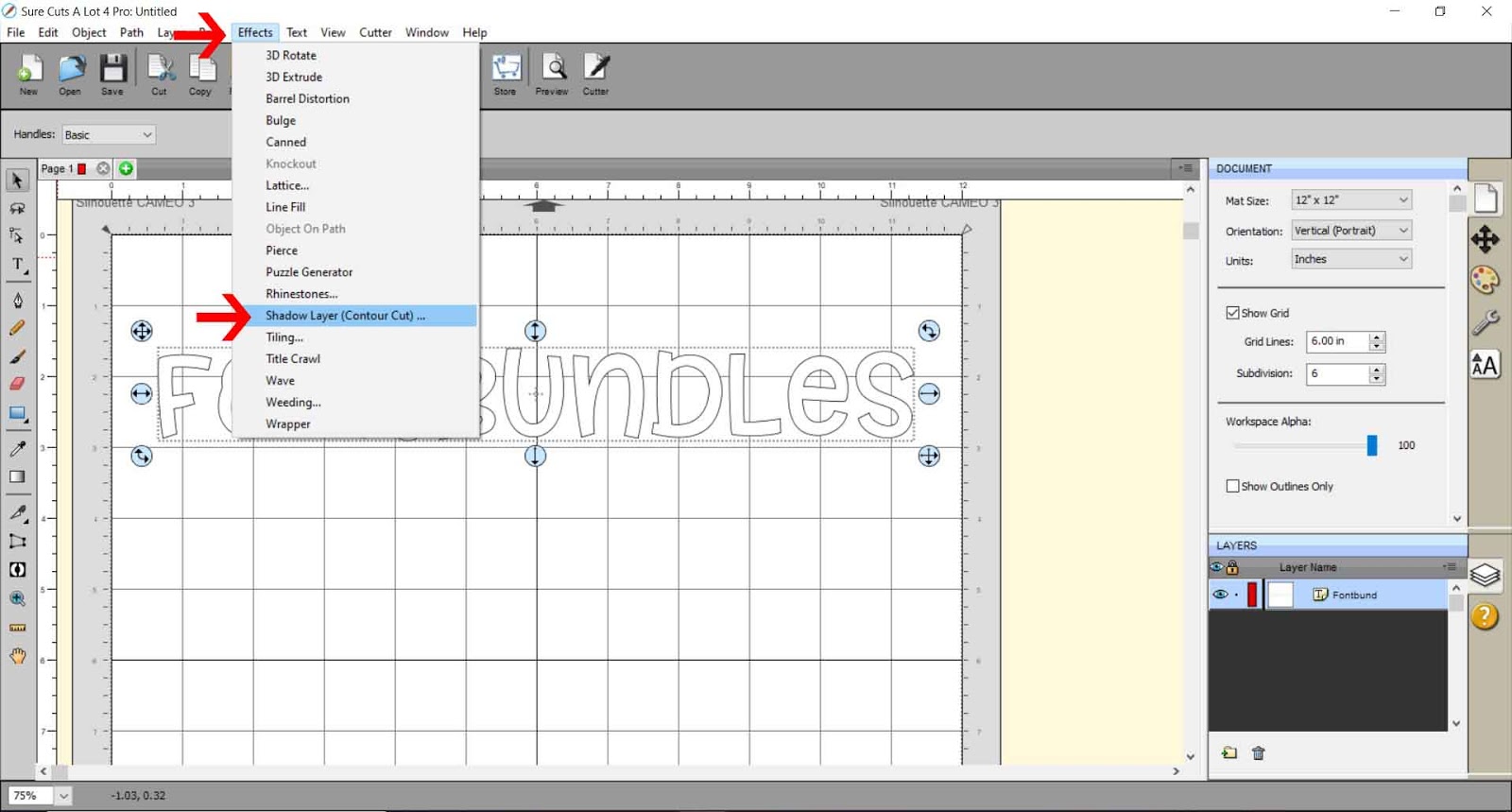
7- The Shadow Layer window will pop up. Make sure Shadow is selected in the Type drop-down box. You can also edit the shadow size.

8- You edit the size of the gap between the original text and the "shadow."

9- Set the size to as small as you can. Once you are happy, click OK.

10- As you can see, the new line is very close to the original line.

11- In preview mode, you can see the two lines close together also. This will mean when you foil, the lines will appear to be one thicker line.

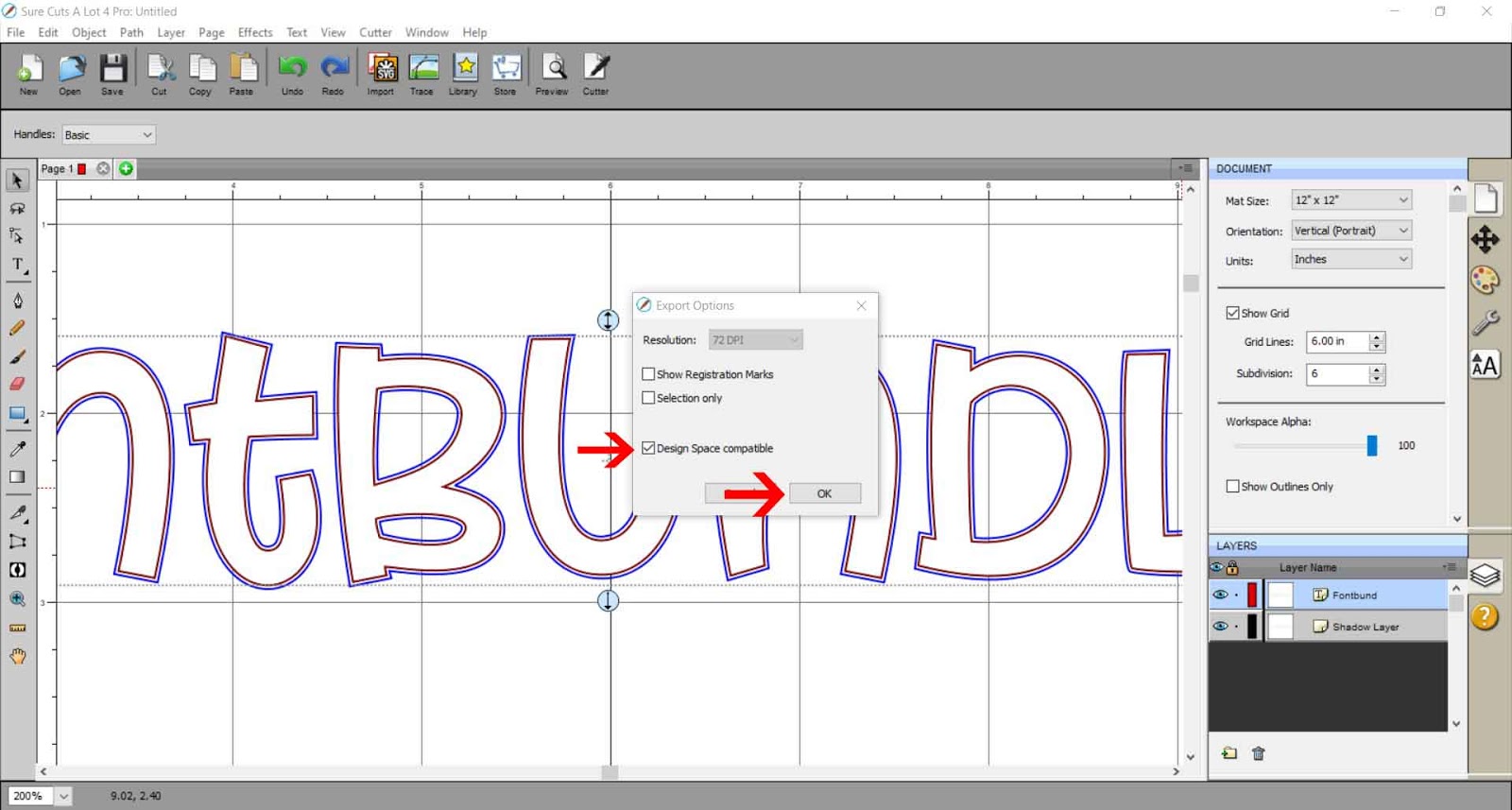
12- Once you have finished, go to File > Export.

13- Save as an SVG file.

14- Save at 72 dpi. Make sure Design Space compatible is checked if using in Design Space. You can now import the file into your plotter/cutter software and foil with the lines appearing thicker.