Get Unlimited Access to Thousands of Premium Fonts and More! Start Creating for Free Now

FontBundles.NET
Pricing
FontBundles.NET

Categories

New

Account

Start Free Trial
How to Score and Emboss with Silhouette Curio

By Design Bundles

How to Score and Emboss with Silhouette Curio

1- Open Silhouette Studio. Go to the cutting mat and change to the curio. Next Change the media size to fit the curio mat. A5 will work well.
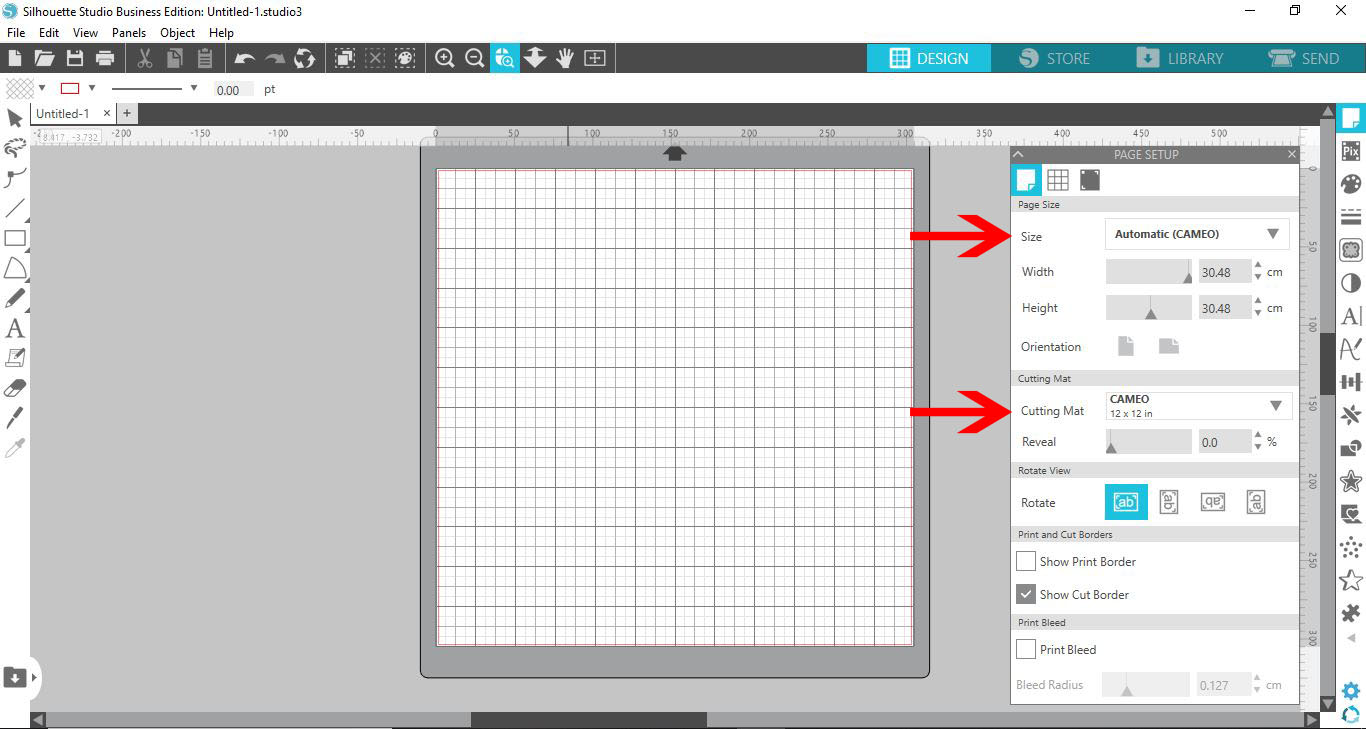
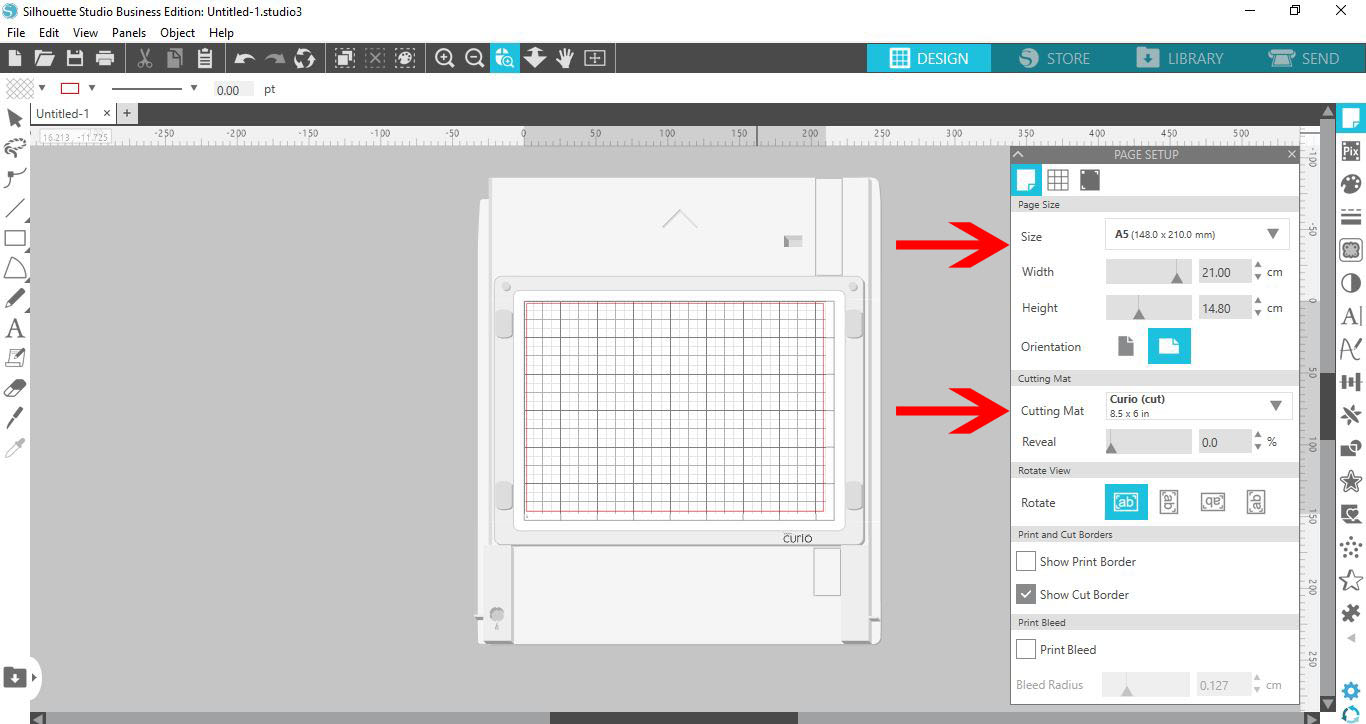
2- With the 2 sections changed you will see that the mat on the screen now is the curio mat.
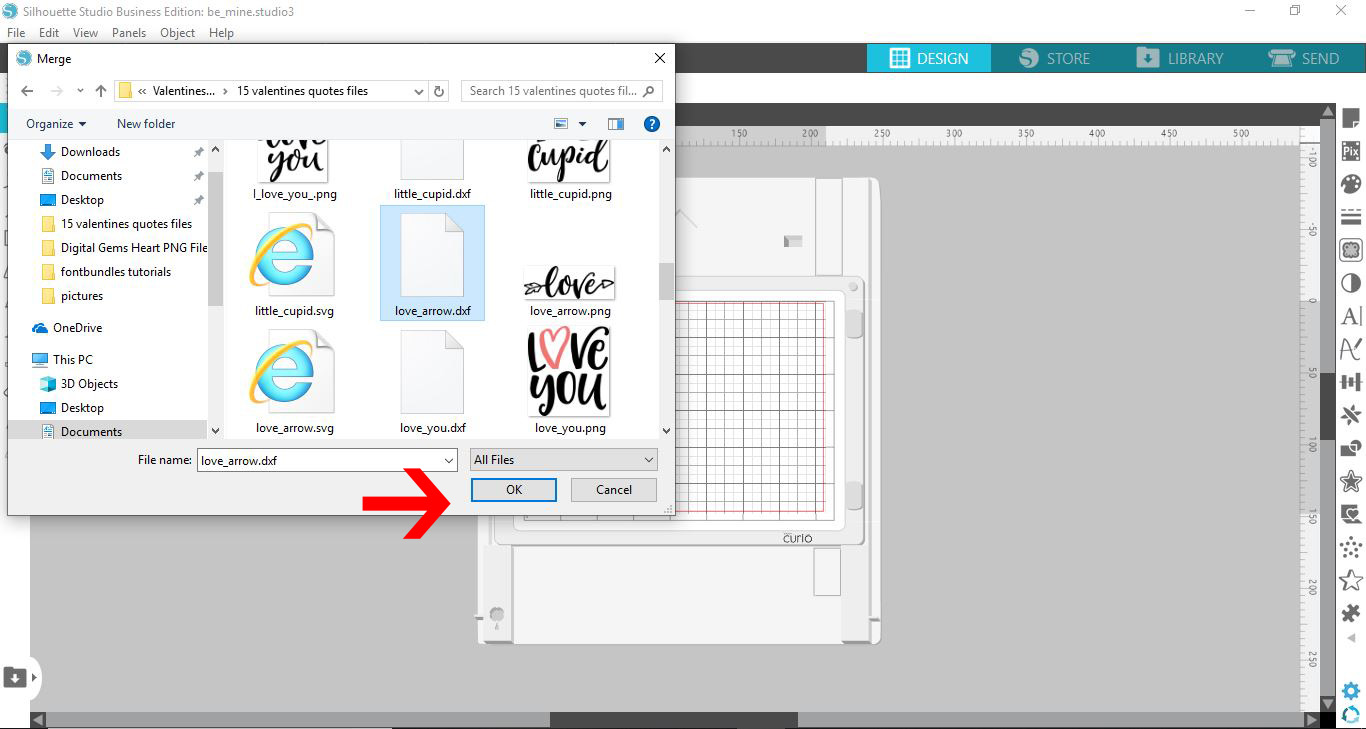
3- Select your file and insert. I am usingValentines Day Quotes SVG files.
4- Select the embossing tool.
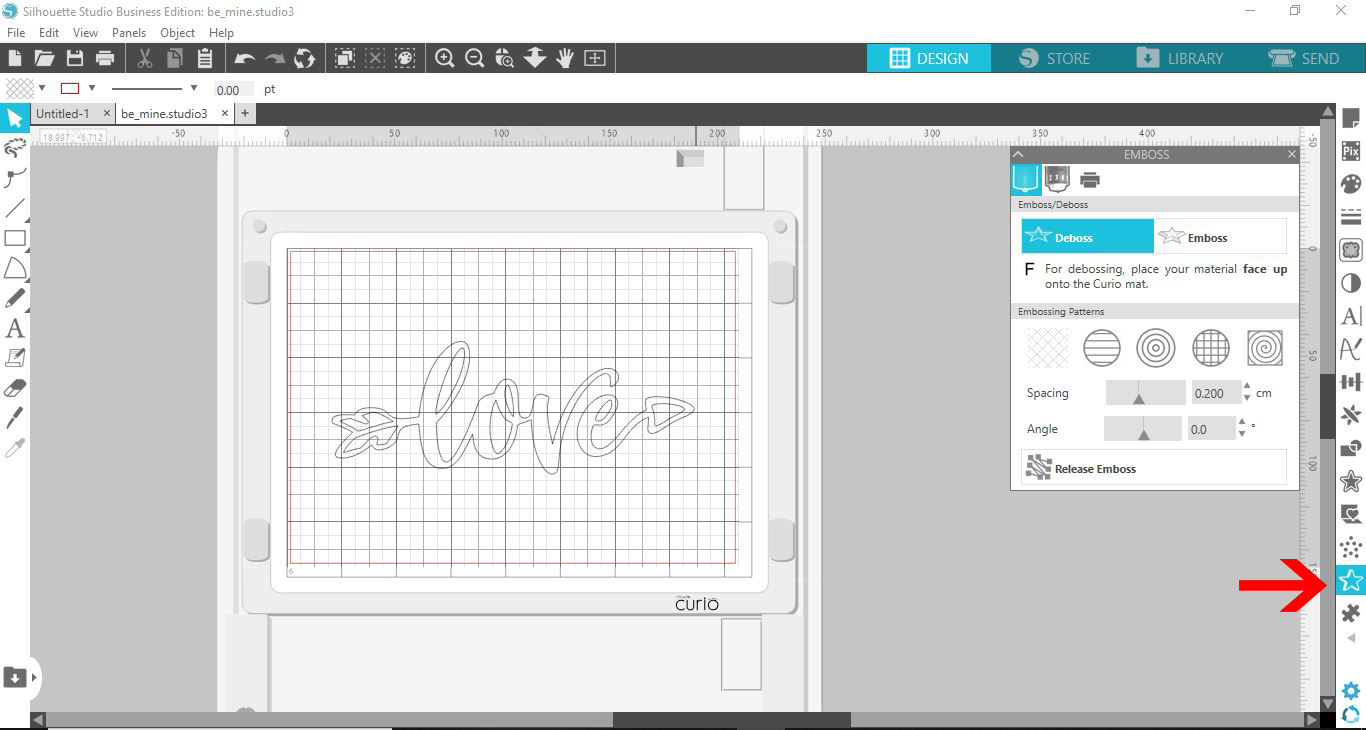
5- Click on the score and emboss tool.
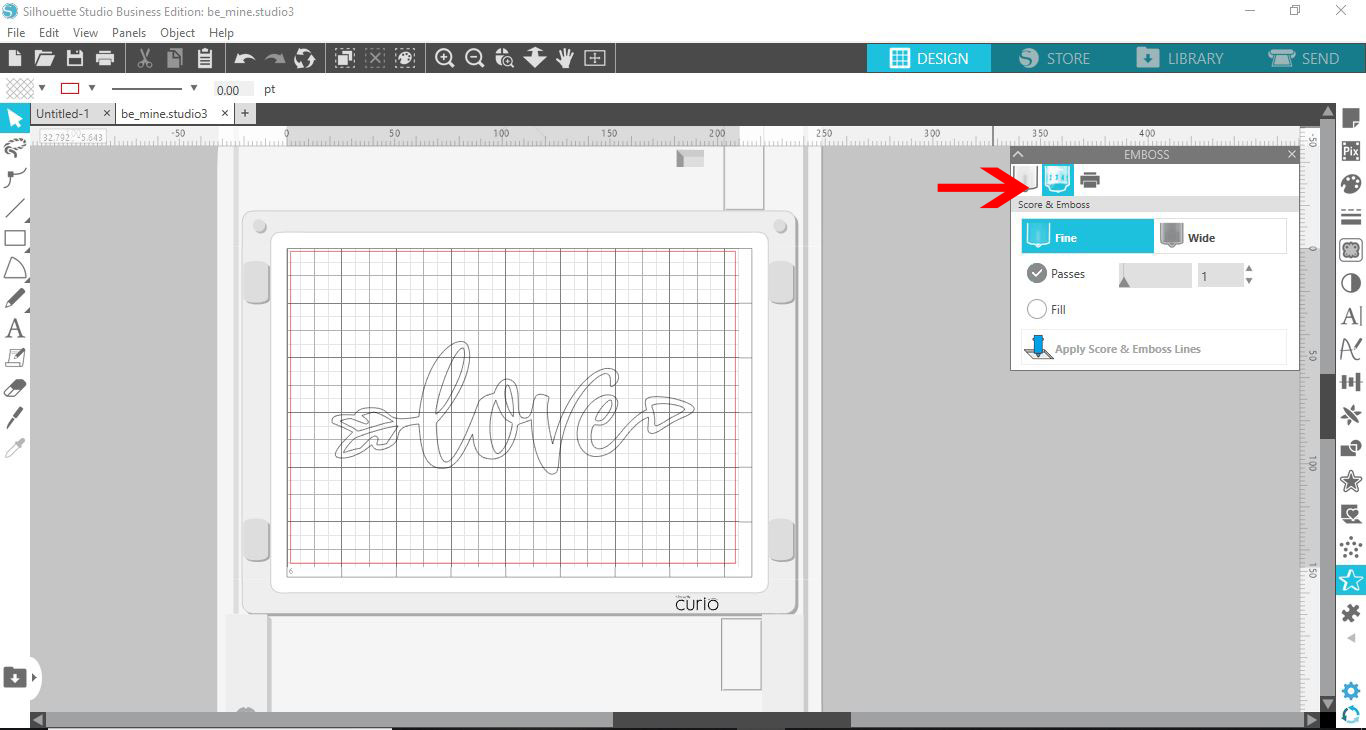
6- Check on the fill option. Then select the apply score and emboss line icon.
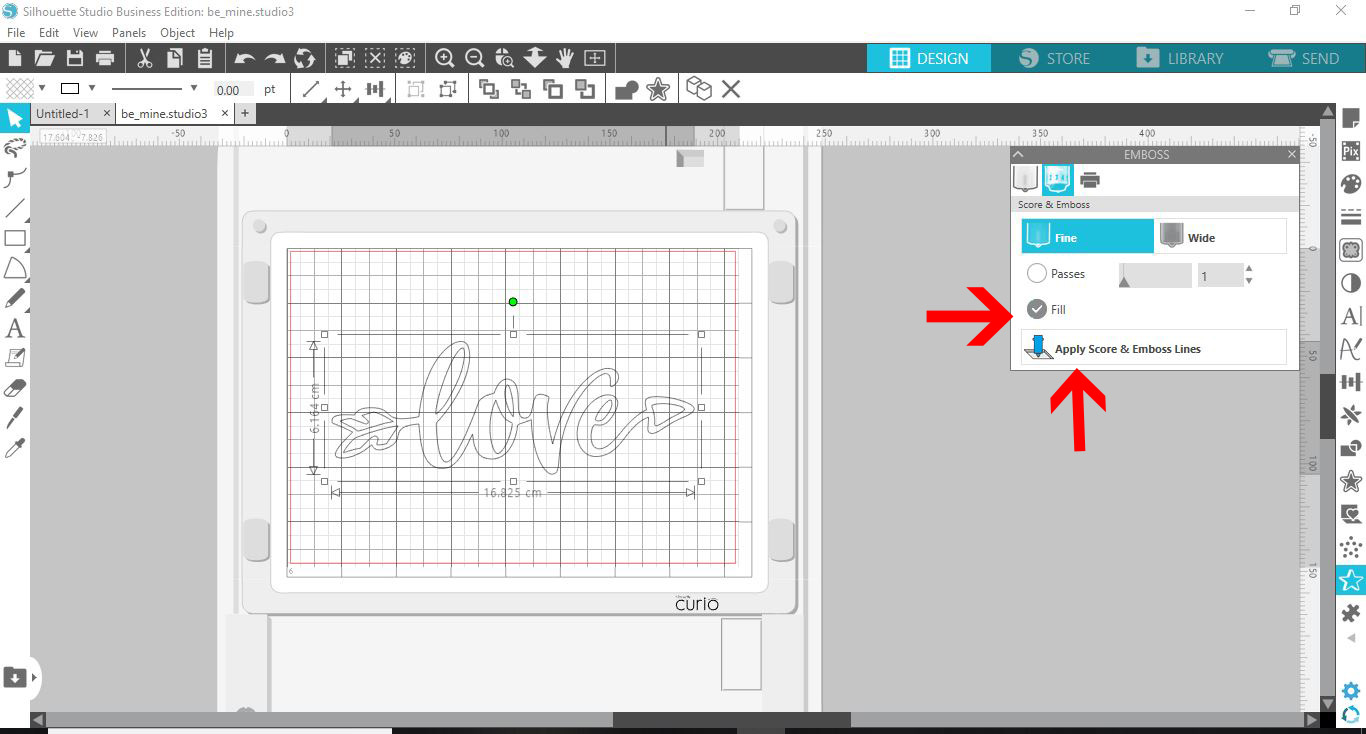
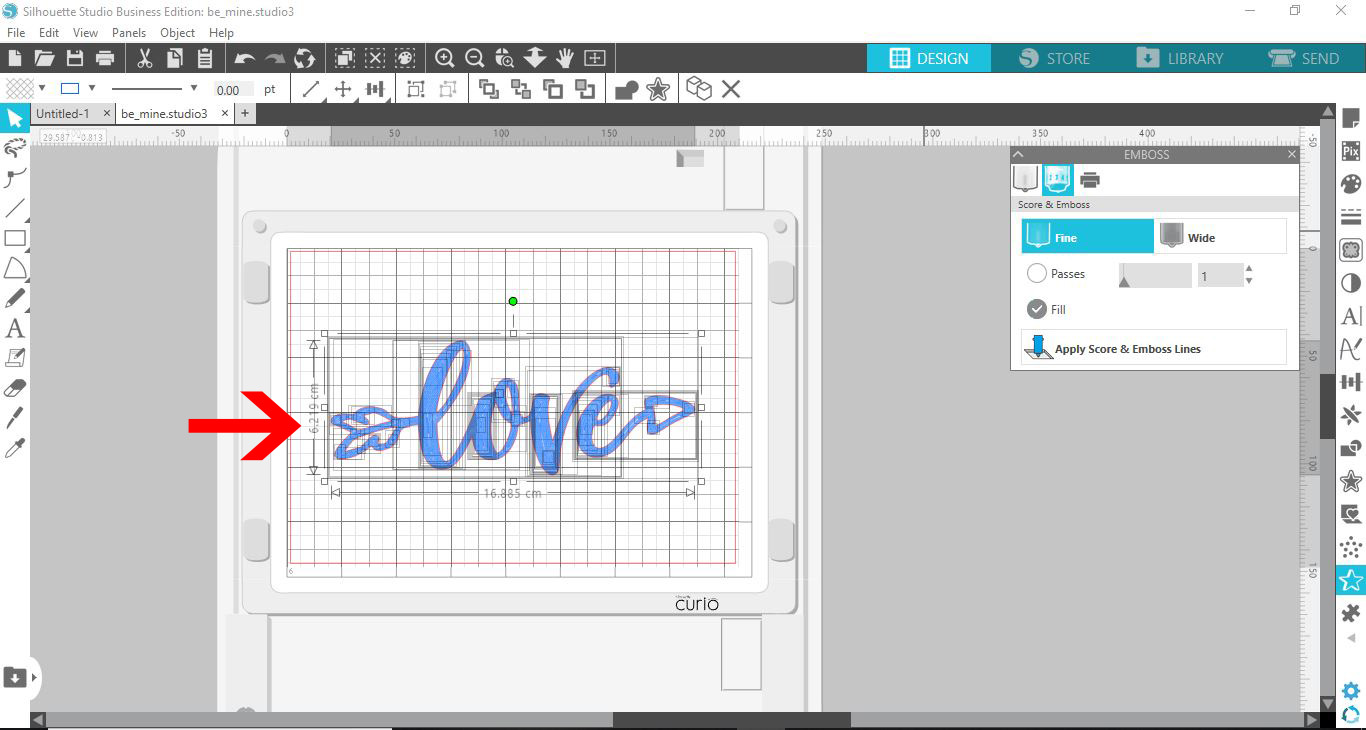
7- You will see the emboss lines appear in blue in the design. Select all and group.
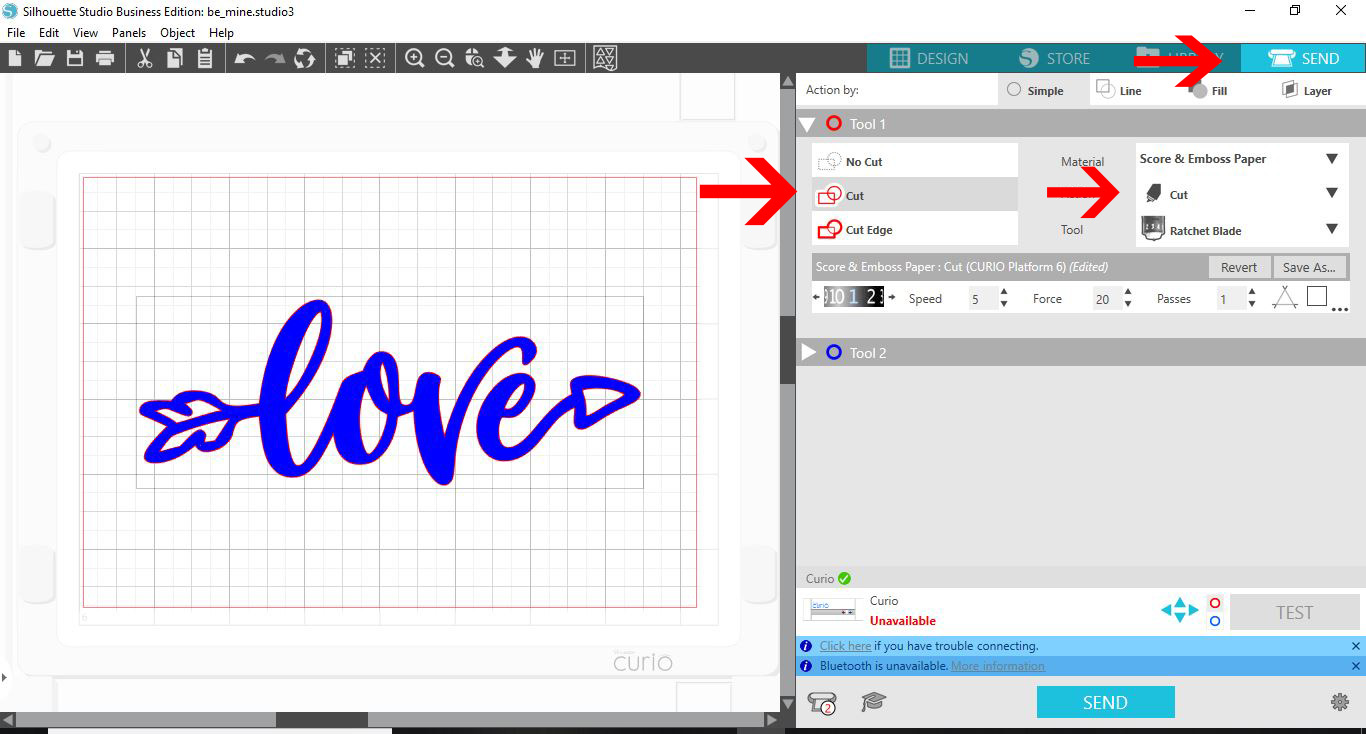
8- Go to the send screen. Make sure the blade tool is in the red holder and set the depth to 1.
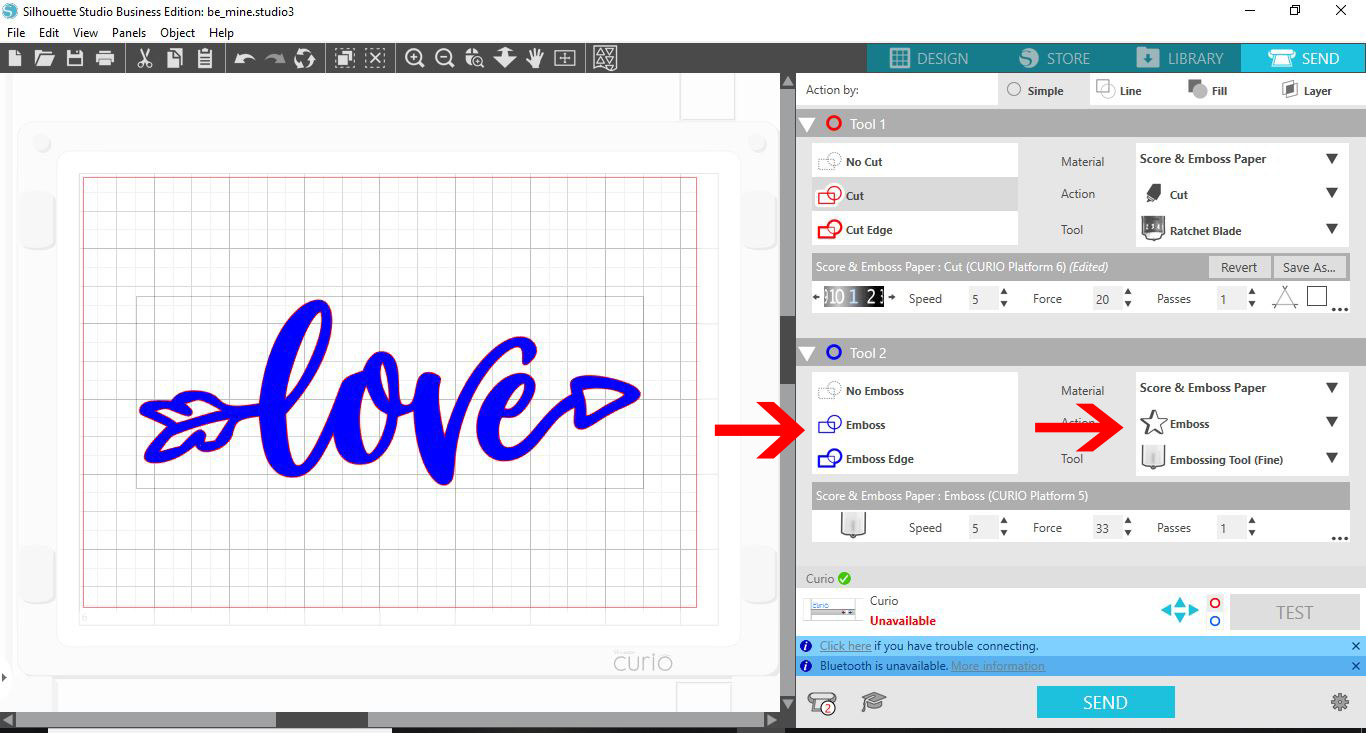
9- Click on the blue tool option. Make sure that the emboss tool is in the blue tool holder and that the setting is on emboss.

Click send and the design will score and emboss.
Related Tutorials

Silhouette Tutorials

Embossing and Debossing with the Silhouette Curio

Embossing and debossing with the Silhouette Curio gives texture to materials such as cardstock.
Silhouette Tutorials

How to Mirror Text and Images in Silhouette Curio

In 4 steps discover how to mirror text and images in Silhouette Studio when cutting with HTV.
Silhouette Tutorials

How to Print and Cut with the Silhouette Curio

Learn how to easily print and cut with the Silhouette Curio for a variety of projects.
Silhouette Tutorials

How to Create Vinyl Stickers in Silhouette Curio

In only 3 steps learn how to set up Silhouette Studio to cut viny stickers with your Curio.

Keep going

You may also like

All silhouette tutorials
The weekly drop

Fresh tutorials, trends & free files.

Join 6 million makers getting our best craft guides and exclusive freebies straight to their inbox.

No spam. Unsubscribe anytime.