By Design Bundles
Silhouette Mobile App Basics
*Note - While Silhouette mobile allows you to create designs in your mobile device, you will still require to use a PC/laptop to link your mobile device to the Silhouette machine. You will need to download Silhouette Link on your PC/ Laptop so you can cut.
1- Click on the app on your device.

2- Log into the Silhouette account that you use on your PC/laptop.
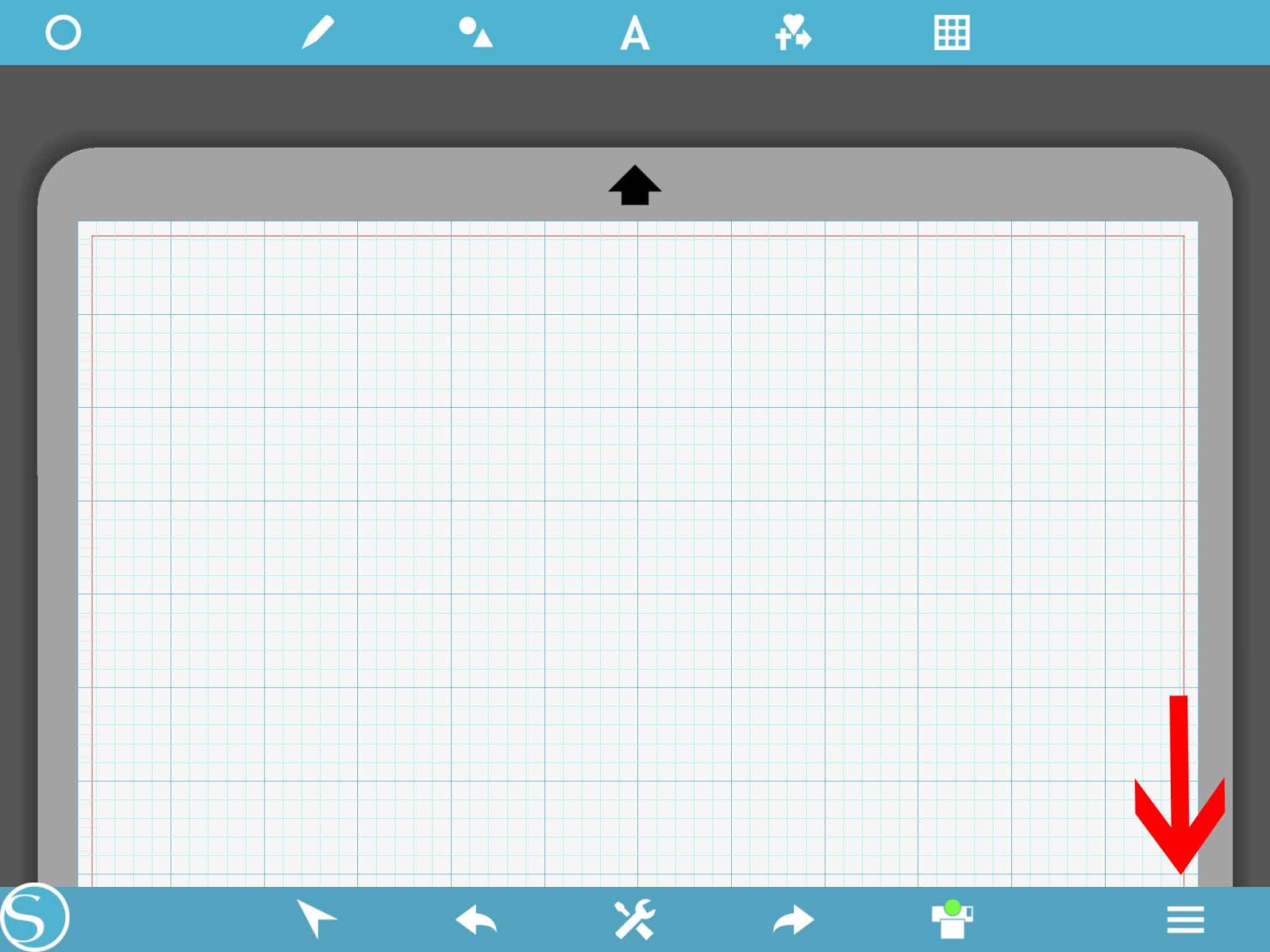
3- You will see the home screen on your device. Tap the 3 lines at the bottom of the screen.
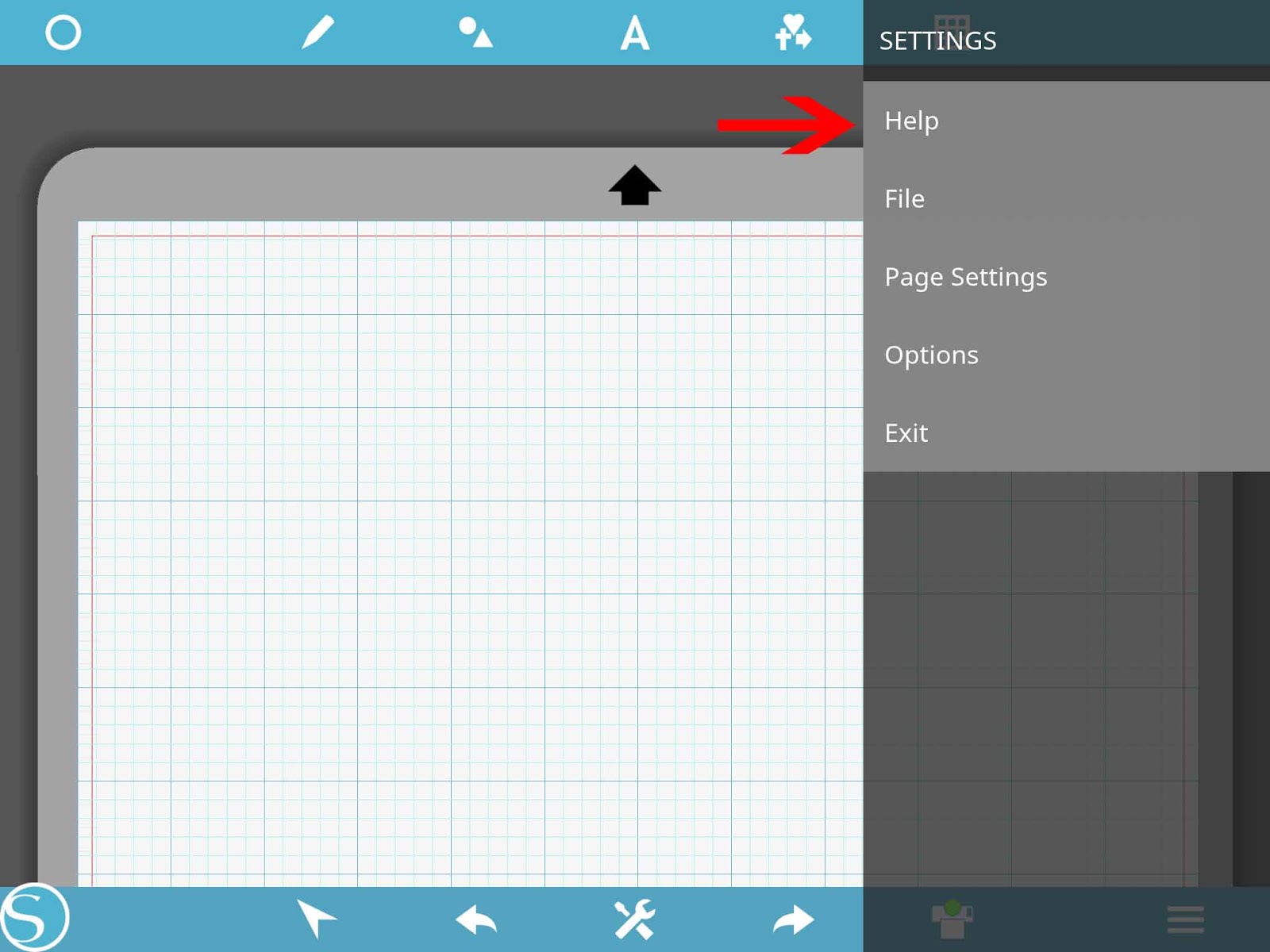
4- The setting screen will appear. This will allow you to adjust the basics on the app.
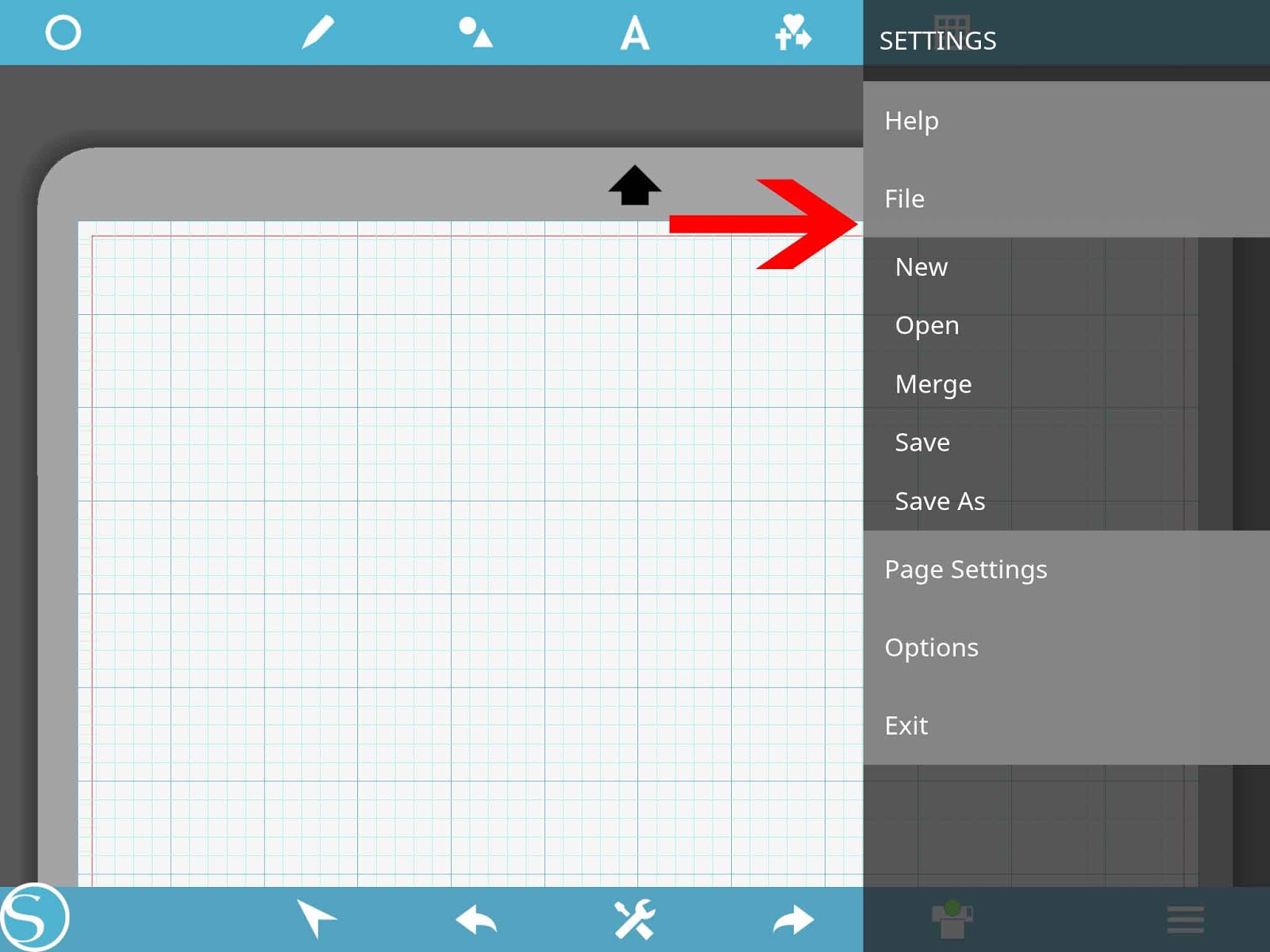
5- File- This gives you the option to -
Create a new file
Open a saved file
Merge a image or SVG file with a file you have already opened
Save your file
Save a new file.
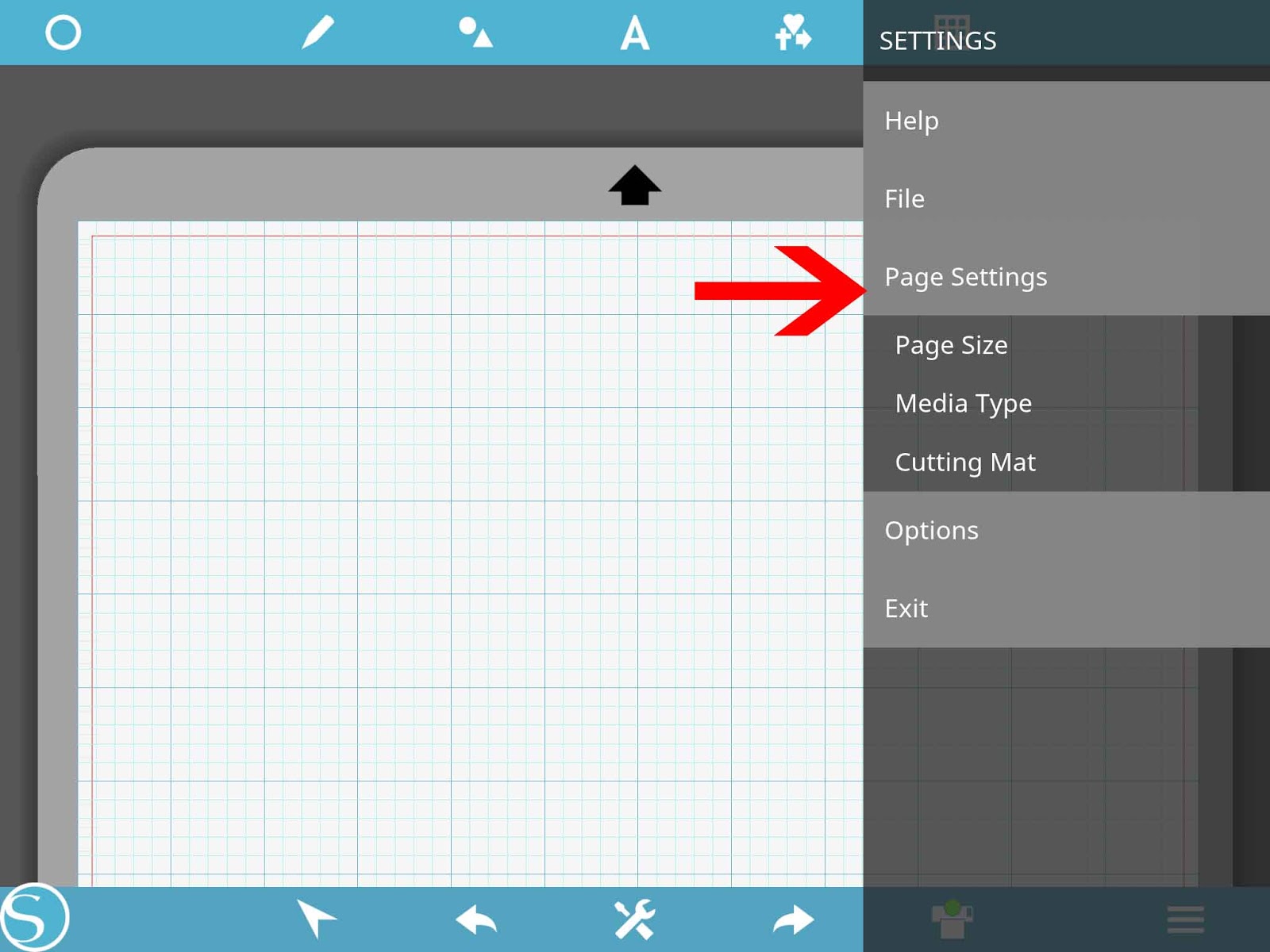
6- Page Settings - Here you can change things like the page size, the media you are going to cut and the size of the cutting mat you will be using.
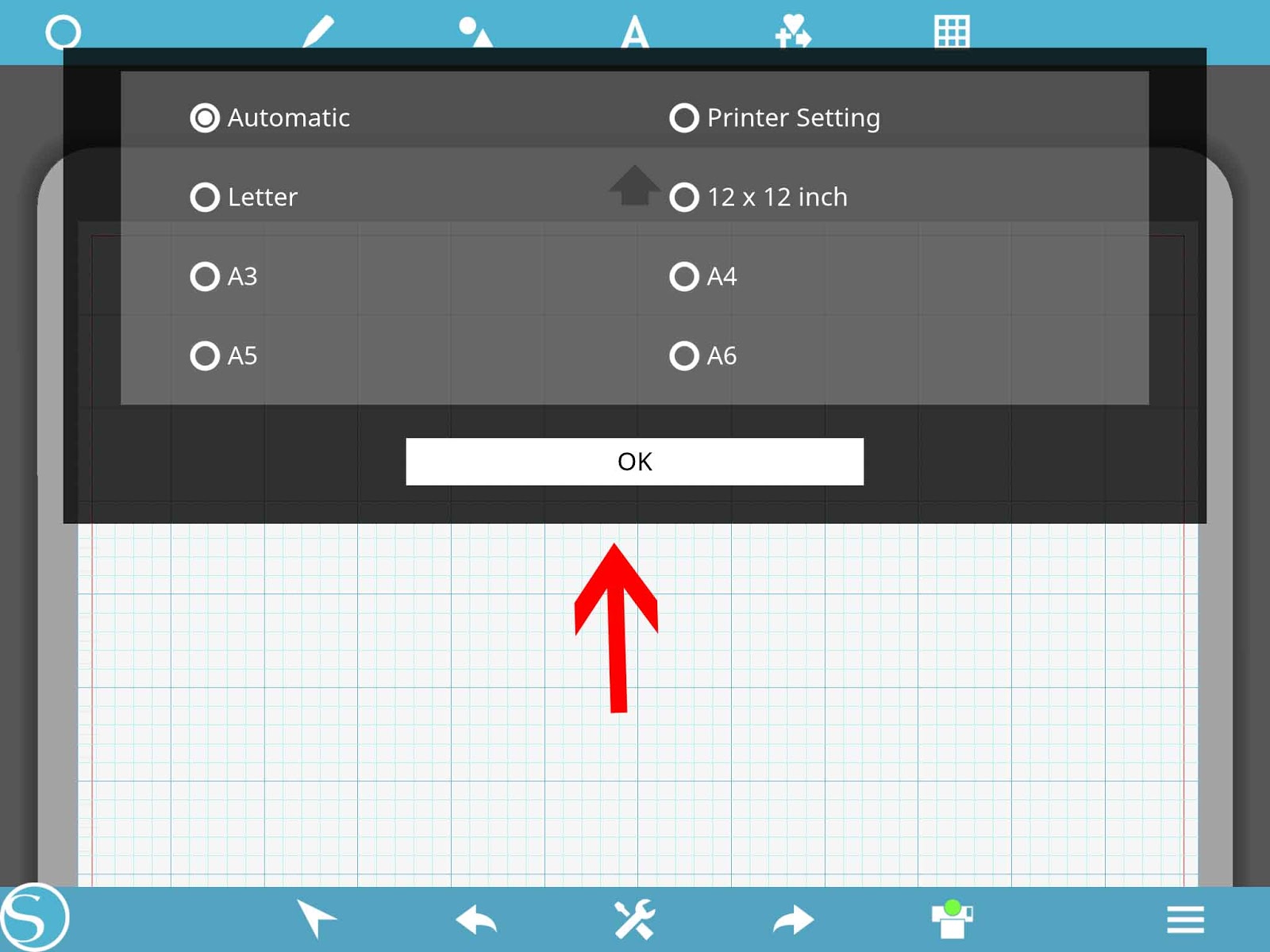
7- When selecting the page size, you can choose the printer settings or what size media you will be using.
When you have finished click OK.
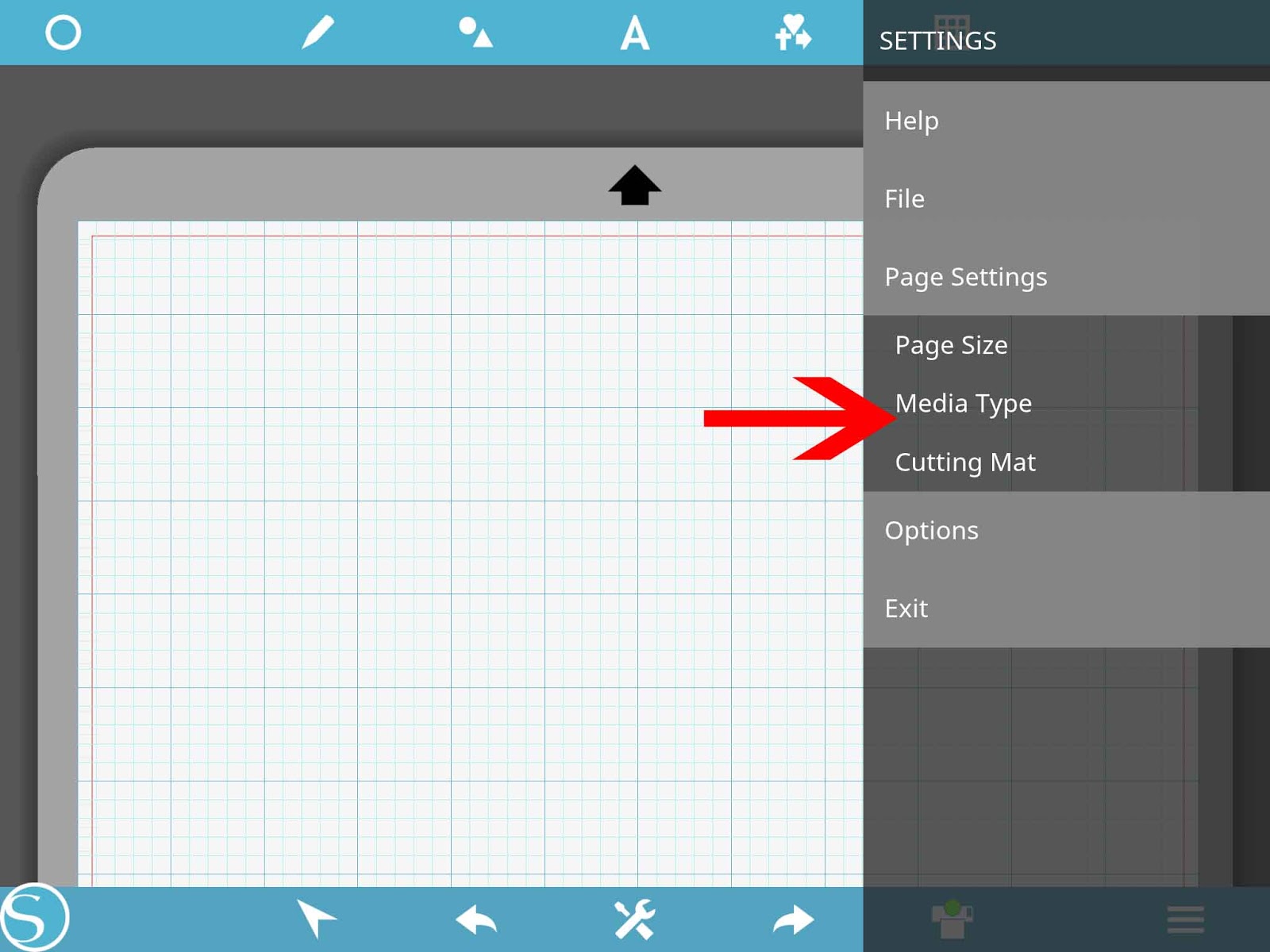
8- Media type is the next option on the page setting menu.
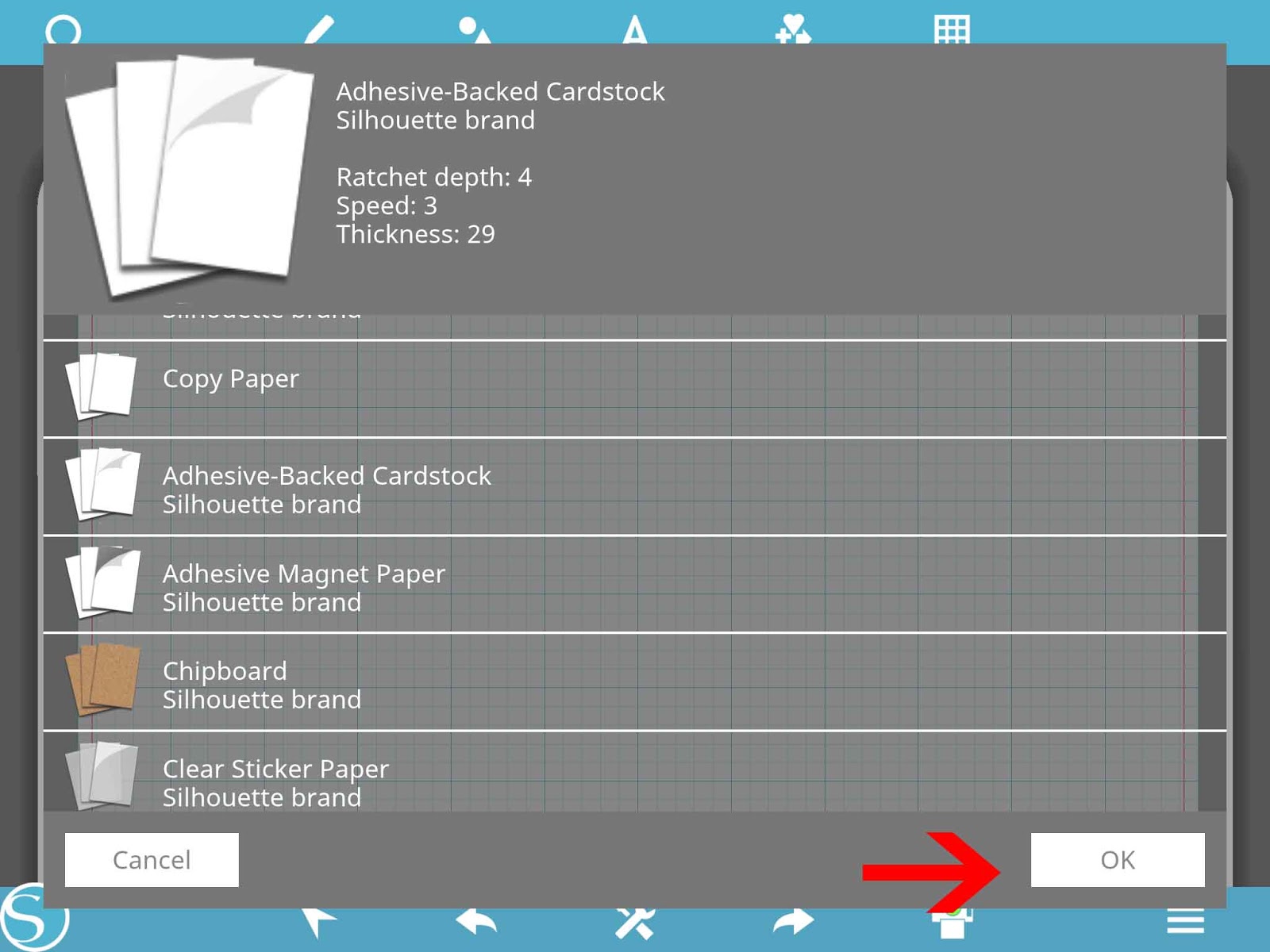
9-When selecting the media type you can select what media you will be using when cutting. This with show you the blade depth the machine needs to be and what speed and thickness the silhouette machine will be at.
Once your happy with your selection click OK.
10- The last option on the page setting is the cutting mat.
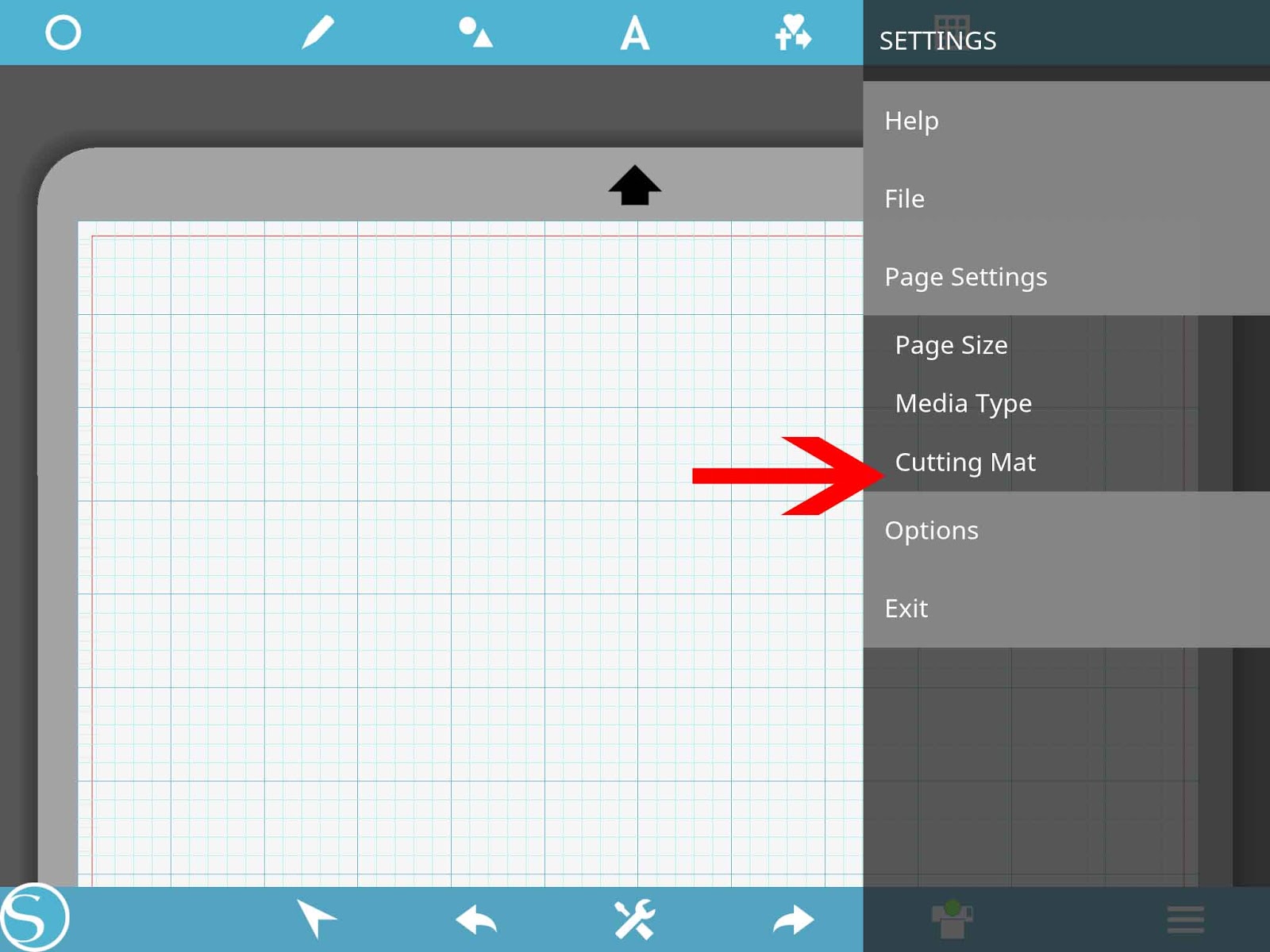
11- Once selected the app will give the choice of what mat and machine you are using. Select your choice and click OK.
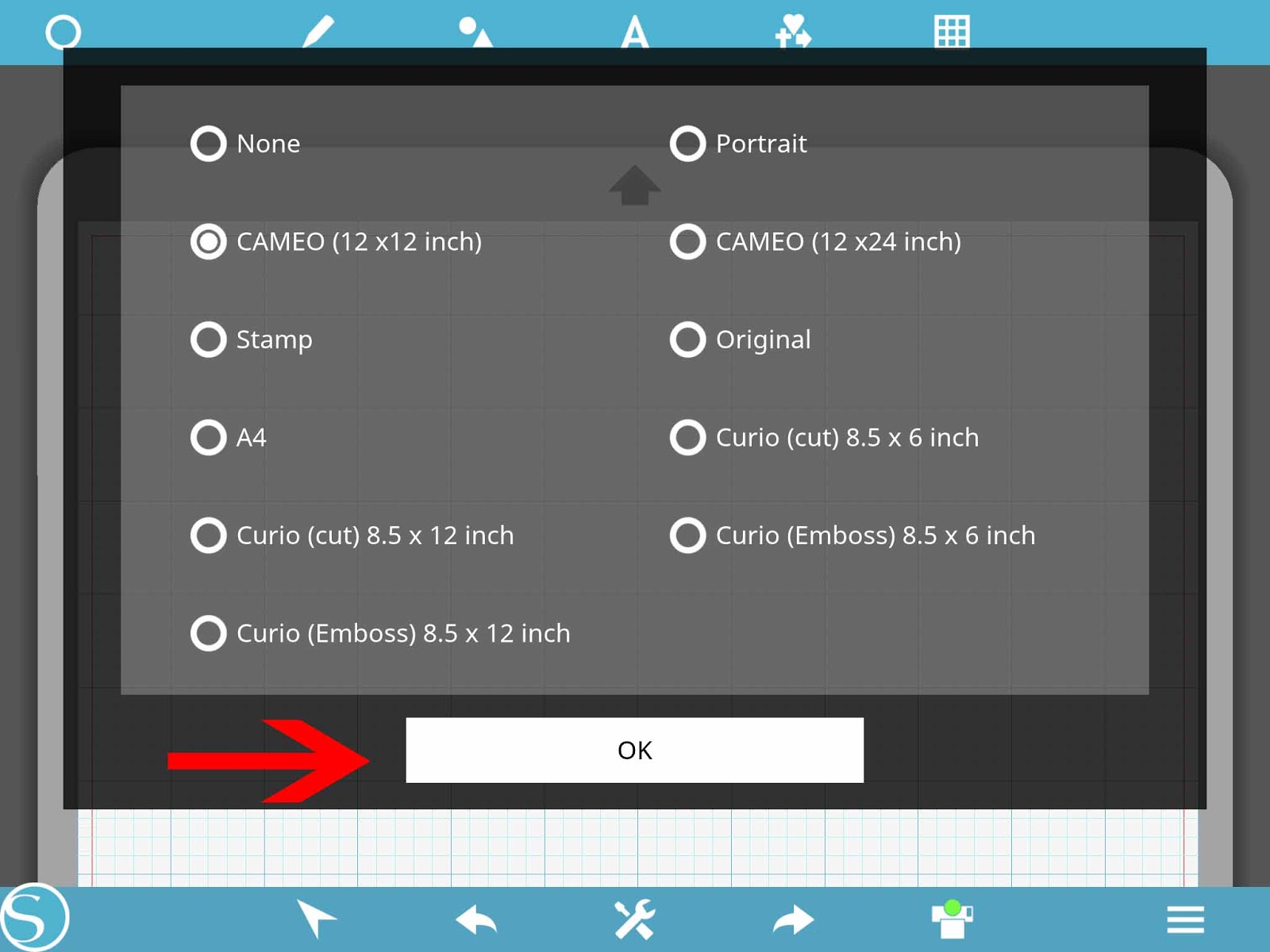
12- When you tap on the options setting you will have several more options.
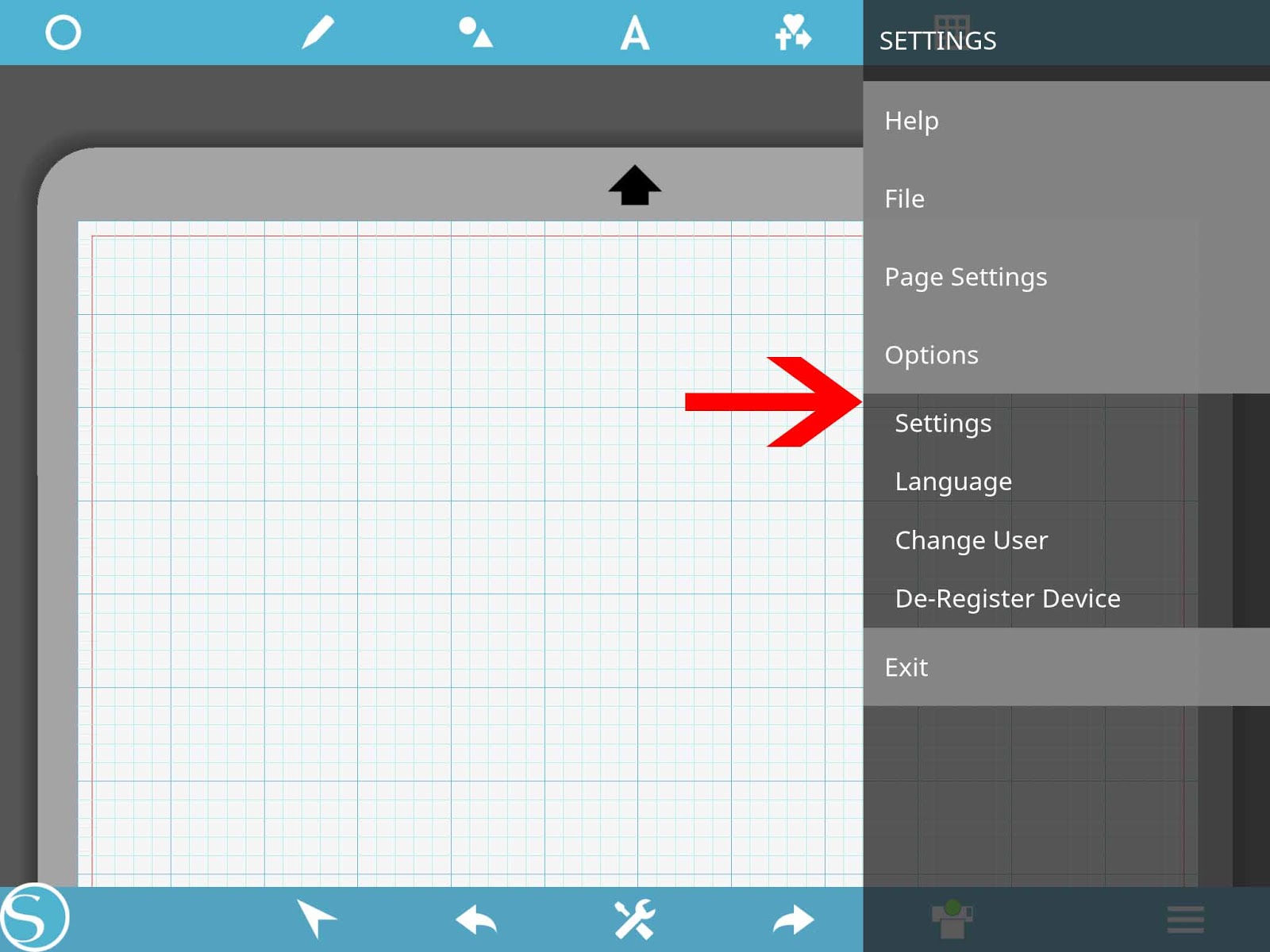
13- Settings - this will change the size of the user interface, you can toggle to adjust the size. once happy click OK.
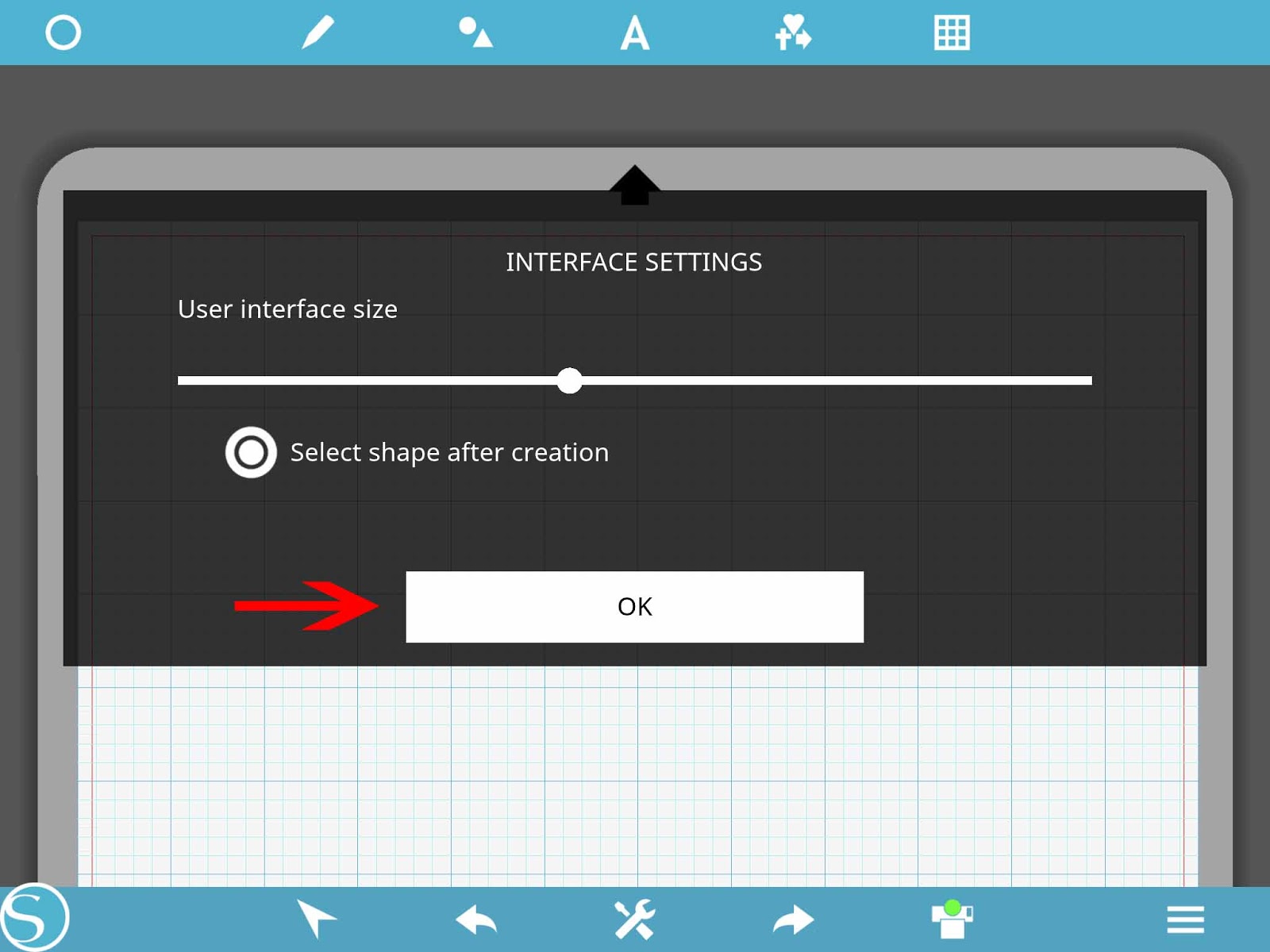
14- The second option is language.
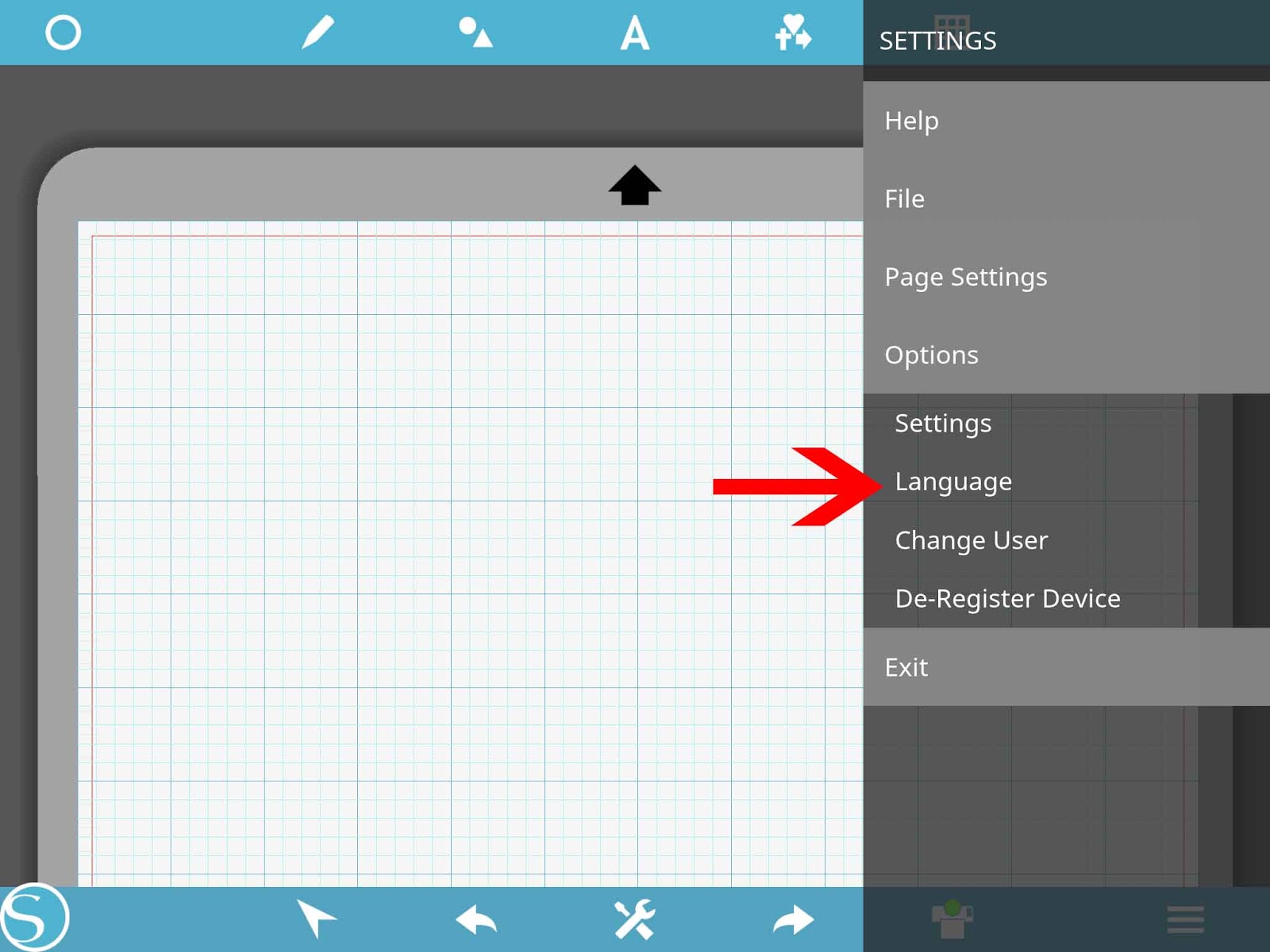
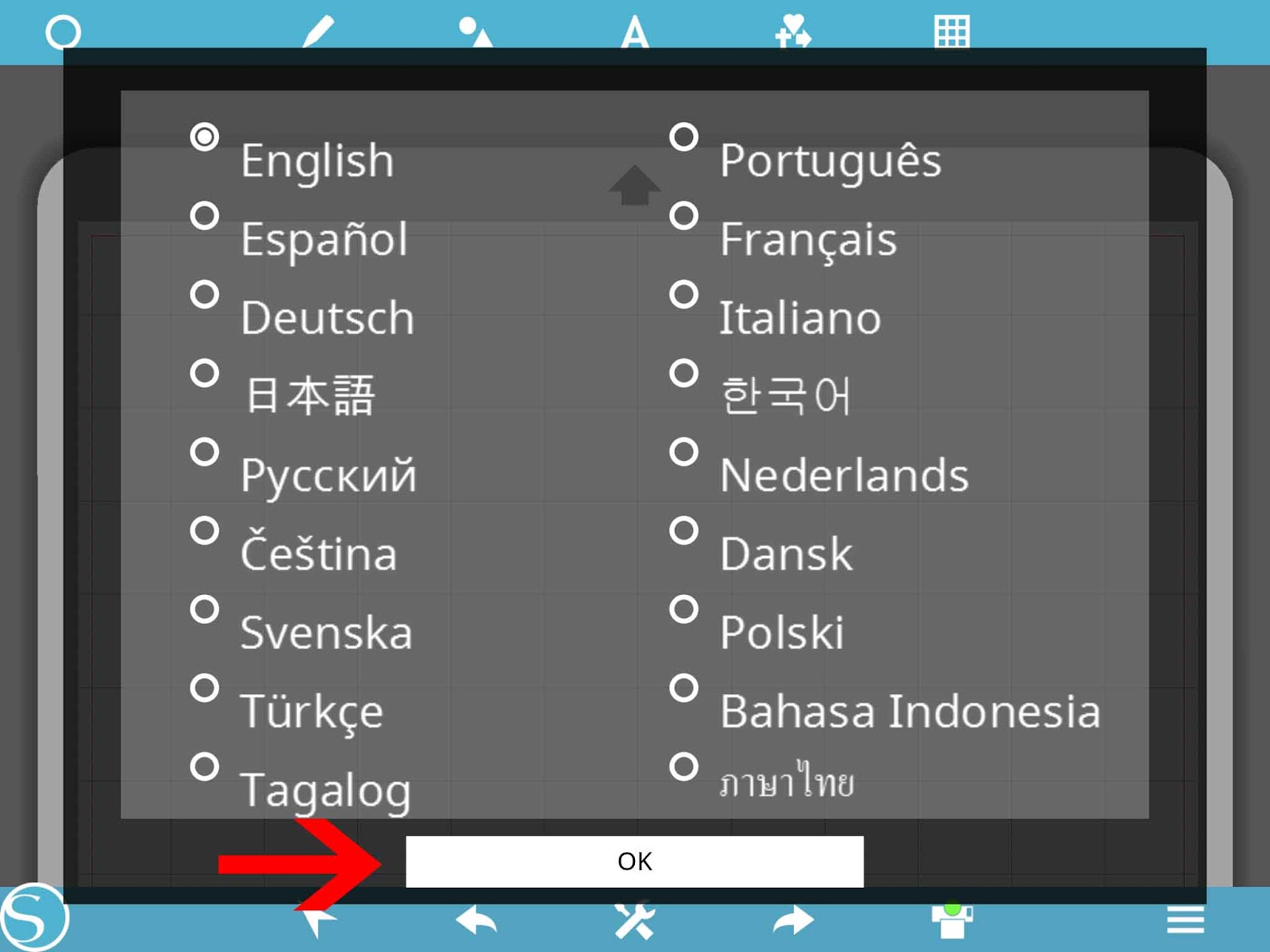
15-Here you can select the language you would like to use the app in. Select OK.
16- Change user will let you change accounts.
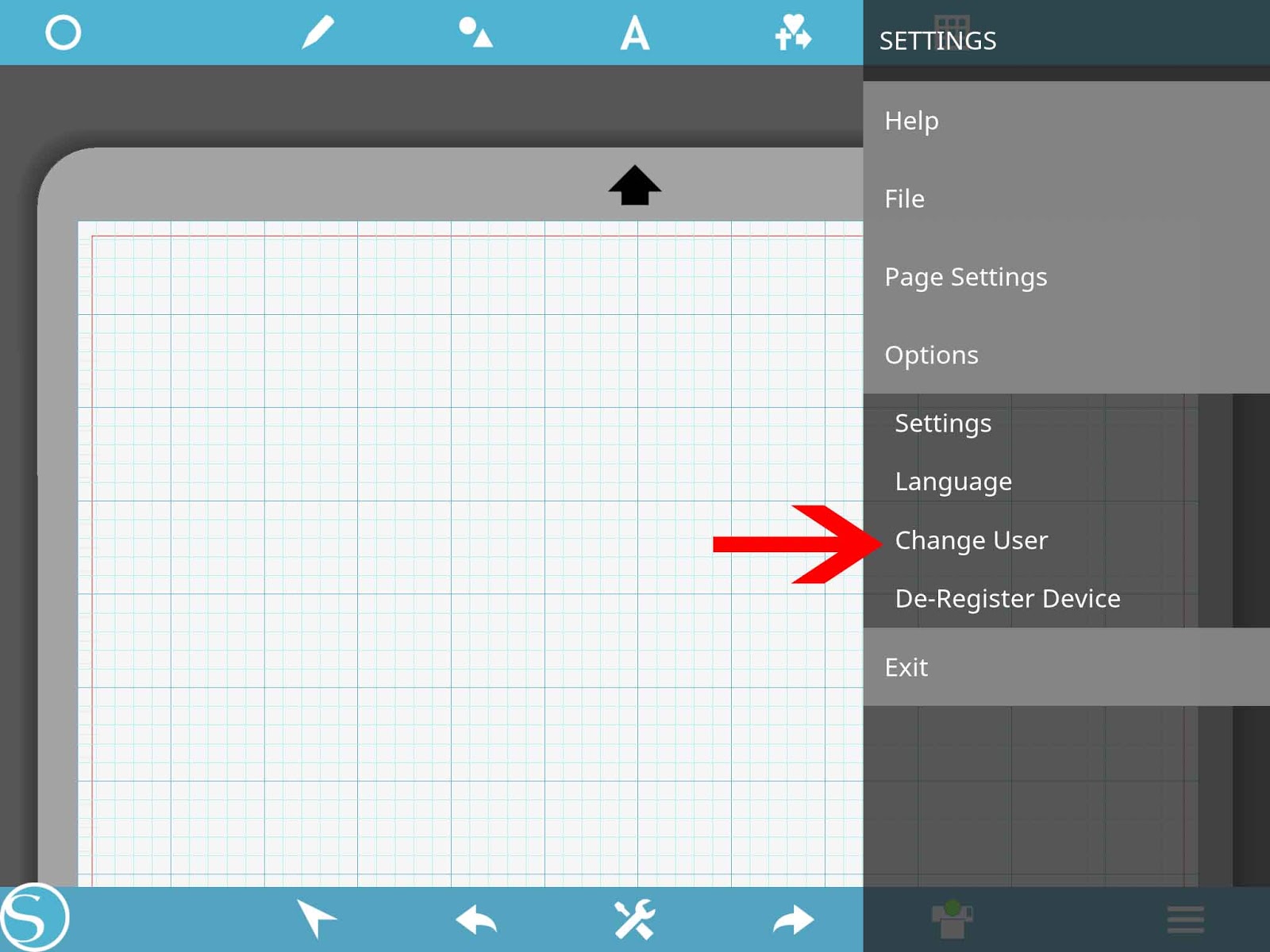
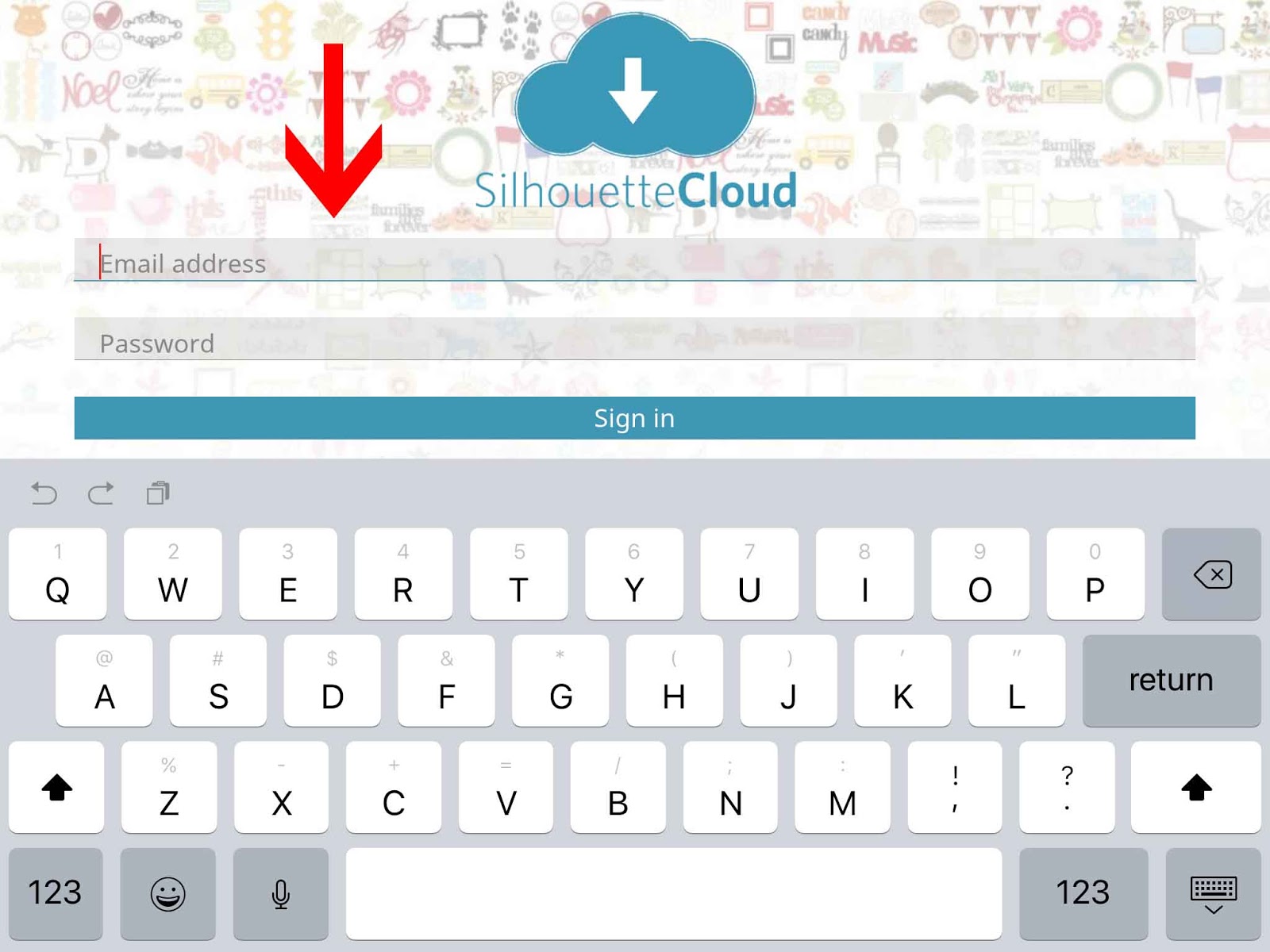
17- Once you click you will automatically be logged out of the Silhouette Cloud and you can add your new account.
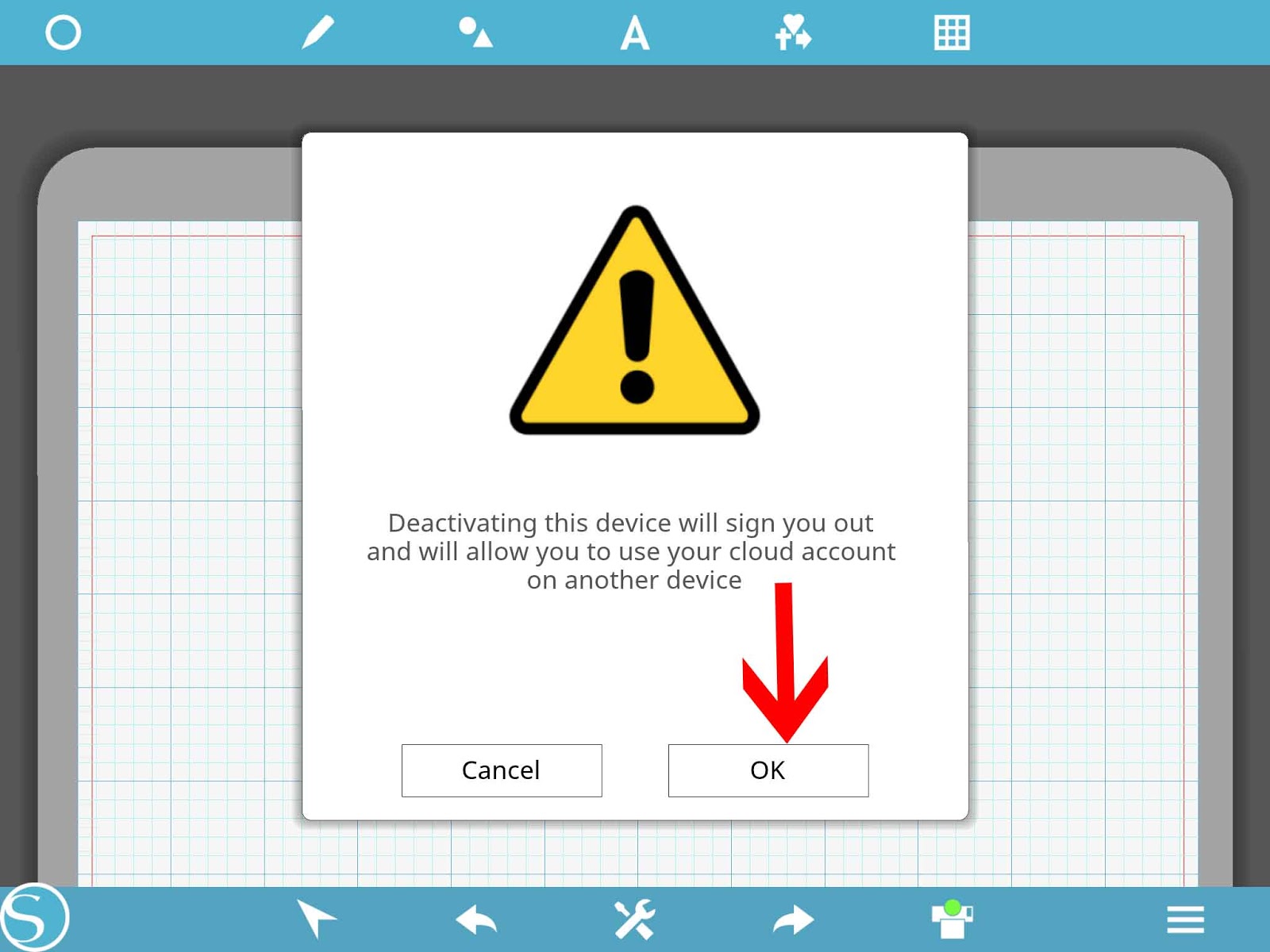
18- Lastly is De-Register. Device.
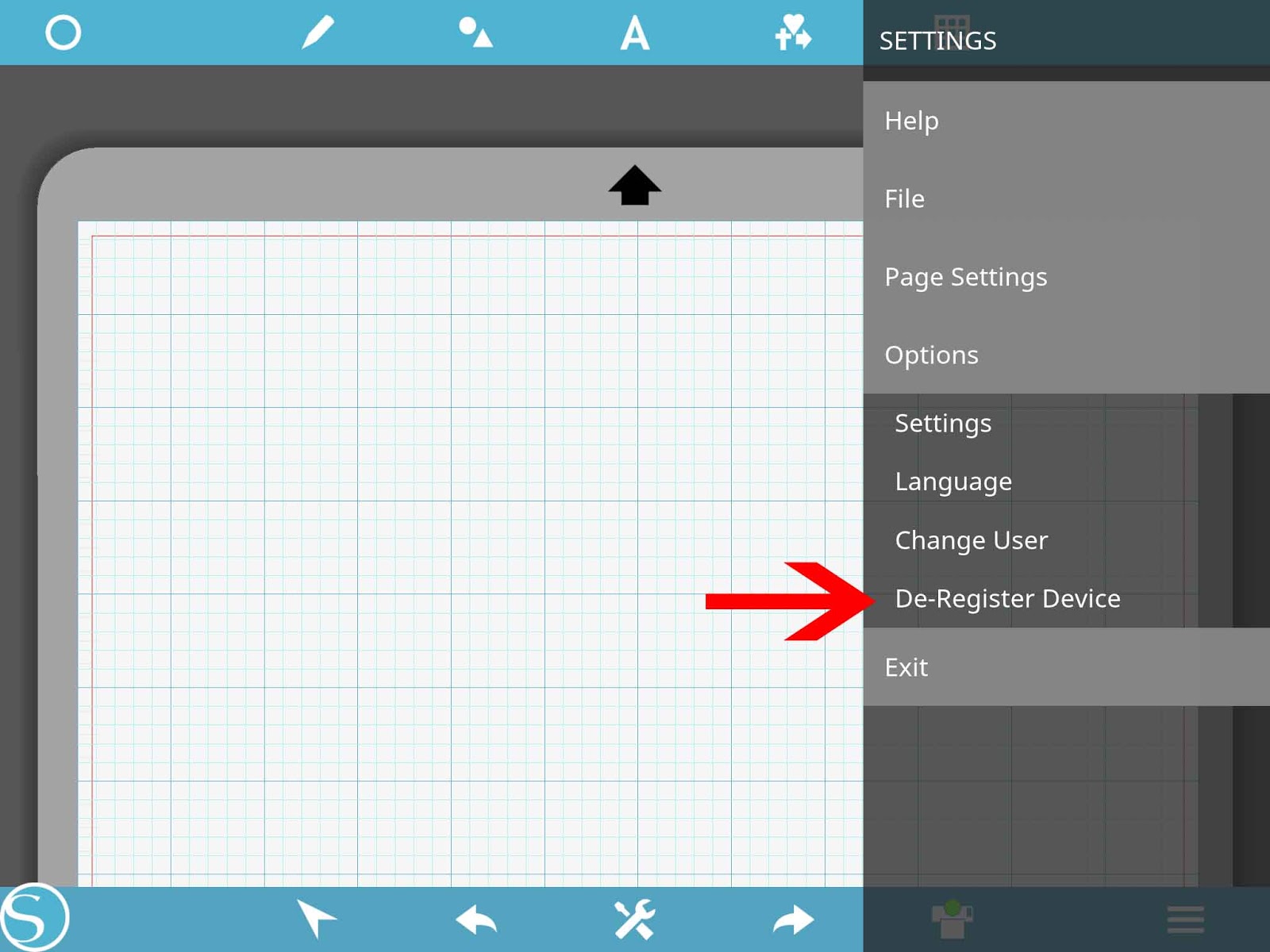
19- By de- registering the device this will allow you to register it with a new account. Click OK to confirm.