By Design Bundles
Silhouette Tutorials1 min
Silhouette Mobile App Text Basics
1- Open the Silhouette mobile app.

2- Select the text icon.
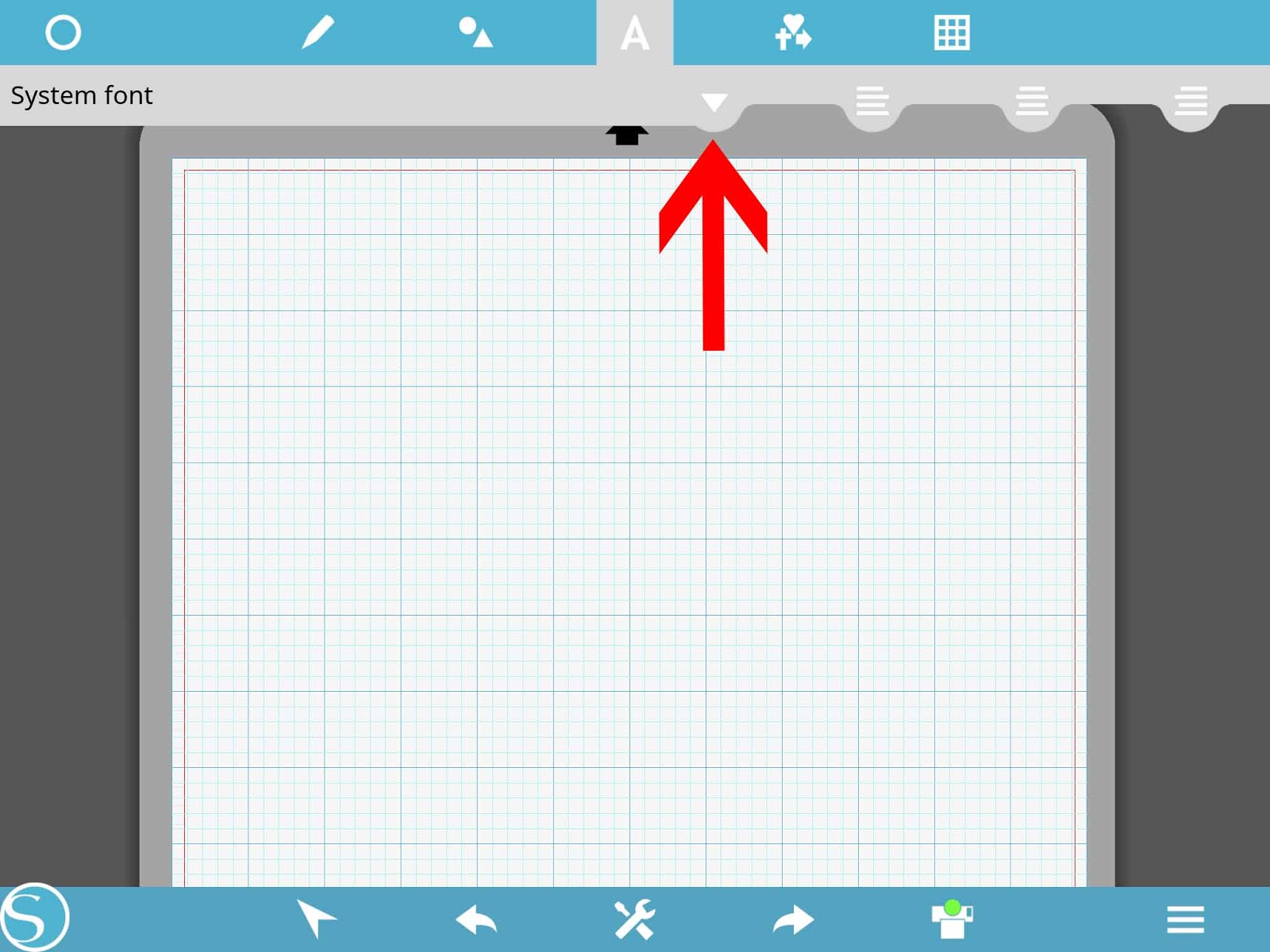
3- You will see a drop down menu.click on the arrow.
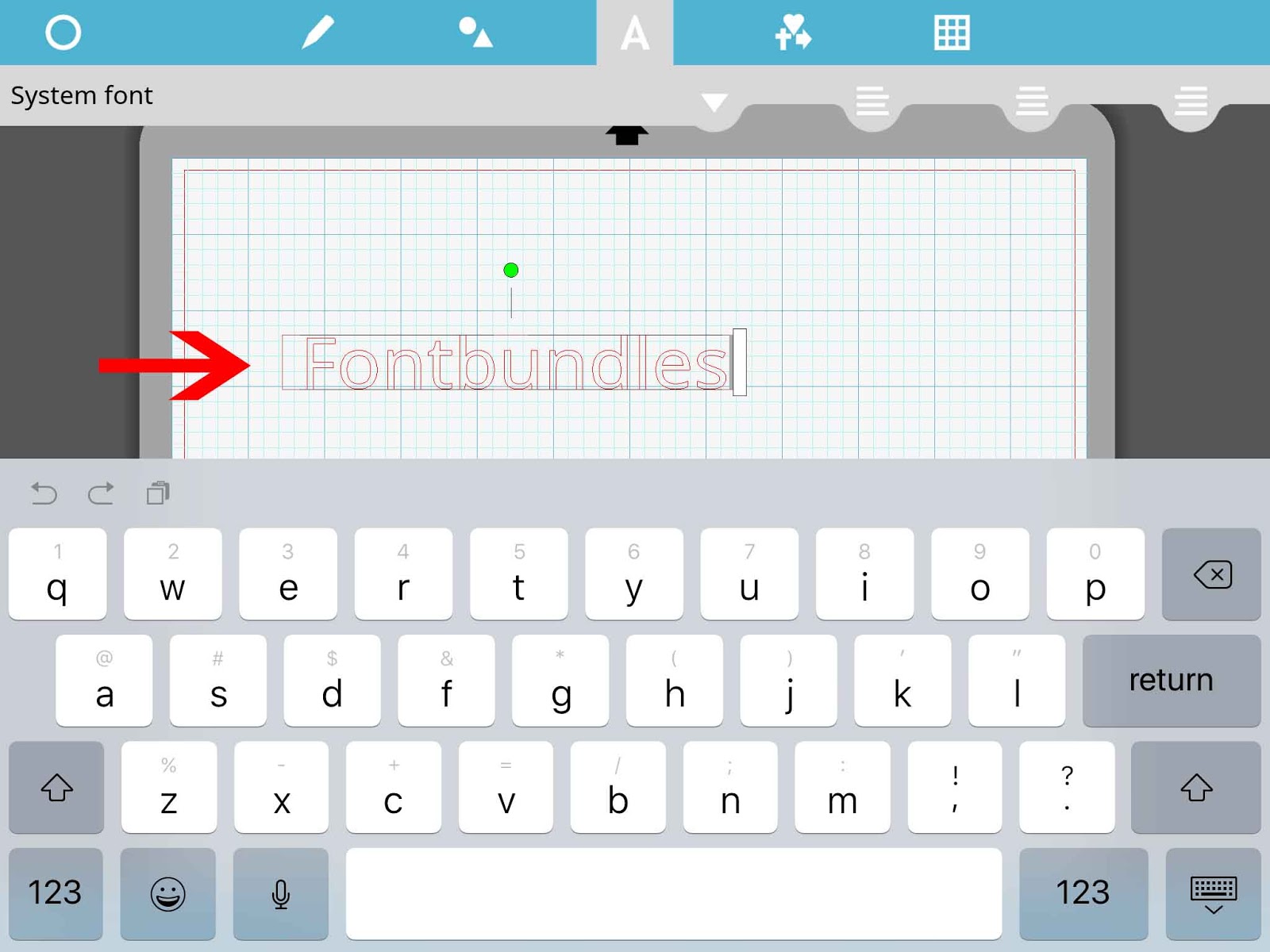
4- your keyboard will appear. Type your text.
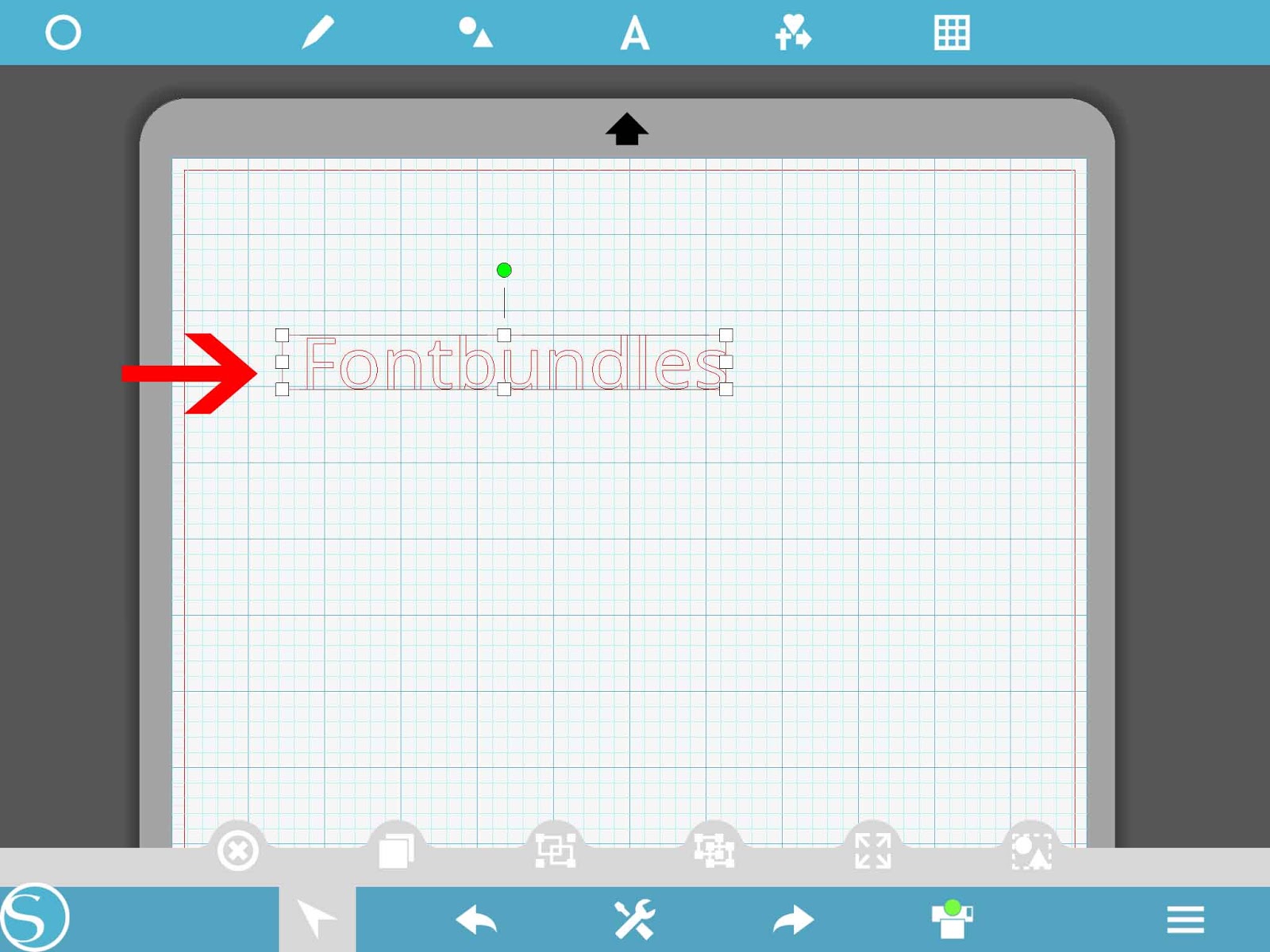
5- Click on the text.
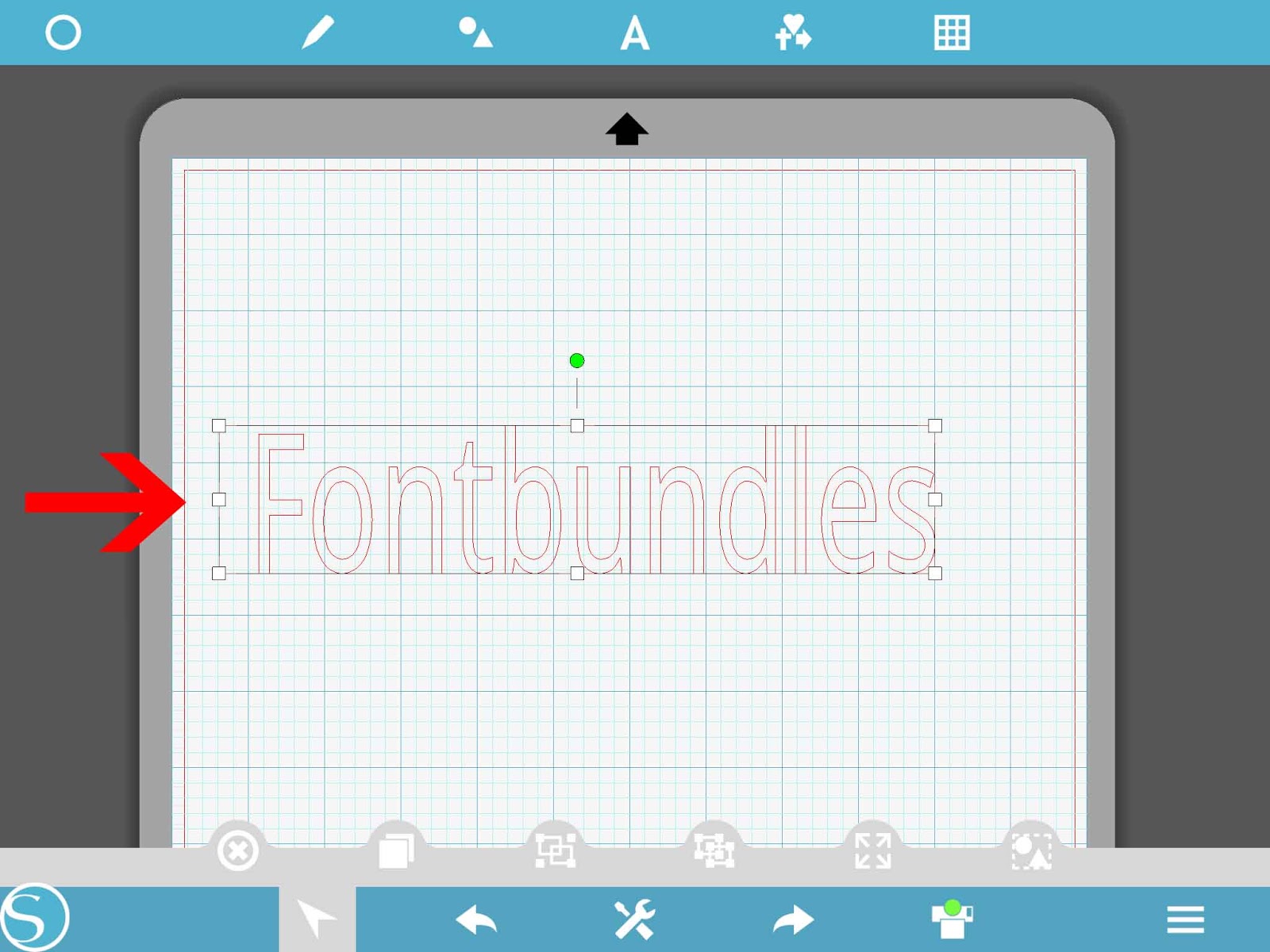
6- You can now change the size of your text.
7-You have the align options also. There is align left.
8- Align centre.
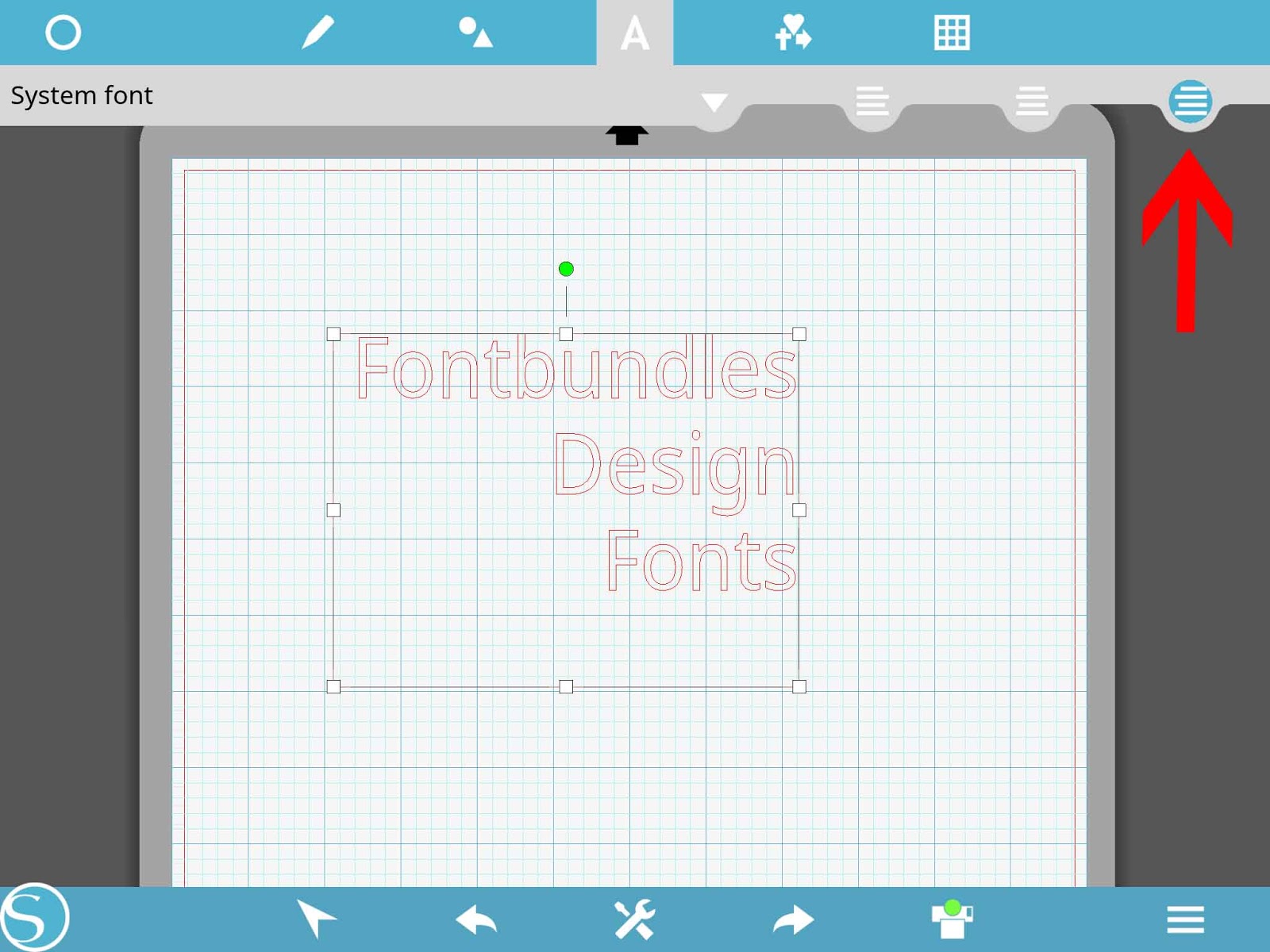
9- Align right.
2- Select the text icon.
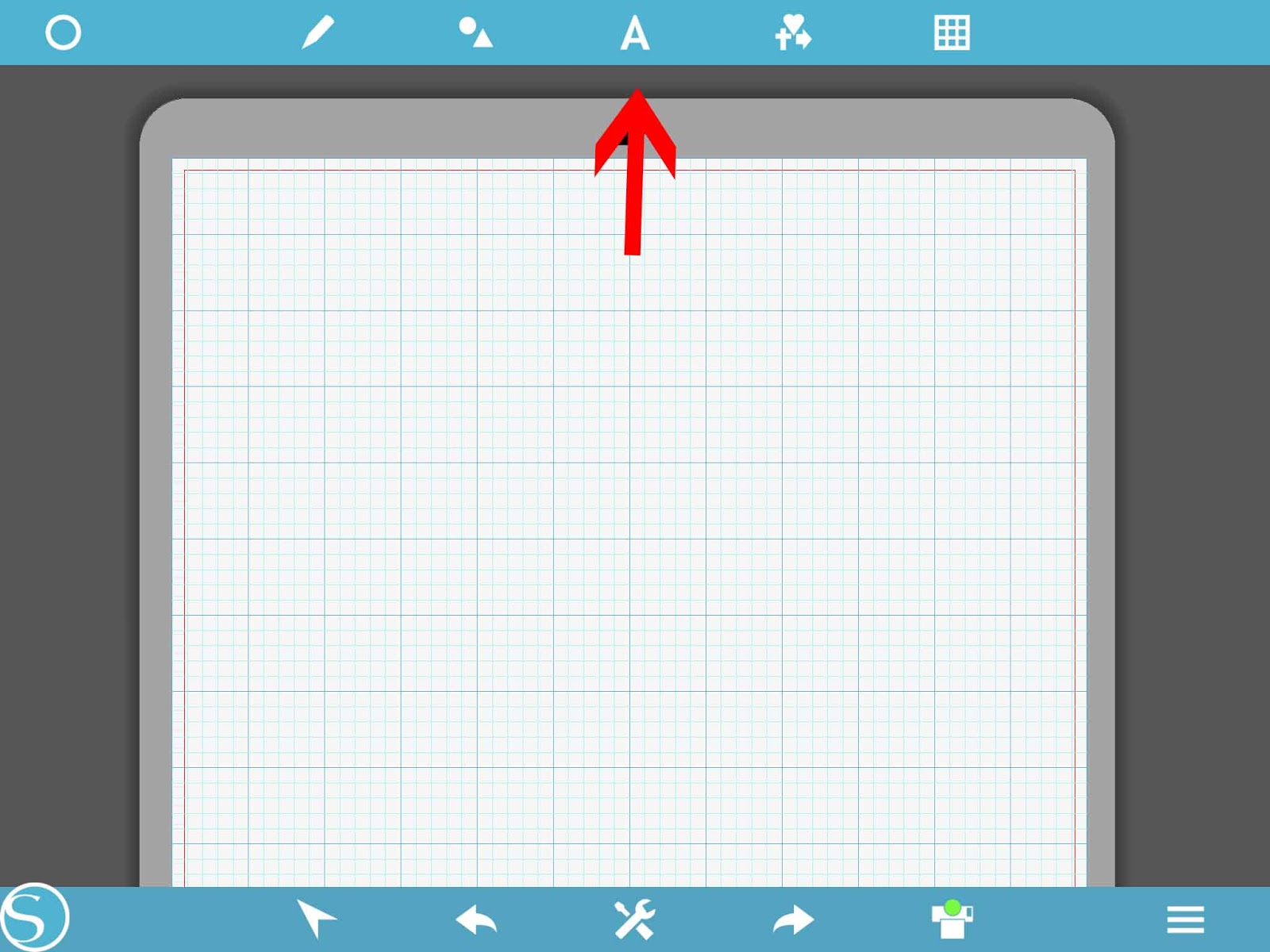
3- You will see a drop down menu.click on the arrow.
4- your keyboard will appear. Type your text.
5- Click on the text.
6- You can now change the size of your text.
7-You have the align options also. There is align left.
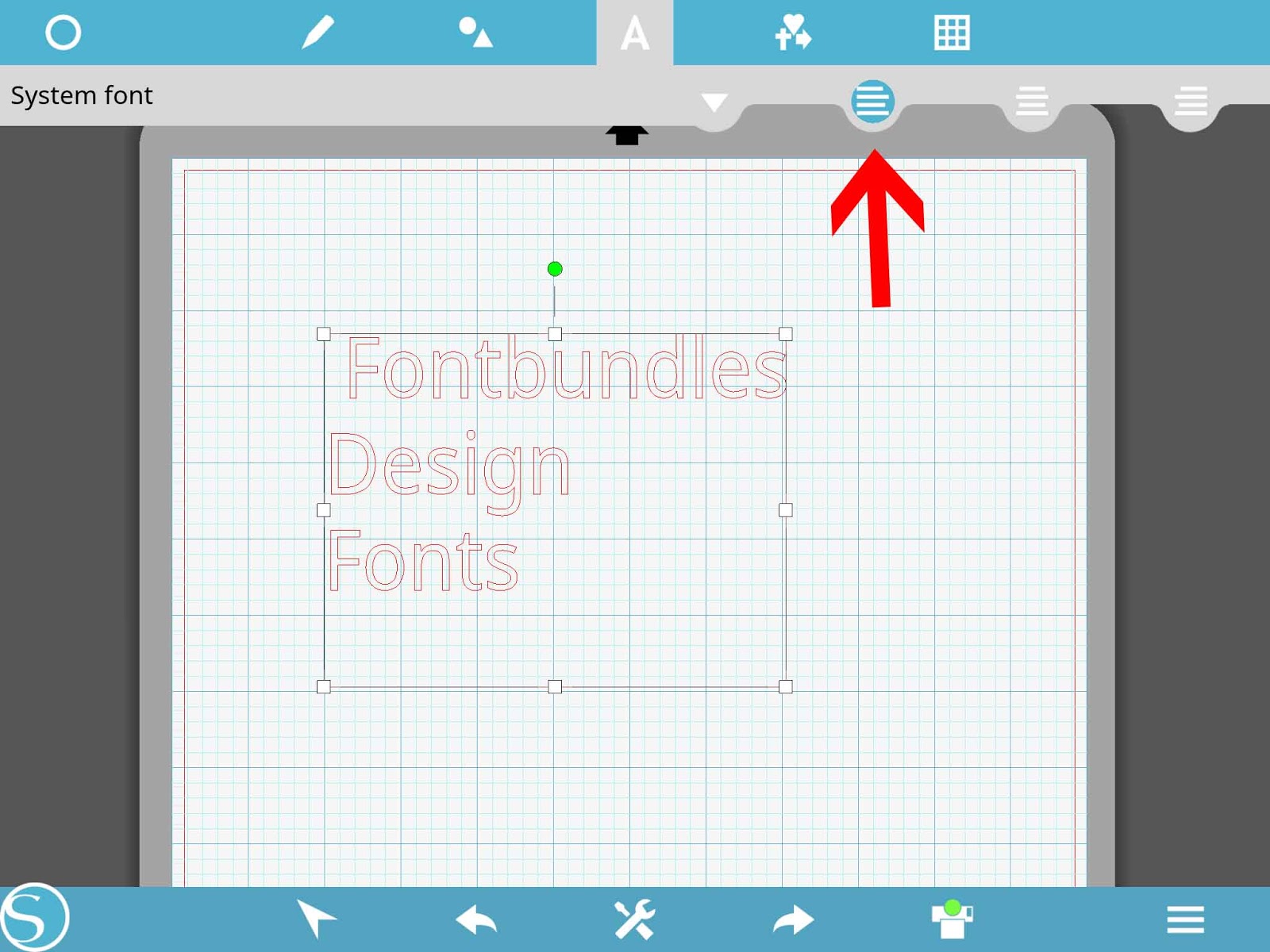
8- Align centre.
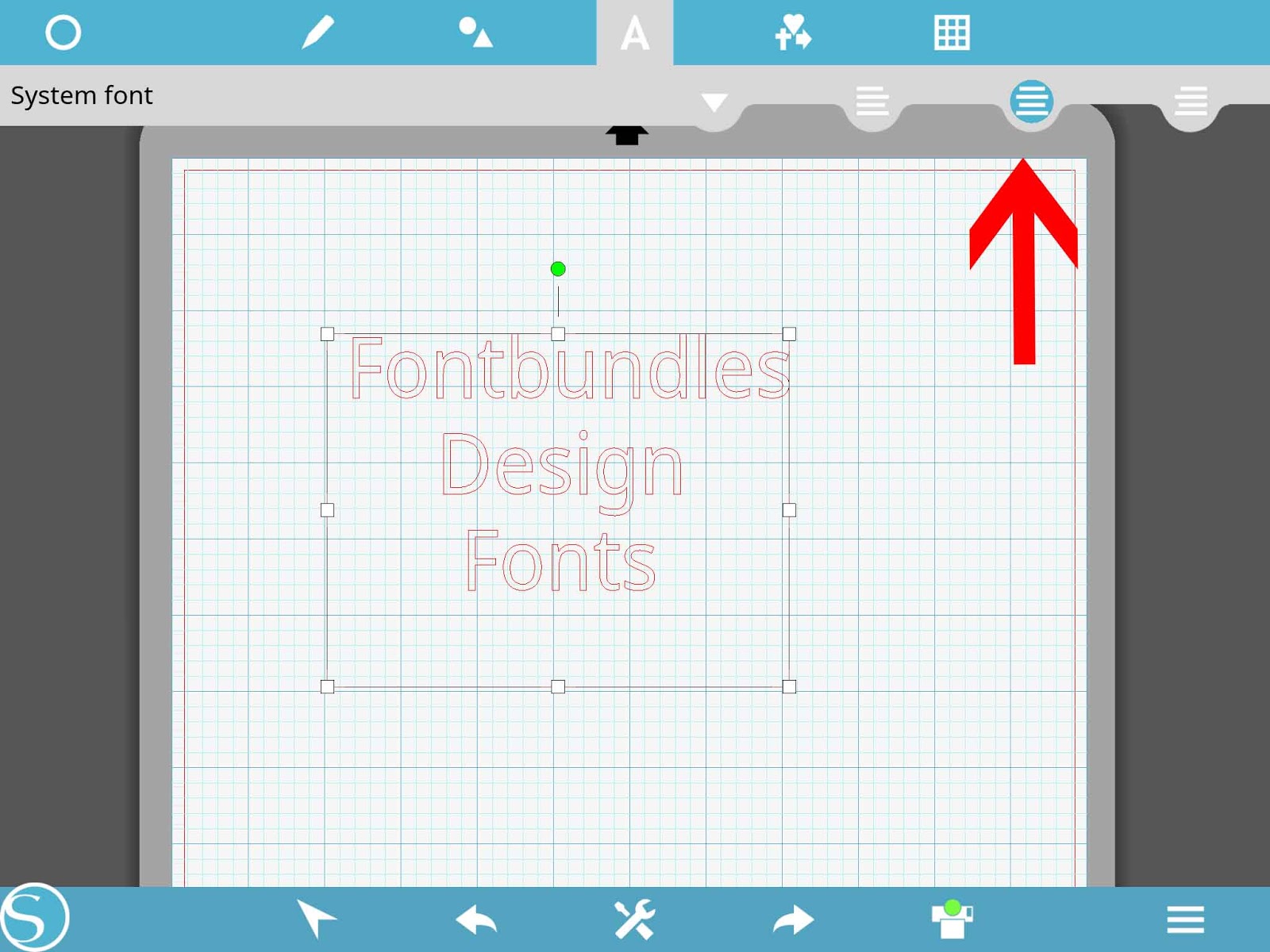
9- Align right.
Related Tutorials
Silhouette Tutorials
Silhouette Mobile App Basics
Learn the basics of how to use the Silhouette Mobile app and its settings in this tutorial.
Silhouette Tutorials
Silhouette Mobile App Drawing Basics
In this tutorial, you will learn all about drawing basics in the Silhouette Mobile app.
Cricut Tutorials
How to Curve Text in Cricut Design Space Mobile App
Today we’ll focus on how to curve Text in Cricut Design Space App....
Cricut Tutorials
Text Options in Cricut Design Space Mobile App
Cricut Tutorials
How to Weld Text in Cricut Design Space Mobile App
In this tutorial we will show you how to weld text in the Cricut Design Space App.
Silhouette Tutorials
Text basics in Silhouette
In this tutorial we will guide you on what you need to know about text basics in Silhouette Studio.