By Design Bundles
Photoshop Tutorials8 min
How to Create a Light Leak in Photoshop
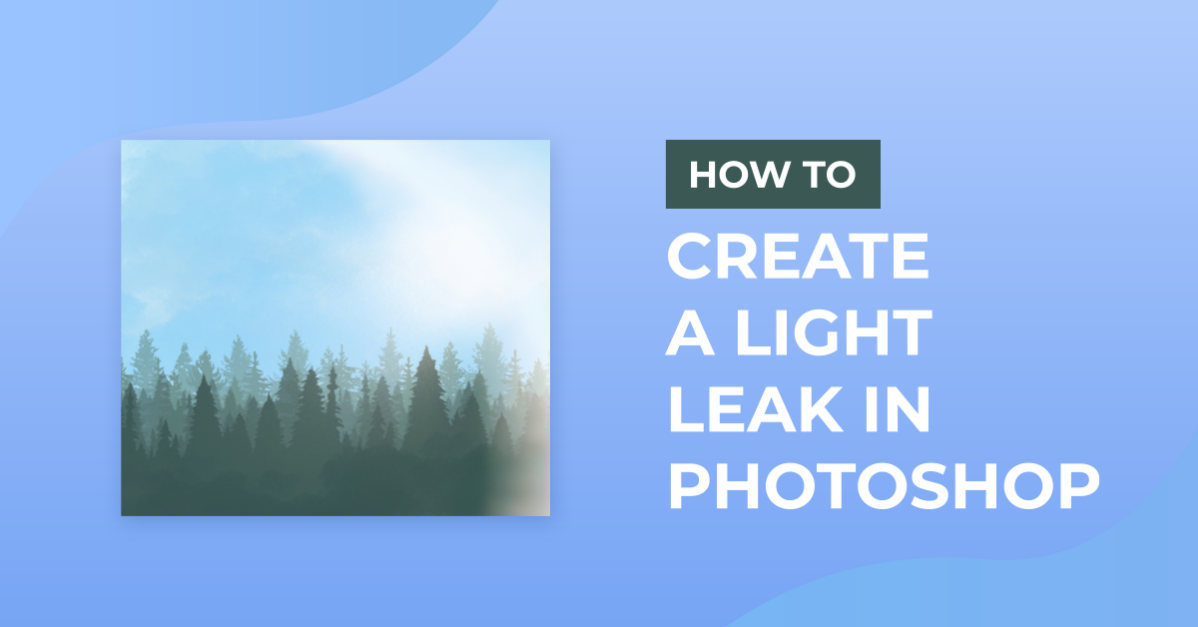
In the days of film, light leaks would unintentionally expose the film with extra light. This was considered an unwanted effect but lately, it has become a popular technique. Light leaks give images a nice dreamy effect, which can be used very creatively. Join in this tutorial as we show you how to create a light leak in Photoshop.
For this tutorial, we will use a forest stock photo to apply a faux light leak effect.
To create the light leak effect we will start by adding a gradient on top of the background image. Open your selected image and create a new Gradient Fill adjustment layer. You can do this by clicking on the small black and white circle at the bottom of the Layers panel.

Next, we will adjust the color of the gradient. To select the gradient colors, make sure that white is your foreground color. Click on top of the Gradient slider on the Gradient Fill panel. Once the Gradient Editor is open choose Color to Transparent.

Colors are represented by little squares called color stops. Click slightly to the right of the first color stop in the Gradient Picker to add another color.
To change the newly added color, double-click on its thumbnail to open the Color Picker window. We chose a bright yellow #f5e20c.

Click to add a third color stop at about the same distance as the others. This time we filled it with a bright orange #f5640c.

To make the effect more realistic you need to tweak the style, scale, and angle of the gradient. We want to give the illusion that the light is coming from the direction of the image’s light source. Make the adjustment as need and once you are done, click Ok.

The gradient needs to be blended into the image to create a better effect. To achieve this we need to change the Blending mode. Make sure the gradient layer is selected. Now change the Blending Mode to Linear Dodge (Add) and the Opacity to 65%.

If you need to adjust the gradient double-click on top of its thumbnail. The Gradient Fill panel will open again and you can change the settings as required.

The Blending mode and Opacity can also be adjusted at any point. We decided to adjust our blending mode to Screen and the Opacity to 50%.

Here’s a look at our image before and after the light leak effect was applied. You can see how making small changes can create a different mood.

If you liked this tutorial make sure to check out our guides on retouching skin in Photoshop and adding lightning to a photo.
For this tutorial, we will use a forest stock photo to apply a faux light leak effect.
Step 1 - Create a Gradient Fill adjustment layer
To create the light leak effect we will start by adding a gradient on top of the background image. Open your selected image and create a new Gradient Fill adjustment layer. You can do this by clicking on the small black and white circle at the bottom of the Layers panel.
Next, we will adjust the color of the gradient. To select the gradient colors, make sure that white is your foreground color. Click on top of the Gradient slider on the Gradient Fill panel. Once the Gradient Editor is open choose Color to Transparent.
Colors are represented by little squares called color stops. Click slightly to the right of the first color stop in the Gradient Picker to add another color.
To change the newly added color, double-click on its thumbnail to open the Color Picker window. We chose a bright yellow #f5e20c.
Click to add a third color stop at about the same distance as the others. This time we filled it with a bright orange #f5640c.
Step 2 - Adjust the size and angle of the gradient
To make the effect more realistic you need to tweak the style, scale, and angle of the gradient. We want to give the illusion that the light is coming from the direction of the image’s light source. Make the adjustment as need and once you are done, click Ok.
Step 3 - Change the Blending mode of the gradient
The gradient needs to be blended into the image to create a better effect. To achieve this we need to change the Blending mode. Make sure the gradient layer is selected. Now change the Blending Mode to Linear Dodge (Add) and the Opacity to 65%.
If you need to adjust the gradient double-click on top of its thumbnail. The Gradient Fill panel will open again and you can change the settings as required.
The Blending mode and Opacity can also be adjusted at any point. We decided to adjust our blending mode to Screen and the Opacity to 50%.
Here’s a look at our image before and after the light leak effect was applied. You can see how making small changes can create a different mood.
If you liked this tutorial make sure to check out our guides on retouching skin in Photoshop and adding lightning to a photo.
Related Tutorials
Photoshop Tutorials
How to Create Speech Bubbles in Photoshop
Learn how to create and edit fun speech bubbles in Photoshop using custom shapes.
Photoshop Tutorials
How to Create a Dusty Texture in Photoshop
Learn how to create a dust texture in Photoshop with this step by step tutorial.
Photoshop Tutorials
How to Create Distressed Edges in Photoshop
Learn how to create distressed edges from scratch in Photoshop using an eraser brush.
Photoshop Tutorials
How to Create a Holographic Text Effect in Photoshop
Discover how to create a holographic text effect in Photoshop with this step by step tutorial.
Photoshop Tutorials
How to Create a Faded Blur Effect in Photoshop
Create a faded blur effect in Photoshop using these technique and add mystery to your images.
Photoshop Tutorials
How to Create a Plaid Pattern in Photoshop
Learn how to easily make plaid patterns in Photoshop.